

Key takeaways
- Four customization options: a header title, a message, a call-to-action button, and brand styles.
- The title appears directly above the video, and the message appears right below it.
- The CTA button can link to a calendar link, phone number, text message, or URL link.
- Brand styles (logo and colors) are set once and apply to all video messages and requests in your workspace.
- The title, message, call-to-action, and brand styles all work on any paid plan, Solo included. A custom domain and removing Sendspark branding start on Growth.
- Two player behaviours are set in workspace settings rather than on the video: autoplay, which starts the video muted when the page opens, and captions.
- Write a header above your video
- Add a message below your video
- Use the Call-to-Actionbutton
- Set Global Styles
1. Write a Header above your video
Write a header to set the scene for your video. This will appear directly above your video.
2. Add a Message below your video
Add a message to drive home key points in your message. This will appear right below your video.
3. Use a call-to-action button
Toggle on the Call-to-Action button to add a button below your video. Refer to these guides for using a calendar link, phone number, text message, or URL link. If you want viewers to answer questions rather than click through, a Dynamic Video Campaign landing page can embed a Paperform directly below the video instead.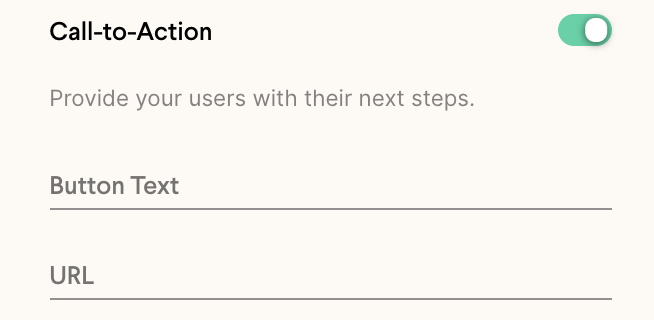
4. Set Global Styles
Add your own logo and brand colors to customize the look and feel of your Sendspark videos.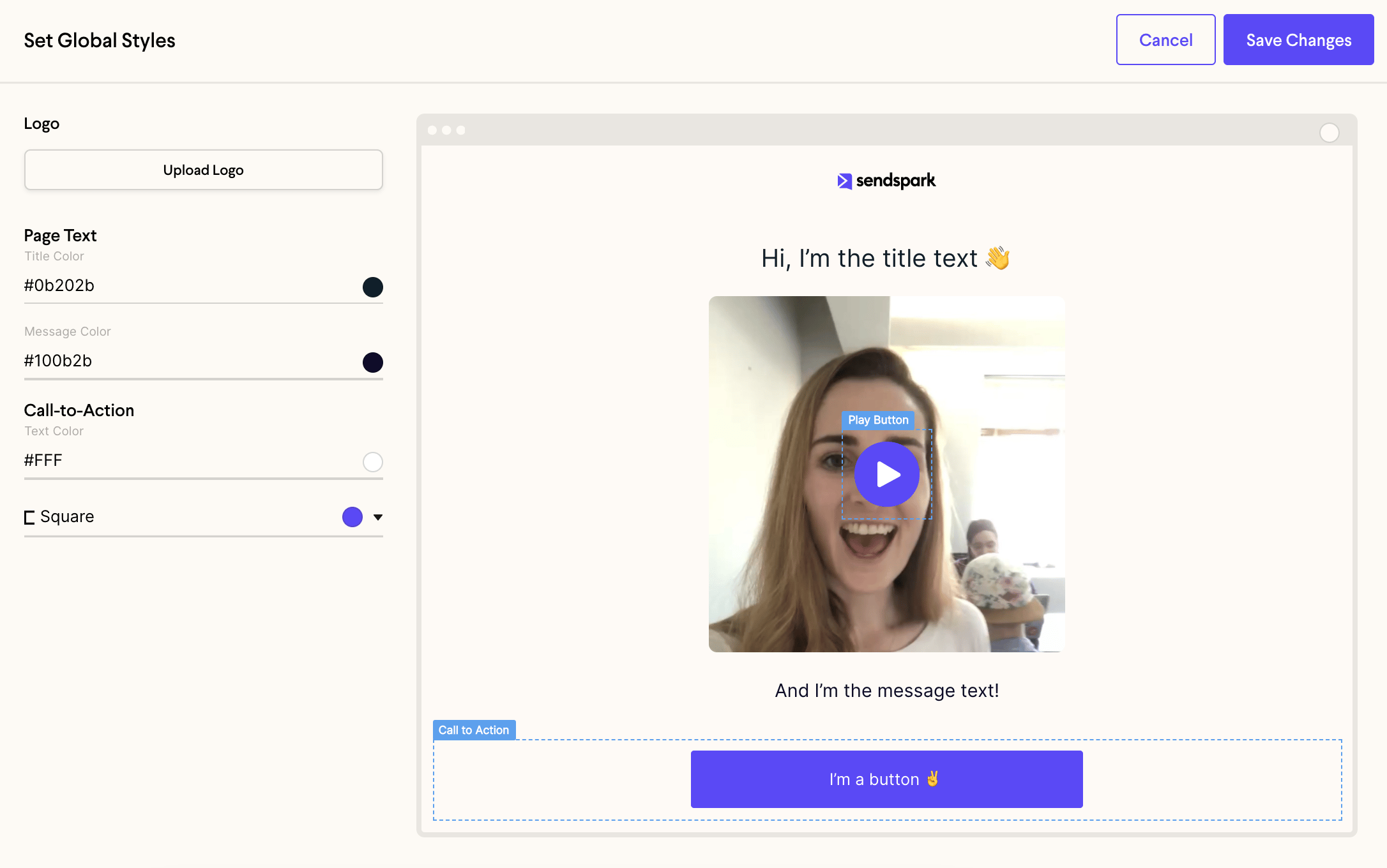
Frequently asked questions
Will an autoplaying video play with sound?
Will an autoplaying video play with sound?
No. Autoplay videos start muted, because most browsers block autoplay with sound and a silent start is less disruptive. If your video relies on AI Voice Cloning in a Dynamic Video, turn autoplay off so viewers press play and actually hear it.
Can I add captions to my video page?
Can I add captions to my video page?
Yes, from Manage Workspace in your Sendspark menu. It’s a global setting that applies to videos recorded afterwards, so existing videos are unaffected. See enable or disable captions.
What plan do I need to customize my landing page?
What plan do I need to customize my landing page?
The title, message, call-to-action, and brand styles are available on any paid plan, including Solo. What starts on Growth is serving the page from your own custom domain and removing Sendspark branding.
Where do the title and message appear?
Where do the title and message appear?
The title appears directly above your video to set the scene, and the message appears right below your video to drive home key points.
Do I have to set brand styles for every video?
Do I have to set brand styles for every video?
No. You set your logo and brand colors once, and they apply to all video messages and requests in your workspace. See setting global styles for more.