

Key takeaways
- There are two ways to mirror your camera: the Flip Camera shortcut on the camera bubble, or the Camera Effects setting.
- The Flip Camera shortcut in the Chrome extension is the fastest option and lets you mirror the bubble back and forth with one click.
- For full-webcam recordings or the Sendspark desktop application, use Camera Effects and the “mirror my camera” toggle.
- Mirroring is a preview/display preference you can turn on or off at any time before recording.
1. Use the “Flip Camera” shortcut on your camera bubble
From the Sendspark Chrome Extension, you can just click the flip icon (its tooltip reads Flip Camera) on your camera bubble preview. This is the fastest and easiest way to flip your camera bubble. Just click on that shortcut, and you can mirror your video back & forth.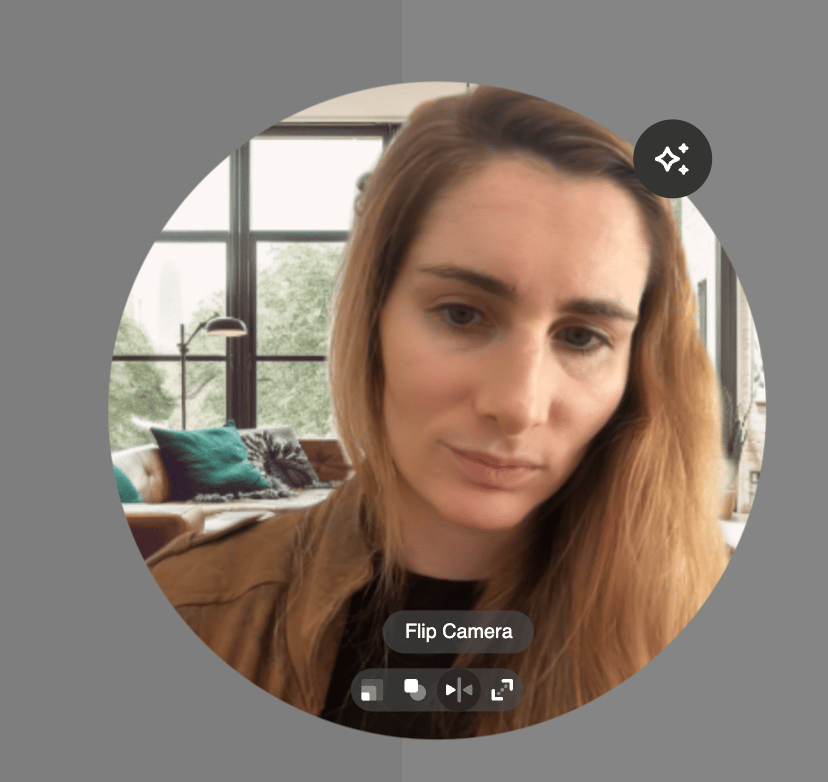
2. Use “Camera Effects”
If you’re recording your full webcam (not just the camera bubble) or using the Sendspark desktop application, you need to use Camera Effects to mirror your camera.- Go into**“Settings”**
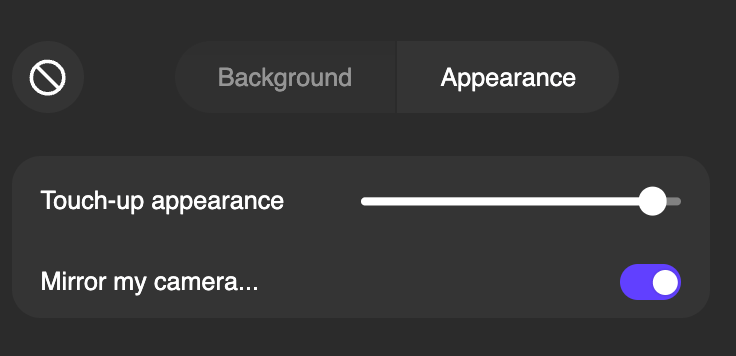
- Switch to the Appearance tab
- Use the Mirror my camera toggle to mirror the bubble
- If you’d like to change the setting, click on the “mirror my camera” toggle to turn it on or off
Which method should I use to flip my camera?
Use the Flip Camera shortcut when you’re recording with just the camera bubble in the Chrome extension, it’s the quickest way. Use Camera Effects when you’re recording your full webcam (not only the bubble) or working in the Sendspark desktop application, since the shortcut isn’t available in those modes.Frequently asked questions
What's the fastest way to flip my camera bubble?
What's the fastest way to flip my camera bubble?
Click the Flip Camera button on your camera bubble preview in the Sendspark Chrome extension. It mirrors your video back and forth instantly with a single click.
How do I mirror my camera when recording my full webcam?
How do I mirror my camera when recording my full webcam?
Use Camera Effects. Go into Settings, toggle Camera Effects to on, and the camera should mirror automatically. You can then use the “mirror my camera” toggle to turn it on or off.
Can I flip the camera in the Sendspark desktop application?
Can I flip the camera in the Sendspark desktop application?
Yes. The desktop app uses Camera Effects to mirror your camera rather than the bubble shortcut. Turn on Camera Effects in Settings and use the “mirror my camera” toggle.
Does flipping my camera change what viewers see?
Does flipping my camera change what viewers see?
Flipping mirrors your camera view so it feels natural to you while recording. You can toggle it on or off before recording depending on the look you want.