

Key takeaways
- Filters let you see only videos that have had activity, so you can focus on your most-engaged content.
- CTA Clicked shows only videos where a call-to-action button was clicked.
- Liked shows only videos that received a thumbs up from a viewer; Played shows only videos played by someone other than yourself.
- Refresh the page to clear the filters. You can also search by title or filter by creators.
How to Filter Videos
- Navigate to the correct video library or folder
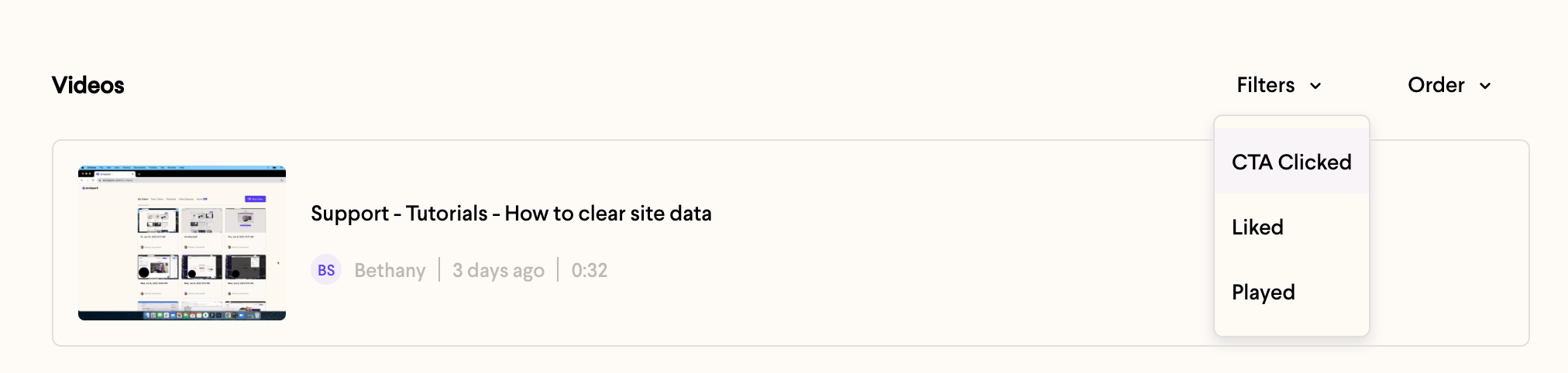
- Under Filters, select the filter you would like to use:
- **CTA Clicked:**shows only videos that have had a call-to-action button clicked on.
- Liked: shows only videos that have a received a thumbs up from a viewer
- Played: shows only videos that have been played by someone other than yourself
- Refresh the page to clear filters
Frequently asked questions
What do the three filters mean?
What do the three filters mean?
CTA Clicked shows only videos that have had a call-to-action button clicked. Liked shows only videos that received a thumbs up from a viewer. Played shows only videos that have been played by someone other than yourself.
Does 'Played' count my own views?
Does 'Played' count my own views?
No. The Played filter shows videos that have been played by someone other than yourself, so your own views don’t cause a video to appear.
How do I clear the filters?
How do I clear the filters?
Refresh the page to clear any filters you’ve applied and return to your full video list.
Can I combine this with other ways of finding videos?
Can I combine this with other ways of finding videos?
Yes. You can also search videos by title or filter by creators in your Team Library to narrow down your library.