

Key takeaways
- Replacing a video keeps the original share link and landing page URL unchanged.
- This is ideal after a campaign has launched and some recipients have already watched the video.
- Open the video’s edit page, click here under Replace Video, and choose the replacement video.
- Refresh the landing page to confirm the video changed while the link stayed the same.
In this guide, I’ll show you how to replace a video that has already been shared. This feature is particularly useful if you’ve launched a campaign, shared the link, and some recipients have already watched the video. Instead of deleting the link, you can simply update the video while keeping the same URL.
Steps to Replace a Shared Video
- Prepare the New Video
- First, record the new video you want to use. If you already have the new video ready, you can proceed to the next step.
- Access the Edit Page
- Navigate to the edit section of the video you want to replace by simply clicking on the video listed in your library. You will see the shared link and the current video.
- Replace the Video
- On the edit page, under Replace Video, click here in “Upload or select a video here” to search for and select the new video you want to use.
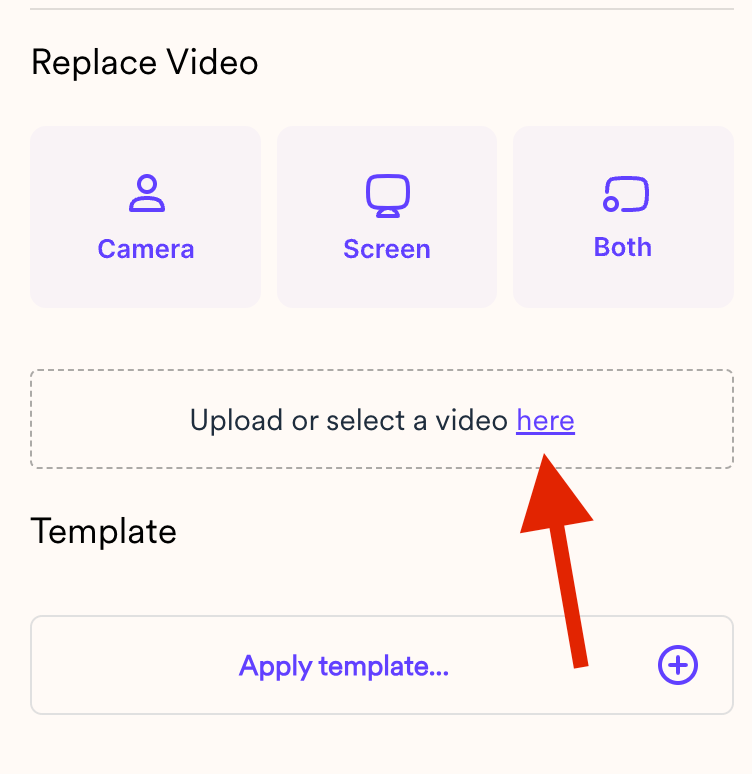
- Confirm the Replacement
- With a single click, the system will replace the old video with the new one. This process is quick and seamless.
- Verify the Update
- Refresh the landing page and watch the video change while the link remains the same.
Frequently asked questions
Why replace a video instead of deleting it and sharing a new one?
Why replace a video instead of deleting it and sharing a new one?
If you’ve already launched a campaign and some recipients have watched or bookmarked the link, deleting it would break that link. Replacing the video keeps everyone on the same URL while updating what they see.
Where do I replace the video?
Where do I replace the video?
Open the video from your library to reach its edit page. There you’ll see the shared link and the current video — click here under Replace Video to search for and select the new video.
Do I need to record the new video first?
Do I need to record the new video first?
Have your replacement video ready before you start. You can record a new video first, or select one you already have, then swap it in on the edit page.