

Key takeaways
- Touch-up appearance applies real-time effects to your video feed, useful for sales pitches, support videos, or team updates.
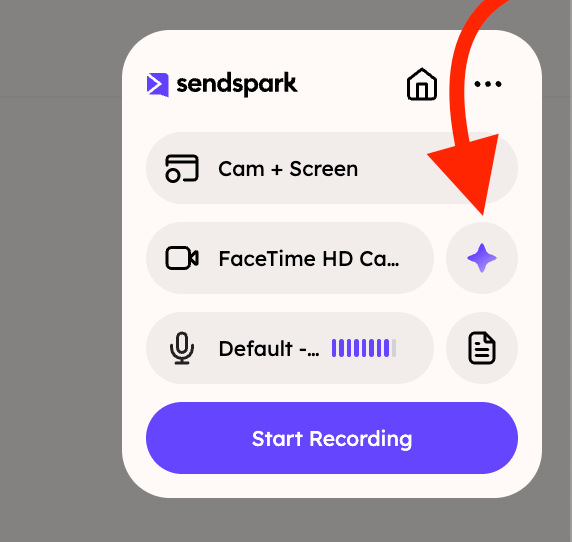
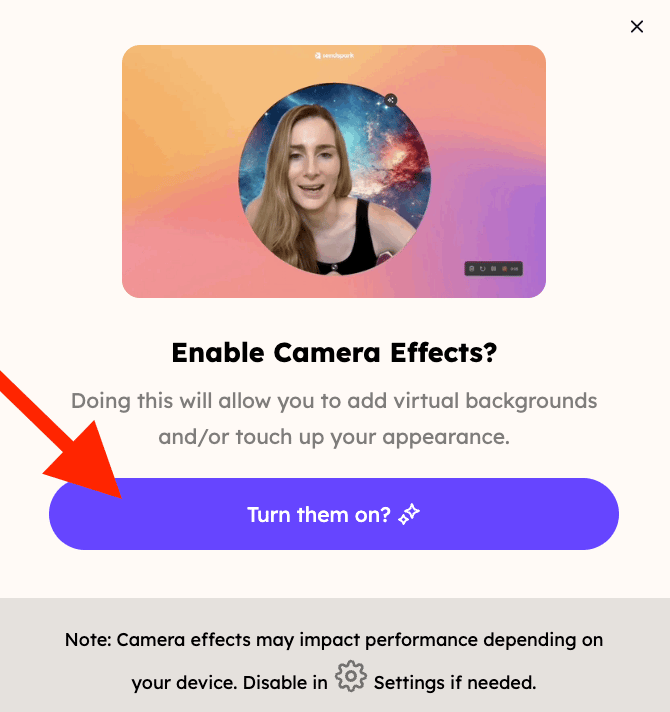
- Start a recording from the Chrome extension, open Effects, and make sure Camera Effects is on.
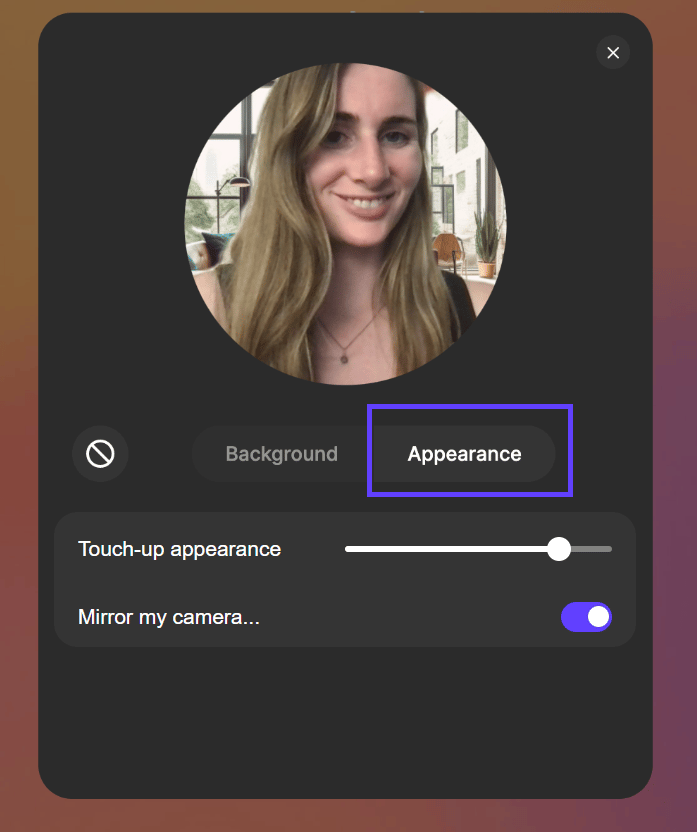
- Click Appearance and adjust the slider to find the setting that suits you.
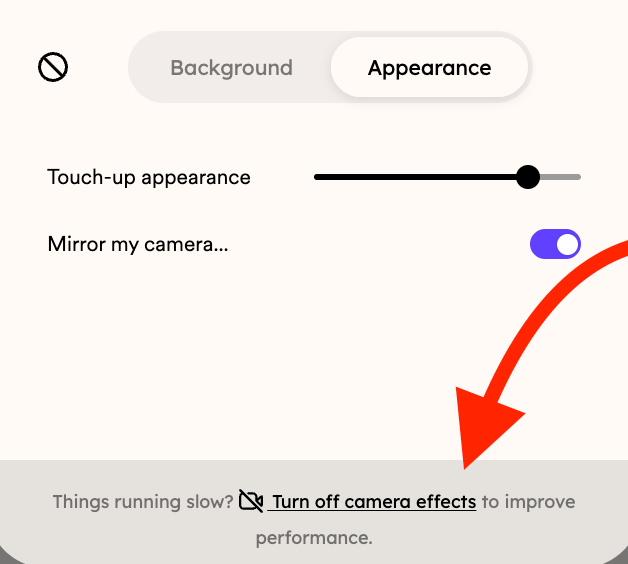
- If the feature slows down your computer, you can turn it back off at any time.
Regardless of the purpose of your video, whether it’s a sales pitch, a customer support video, or a team update, Touch-up appearance helps you present yourself in the best light. Let’s dive into how you can use this feature to enhance your Sendspark videos:
- Simply click on the Chrome extension to start a recording and once you have your App displayed, click the sparkle icon beside the camera row and turn camera effects on — Sendspark asks first, so click Turn them on?.
Frequently asked questions
How do I turn on Touch-up appearance?
How do I turn on Touch-up appearance?
Click the Chrome extension to start a recording, open your app, click Effects, make sure Camera Effects is on, then click Appearance and adjust the slider.
Can I control how strong the effect is?
Can I control how strong the effect is?
Yes. Under Appearance, drag the slider to find the setting that suits your preferences.
What if the feature slows down my computer?
What if the feature slows down my computer?
You can turn it back off at any time if you feel it is slowing your computer down.
When is Touch-up appearance useful?
When is Touch-up appearance useful?
Any time you want to present yourself in the best light — whether it’s a sales pitch, a customer support video, or a team update.