

Key takeaways
- Start from your Sendspark dashboard and click the Upload Video icon.
- Add your video by drag & drop or by using browse files to select it from your computer.
- Sendspark accepts .mp4 and .mov files (see supported formats).
- Go to your Sendspark dashboard
- Click the Upload Videoicon

- Either drag a video into the Drop your video or browse files area, or click where it says browse filesto access the files on your computer
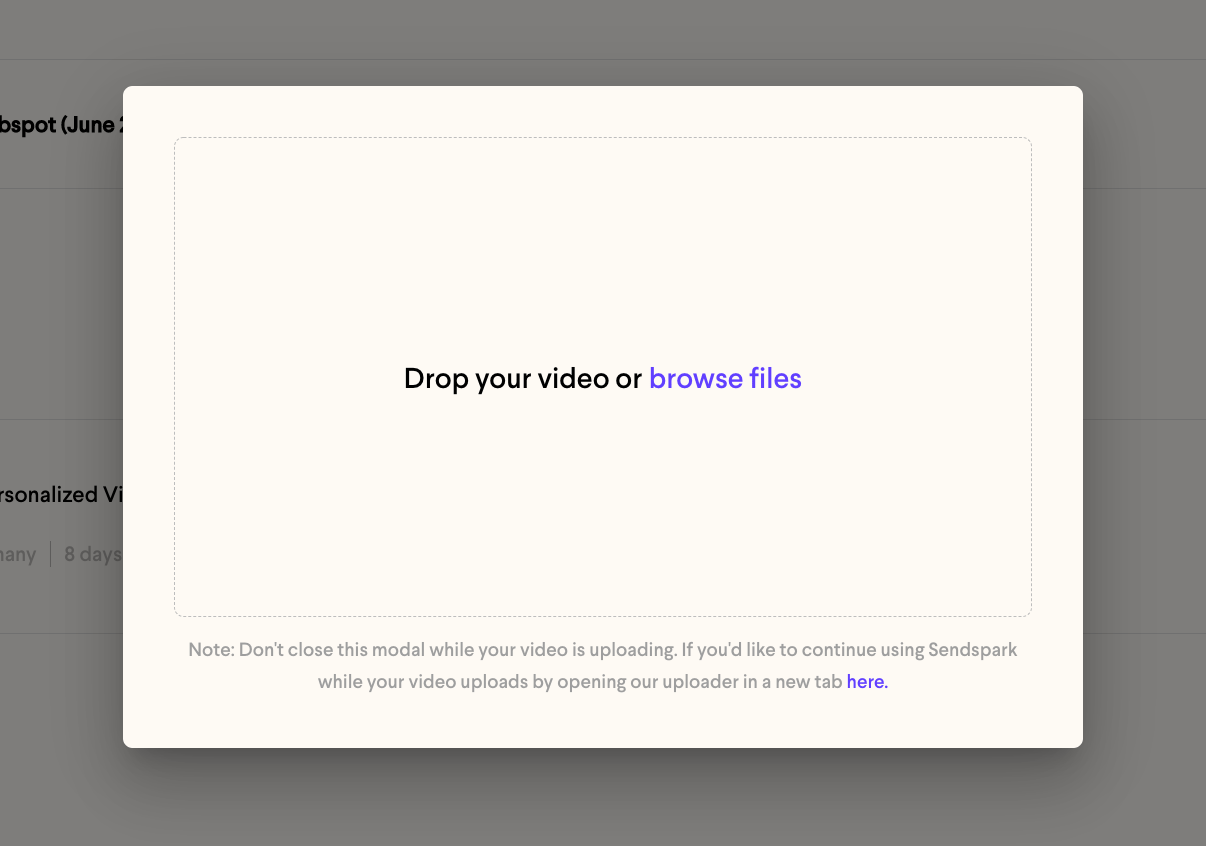
- Select the file you want to upload
- That’s it! Just wait patiently and your video should be there soon 😊
Frequently asked questions
Which video formats can I upload?
Which video formats can I upload?
Sendspark supports .mp4 and .mov files. Formats like .avi, .wmv, .flv, .mkv, and .m4v will not upload. See supported video formats for the full list.
How do I add my video file?
How do I add my video file?
Either drag the video into the Drop your video or browse files area, or click browse files to select it from your computer.
Why is my upload taking a long time?
Why is my upload taking a long time?
A slow upload is often related to your internet upload speed. See why is my video uploading slowly for troubleshooting steps.