

Key takeaways
- Use this to recover a video after a lost internet connection or a problem during upload.
- It only works if you have not closed the Desktop App since you last recorded the video; if the app was fully closed or your computer restarted, the option won’t be available.
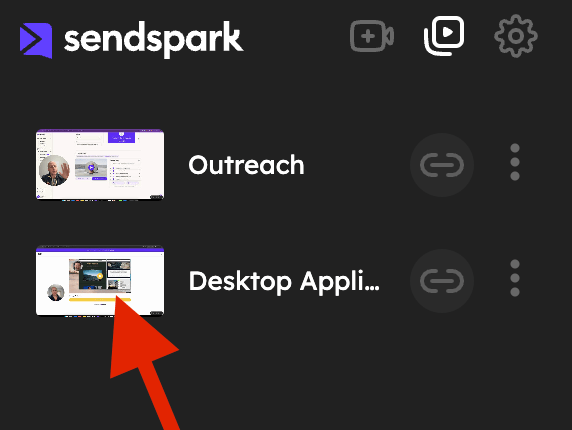
- Open the Desktop App and head to the middle play icon button, then click the thumbnail of the video you need.
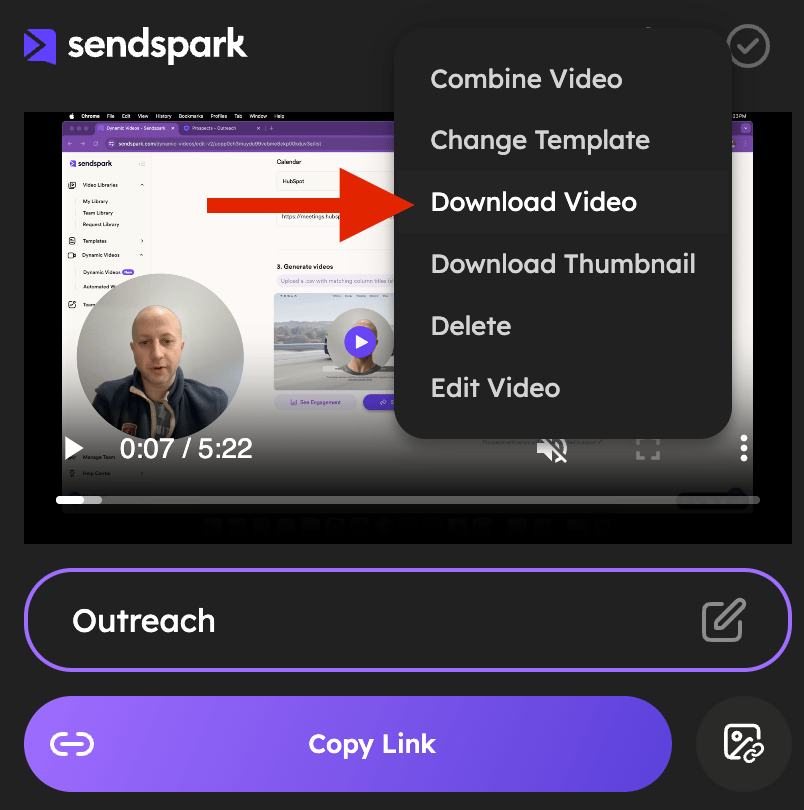
- Click the three dots for Options, where you’ll be able to download your video and attempt a re-upload.
Have you lost your internet connection? Did something go wrong during your video upload?
In this quick tutorial, you’ll learn how to find and retrieve your video to attempt a re-upload afterward. Note: this only works if you have not closed your Desktop App since you last recorded the video you want to retrieve. If the App has been completely closed and or your computer has been restarted since then, this option won’t be available 1) Click on your Desktop App icon to open it and head to the middle play icon button: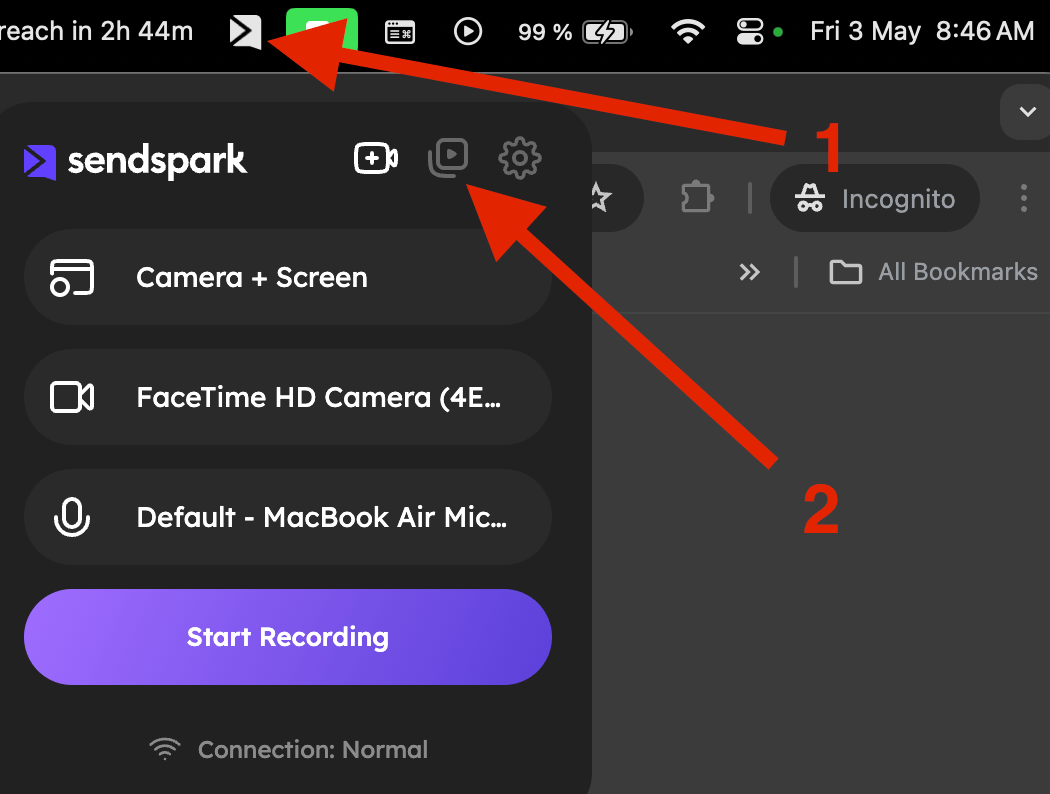

Frequently asked questions
When can I recover a video this way?
When can I recover a video this way?
Use this when you’ve lost your internet connection or something went wrong during your video upload, so you can find and retrieve the video to attempt a re-upload.
Will this work if I already closed the Desktop App?
Will this work if I already closed the Desktop App?
No. This only works if you have not closed your Desktop App since you last recorded the video. If the app has been completely closed, or your computer has been restarted since then, this option won’t be available.
How do I find the video in the Desktop App?
How do I find the video in the Desktop App?
Open the Desktop App and head to the middle play icon button. Then click the thumbnail of the video you need to retrieve.
How do I get the file back?
How do I get the file back?
Click the three dots for Options on the video thumbnail, and you’ll be able to download your video and re-upload it.