

Key takeaways
- A video request link is a public recording link customers use without a Sendspark account or any install.
- Share one link across email, Intercom, Zendesk, or Slack — you can reuse the same link for many customers.
- Recorded videos upload automatically to your account and notify you by email; all workspace members can view them.
- You can white-label request pages with your own logo and brand styles, and download videos as MP4 on the Solo plan and above. With the Chrome Extension you can insert a request link right from Intercom chat.
How Request Video Works for Customer Support
With Sendspark Request Video, you can generate a “video request link.” This is a public recording link that your customers can use to record videos, without ever signing up for Sendspark directly or installing anything. You can send this link to your customer in any of your usual support channels. Then, they can click the link to record their video (Camera, Screen, or Upload). After your customer records a video, the video will automatically upload to your Sendspark account, and you will receive a notification that it’s ready for you to review. From here, you’ll be able to watch, download, or share the video internally. 🤔 Want to see how it will look for your customers? request a video from Sendspark to record a video for our support team. (You’re also welcome to schedule time with our sales team to learn more about features and functionality).Setup Guide - Start Requesting Videos for Customer Support
This guide will help you start requesting videos from customers in less than 10 minutes.1. Create Sendspark Account (Free)
Sign up for Sendspark for free sign up for Sendspark. If you already have a Sendspark account, please log in to continue with this guide.2. Set Brand Styles
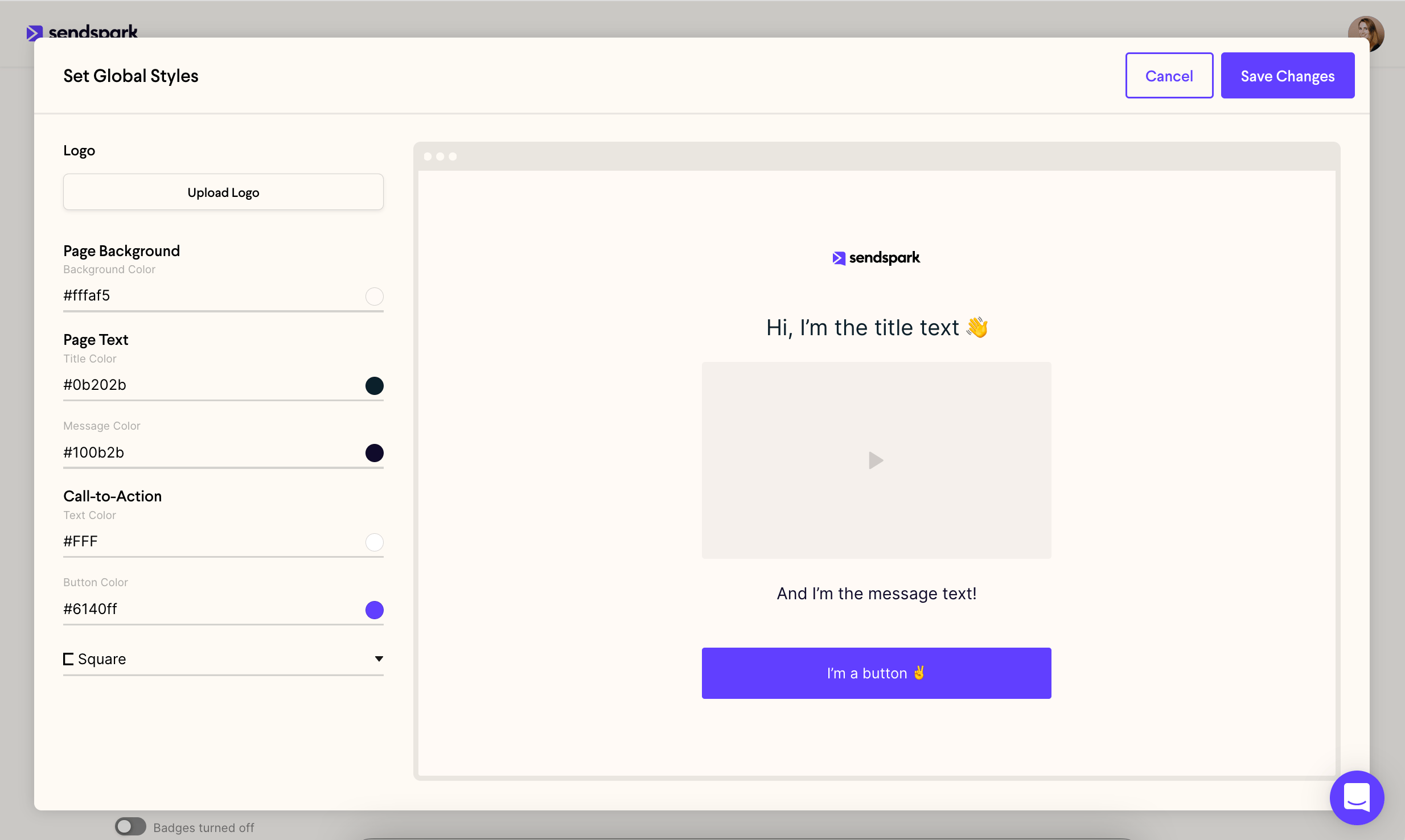
You can customize Video Request pages with your own logo and brand styles, for a more consistent experience for customers. See how to customize your request video pages for which plans include each branding option.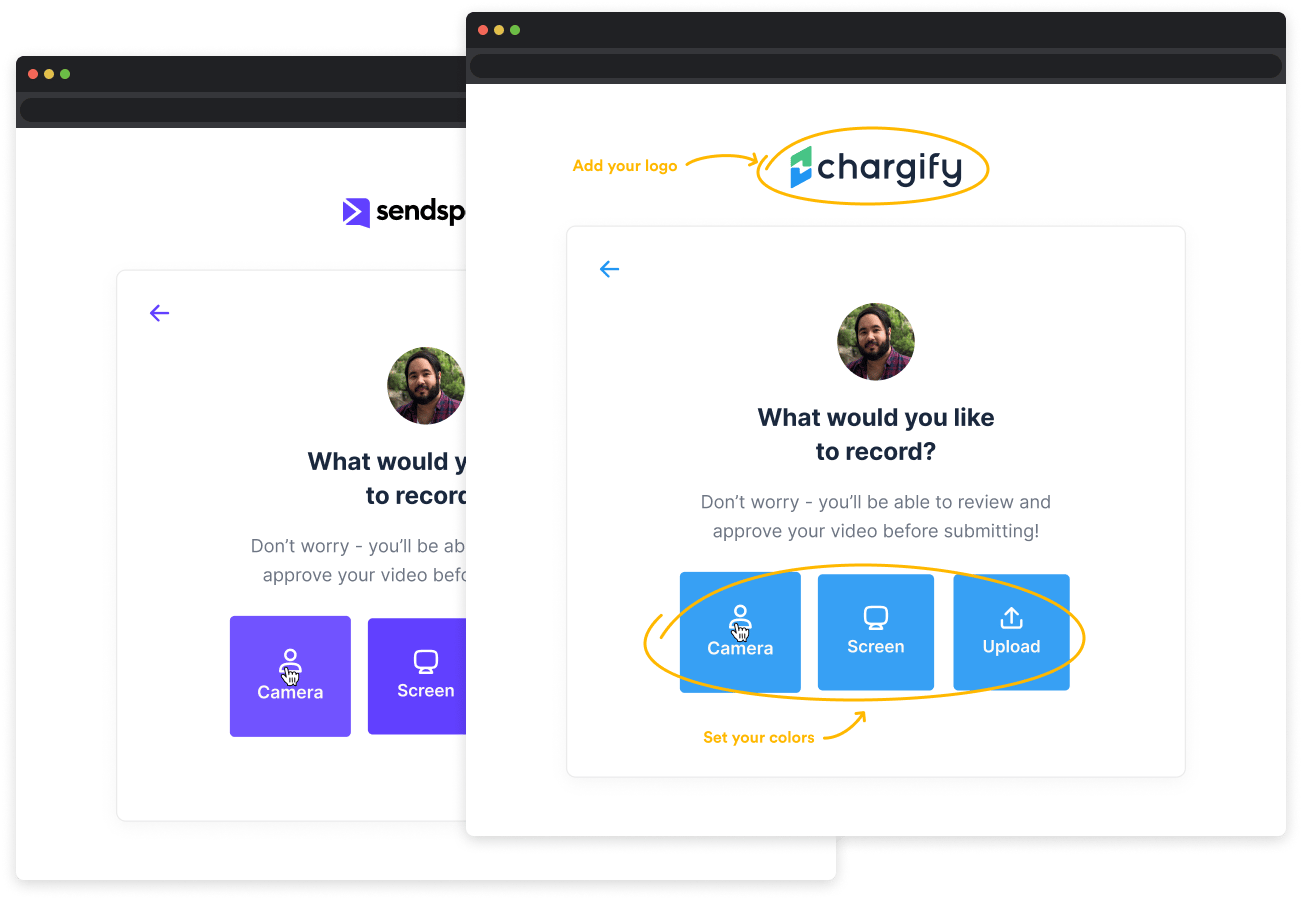
3. Generate Request Video Link
Navigate to your Request Library in Sendspark. Click on the “Copy Request Link” button to both generate a video request link and copy it to your clipboard.
4. Share Request Video Link with Customers
Paste the request video link directly into your reply to a customer. This works well in email, Intercom or Zendesk chat messages, Slack, or anywhere else you might be chatting with customers.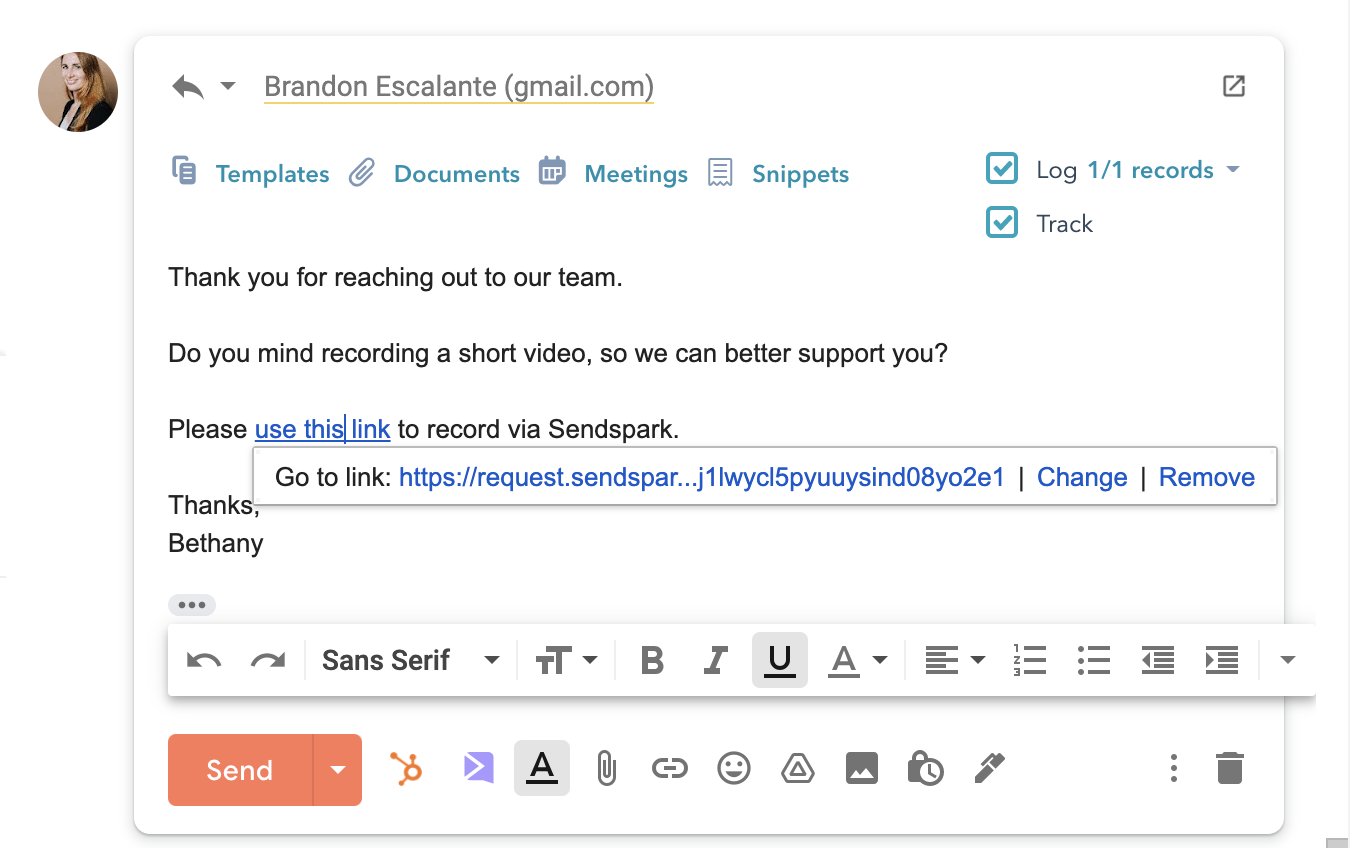
5. Review Video
Once a customer records a video, you will be notified via email. You can now view this video directly in your Sendspark account.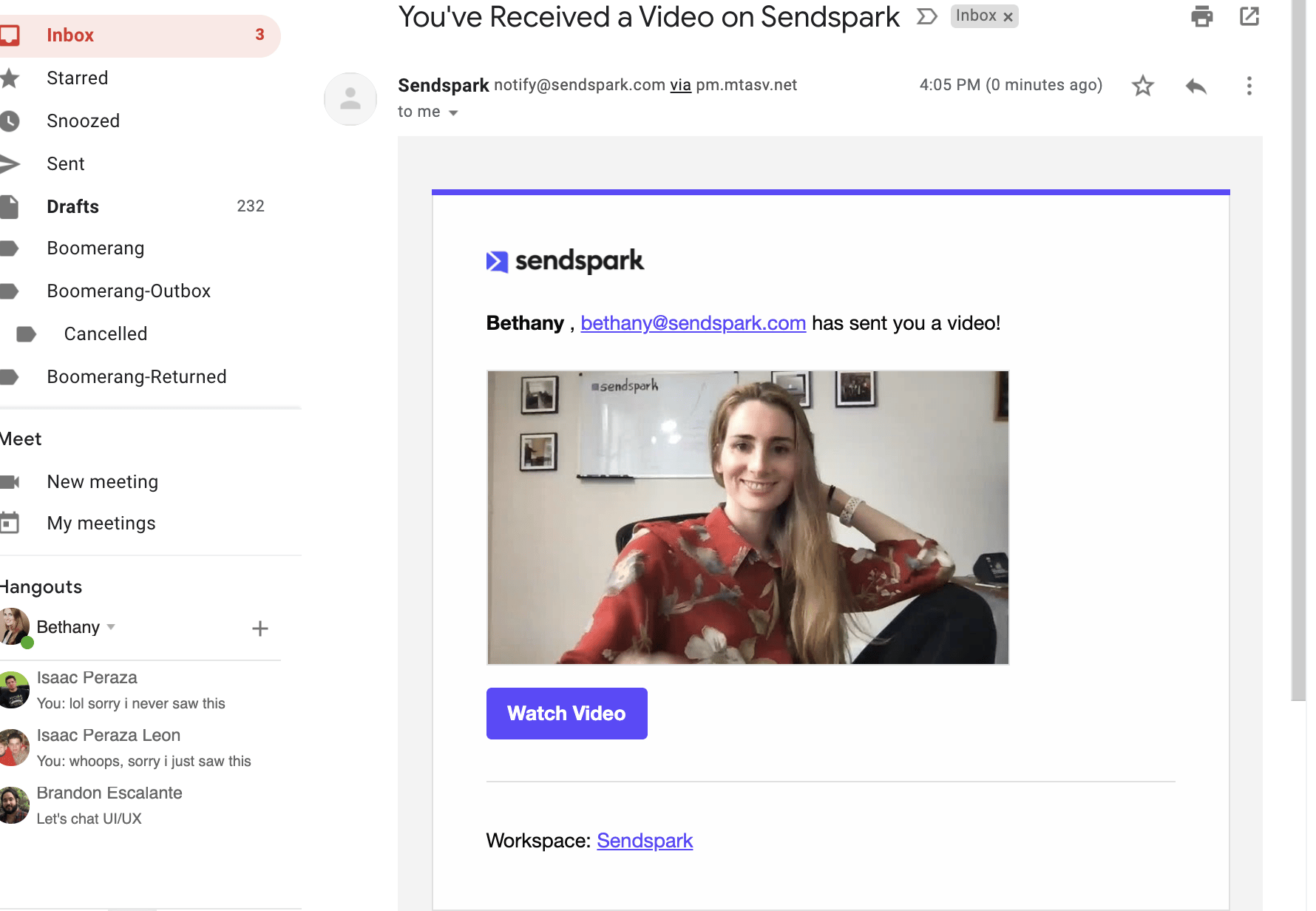
6. Download or Share Video
If you’d like, you can download the video as an .MP4 file (Solo plan and above), or convert the video to a shareable video page (all users) to share via a public URL.
7. Bonus - Request Videos from Intercom
Do you use Intercom for support? Well, you’re in luck… You can request videos right from Intercom chat with our Chrome Extension! All you have to do is install the Sendspark Chrome Extension, and you’ll automatically see Sendspark in your Intercom chat window.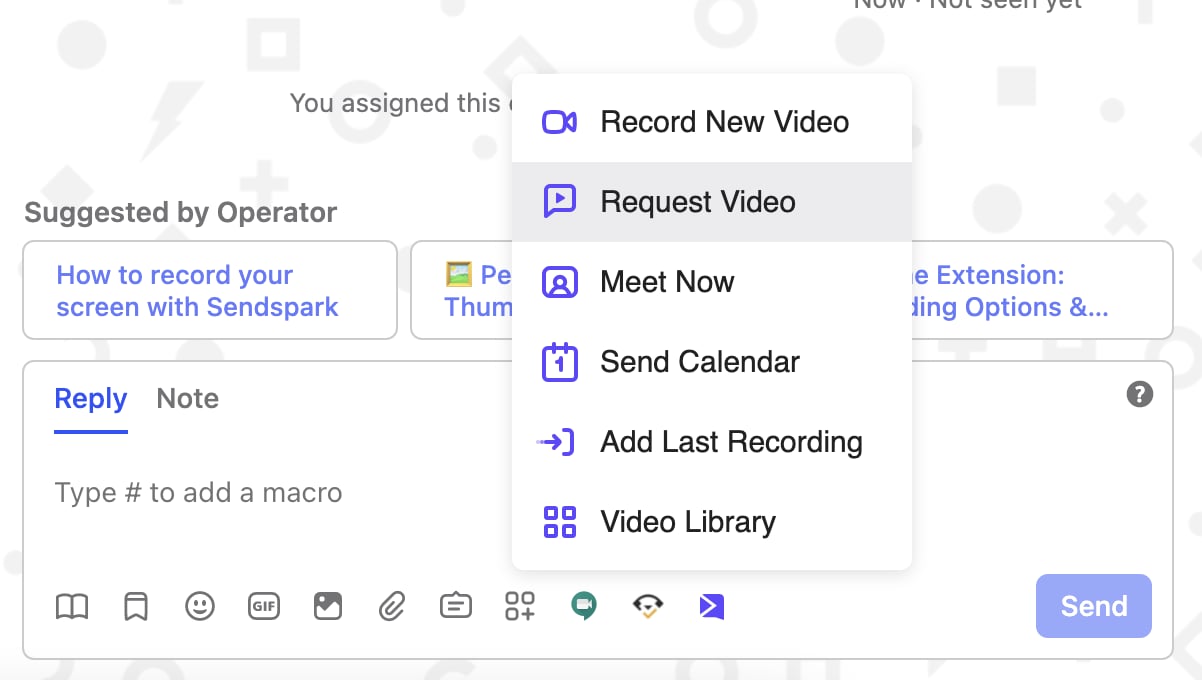
Frequently asked questions
Do customers need a Sendspark account to record a video?
Do customers need a Sendspark account to record a video?
No. The request link is a public recording link, so your customers can record a video (face, screen, or upload) without ever signing up for Sendspark or installing anything.
Can I reuse the same request link for multiple customers?
Can I reuse the same request link for multiple customers?
Yes. You do not need a new link each time. One request video link can be sent to as many customers as you like.
How do I request videos directly inside Intercom?
How do I request videos directly inside Intercom?
Install the Sendspark Chrome Extension and you’ll automatically see Sendspark in your Intercom chat window. Click the Sendspark icon and select “Request Video” to insert a request link into your draft to approve and send.
Who on my team can see requested videos?
Who on my team can see requested videos?
All members of your workspace on Sendspark can view the videos in your Video Request tab.
Can I download a requested video?
Can I download a requested video?
Yes. You can download the video as an MP4 file, which is available on the Solo plan and above, or convert it to a shareable video page (available to all users) to share via a public URL.