

Key takeaways
- Paste the settings link into your address bar rather than clicking it, then set Camera and Microphone to “Allow.”
- After granting permission, click the Sendspark icon in your browser to start recording.
- If your camera or microphone still isn’t detected, check that no other app is controlling it and that the correct device is selected.
- If Record does nothing at all and the timer sits at 0:00, the block is at the operating system level rather than in Chrome. See permissions missing.
1. Paste this link into your browser to access your Chrome settings:
chrome://settings/content/siteDetails?site=chrome-extension%3A%2F%2Fblimjkpadkhcpmkeboeknjcmiaogbkph%2F&search=camera 👆 Make sure you’re pasting, not clicking!2. Set both (A) Camera and (B) Microphone to “Allow”
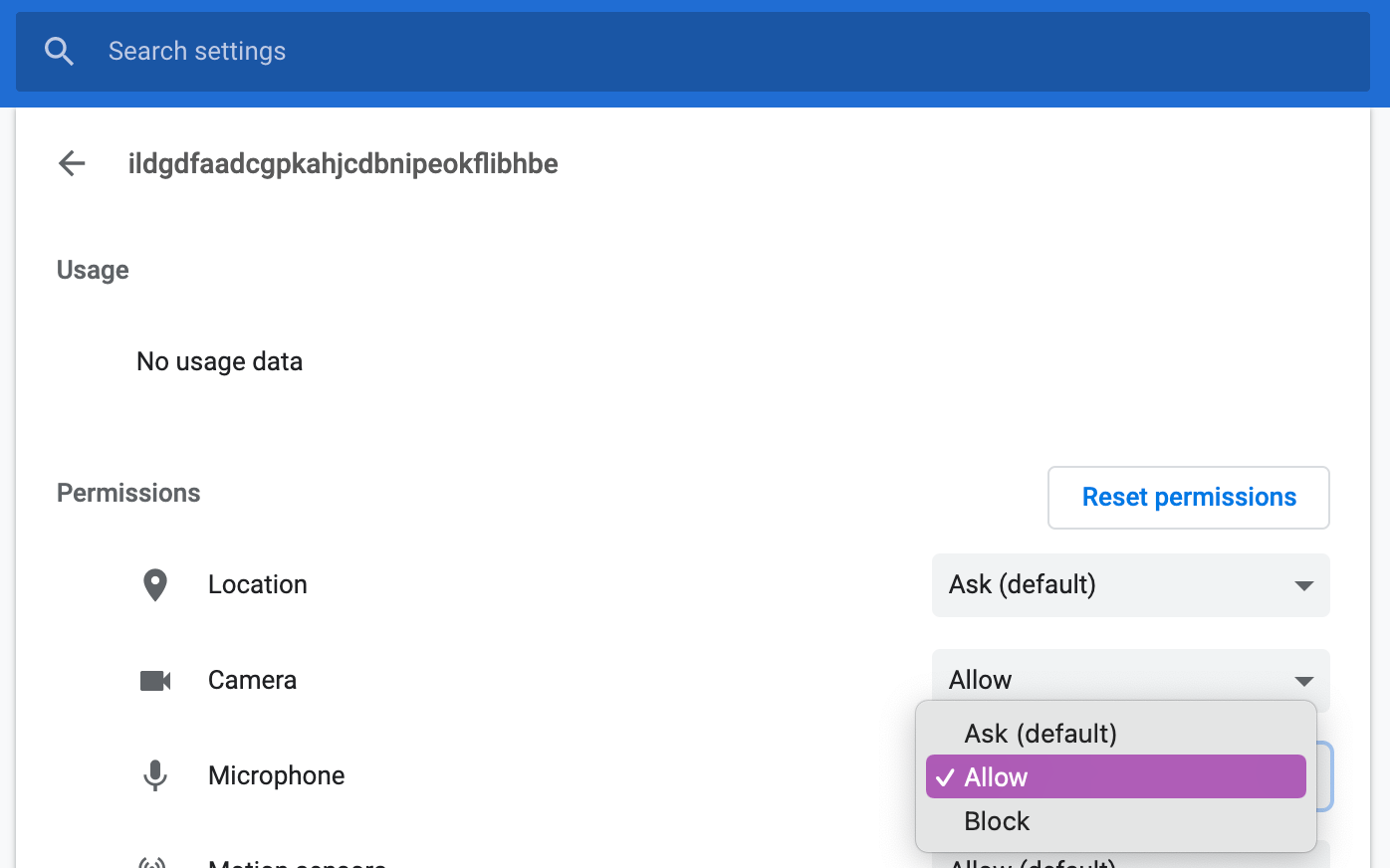
3. Click on the Sendspark icon in your browser to start recording

Explore related articles:
- Why Isn’t My Camera Working?
- Permissions Missing, for when Record does nothing and the timer stays at 0:00
Frequently asked questions
Why do I need to paste the link instead of clicking it?
Why do I need to paste the link instead of clicking it?
Chrome’s camera and microphone settings page opens correctly when the link is pasted into the address bar. The same instruction applies when granting permissions to sendspark.com itself.
I clicked Record and nothing happened. The timer stays at 0:00.
I clicked Record and nothing happened. The timer stays at 0:00.
That’s a different problem from Chrome permissions. Your operating system has most likely revoked Chrome’s camera and microphone access, so Chrome never gets as far as asking. Re-enable it at the OS level, following permissions missing.
The extension still can't detect my camera or microphone. What should I do?
The extension still can't detect my camera or microphone. What should I do?
Make sure no other application (such as OBS or Zoom) is controlling your camera or mic, connect the device directly to your computer rather than through a hub, and select the correct device in the extension’s Settings. See Camera or Microphone not detected / No Inputs.
Do I also need to give permission to the Sendspark website?
Do I also need to give permission to the Sendspark website?
Yes. If you record from sendspark.com as well as the extension, set Camera and Microphone to “Allow” for the site too, then refresh and try again. See Why Isn’t My Camera Working?.