

Key takeaways
- The recording toolbar (pause, restart, and delete controls) can be hidden for cleaner, toolbar-less videos.
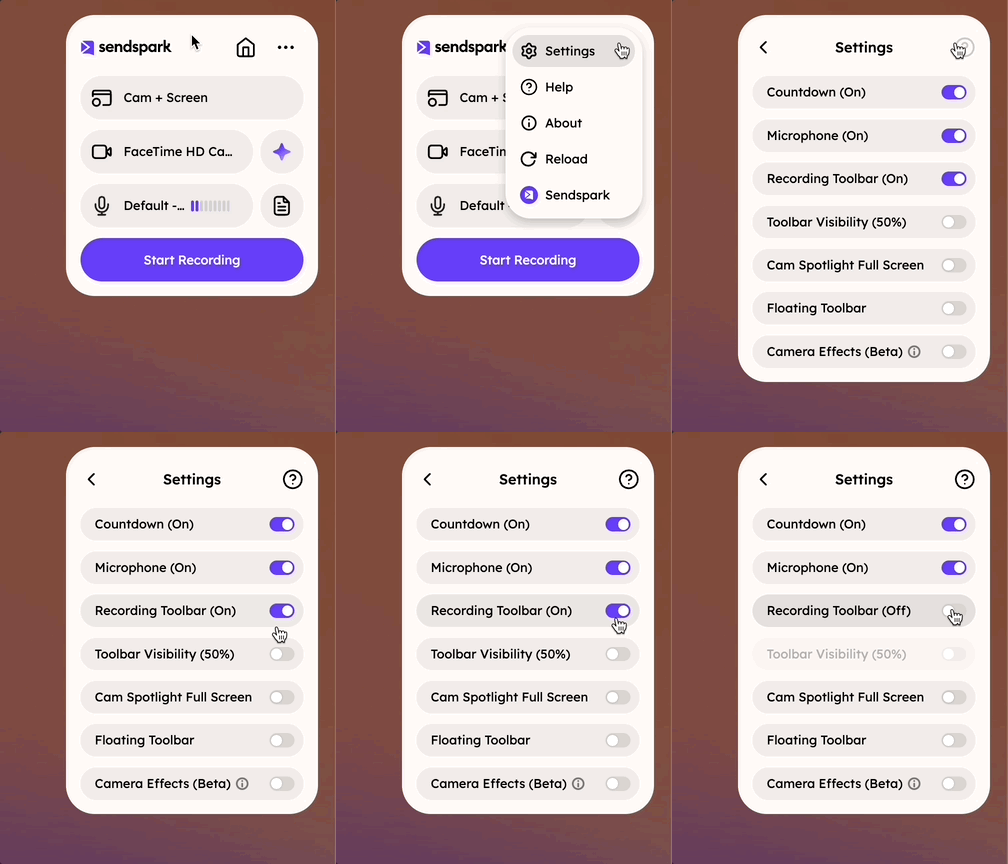
- Hide it in the Sendspark Chrome Extension: click Settings, then toggle Toolbar (On) to Toolbar (Off).
- With the toolbar hidden, you can still use its features through keyboard shortcuts. See recording shortcuts and hotkeys for the full list.
- Pause and resume with Alt (ALT) + Shift (⇧) + R.
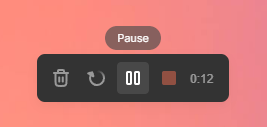
How to Hide the Recording Toolbar
- Launch the Sendspark Chrome Extension
- Click the … overflow icon, then Settings
- Toggle Recording Toolbar (On) to Recording Toolbar (Off)
Use Hotkeys
If you hide the toolbar, you can still use the toolbar features with keyboard shortcuts.- Pause & Resume: Alt (ALT) + Shift (⇧) + R
Frequently asked questions
How do I hide the Sendspark recording toolbar?
How do I hide the Sendspark recording toolbar?
Launch the Sendspark Chrome Extension, click Settings, and toggle Toolbar (On) to Toolbar (Off). Your recordings will then be captured without the toolbar showing.
What's the shortcut to pause and resume a recording?
What's the shortcut to pause and resume a recording?
Pause and resume with Alt (ALT) + Shift (⇧) + R.
Why would I hide the recording toolbar?
Why would I hide the recording toolbar?
The toolbar makes it easy to pause, restart, or delete recordings, but if you don’t want it to appear in your videos you can hide it to get polished, toolbar-less videos.