

- Resets the extension connection
- Fixes temporary glitches
- Ensures you’re running the latest available version
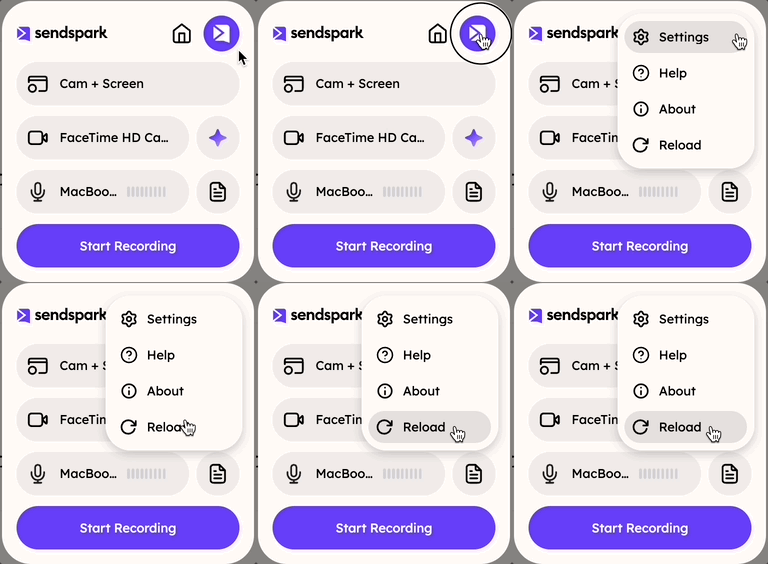
- Click the Extensions icon in Chrome.
- Find the Sendspark extension.
- Click Reload.
- Try recording again.
Key takeaways
- Most recording and upload problems, including “video upload failed”, are connection-related and clear up after reloading the extension.
- Reloading resets the extension connection, fixes temporary glitches, and ensures you’re on the latest available version.
- To reload: Extensions icon → find Sendspark → Reload → try recording again.
- If it still doesn’t work, restart Chrome and try once more.
Frequently asked questions
Why does reloading the extension fix recording issues?
Why does reloading the extension fix recording issues?
Reloading resets the extension’s connection, clears temporary glitches, and makes sure you’re running the latest available version — which is what most connection-related recording problems come down to.
I got a 'video upload failed' error. What should I do?
I got a 'video upload failed' error. What should I do?
Try reloading your Chrome extension first: click the Extensions icon, find the Sendspark extension, click Reload, and record again. This resolves most upload failures.
What if reloading the extension doesn't help?
What if reloading the extension doesn't help?
If the issue continues after reloading, restart Chrome and try recording once more.