

Key takeaways
- The Chrome Extension can’t record over PowerPoint, PDFs, or other apps because its camera bubble is restricted to the Chrome browser.
- To record over any application on your computer, use the Sendspark Desktop Recorder instead.
- The desktop recorder also lets you record slides in fullscreen mode and record multiple videos back-to-back without waiting for the first to upload.
- Recording is four steps: install the desktop app, select Cam + Screen, open your presentation, and click Start Recording.
- To get slides filling the screen, see recording PowerPoint in full screen. For Google Slides, you can skip recording altogether and use the deck as a dynamic background: see pitch deck videos with Google Slides.
- A PDF open in a Chrome tab is the exception. The extension can record it once you allow access to file URLs.
- Record over PowerPoint, PDF, and other applications on your computer
- Record over Slides in “fullscreen” mode (see how to record PowerPoint in full screen for clearing the ribbon and slide thumbnails first)
- Record multiple videos back-to-back, without waiting for the first video to upload
How to Record Yourself Over PowerPoint
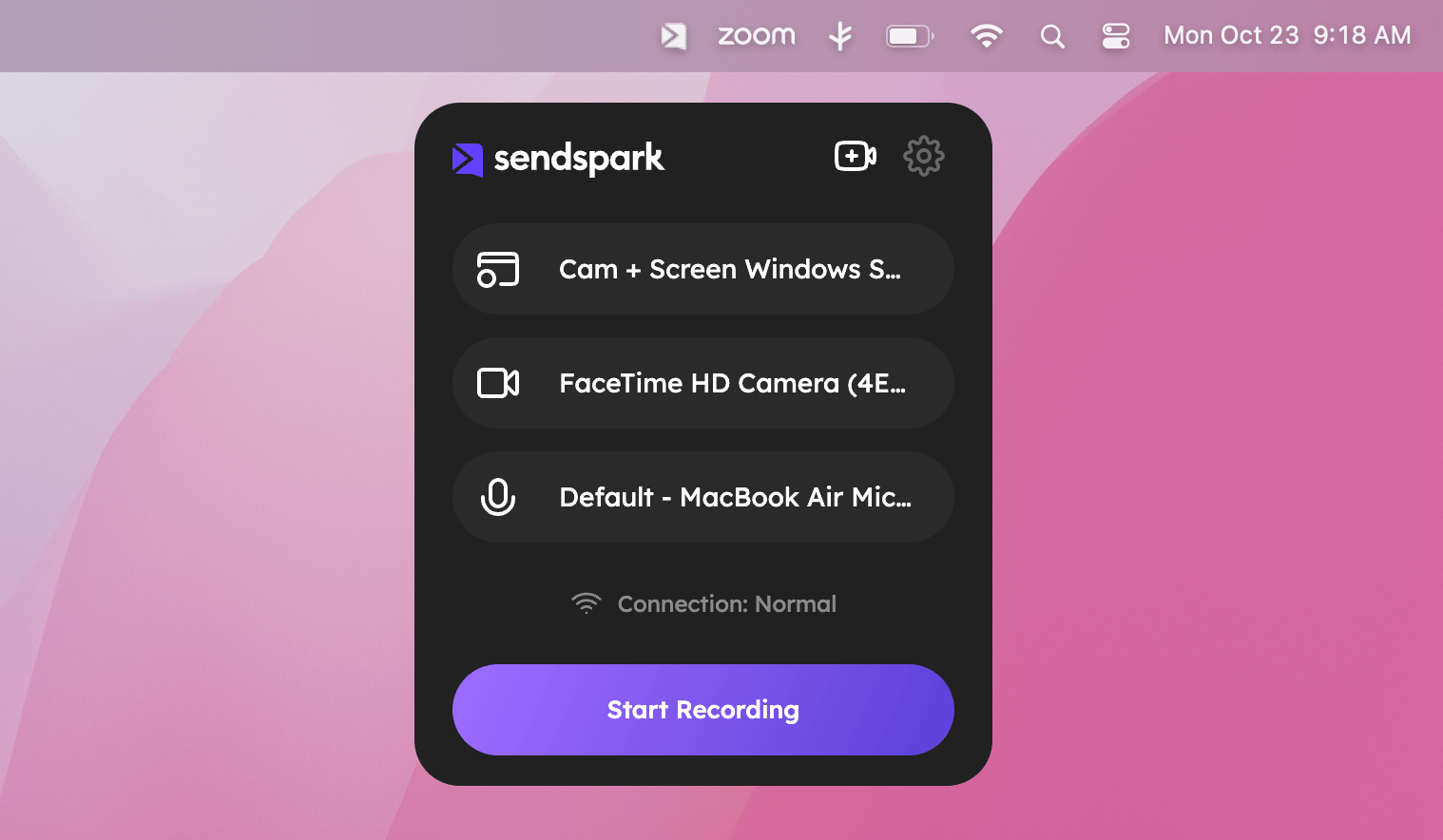
- Install the Sendspark Desktop App
- Select “Cam + Screen” as the recording option
- Open your PowerPoint presentation
- Click “Start Recording”
Frequently asked questions
How do I get my slides to fill the whole screen?
How do I get my slides to fill the whole screen?
Hide the slide thumbnails down the left, then use PowerPoint’s ribbon drop-down to turn on Single Line Ribbon and Automatically Hide. That clears the interface so the slides fill the frame. See recording PowerPoint in full screen.
My camera bubble doesn't appear when I record over a PDF. Why?
My camera bubble doesn't appear when I record over a PDF. Why?
If the PDF is open in a Chrome tab, Chrome blocks extensions from reading local files by default, so the bubble never loads. Open the Sendspark extension’s Manage extension page and turn on Allow access to file URLs. See recording videos over PDF files. For a PDF open in a separate application rather than Chrome, use the desktop recorder instead.
Why can't I use the Chrome Extension to record over PowerPoint?
Why can't I use the Chrome Extension to record over PowerPoint?
With the Chrome Extension, your camera bubble is restricted to the Chrome browser, so it can’t record over PowerPoint, PDFs, or other applications outside of Chrome. Use the Sendspark Desktop Recorder for that.
What can the Sendspark Desktop Recorder do that the extension can't?
What can the Sendspark Desktop Recorder do that the extension can't?
The desktop recorder lets you record over PowerPoint, PDFs, and other applications on your computer, record over slides in fullscreen mode, and record multiple videos back-to-back without waiting for the first video to upload.
How do I get the Sendspark Desktop Recorder?
How do I get the Sendspark Desktop Recorder?
If you don’t already have it, install it here.
Which recording option should I choose to record over slides?
Which recording option should I choose to record over slides?
Select Cam + Screen as the recording option, then open your presentation and click Start Recording.