

Key takeaways
- Chrome blocks extensions from accessing local files (like PDFs) by default, which hides the camera bubble.
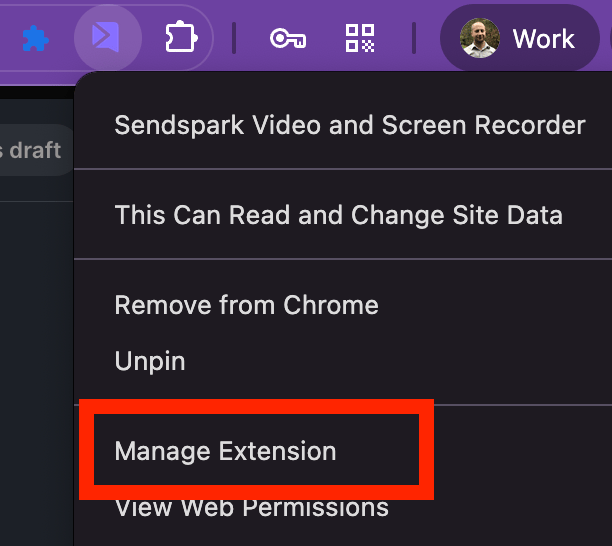
- Open the Sendspark extension → Manage Extension.
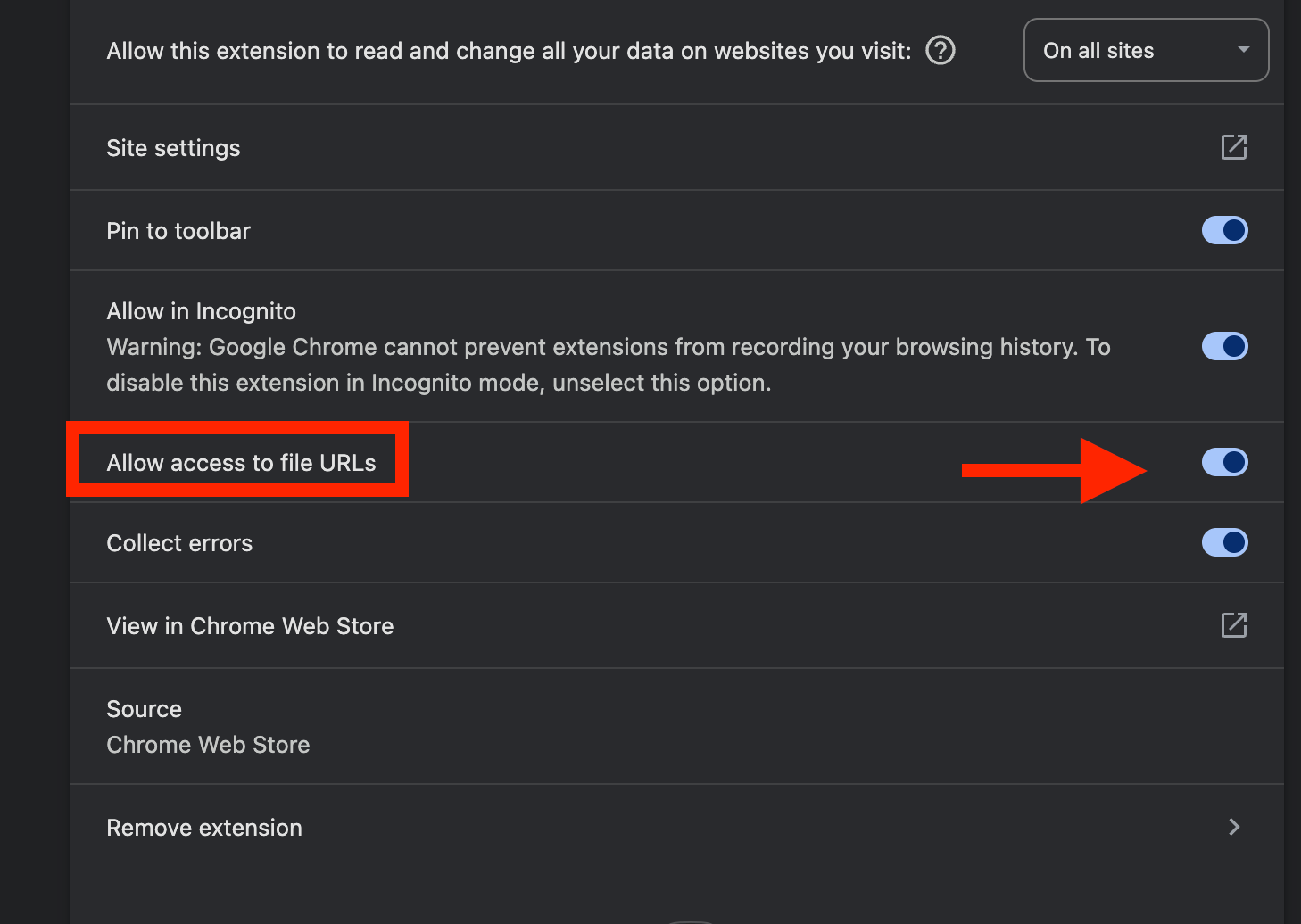
- Turn on “Allow access to file URLs.”
- Refresh the PDF tab, then start recording again.
🤝 Need help?
If you’re unsure or want to double-check before recording, feel free to reach out — support is available to help 👍Frequently asked questions
Why isn't my face showing when I record over a PDF?
Why isn't my face showing when I record over a PDF?
By default, Chrome blocks extensions from accessing files (like PDFs opened from your computer), which prevents the camera overlay from appearing.
How do I fix the missing camera bubble?
How do I fix the missing camera bubble?
Open the Sendspark extension’s “Manage Extension” page, scroll down to “Allow access to file URLs,” and toggle it ON.
Do I need to refresh after enabling file access?
Do I need to refresh after enabling file access?
Yes. Go back to your PDF tab, refresh the page, and then start recording again.