

Key takeaways
- Pause by clicking the pause button on the recording toolbar; a paused modal appears to confirm the recording is stopped.
- Resume by clicking the same pause button, clicking anywhere on the screen, or pressing any key.
- Use the hotkey Alt (ALT) + Shift (⇧) + R to pause and resume without the viewer seeing what you’re doing.
How to Pause Recording
To pause your video while recording, simply click the pause button on the recording toolbar: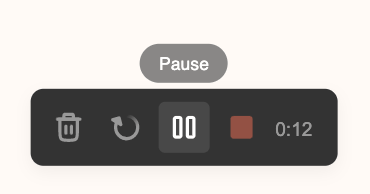
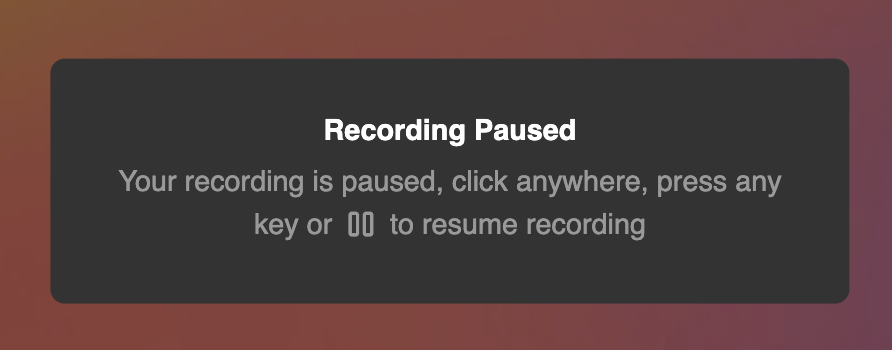
How to Resume Recording
To resume recording, simply click the same pause button, anywhere on the screen, or any key. This will let you pick up where you left off! Happy recording!Use Hotkeys
Want to pause and resume the recording without the viewer seeing what you’re doing? Use these shortcuts: Alt (ALT) + Shift (⇧) + RFrequently asked questions
How do I pause a recording in Sendspark?
How do I pause a recording in Sendspark?
Click the pause button on the recording toolbar. A paused modal pops up on your screen to confirm the recording has stopped.
How do I resume after pausing?
How do I resume after pausing?
Click the same pause button again, click anywhere on the screen, or press any key. The recording picks up right where you left off.
How do I know my recording is actually paused?
How do I know my recording is actually paused?
You’ll see a “Recording is Paused” modal appear on your screen. That confirmation means the recording is stopped until you resume it.
Is there a hotkey to pause and resume?
Is there a hotkey to pause and resume?
Yes. Press Alt (ALT) + Shift (⇧) + R to pause and resume. Using the hotkey lets you control the recording without the viewer seeing what you’re doing.