

Key takeaways
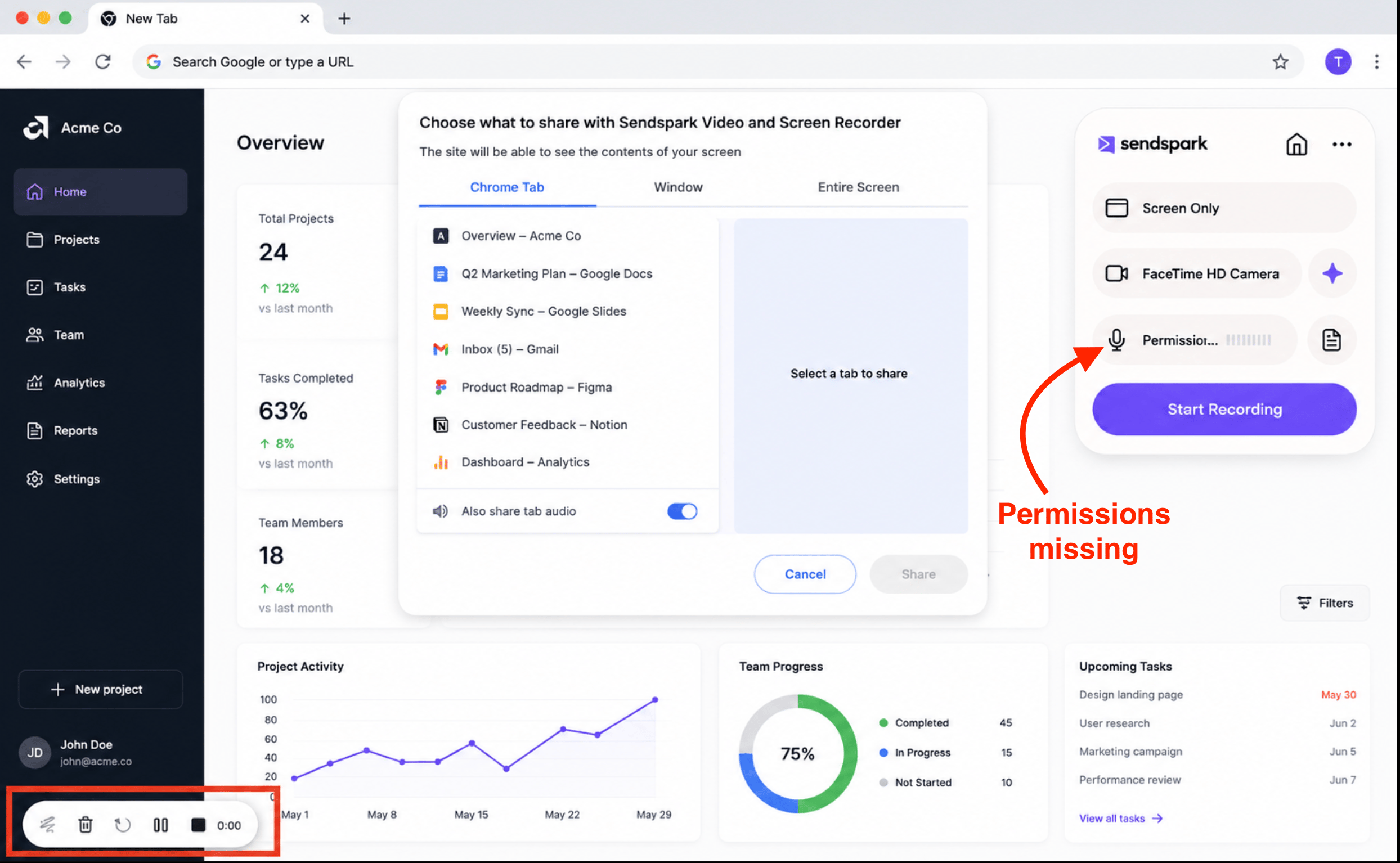
- A “Permissions Missing” message with the timer stuck at 0:00 usually means your operating system revoked Chrome’s camera/microphone access.
- Simply re-enabling the permissions is often not enough; a full reset is usually required.
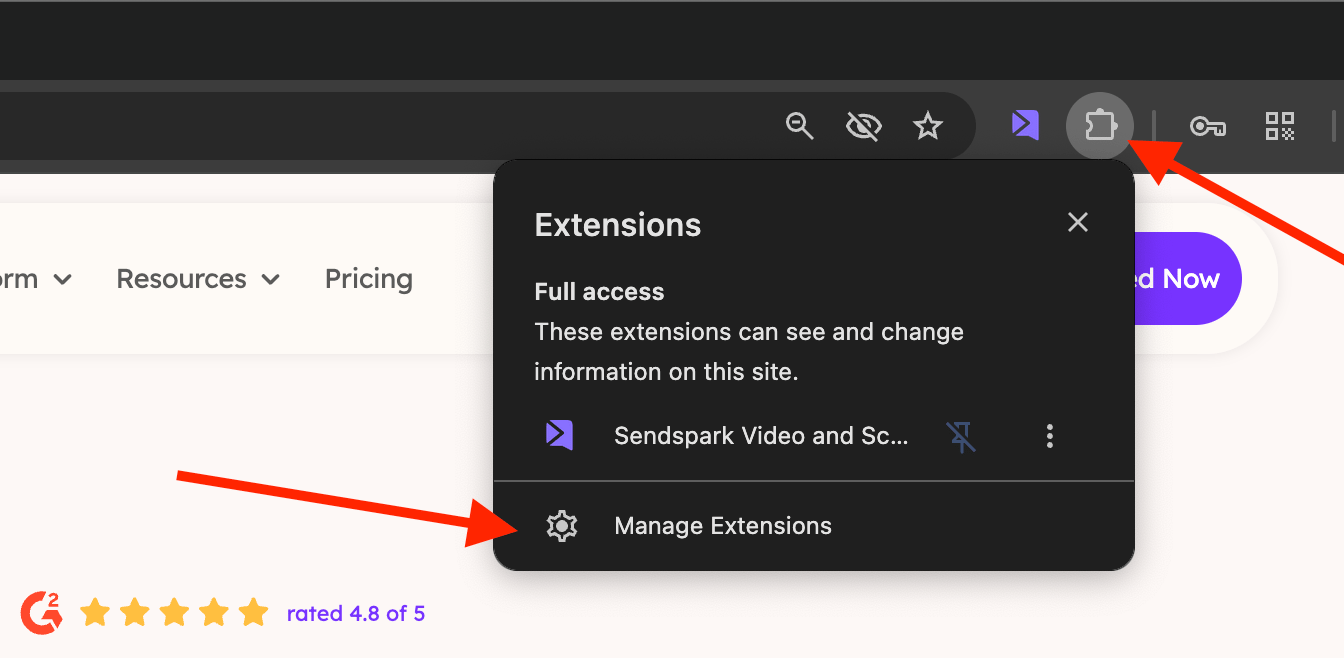
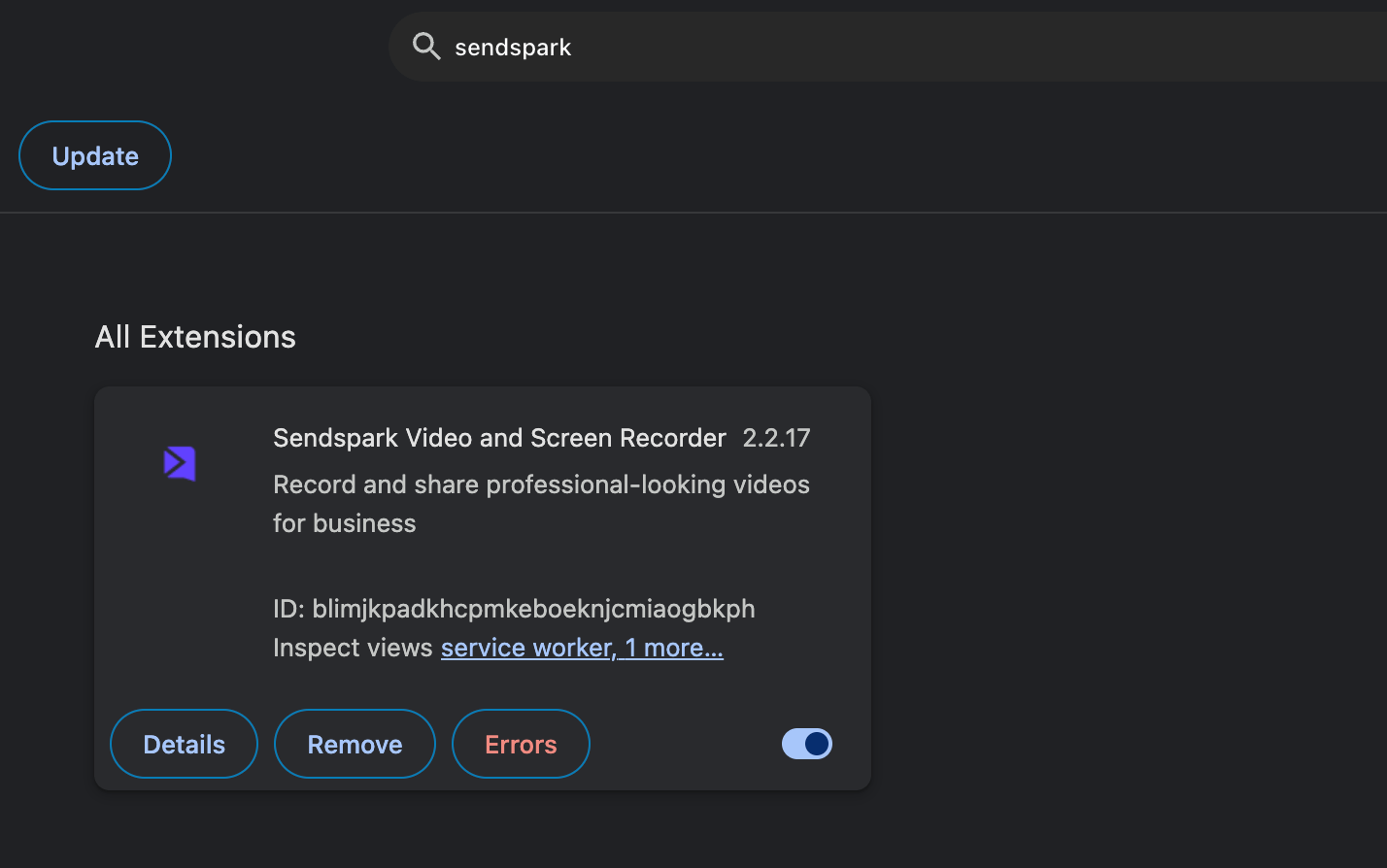
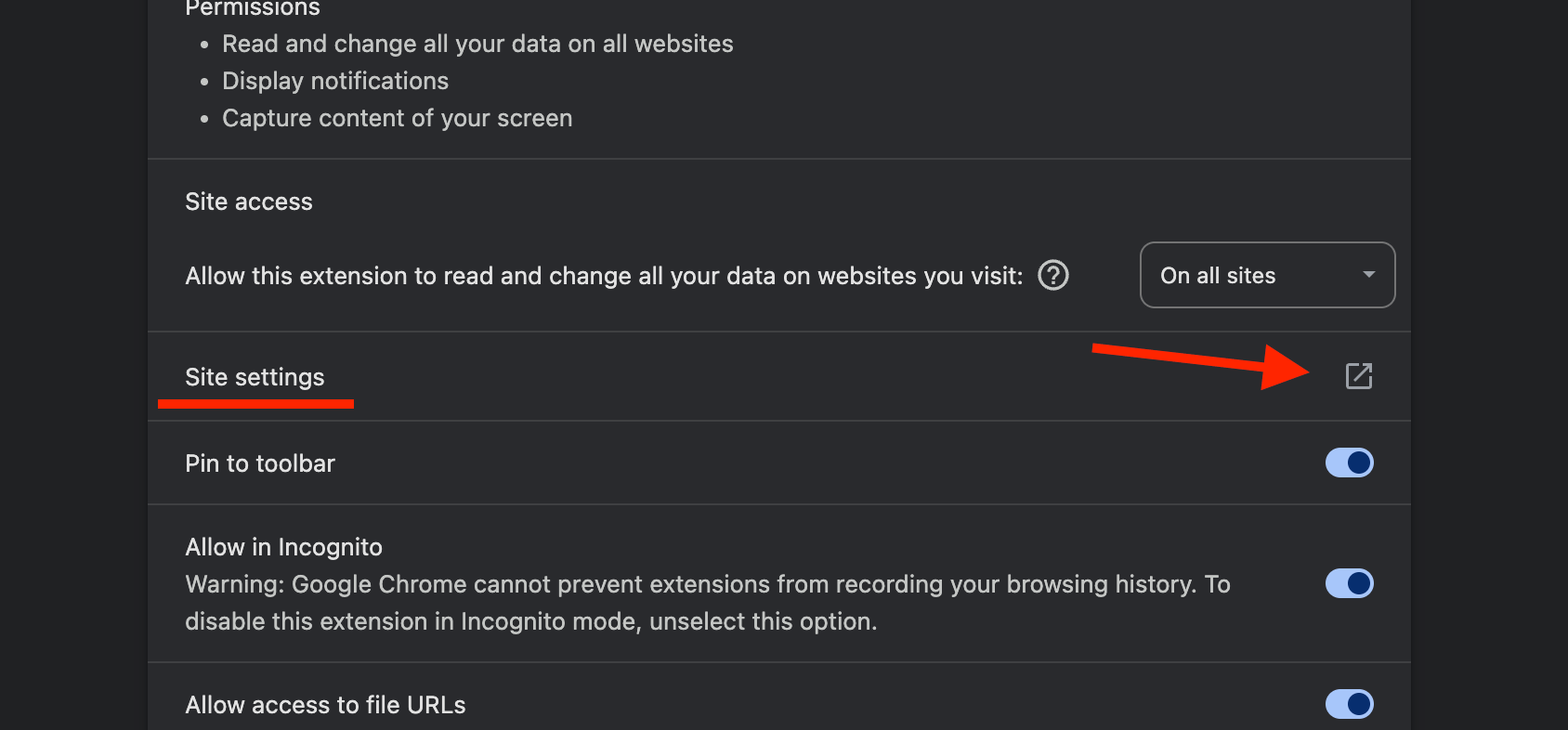
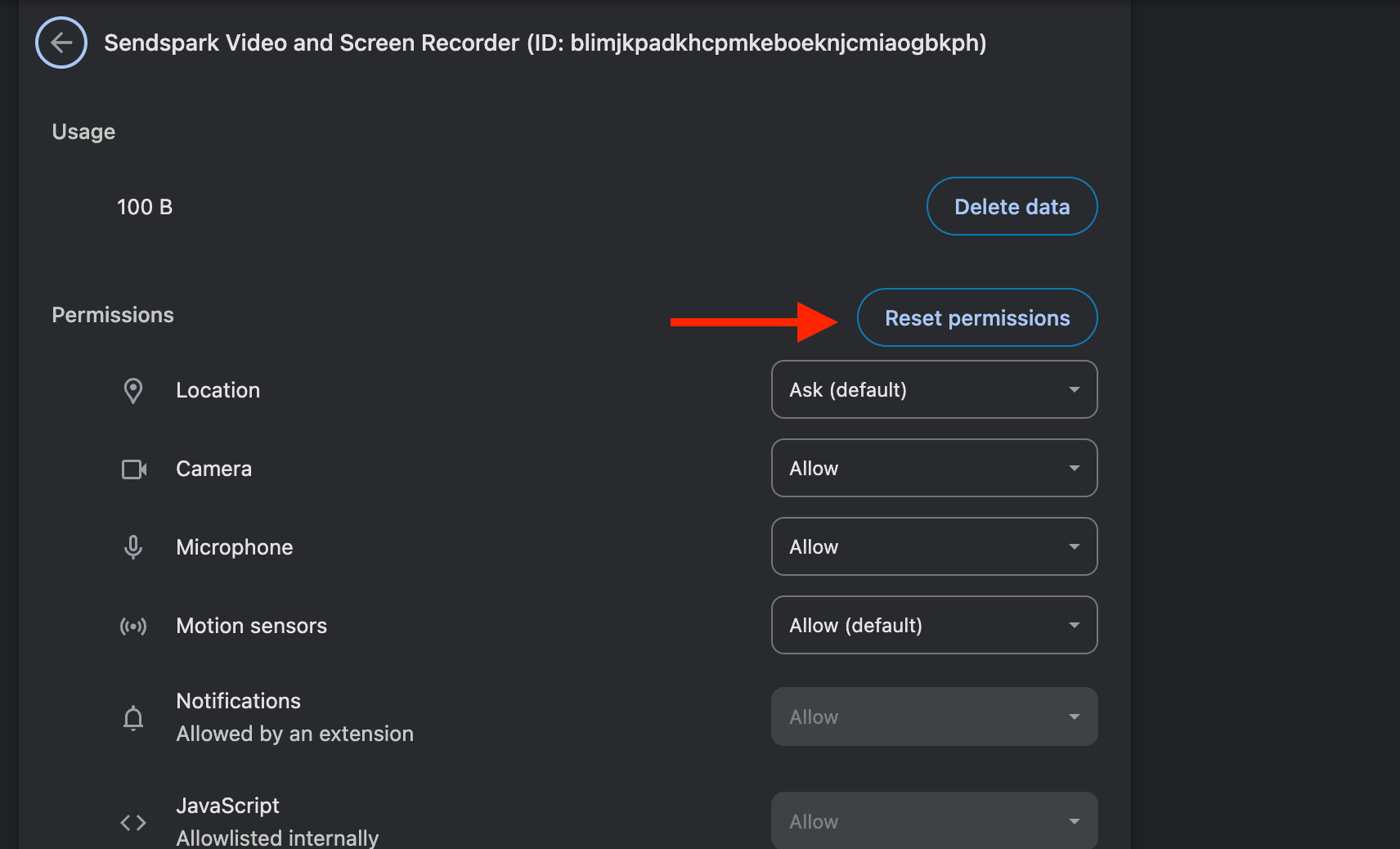
- Reset via your extension menu → Manage Extensions → Sendspark → Details → Site settings → Reset permissions.
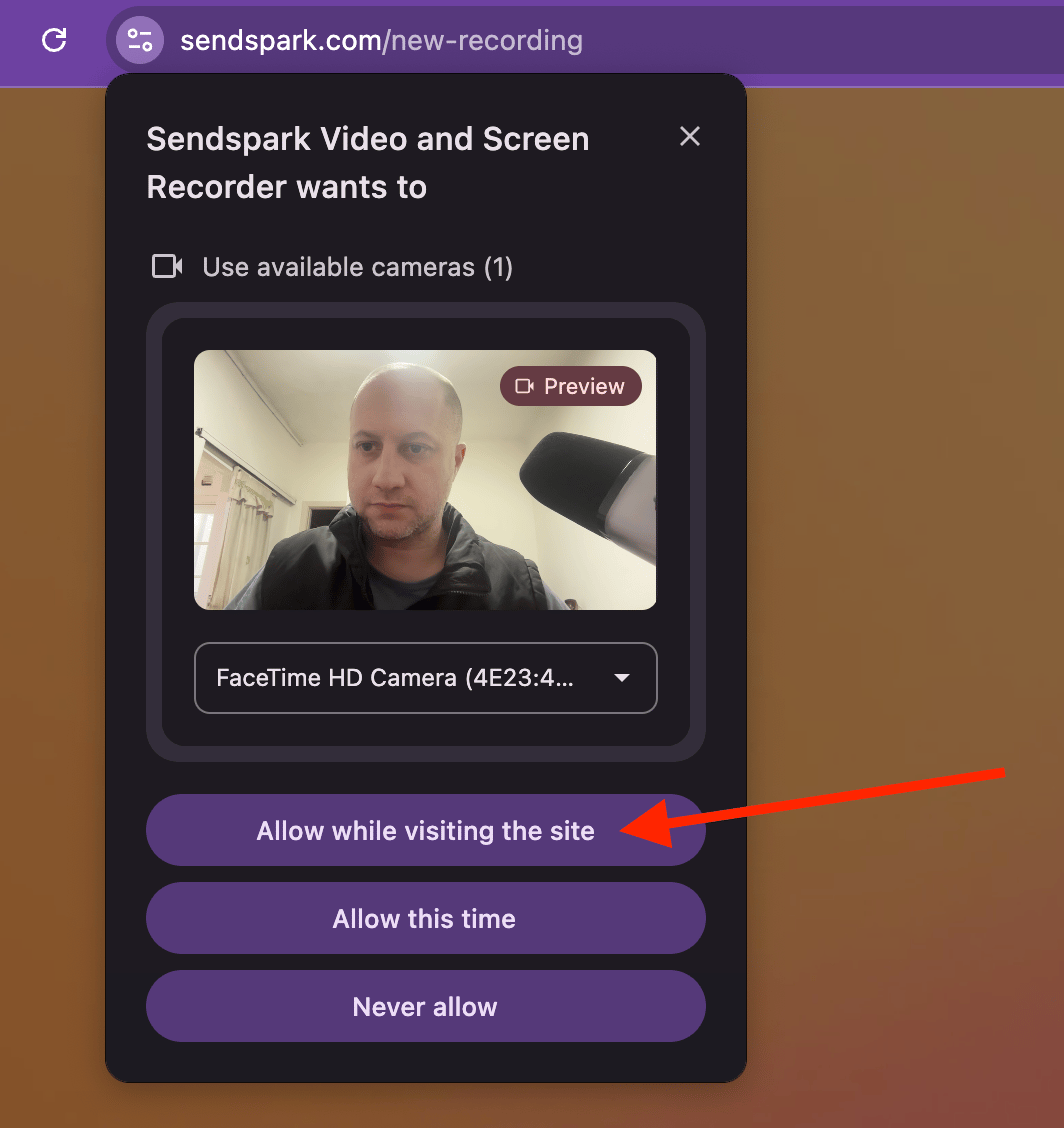
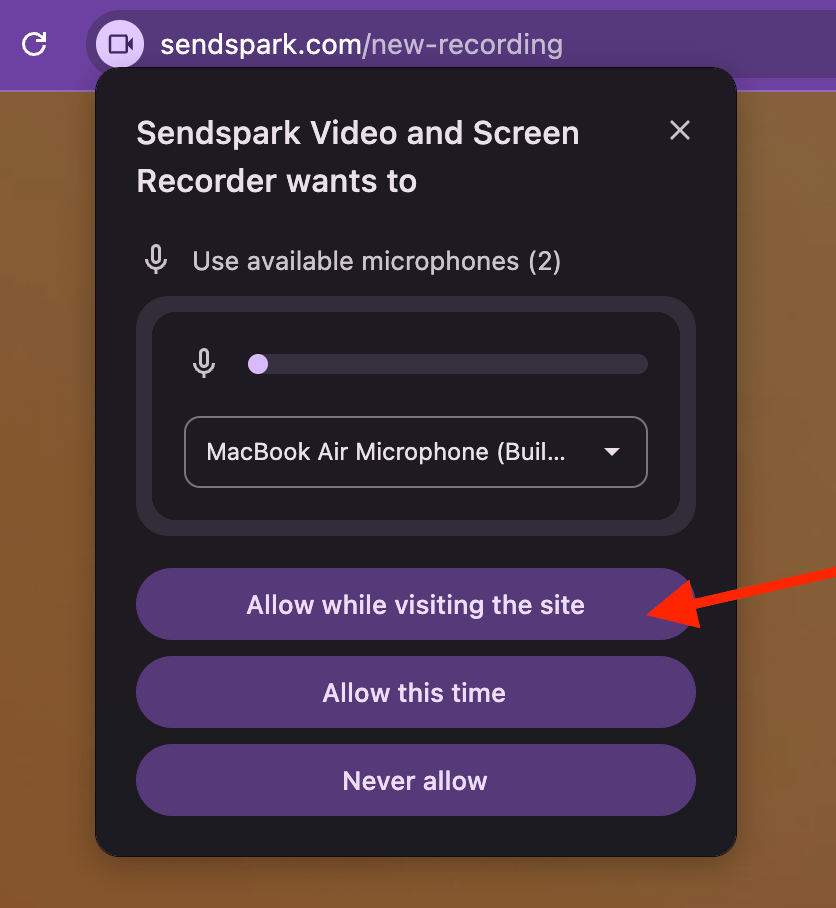
- After resetting, record again and be sure to accept both the camera and microphone prompts.
Frequently asked questions
What does the Permissions Missing message mean?
What does the Permissions Missing message mean?
It means your operating system has likely revoked Chrome’s camera and microphone permissions. When that happens, clicking Start Recording does nothing and the recording timer stays at 0:00.
Why isn't re-enabling the permissions enough?
Why isn't re-enabling the permissions enough?
In many cases simply re-enabling the permissions doesn’t resolve it. A full permissions reset is usually required to get recording working again.
How do I reset the extension's permissions?
How do I reset the extension's permissions?
Open your extension menu and click Manage Extensions, find Sendspark and click Details, find Site Settings, and click Reset Permissions. Then open a new tab and try recording again.
What should I do after resetting the permissions?
What should I do after resetting the permissions?
Record a video again. The system will prompt you to accept the camera and microphone permissions — accept both. Then click away to close the extension, reopen it, and you should be ready to record.