

Key takeaways
- Connecting the two accounts lets you generate videos via API automatically for your campaigns.
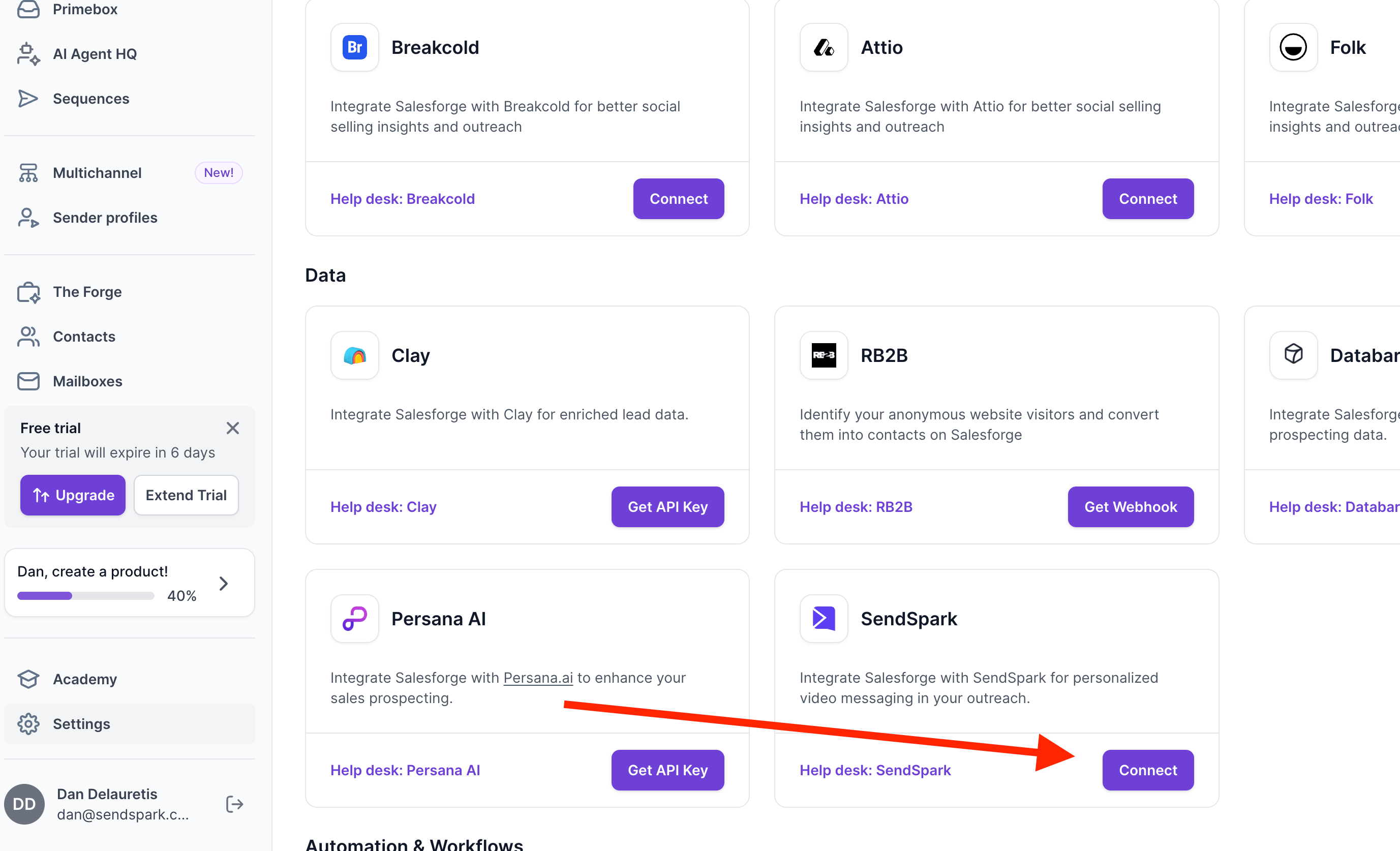
- You connect from the Integrations section of your settings menu — find Sendspark and click Connect.
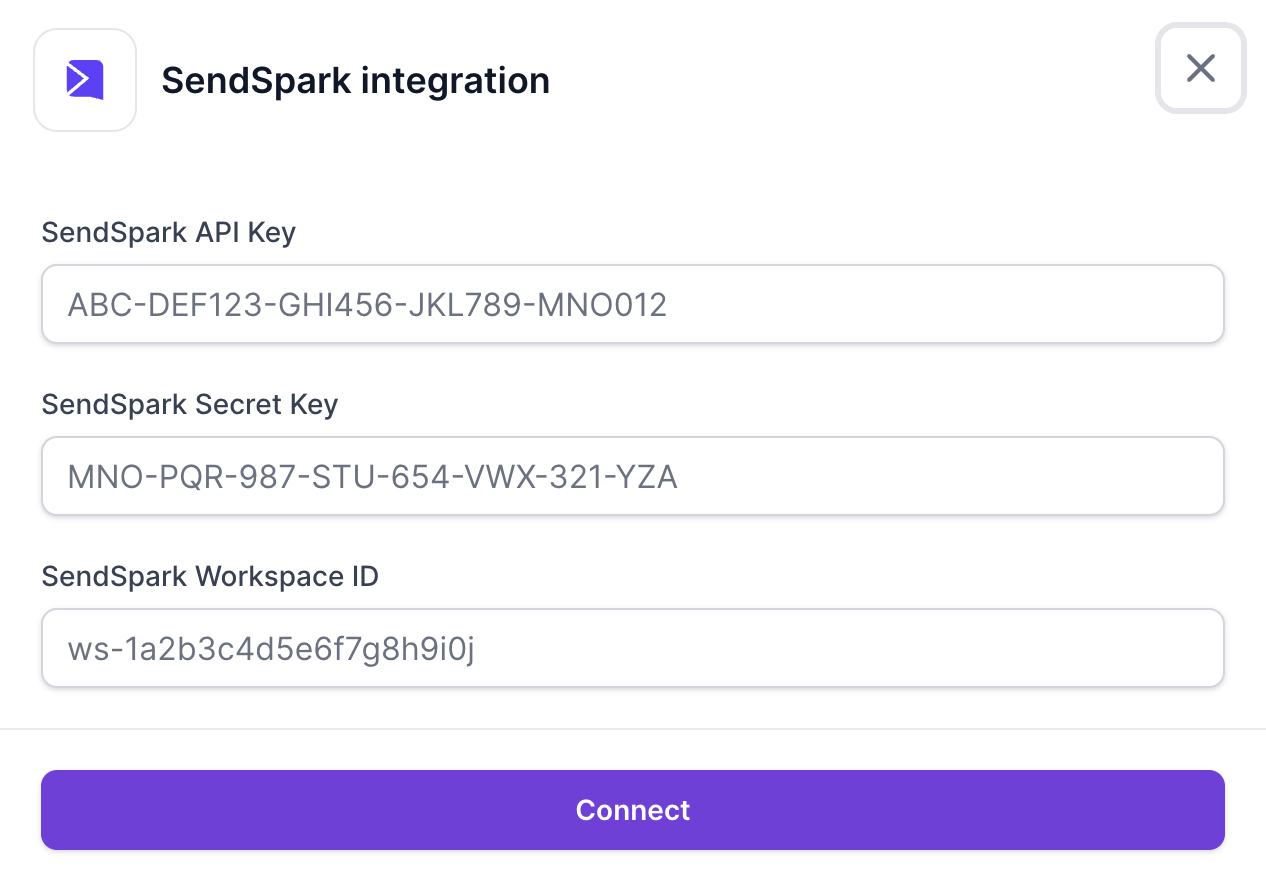
- Connecting requires three values: your API key, secret key, and Workspace ID.
- All three are created and found in Sendspark at Settings → API Credentials.
By connecting Sendspark and Salesforge, you’ll be able to generate videos via API automatically
Head to your settings menu in Salesforge, then click Integrations: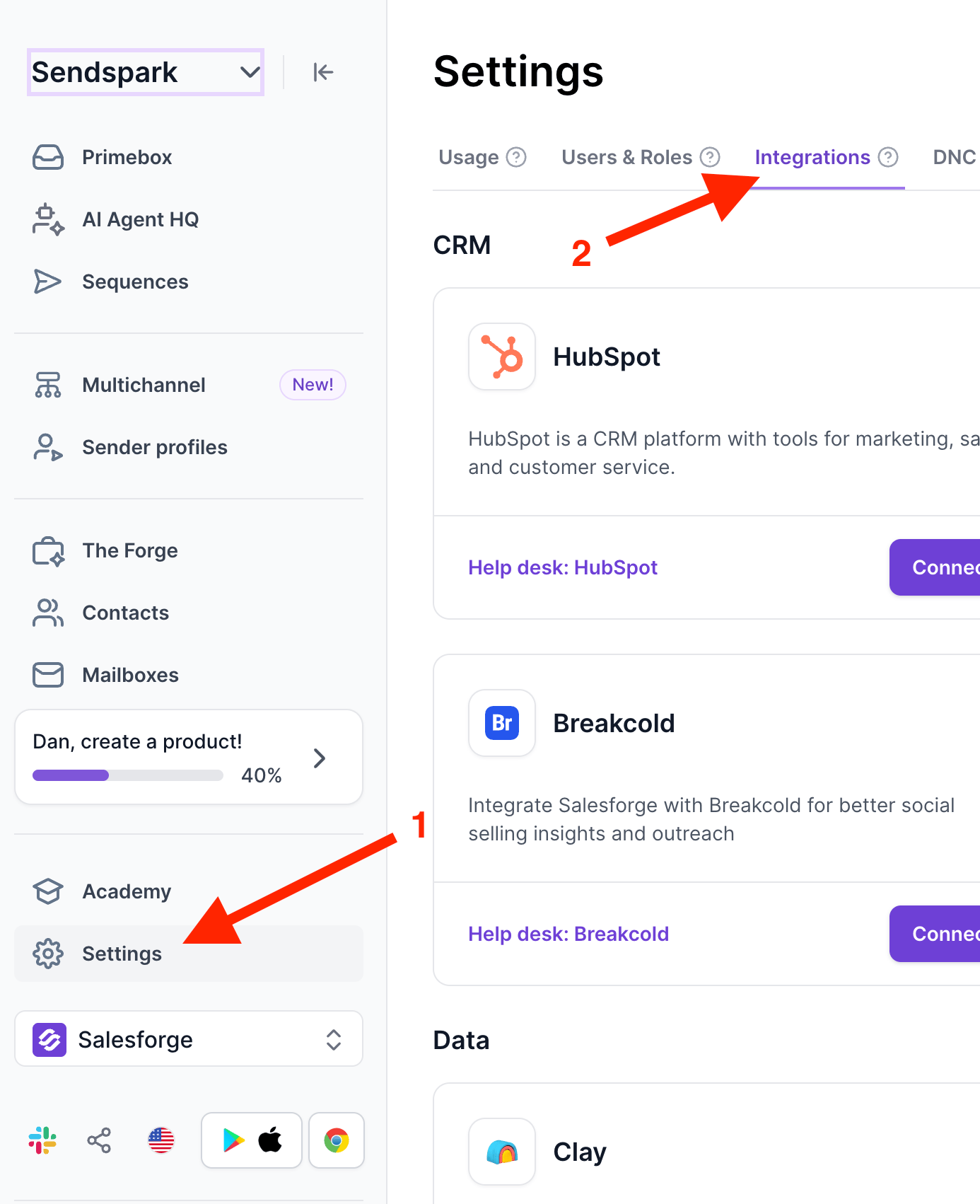
Where to find this information:
The API key, API secret key, and your Workspace ID can all be created and found by accessing the API CREDENTIALS section: https://sendspark.com/settings/api-credentials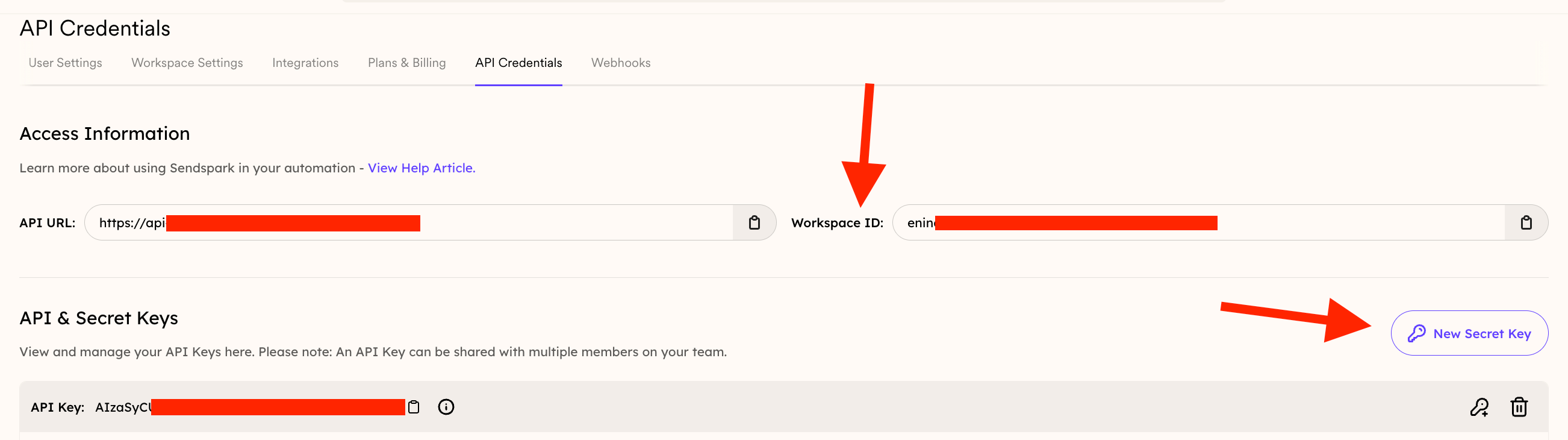
Frequently asked questions
What does connecting Sendspark unlock?
What does connecting Sendspark unlock?
Once connected, you’ll be able to generate videos via API automatically for your campaigns.
Where do I connect Sendspark?
Where do I connect Sendspark?
Head to your settings menu, click Integrations, scroll down until you find Sendspark, and click Connect.
What credentials do I need to connect?
What credentials do I need to connect?
You’ll be prompted to enter your API key, secret key, and Workspace ID.
Where do I find my API key, secret key, and Workspace ID?
Where do I find my API key, secret key, and Workspace ID?
They can all be created and found in Sendspark’s API Credentials section at https://sendspark.com/settings/api-credentials.
I've already connected my account — what's next?
I've already connected my account — what's next?
Once you’re connected, follow the guide to launch your first campaign.