

This integration is in a phased rollout. It is not yet available to every workspace. If you do not see the Salesforce option in your workspace, it is not enabled for your plan or workspace yet. Contact support@sendspark.com to ask about access.
Key takeaways
- Video engagement appears as completed Tasks on the matching Contact or Lead timeline in Salesforce.
- Sendspark matches viewers by email address and writes only to records that already exist — it never creates Contacts or Leads.
- Setup has two parts: install the Sendspark for Salesforce package in your org, then connect from Sendspark’s Settings with OAuth.
- Any member of the Sendspark workspace can connect or disconnect the integration.
- Disconnecting revokes Sendspark’s access at Salesforce and deletes the stored credentials. Tasks already written stay in your org.
Before you start
You need:- In Salesforce: a user with permission to install a managed package and to authorize a connected app — normally a System Administrator. Supported editions: Enterprise, Performance, Unlimited, and Developer. Professional Edition works with the API Access add-on. The integration needs REST API access, so editions without API access are not supported.
- In Sendspark: a workspace on a plan that includes CRM integrations. Any member of the workspace can connect or disconnect the integration.
- The Salesforce user you connect with needs API Enabled and read/write access to the objects Sendspark writes to (Task, plus read access on Contact and Lead).
Step 1 — Install the Sendspark for Salesforce package
Sendspark connects through a managed package that carries our connected app. Install it first — Salesforce blocks the authorization until the package is in your org.1
1. Open the install link
Open the Sendspark for Salesforce install link and sign in to the org you want to connect.
2
2. Choose Install for Admins Only
Keep Install for Admins Only unless your Salesforce administrator has a reason to widen it. The connection is made once, by one user — Sendspark does not need broad user access.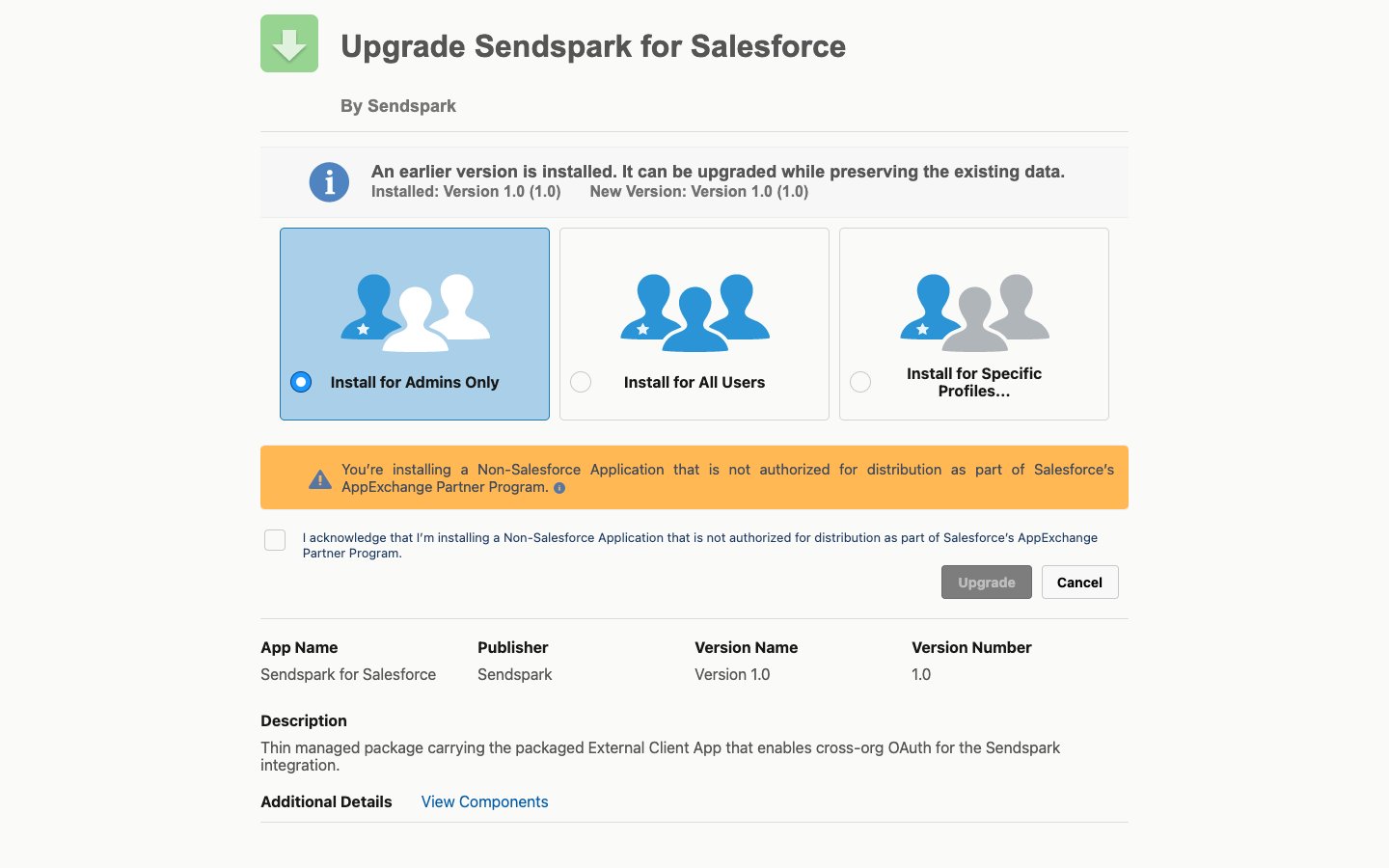
3
3. Wait for the confirmation
Choose Install and wait for the confirmation from Salesforce. Installation usually completes in a few minutes.
The package installs configuration only. It contains no Apex, no Visualforce, and no Lightning components — it adds no UI, no triggers, and no scheduled jobs to your org.
Step 2 — Connect from Sendspark
1
1. Open Settings → Integrations
In Sendspark, go to Settings, open the Integrations tab, and find Salesforce under App Connections.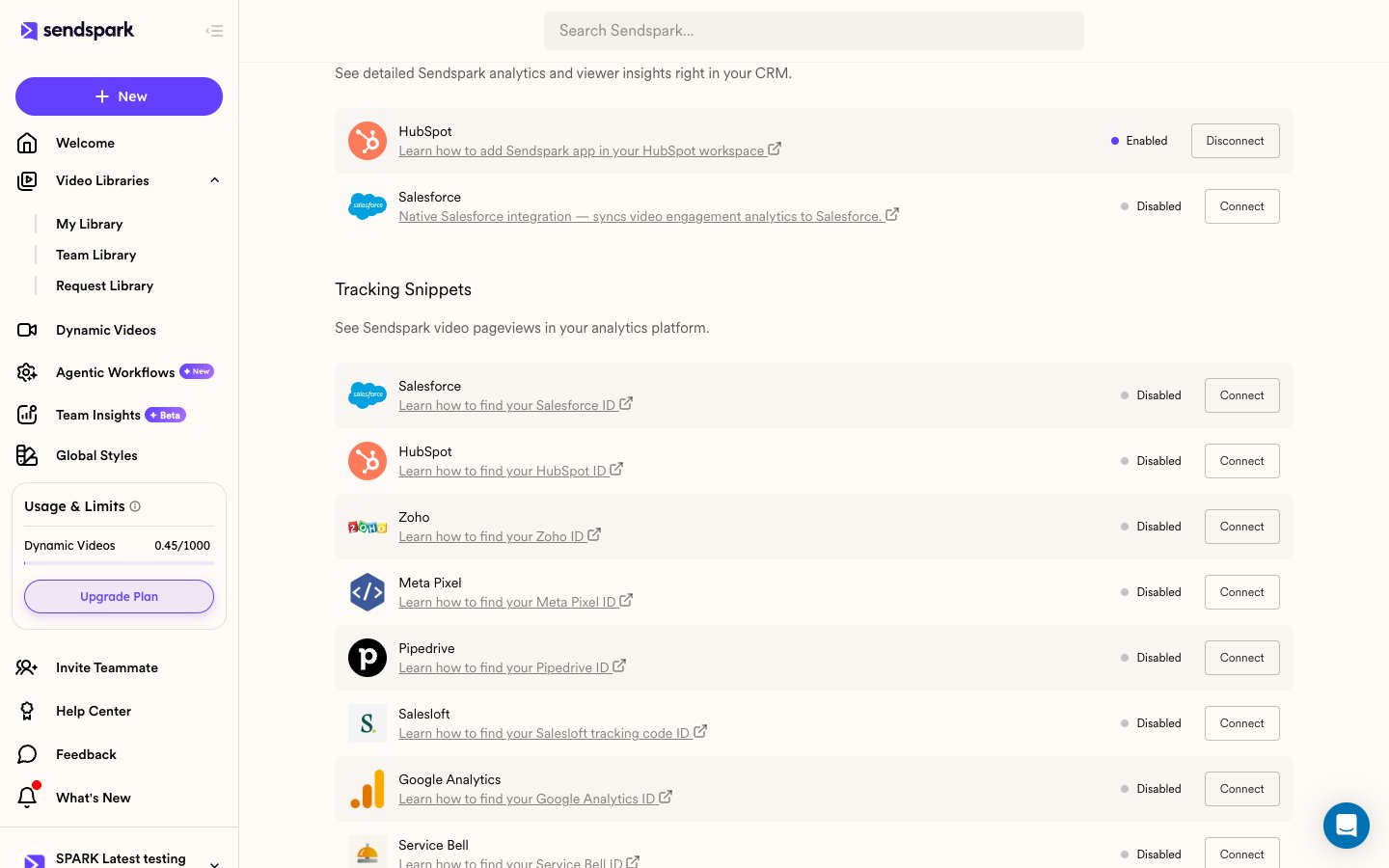
2
2. Choose Connect on the Salesforce row
A dialog explains what the connection does. Choose Continue to Salesforce.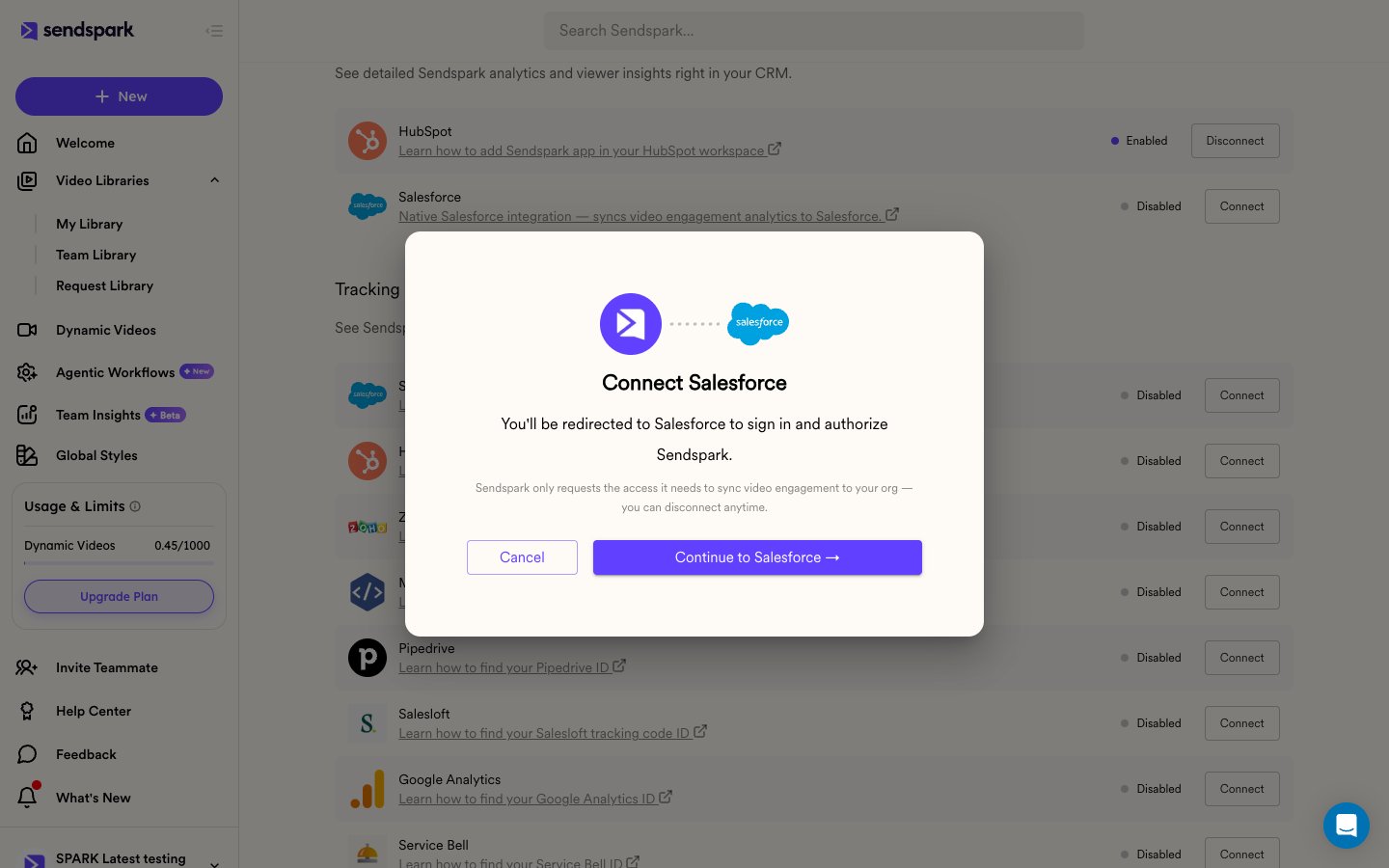
3
3. Sign in to Salesforce
Sign in as the user whose API access Sendspark should use. Prefer a dedicated integration user over a named person’s account, so the connection does not break when someone leaves.
4
4. Review the permissions and choose Allow
Salesforce lists the permissions Sendspark asks for (see the table below), then shows an Allow button.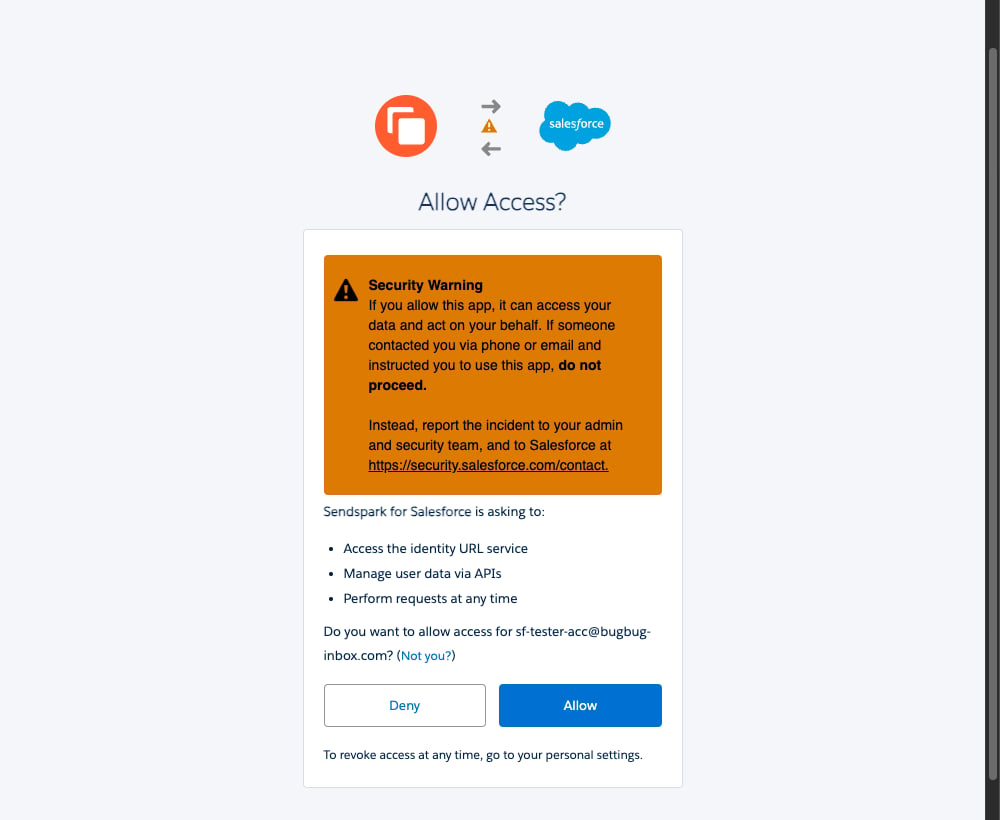
5
5. Confirm the row shows Enabled
The window closes and the Salesforce row in Sendspark shows as Enabled.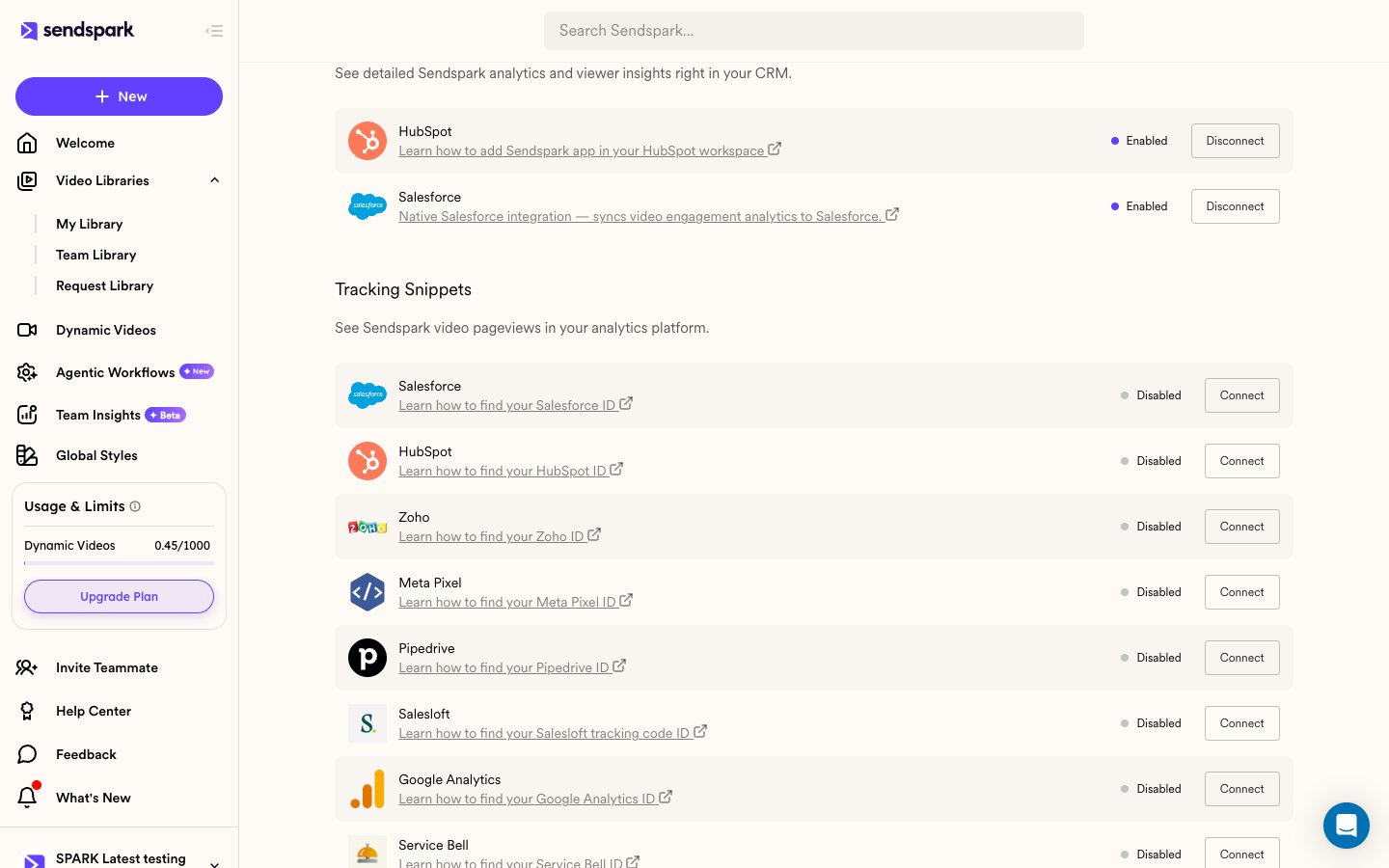
What Sendspark asks for, and why
Sendspark does not request web access, full-profile access, or the ability to manage your users.
How the integration behaves
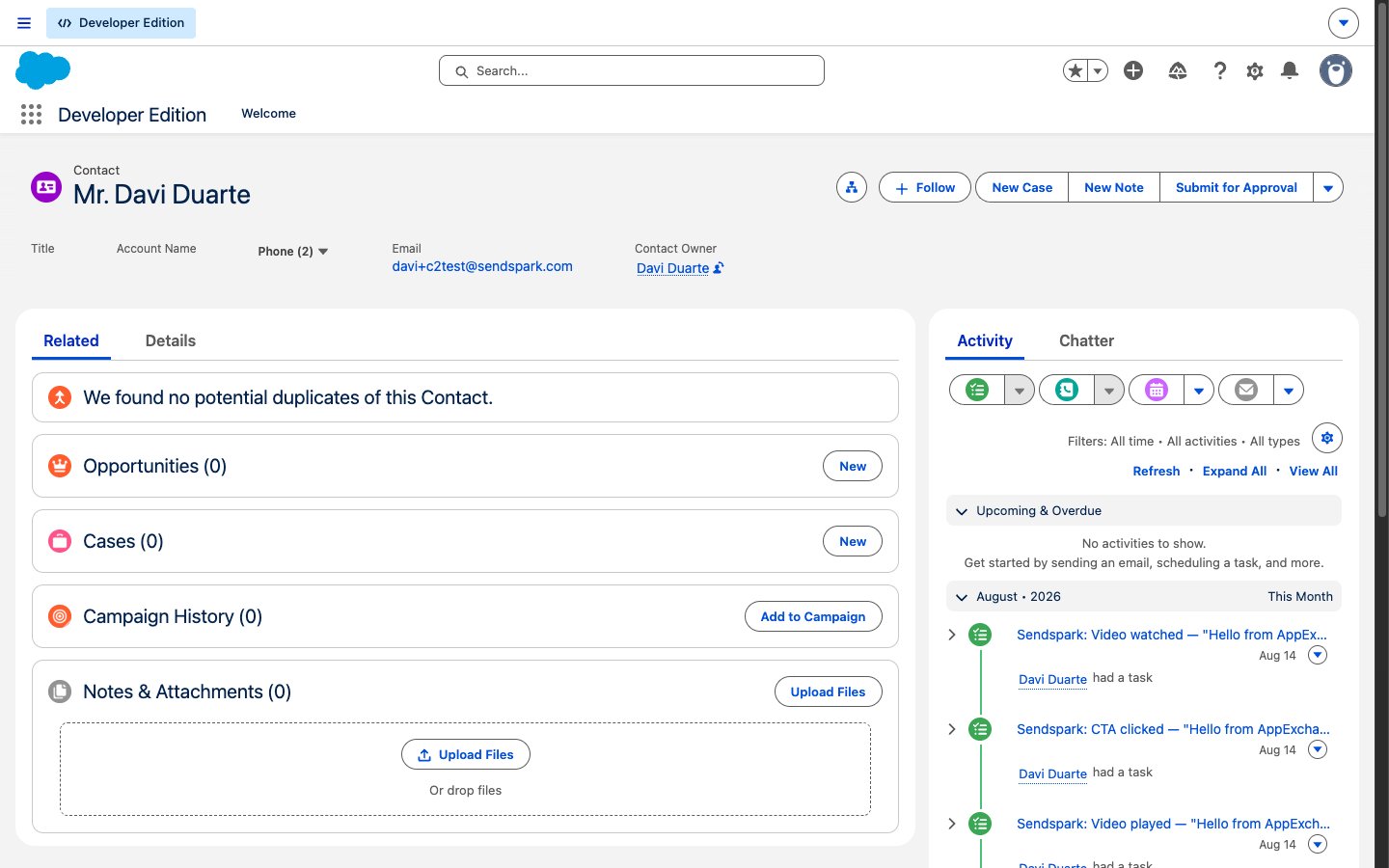
Sendspark only adds Tasks to records that already exist. When one of these events happens, Sendspark looks for the person’s email address in your org — on Contacts first, then on Leads that are not converted. If the email matches a record, Sendspark writes the engagement as a completed Task on that record. If the email matches nothing, Sendspark writes nothing. It never creates Contacts, Leads, or any other records. Two details worth knowing:- If the same email exists on both a Contact and a Lead, the Contact wins. If it exists on several records of the same type, the most recently modified record wins.
- If a viewer fires the same engagement twice in a short window (for example, two page loads seconds apart), Sendspark writes one Task, not two.
Which events create Tasks
Each event below writes one completed Task. The Task subject starts withSendspark: followed by the event and the video title.
Step 3 — Confirm it works
Send or share a Sendspark video with someone whose email address exists on a Contact or Lead in the connected org. After they watch it, open that record in Salesforce — the engagement appears in the activity timeline. Allow a few minutes for the first event.Disconnecting
1
1. Open Settings → Integrations
Find the Salesforce row under App Connections.
2
2. Choose Disconnect and confirm
A dialog confirms what disconnecting does.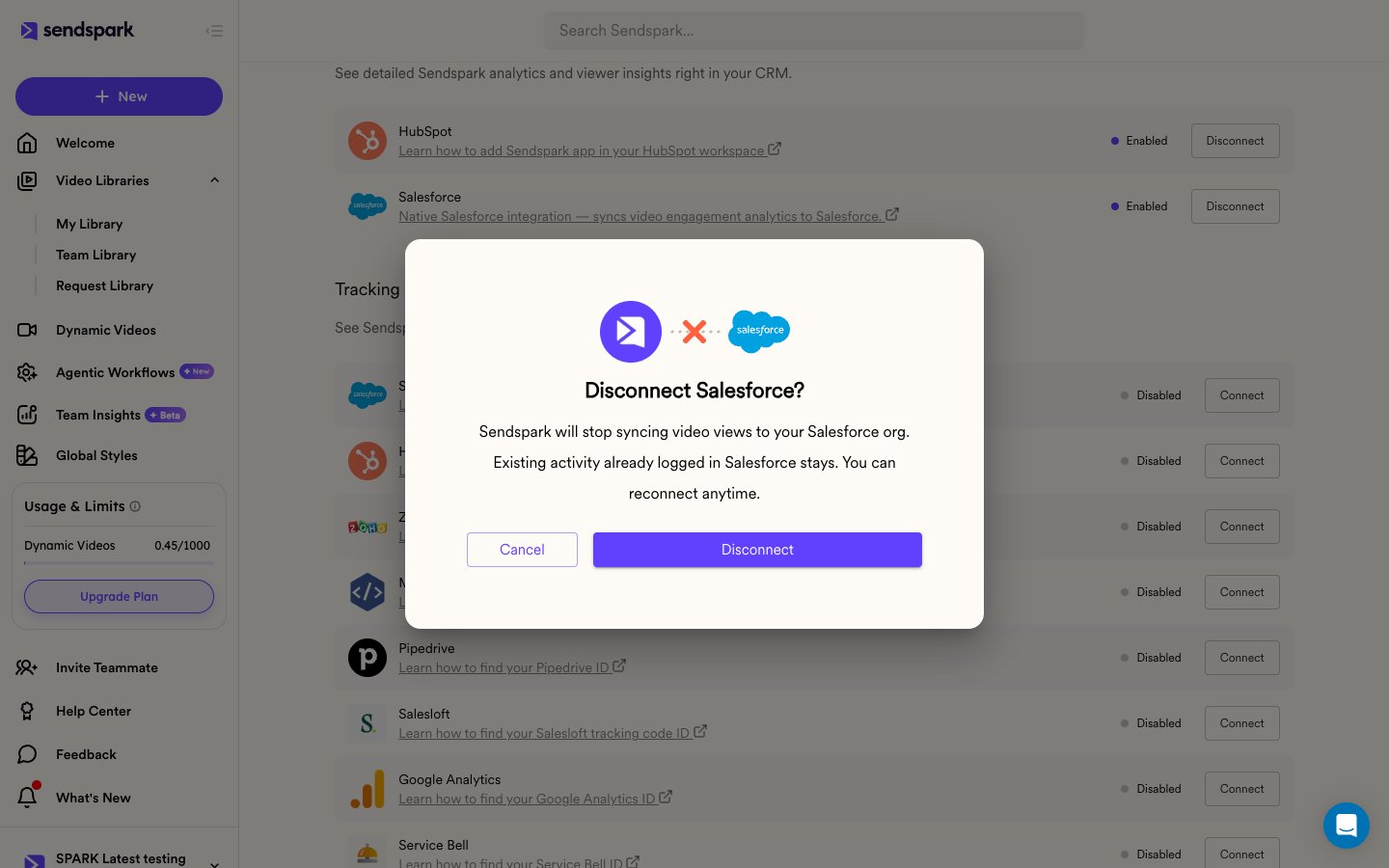
- It stops writing to your Salesforce org immediately.
- It revokes its authorization at Salesforce (the refresh token and every access token derived from it), so the connection is dead on both sides.
- It deletes the stored credentials for that workspace.
Reconnecting
Sendspark shows a Reconnect prompt on the Salesforce row when it can no longer reach your org. The usual causes are:- The Salesforce user who authorized the connection was deactivated, or their password or permissions changed.
- An administrator revoked the app under Connected Apps OAuth Usage.
- The connection sat unused past your org’s refresh-token expiry policy.
- Your org’s IP restrictions or login hours now block the integration.
Troubleshooting
Your data
- Sendspark stores only the OAuth credentials for your org, encrypted at rest.
- Sendspark reads the minimum needed to match a viewer to a record, and writes engagement Tasks.
- Sendspark does not export, sell, or use your Salesforce data to train models.
- Disconnecting deletes the stored credentials.
Frequently asked questions
Does Sendspark create Contacts or Leads in Salesforce?
Does Sendspark create Contacts or Leads in Salesforce?
No. Sendspark writes engagement Tasks only to Contacts and Leads that already exist, matched by the viewer’s email address. If no record matches, nothing is written.
Who in my Sendspark workspace can connect or disconnect Salesforce?
Who in my Sendspark workspace can connect or disconnect Salesforce?
Any member of the workspace. The Salesforce side still requires a user who can authorize a connected app.
Does the package add code to my Salesforce org?
Does the package add code to my Salesforce org?
No. The package carries configuration only — the connected app that authorizes Sendspark. It contains no Apex, no Visualforce, no Lightning components, no triggers, and no scheduled jobs.
What happens to the Tasks if I disconnect?
What happens to the Tasks if I disconnect?
They stay. Disconnecting stops new writes, revokes Sendspark’s access, and deletes the stored credentials — it never deletes data from your org.
Are events backfilled after an outage or a reconnect?
Are events backfilled after an outage or a reconnect?
No. Events that occur while the connection is down are not written later. Activity resumes with the first new event after you reconnect.
Is this the same as the Salesforce webhook integration?
Is this the same as the Salesforce webhook integration?
No. This is Sendspark’s direct CRM integration, connected with OAuth from Settings → Integrations. The webhook-based setup is a separate, older integration.