

Key takeaways
- There are three integration paths: sending AI-personalized videos in email, embedding your SharpSpring calendar on video pages, and adding LG&CRM website tracking.
- To send personalized videos, generate dynamic videos in Sendspark first, then use Share Campaign → Constant Contact Lead Gen & CRM (SharpSpring) and paste the snippet into your email body.
- Always test with real contacts before sending personalized videos out at scale.
- Website tracking is connected from your Integrations Settings page by pasting your LG&CRM tracking ID under “LG&CRM Website Tracking.”
- Send AI-Personalized Videos in Email
- Embed SharpSpring Calendar on Video Pages
- Use LG&CRM Website Tracking
I. Send AI-Personalized Videos in Email
To send AI-personalized videos in Constant Contact Lead Gen & CRM (SharpSpring) emails, first generate dynamic videos in Sendspark. If you do not know how to create dynamic videos, please read this article first. After your videos generate, follow these steps to share them in Constant Contact LG & CRM.- Click “Share Campaign”
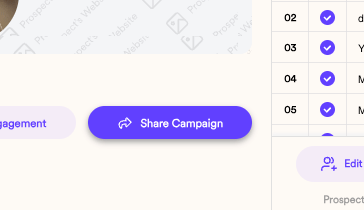
- Select “Constant Contact Lead Gen & CRM (SharpSpring) Integration”
- Then, head to Constant Contact, and paste the snippet in the body of your email where you would like the video to go.
- Test this with real contacts before sending it out at scale.
II. Embed SharpSpring Calendar
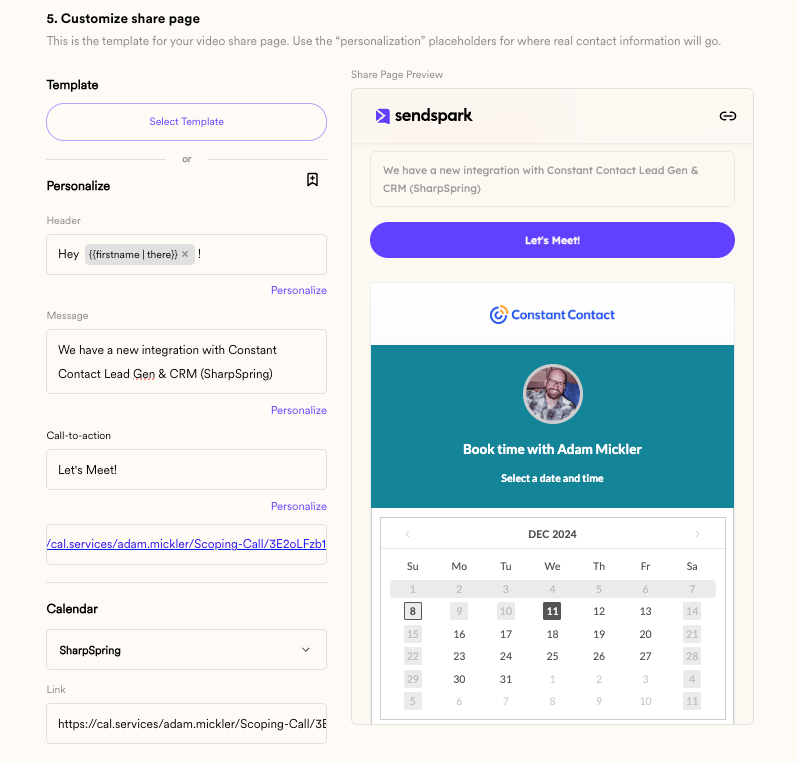
To embed your SharpSpring calendar next to your video, simply follow these steps:- In the calendar section on your video page, select “SharpSpring”
- Paste the link to your calendar
- You’ll know it’s working when you see your calendar appear in the preview area underneath your video!
III. LG&CRM Website Tracking
Want to track folks who visit your Sendspark video pages the same way you track people who visit other website pages? You can add your LG&CRM website tracking snippet to Sendspark.- Just head to your Integrations Settings page
- Under**“LG&CRM Website Tracking,“**click “Connect”

- Paste your tracking ID and click “Save”

- And you’ll see that the integration is enabled!

Frequently asked questions
Is SharpSpring the same as Constant Contact Lead Gen & CRM?
Is SharpSpring the same as Constant Contact Lead Gen & CRM?
Yes. Constant Contact Lead Gen & CRM is the current name for what was formerly SharpSpring. Sendspark’s integration covers the same platform under both names.
How do I send AI-personalized videos in a Constant Contact LG&CRM email?
How do I send AI-personalized videos in a Constant Contact LG&CRM email?
First generate your dynamic videos in Sendspark. Then click Share Campaign, select Constant Contact Lead Gen & CRM (SharpSpring) Integration, and paste the snippet into the body of your email where you want the video to appear. Test with real contacts before sending at scale.
Can I embed my SharpSpring calendar next to my video?
Can I embed my SharpSpring calendar next to my video?
Yes. In the calendar section on your video page, select SharpSpring, then paste the link to your calendar. You’ll know it’s working when the calendar appears in the preview area underneath your video.
How do I track visitors to my Sendspark video pages in LG&CRM?
How do I track visitors to my Sendspark video pages in LG&CRM?
Add your LG&CRM website tracking snippet to Sendspark. Go to your Integrations Settings page, click Connect under “LG&CRM Website Tracking,” paste your tracking ID, and click Save.