

Key takeaways
- HighLevel gives you two Sendspark snippet options — LeadConnector and LeadConnector Marketing — and both work when used in the correct place.
- Use the LeadConnector snippet for an email step inside an automation, pasting it into the body of the email.
- Use the LeadConnector Marketing snippet when building an email with the drag-and-drop HTML tools, pasting it into a code block.
- In the HTML builder a text element may look fine, but the video won’t work when you send; always drop the snippet into a code block.
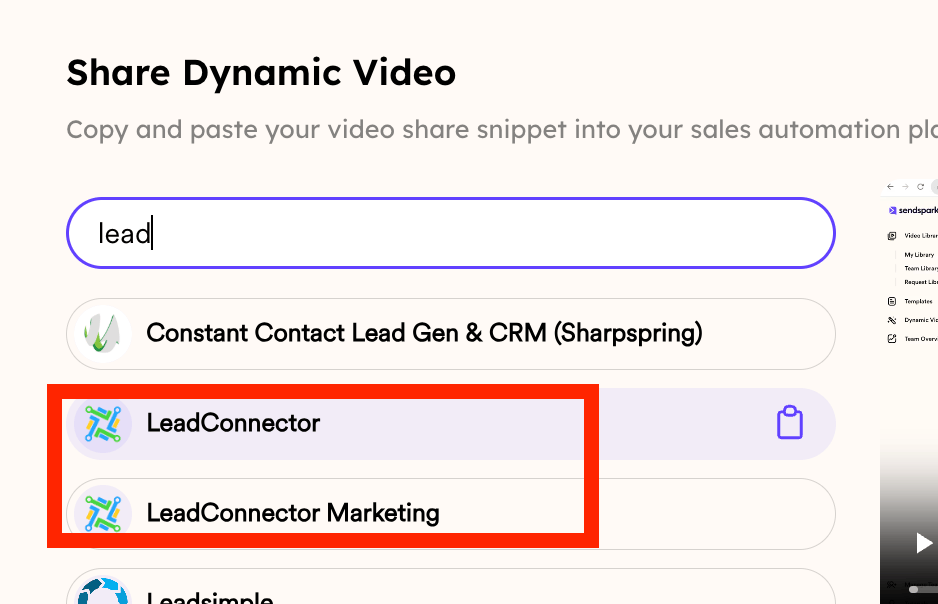
In an Automation
If you are inside an automation and you plan on adding an email step, and you want to send a video there, you can simply click the “Lead Connector” option in order to copy the snippet code, and you can simply paste it in the body of the email.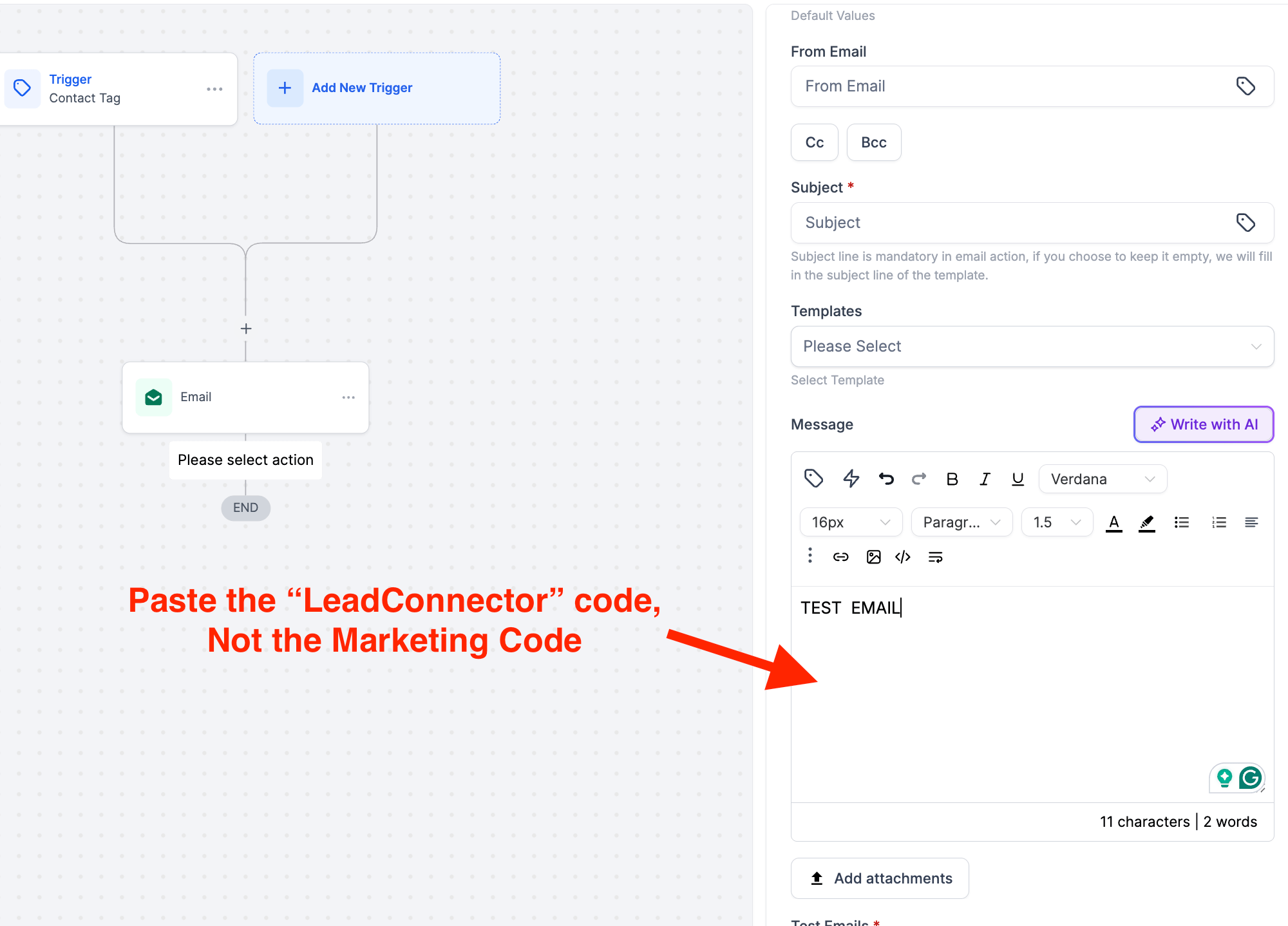
When building an email with HTML tools
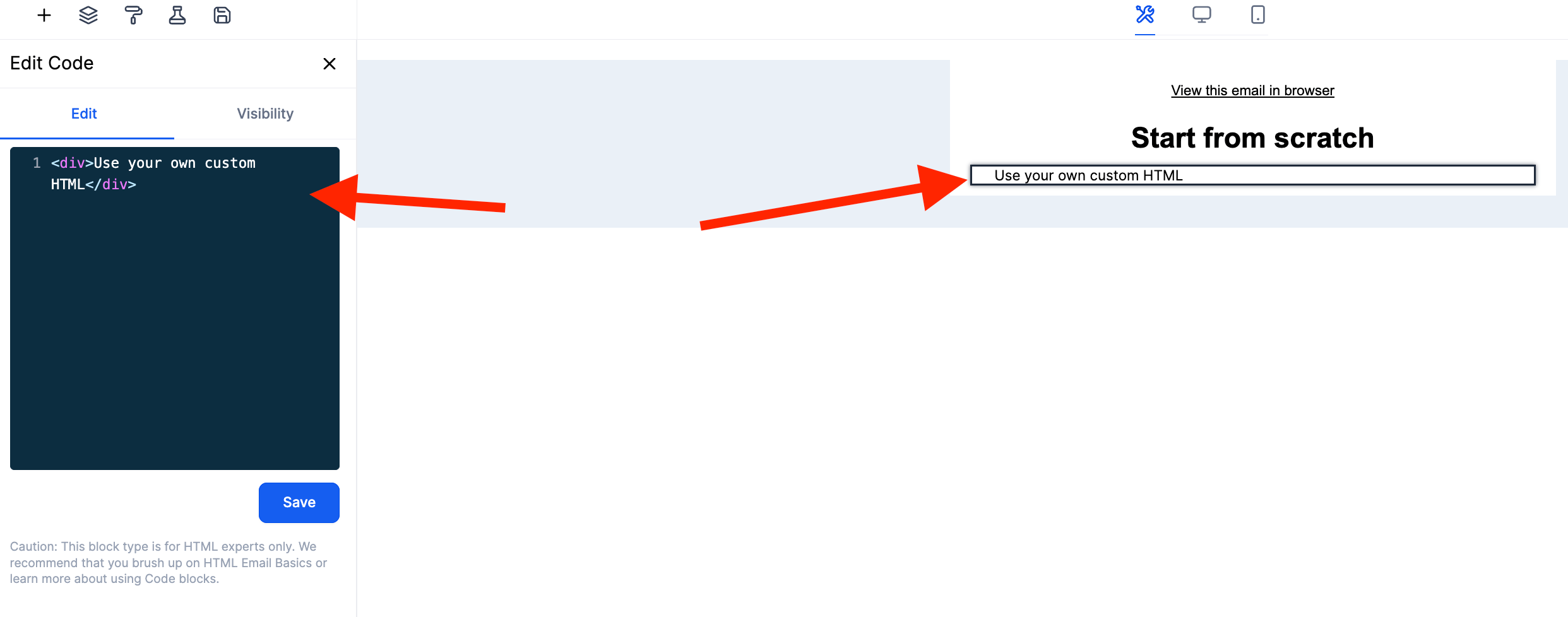
Go High Level also offers the option to build emails with blogs by simply dragging and dropping the elements inside of the email preview. In this instance, you’ll need the “Lead Connector Marketing” code and once you copy it, you need to make sure that you are adding it into the code block as shown below.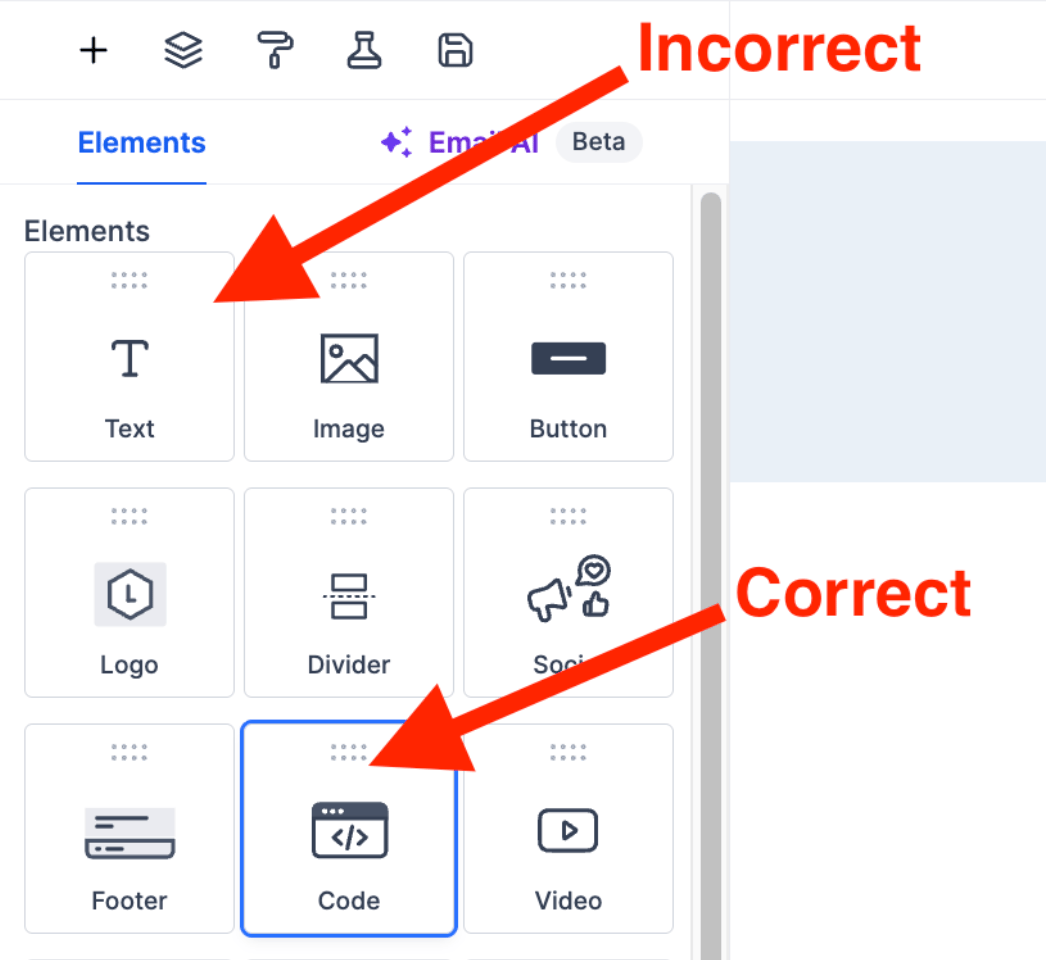
Frequently asked questions
What's the difference between LeadConnector and LeadConnector Marketing?
What's the difference between LeadConnector and LeadConnector Marketing?
They’re two versions of the Sendspark video snippet for HighLevel. Both are valid and both work — the difference is where you use them. LeadConnector is for an email step in an automation, and LeadConnector Marketing is for emails built with the drag-and-drop HTML tools.
Which snippet do I use in an automation email?
Which snippet do I use in an automation email?
Use the LeadConnector snippet. When you’re inside an automation adding an email step and want to send a video, copy the LeadConnector snippet code and paste it into the body of the email.
Which snippet do I use in the drag-and-drop email builder?
Which snippet do I use in the drag-and-drop email builder?
Use the LeadConnector Marketing snippet. HighLevel lets you build emails by dragging and dropping elements into the email preview; copy the LeadConnector Marketing code and add it into a code block.
Can I paste the snippet into a text element in the builder?
Can I paste the snippet into a text element in the builder?
You can grab a text element and paste it there, and it might look fine, but it won’t work when you send the email. Be sure to use the code block and drop the LeadConnector Marketing snippet into it instead.