

Key takeaways
- Recording face and screen together uses the Sendspark Chrome Extension, so install and pin it first.
- Select Cam + Screen as your recording type, then click Record.
- You can share your Entire Screen, a specific Window, or a single Chrome Tab. A Chrome Tab is recommended for the most polished result.
- Because it’s a Chrome Extension, you cannot drag your face bubble off the Chrome window, so you can’t record yourself over apps like PowerPoint.
To get started…
- Install the Sendspark Chrome Extension here.
- Make sure the Chrome Extension is pinned on your Google Browser
- Launch Sendspark by clicking the Sendspark icon on your Chrome nav bar

- Select Cam + Screen as your recording type
- Click Record to start recording
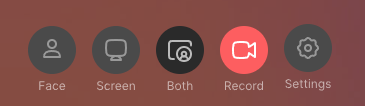
- Select what you would like to share. You can choose between:
- Entire Screen - will record everything on your desktop.
- Window - will record only a specific application, like Chrome, Slack, or something else.
- Chrome Tab- will only record what is on the specific chrome tab. We typically recommend this option because you get a more “polished” recording. You’re not sharing any bookmarks on chrome or folders on your desktop.
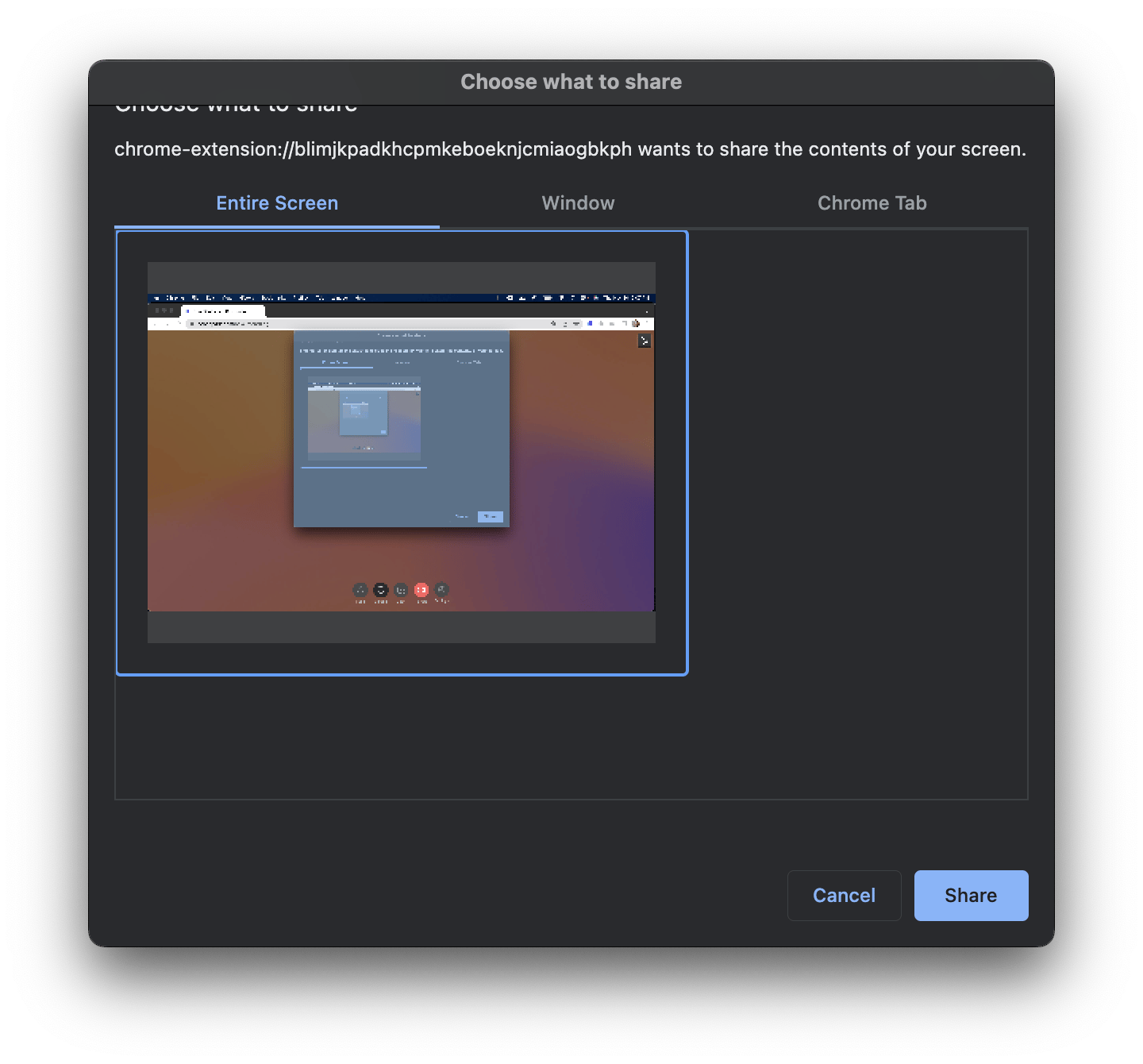
- Click the blue**“share”**button to start recording.
- Once you have finished, click on the Sendspark icon again to stop recording

Please Note: Because this is a Chrome Extension, there are some limitations. One is that you will not be able to drag your face bubble off of your Chrome window (so you cannot record yourself over certain apps such as PowerPoint).
Frequently asked questions
How do I record my face and screen at the same time?
How do I record my face and screen at the same time?
Launch Sendspark from the icon on your Chrome nav bar, select Cam + Screen as your recording type, then click Record. You’ll then choose what to share before recording starts.
How do I stop the recording?
How do I stop the recording?
Once you’ve finished, click the Sendspark icon again to stop recording.
Can I record my face over PowerPoint?
Can I record my face over PowerPoint?
Not with the Chrome Extension. Because it’s a browser extension, you can’t drag your face bubble off the Chrome window, so you can’t record yourself over apps like PowerPoint.