

Key takeaways
- LemCal’s Embed tab (inside your meeting type) provides the two values Sendspark needs.
- Set LemCal as the provider in Sendspark, then paste the user ID and the meeting value into their fields.
- When copying each value, do not include the surrounding quotation marks.
- After saving, the LemCal calendar appears beside your video so prospects can book without leaving the page.
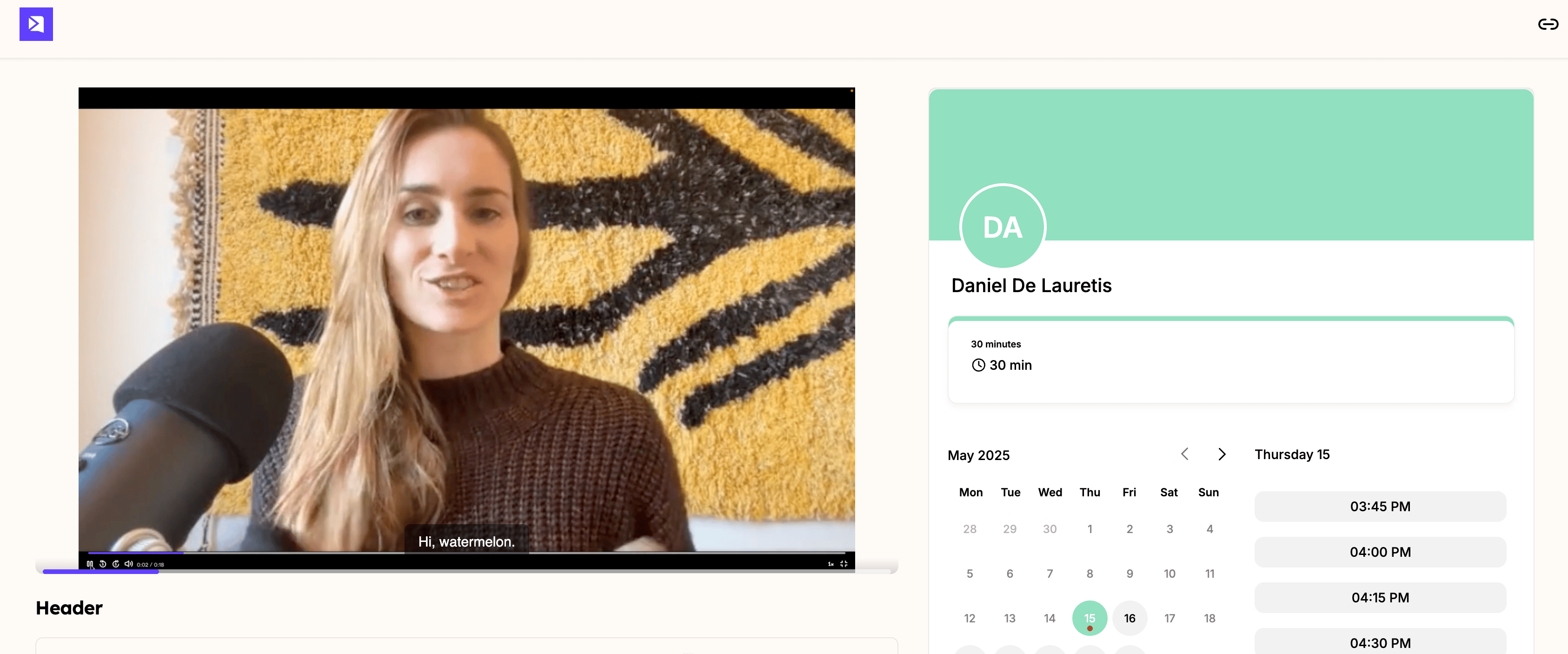
Check out this quick video to see the required steps:
How to embed a LemCal calendar with your video
- In LemCal, go to Meetings, then click the meeting type you created.
- Open the Embed section. You’ll see two pieces of data that Sendspark needs.
- Copy the first value — your user ID — making sure not to include the quotation marks.
- In Sendspark, select LemCal as the provider and paste the user ID into its field.
- Copy the second value (the meeting) the same way and paste it into its field.
- Click Save. Your LemCal calendar now appears next to your video.
Frequently asked questions
Where do I find the values Sendspark needs?
Where do I find the values Sendspark needs?
Open your meeting type in LemCal and go to the Embed section. It shows two pieces of data: the first is your user ID and the second is the meeting. You paste both into Sendspark.
Should I include the quotation marks when copying?
Should I include the quotation marks when copying?
No. When you copy each value from LemCal, leave out the surrounding quotation marks — paste only the value itself into Sendspark.
Which provider do I select in Sendspark?
Which provider do I select in Sendspark?
Choose LemCal as the calendar provider before pasting the user ID and meeting values, so Sendspark embeds the calendar correctly.