

Key takeaways
- Hover over a video, select Move, pick the destination folder, and click Move to confirm.
- Use the dropdown at the top of the Move modal to switch the destination between “My Videos” and “Team Videos.”
- Moving a video into the Team Library lets other team members view or edit it, while videos in My Library are only accessible to you.
How to Move Videos Between Folders
- Hover over the video you would like to move
- Select the Move option

- Select the **Destination Folder.**Note, you can also change the video library (between “My Videos” and “Team Videos”) using the dropdown at the top of the modal.
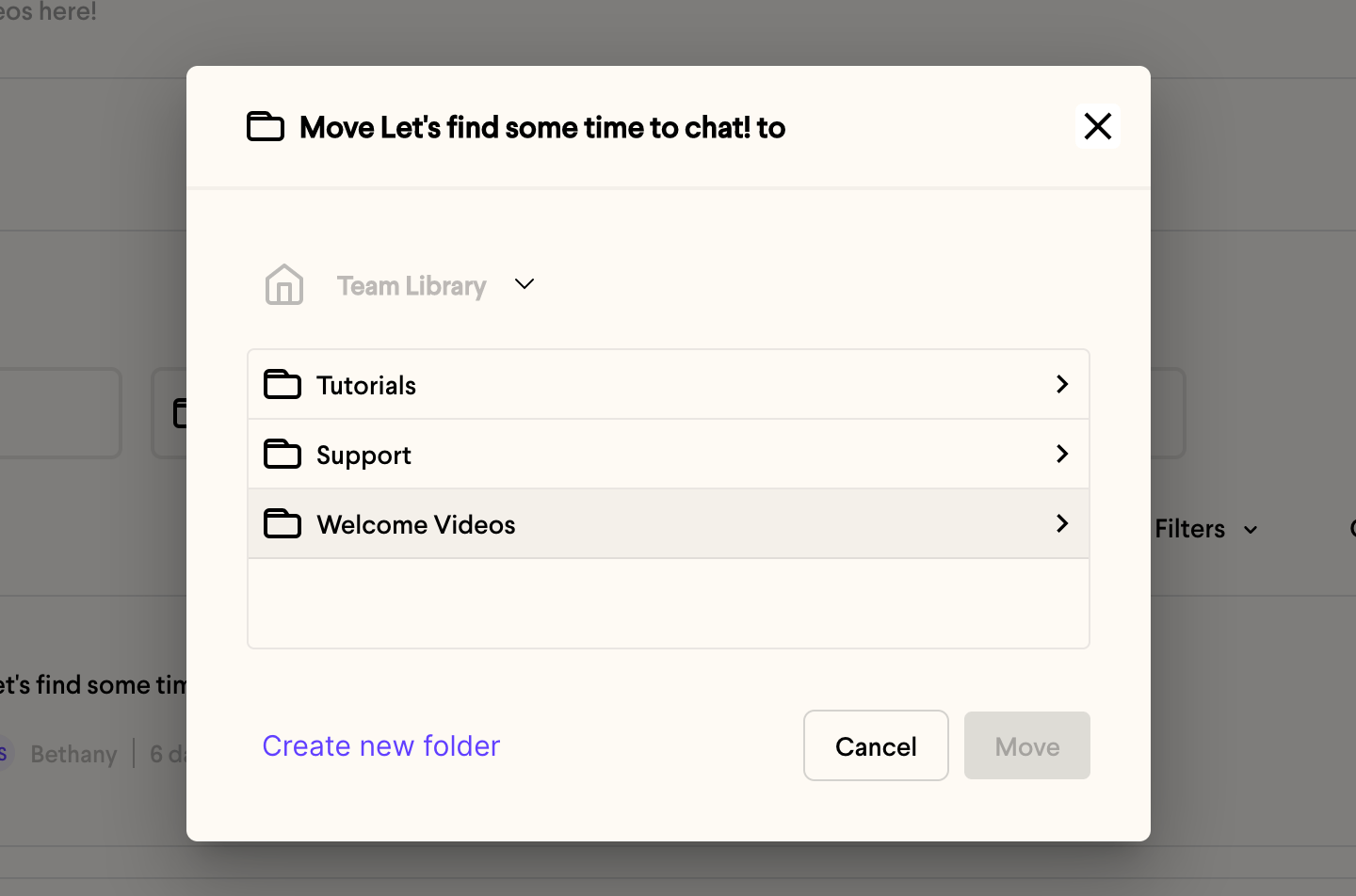
- Select Move to confirm

- That’s it!
Frequently asked questions
Can I move a video between My Videos and Team Videos?
Can I move a video between My Videos and Team Videos?
Yes. In the Move modal, use the dropdown at the top to change the video library between “My Videos” and “Team Videos,” then choose the destination folder.
Who can access videos in the Team Library?
Who can access videos in the Team Library?
Every team member on your Sendspark account can access and manage videos in the Team Library, whereas videos in My Library are only accessible to you. See Move Videos Between Personal and Team Libraries.