

Key takeaways
- To silence a video, turn off each audio source you don’t want: tab audio, system audio, and your microphone.
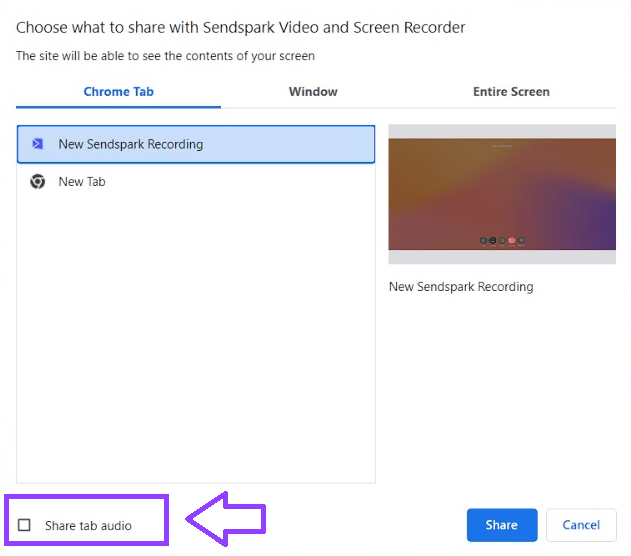
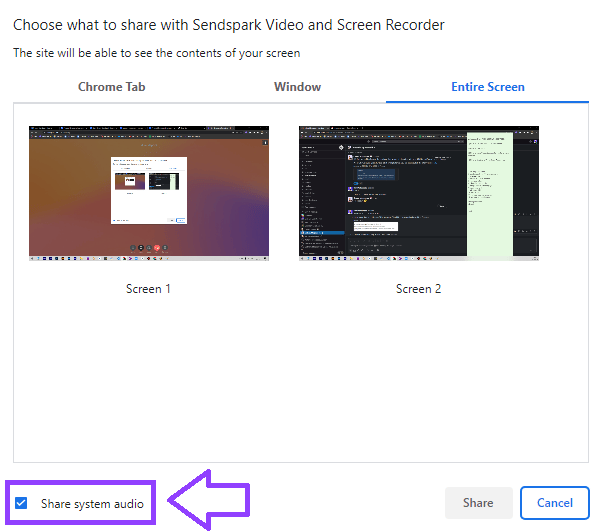
- Uncheck “Share tab audio” in the recording modal; if recording the Entire Screen, also disable “Share system audio.”
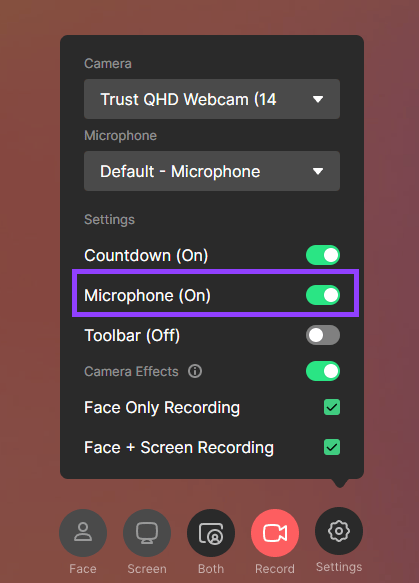
- Mute your voice by opening Settings and toggling the Microphone off. This works only with Screen Only or Cam + Screen recordings, not Camera Only videos.
- The microphone setting saves to your defaults, so remember to toggle sound back on the next time you want to speak while recording.
How to disable each audio source
To record videos without sound from the Sendspark Chrome Extension, simply uncheck the “Share tab audio” at the bottom left of the Recordingmodal:
You can also mute your microphone entirely when recording a video. Simply click on Settingsand toggle the Microphone option off:
Please note:
- This will only work when recording with Screen Only or Cam + Screen. You can NOT record a Camera Only video without sound.
- This setting will save to your defaults, so make sure to toggle the sound on again next time you would like to speak while recording! 🔇
Frequently asked questions
How do I turn off audio when recording in Sendspark?
How do I turn off audio when recording in Sendspark?
Uncheck “Share tab audio” at the bottom left of the recording modal. If you’re recording the Entire Screen, also disable “Share system audio.” To remove your voice as well, mute the microphone in Settings.
How do I mute my microphone while recording?
How do I mute my microphone while recording?
Click Settings and toggle the Microphone option off before you record. This removes your voice from the video.
Can I record a face-only video without sound?
Can I record a face-only video without sound?
No. Muting the microphone only works when recording with Screen Only or Cam + Screen. You cannot record a Camera Only video without sound.
Why is there still sound after I muted my microphone?
Why is there still sound after I muted my microphone?
Muting the mic only removes your voice. If your video still has audio, tab audio or system audio is likely still enabled — uncheck “Share tab audio” and, for Entire Screen recordings, “Share system audio.”
Do I need to turn the sound back on next time?
Do I need to turn the sound back on next time?
Yes. These settings save to your defaults, so if you muted the microphone or disabled tab audio, toggle them back on the next time you want sound in your recording.