

Key takeaways
- Turn on the Calendar toggle under your Sendspark video and pick Outreach as the provider.
- Add the link to your Outreach calendar (use the calendar link, not the embed code, Sendspark embeds it for you).
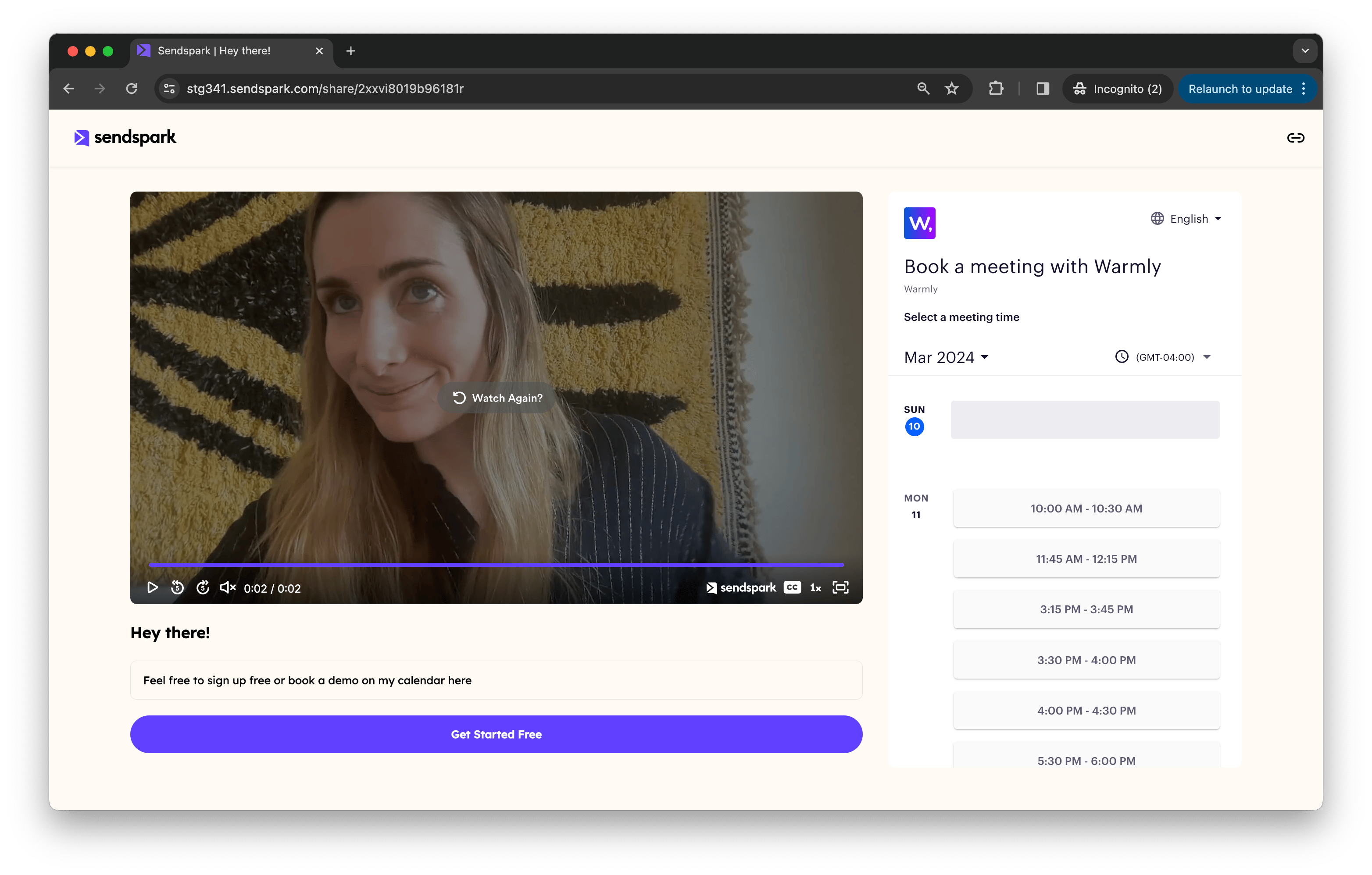
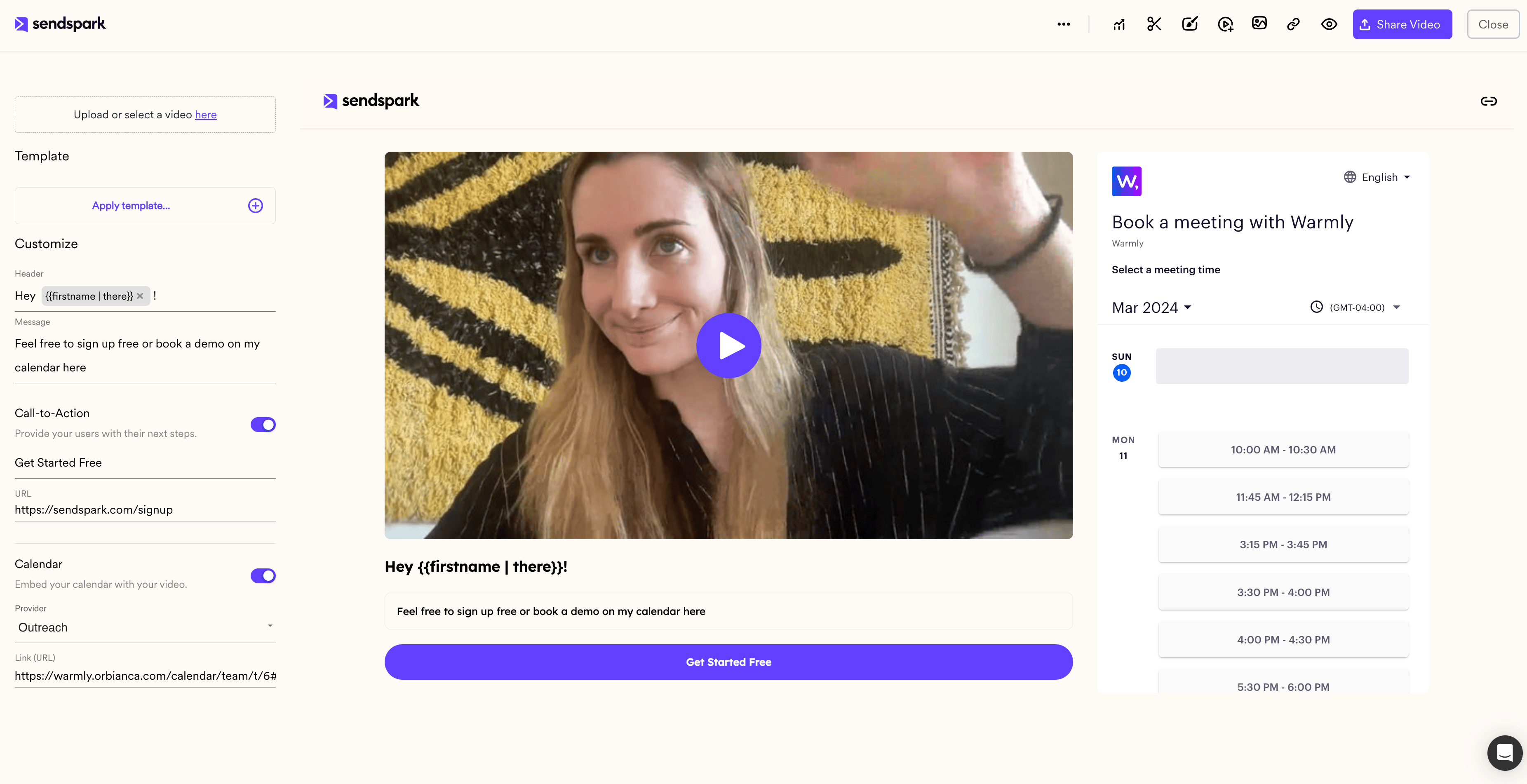
- The embedded calendar shows in the preview area and lets prospects book meetings directly on the video page.
- Embedded calendars work everywhere you customize video pages: video messages, dynamic video campaigns, and templates. See How to Embed Calendars with Videos for the full list of supported platforms.
How to Embed Outreach Calendar Link Next To Videos
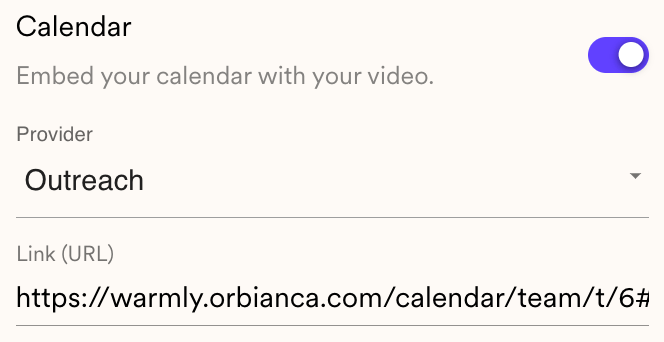
- Under your Sendspark video, toggle “Calendar” to “On”
- Select “Outreach” from the Provider Dropdown List
- Add the linkto the Outreach calendar you want to use
Frequently asked questions
Do I paste the Outreach embed code or the calendar link?
Do I paste the Outreach embed code or the calendar link?
Paste the calendar link, not the embed code. Sendspark automatically embeds your calendar using the information from the link.
Where does the embedded calendar appear for my prospect?
Where does the embedded calendar appear for my prospect?
Right on the video page, next to the video. Prospects can watch your video and book a meeting on your Outreach calendar without ever leaving the page.
Can I use an embedded calendar on dynamic video campaigns too?
Can I use an embedded calendar on dynamic video campaigns too?
Yes. Embedded calendars are supported everywhere you can customize video pages in Sendspark, including individual video messages, dynamic video campaigns, and templates. The process is the same in each place.
Can I save my Outreach calendar so I don't add it every time?
Can I save my Outreach calendar so I don't add it every time?
Yes. Save the embedded calendar in a Template, then apply that template to new videos, so you don’t have to paste your calendar link for every recording. See How to Embed Calendars with Videos for details.