

Key takeaways
- Share modal shortcuts provide platform-specific share snippets that enable dynamic variables (merge tags) and let you track exactly who is watching.
- Customizing the modal lets you show only the shortcuts for the email platforms you actually use, reducing clutter.
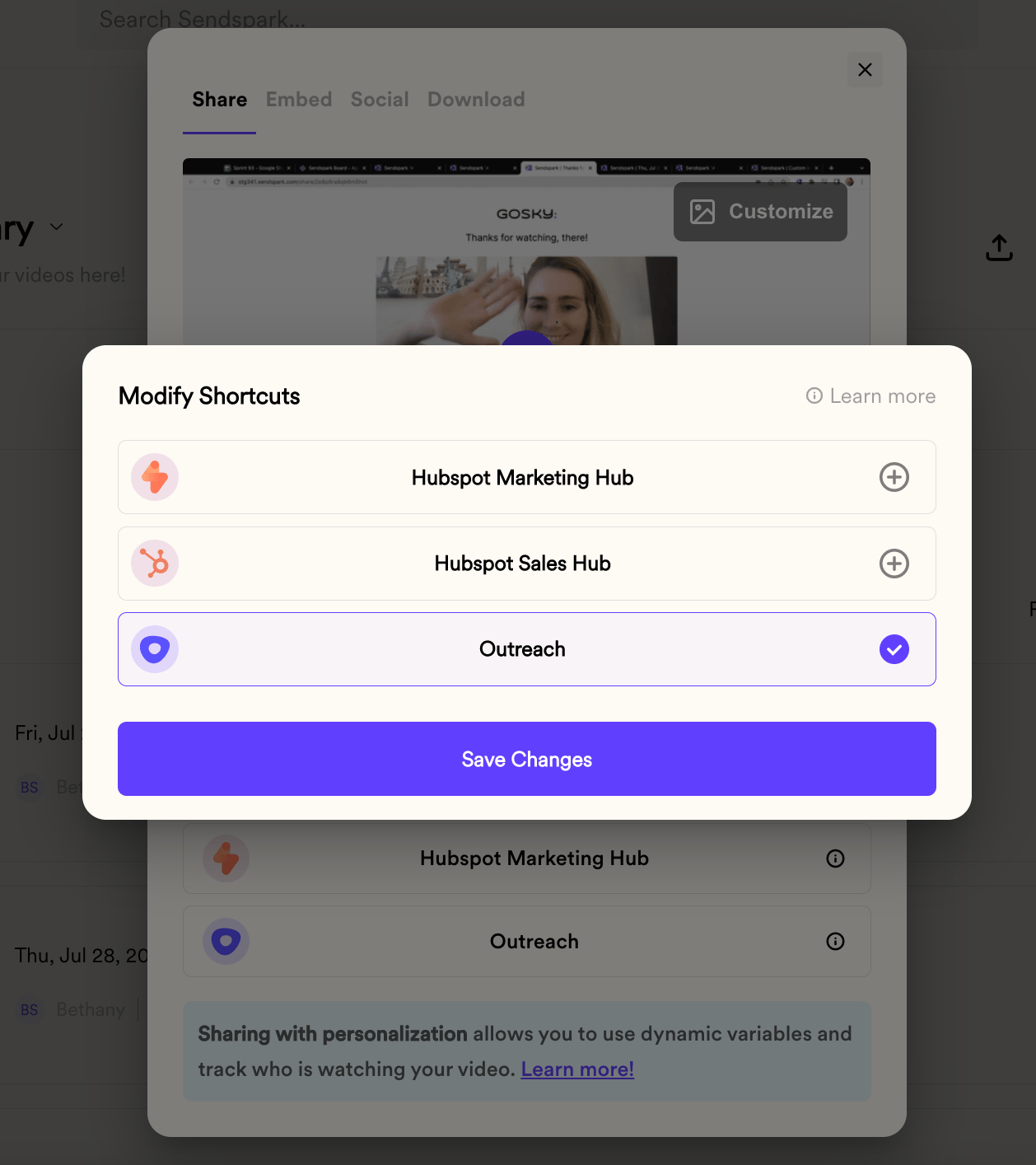
- Click the Edit/Add link, toggle each shortcut in the Modify Shortcuts dialog, then click Save Changes.
- A plus icon means the shortcut is disabled (click to enable); a check icon means it’s enabled (click to disable).
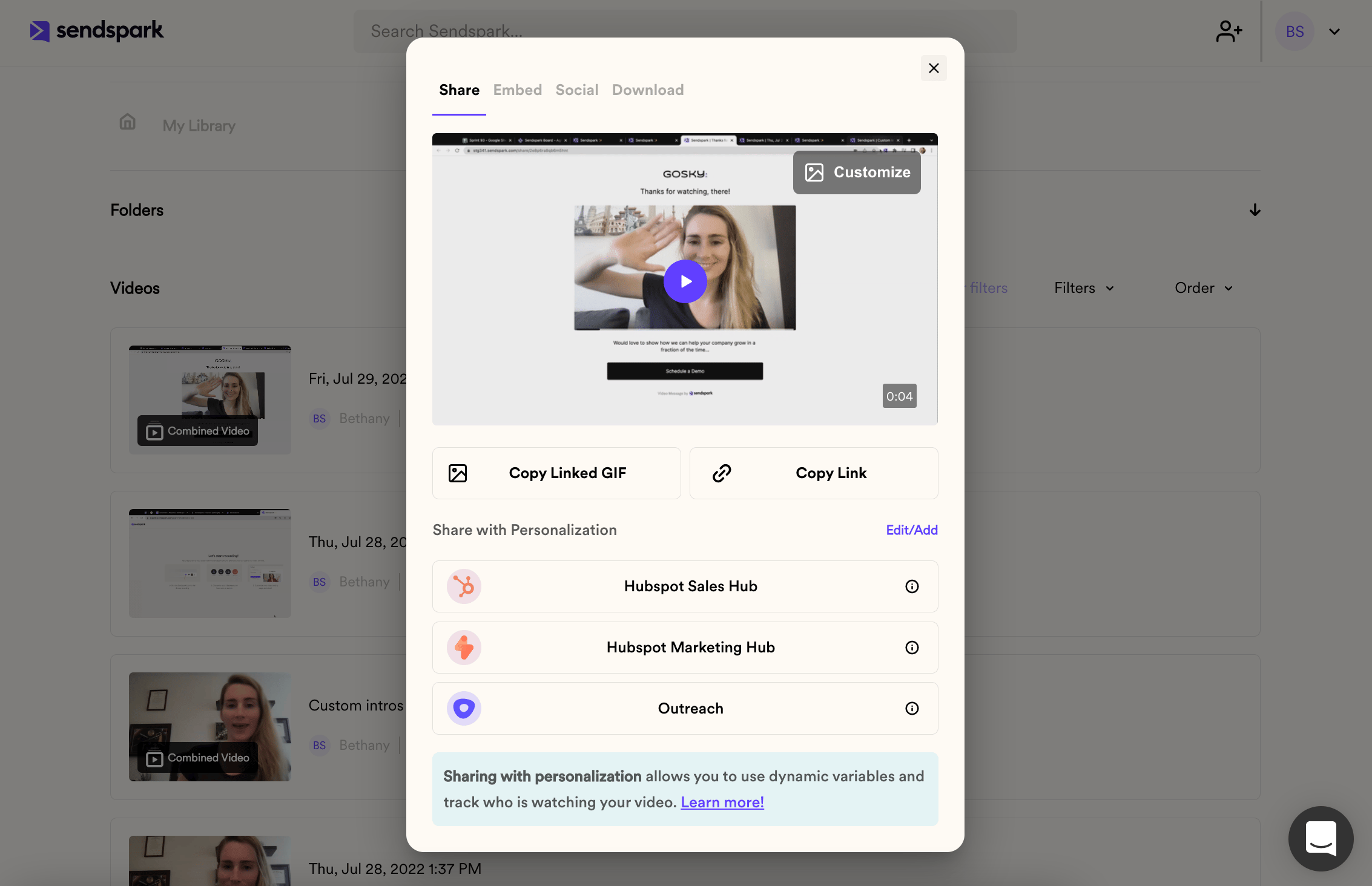
What are these shortcuts for?
These shortcuts provide specific share snippets for different email platforms. Specific share snippets come with a few advantages, such as:- Ability to use dynamic variables. If you’d like to use merge tags in videos as placeholders for first name, company name, or other variables, you need to use the correct share snippet for your message sending platform.
- Ability to track exactly who is watching videos. When you share with personalization, you can see who is watching your video in your video analytics.
How do you mange shortcuts?
We recommend customizing your share modal so that you only see shortcuts for the email platform/s you actually use. This will make things a little less cluttered for you. To customize shortcuts, simply…- Click the Edit/Add link, which opens the Modify Shortcuts dialog
- Click on the icon to the right of each shortcut. If you see a “plus” icon, that means that the shortcut is NOT enabled. You can click on the icon to enable that shortcut. If you see a “check” icon, that means that that shortcut is enabled. You can click on the icon to disable that shortcut.
Frequently asked questions
How do I enable or disable a shortcut?
How do I enable or disable a shortcut?
Click the Edit/Add link to open the Modify Shortcuts dialog, then click the icon to the right of each shortcut. A plus icon means the shortcut is not enabled (click it to enable), and a check icon means it is enabled (click it to disable). Finish with Save Changes.
Do the shortcuts I set apply to my whole workspace?
Do the shortcuts I set apply to my whole workspace?
No. The shortcuts you set apply just to you. Other members of your workspace can modify their own shortcuts independently.
I used a shortcut but personalization isn't working. What should I check?
I used a shortcut but personalization isn't working. What should I check?
Read the help article for your specific email platform to make sure you’re sharing hyper-personalized videos correctly, such as HubSpot Sales Hub, HubSpot Marketing Hub, or Outreach.