

Key takeaways
- Adding personalization can increase email engagement by up to 16x, and this integration lets you personalize videos at scale.
- Record one video in Sendspark with personalization tokens like first name, job title, and company name; they populate with each viewer’s information when sent through HubSpot.
- If a contact’s information is unknown, Sendspark displays fallback variables so the message still looks complete.
- Use Share with Personalization → HubSpot Sales Hub to copy the snippet, paste it into a new HubSpot template, and save. The template then works from direct emails, Gmail/Outlook (with the HubSpot Chrome Extension), and sequences.
Why Send Personalized Videos in HubSpot Sales Hub?
Adding a bit of personalization can increase email engagement by up to 16x. Sendspark’s HubSpot Sales Hub integration provides a simple way to personalize videos at scale. To get started, read the article or watch the video:How to Send Personalized Videos at Scale in HubSpot Sales Hub
1. Create your video in Sendspark
When you create your video message in Sendspark, you can use personalization tokens, like {{first name}}, {{job title}}, and {{company name}}.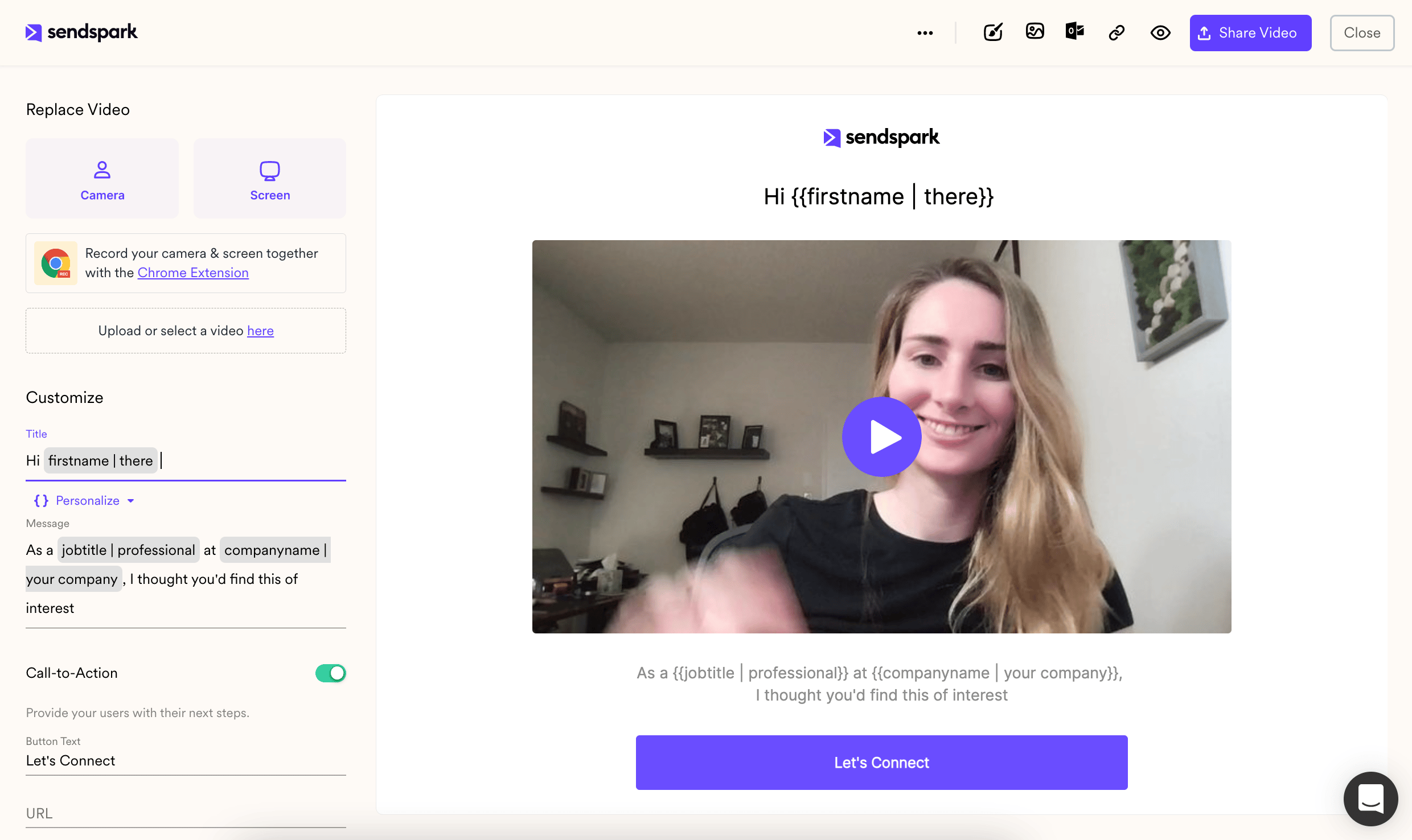
2. Add to a HubSpot template
Under “Share with Personalization”clickHubSpot Sales Hub. Note, if you don’t see HubSpot Sales Hub on the share modal, you can follow these steps to modify your shortcuts.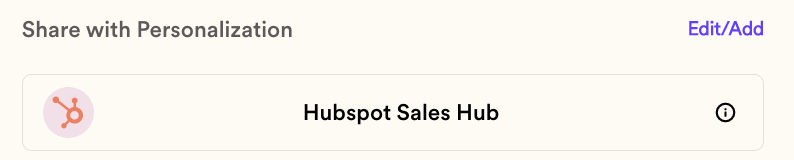
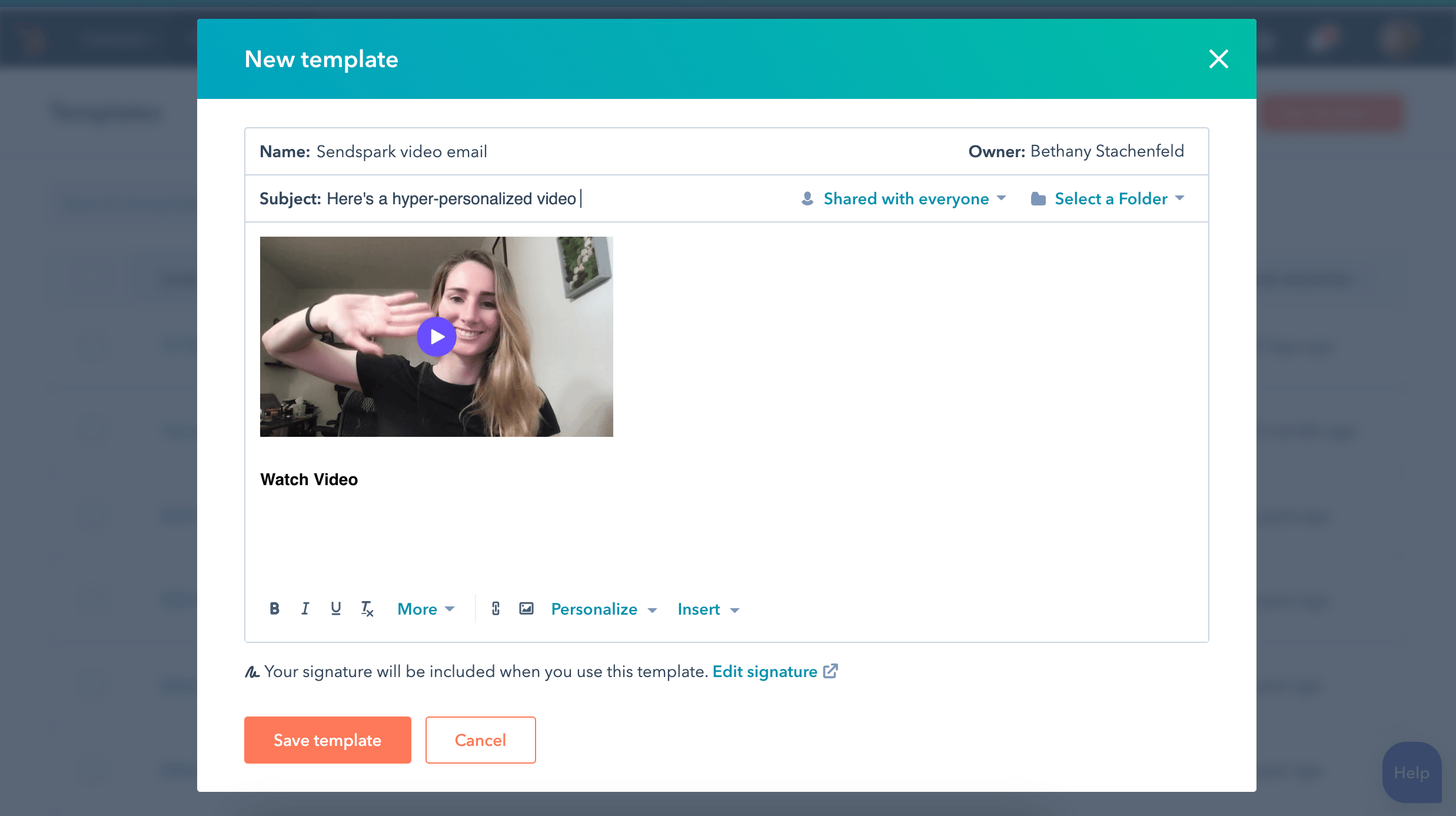
3. Share your video email
Now, you can use your personalized video template from anywhere in HubSpot Sales Hub, including:- Direct emails to customers in HubSpot
- Direct emails in Gmail / Outlook, as long as you have the HubSpot Chrome Extension installed
- Sequences
Additional Resources for Integrating Sendspark and HubSpot
As a Sendspark + HubSpot user, you might want to take advantage of these additional features!- Record and share videos right from HubSpot emails
- Embed videos in HubSpot Marketing Hub emails
- Embed videos in HubSpot blog posts
- Add your HubSpot tracking code to Sendspark to see Sendspark views right in your contacts’ timelines.
Frequently asked questions
How much can personalized video improve email engagement?
How much can personalized video improve email engagement?
Adding a bit of personalization can increase email engagement by up to 16x. Sendspark’s HubSpot Sales Hub integration is designed to let you personalize videos at scale, so you record once and reach many contacts.
What happens if a contact's information is missing?
What happens if a contact's information is missing?
If the contact information is unknown, Sendspark displays fallback variables in place of the missing tokens, so the video and message still look complete.
Where can I use the video template after saving it in HubSpot?
Where can I use the video template after saving it in HubSpot?
Once saved, you can use your personalized video template from anywhere in HubSpot Sales Hub, including direct emails to customers in HubSpot, direct emails in Gmail or Outlook (as long as you have the HubSpot Chrome Extension installed), and sequences.