

<div></div> around the iframe, manually set the iframe’s height and width to your video’s ratio, and remove the position, left, and top attributes. Setting 100% width will not work.
Key takeaways
- HubSpot automatically forces embedded videos to a 16x9 ratio, which can cause an unwanted crop or scroll effect, so you must set the video dimensions manually.
- 100% width will not work; enter the actual height and width in the iframe using your video’s ratio (9x16 for vertical, 4x3 for MacBook recordings, 16x9 for standard).
- In the blog editor, use advanced then source code to remove the wrapping
<div></div>and the position, left, and top attributes from the iframe.
Here’s how to make your video display correctly on HubSpot
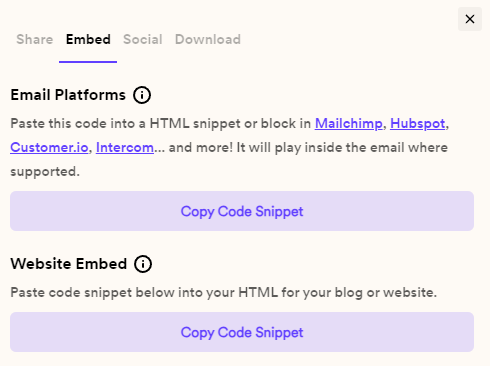
- Copy the video embed code from the share modal Copy Code Snippet
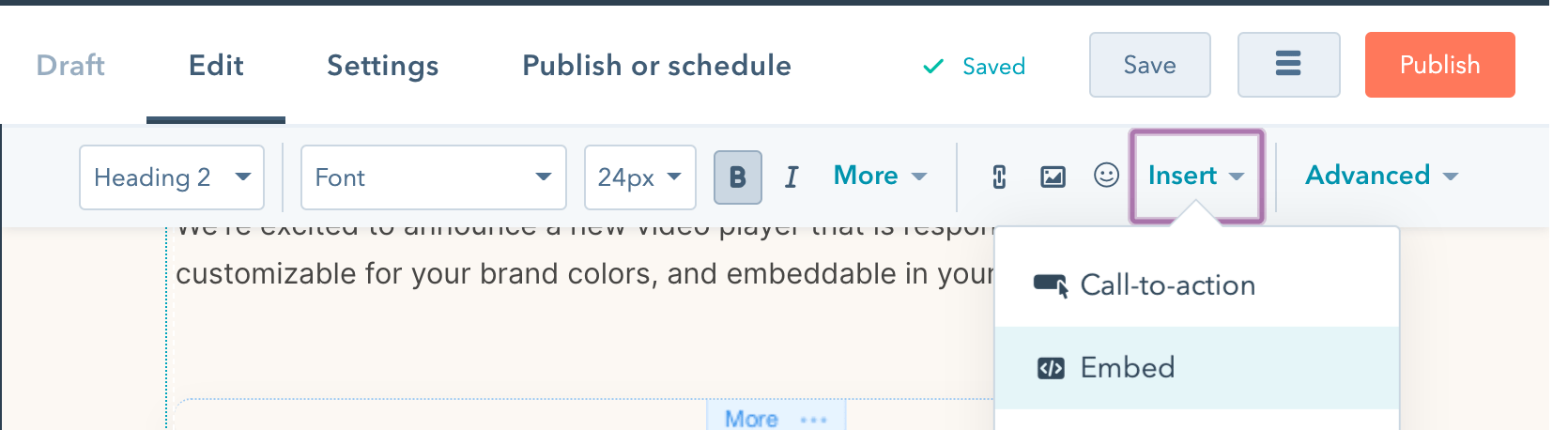
- In the blog editor, open Insert → Embed and paste the code.
- If you preview now, you’ll notice that your video is forced to a 16x9 ratio, no matter what the actual video size is. Not pretty! 😬
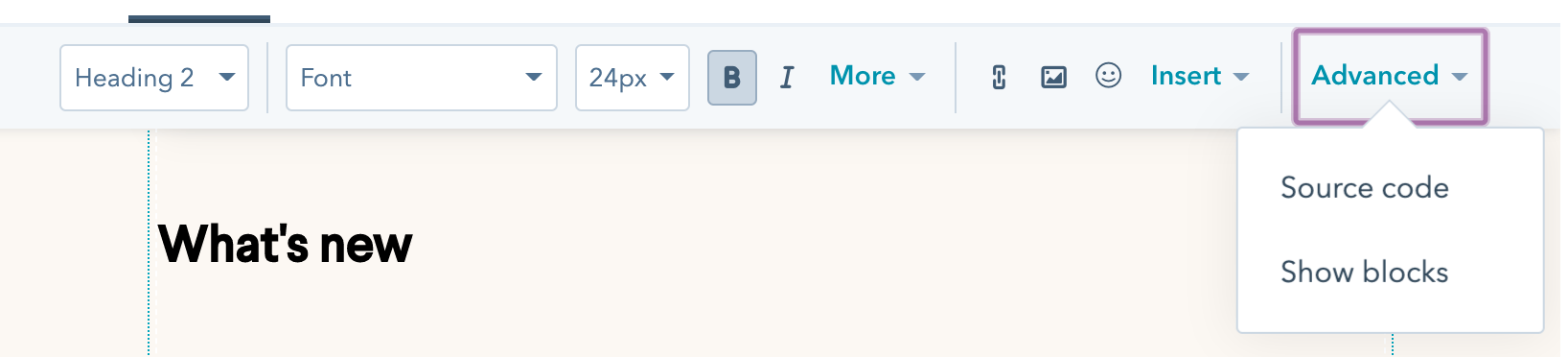
- Go back to your blog editor, and open Advanced and then Source code.
- Remove the**<div></div**> around your video iframe
- Manually set the height and width of your video within the iframe to the correct size of your video. Here are some common ratios for video: vertical videos: 9x16, videos recorded from macbooks: 4x3, “normal” videos: 16x9.
- Remove the position, left, and top attributes. Your code should look something like this:
- That’s it! Your responsive video should be displaying beautifully on your blog. 👏
Frequently asked questions
Why does my HubSpot video look cropped or squished?
Why does my HubSpot video look cropped or squished?
HubSpot automatically forces embedded videos to a 16x9 ratio no matter the actual video size, which can cause an unfortunate crop or scroll effect. To fix it, manually set the video’s height and width in the iframe source code.
Can I just set the video width to 100% in HubSpot?
Can I just set the video width to 100% in HubSpot?
No. 100% width will not work for embedding a responsive video on a HubSpot blog. You have to manually set the video height and width yourself.
What height and width should I use for my video?
What height and width should I use for my video?
Set the iframe dimensions to match your video’s ratio. Common ratios are 9x16 for vertical videos, 4x3 for videos recorded from MacBooks, and 16x9 for “normal” videos.
Where do I edit the video's source code in HubSpot?
Where do I edit the video's source code in HubSpot?
In your blog editor, click advanced and then source code. From there, remove the wrapping
<div></div> around your video iframe and remove the position, left, and top attributes.Additional resources
As a HubSpot user, you might appreciate these additional resources:- How to send hyper-personalized videos in HubSpot Marketing Hub emails
- How to send hyper-personalized videos in HubSpot Sales Hub emails
- How to connect the HubSpot CRM