

Key takeaways
- LinkedIn video messages show two elements below the preview you can personalize: the Header and the Domain.
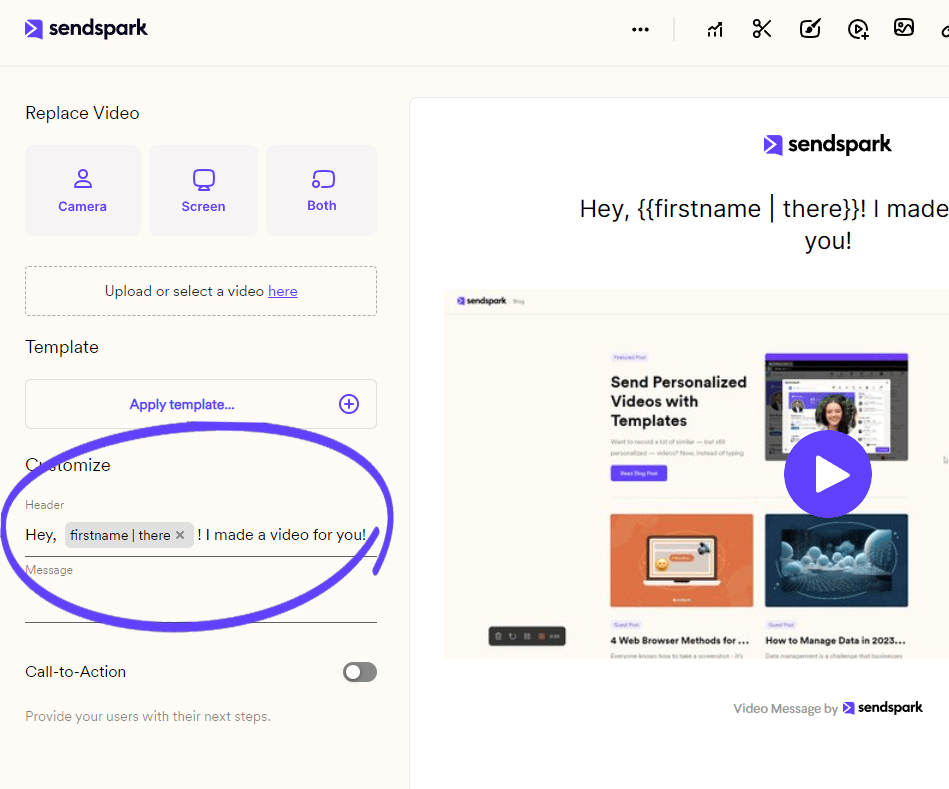
- Edit the Header on the EDIT page of each video: open your library, click the video, and type your text.
- Use placeholders such as the prospect’s first name in the Header, and add fallback text so it reads well when info is missing.
- To change the Domain, add a custom domain to your account; this requires the Growth plan or above.
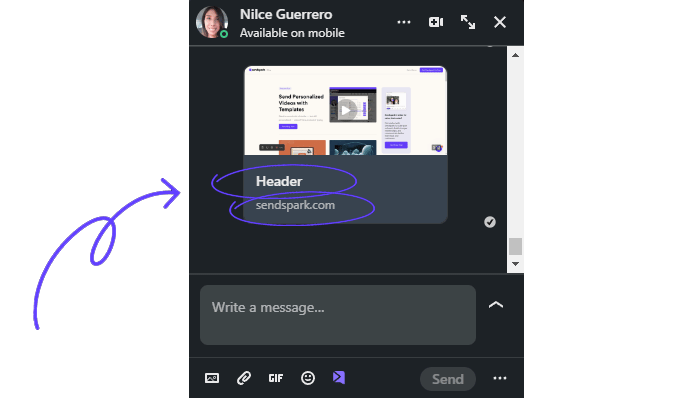
Header
This text can be updated on the EDIT page of each video. Simply go to your library, click on the video you are using, and type your desired text.
Domain
The last detail you’ll find in the LinkedIn message is the domain. which is “sendspark.com” in our example. To edit the domain, you must add a custom domain to your account, which requires the Growth plan or above. Please refer to this article for full instructions on how to add a Custom DomainFrequently asked questions
What can I edit in a LinkedIn video message?
What can I edit in a LinkedIn video message?
There are two elements below the message preview you can personalize: the Header text and the Domain. The Header is edited per video on its EDIT page, and the Domain is changed by adding a custom domain to your account.
How do I edit the Header text?
How do I edit the Header text?
Go to your library, click on the video you’re using, and type your desired text on the EDIT page. We suggest using placeholders here, most commonly the prospect’s first name, for example: “Hey, {First Name}, I made a video for you!”
Should I add fallback text to my placeholders?
Should I add fallback text to my placeholders?
Yes. Add fallback text so the message still reads well when a viewer’s information is unavailable. Also keep an eye on character count so the text doesn’t extend the message area.
How do I change the domain shown in the message?
How do I change the domain shown in the message?
The domain (for example “sendspark.com”) is changed by adding a custom domain to your account. To do this you must be at least a Solo Plan user.