

Key takeaways
- The integration requires the Sendspark Chrome Extension and a Chrome browser.
- It works in LinkedIn Direct Messages, InMail, and Sales Navigator.
- Record (or request) a video, preview it, optionally edit the landing page, then insert it as a share link.
- In Sales Navigator and Recruiter, thumbnails display only for 1st-degree connections or people who’ve accepted your InMail.
- To work a Sales Navigator list rather than one message at a time, see LinkedIn Sales Navigator: scale videos.
- Record videos of yourself or your screen
- Preview (and re-record) your videos
- Insert videos into LinkedIn Direct Messages,InMail, and Sales Navigator
- Receive real-time notifications when recipients engage with your videos
Before you get started:
Please install the Sendspark Chrome Extension to use the LinkedIn integration. As long as you have the Chrome Extension installed, you’ll automatically be able to access Sendspark from LinkedIn. Install the Sendspark Chrome Extension1. Click the Sendspark Icon in LinkedIn
Create a new message in LinkedIn. You’ll see the Sendspark logo appear in the options at the bottom of your compose window. You’ll see this in Direct Messages, Sales Navigator, and InMail.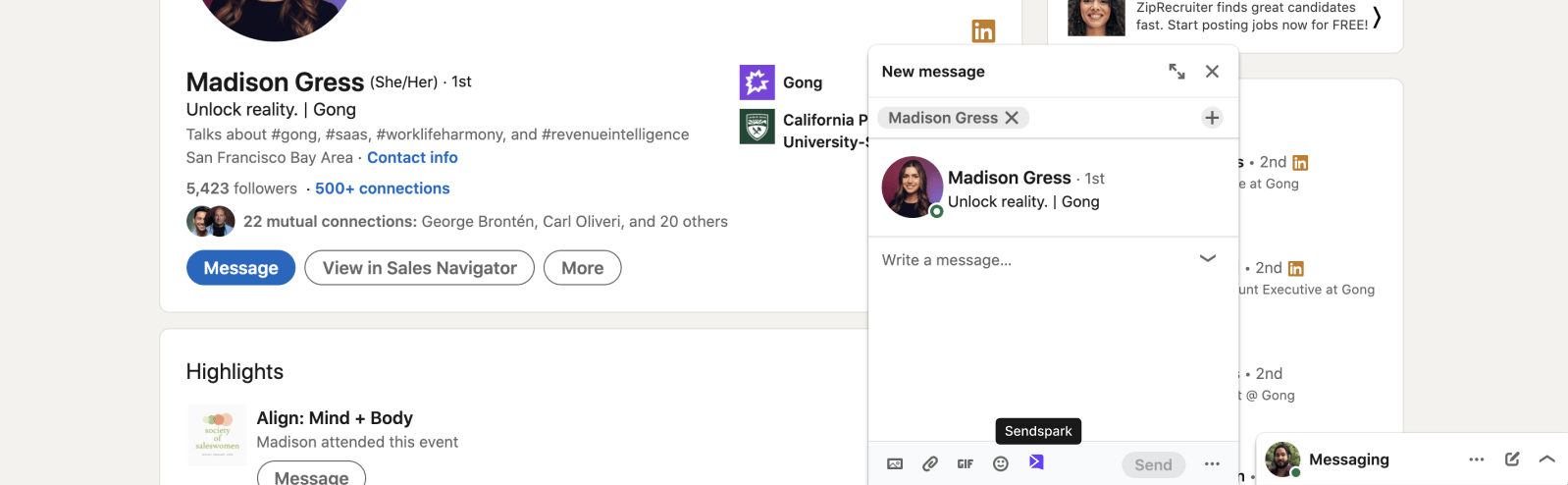
2. Record a New Video
Click Record New Video. This will launch the Sendspark Chrome Extension, so you can record a video of yourself or your screen. Alternatively, you can choose to Request Video, Meet Now, Send Calendar, Add Last Recording, or Video Library on Sendspark.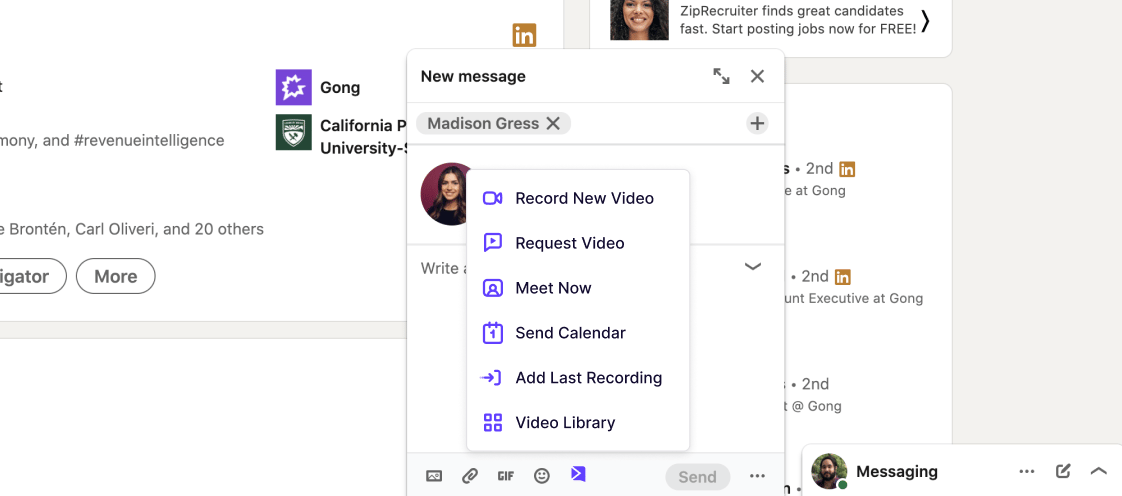
3. Complete Recording
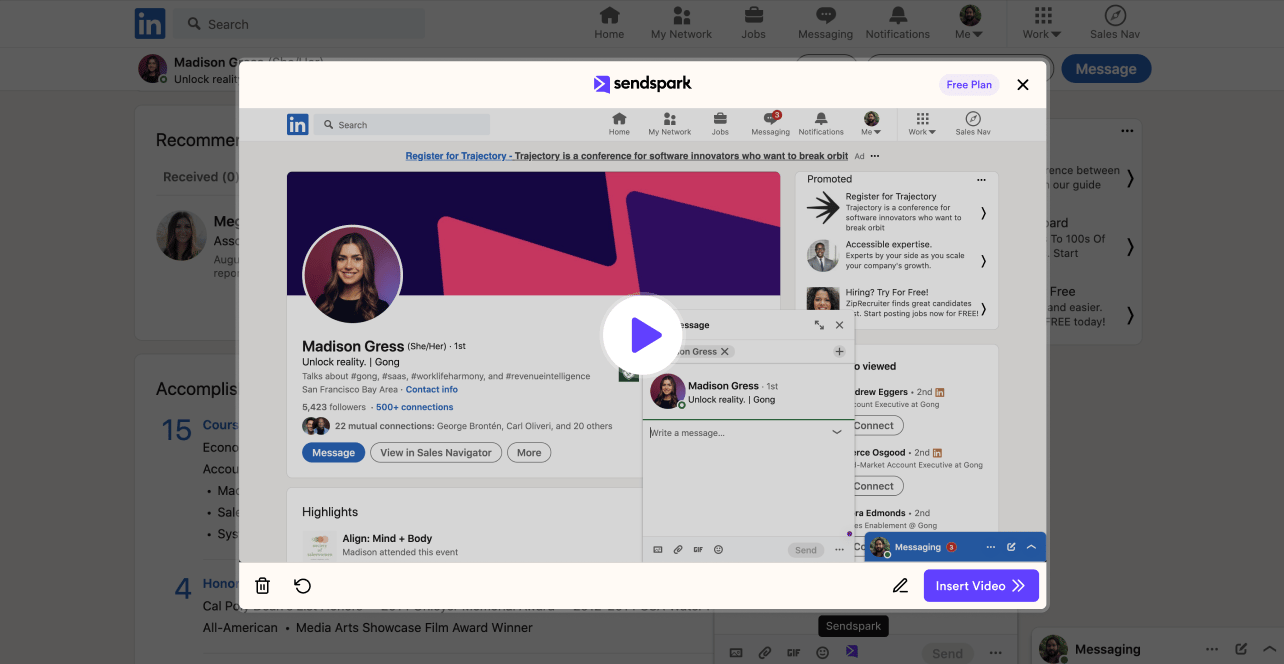
To end your video, click the Sendspark Chrome Extension icon on the top right of your browser.
4. (Optional) Edit Video Page in Sendspark
You can customize your video before sharing it by clicking Edit Page / Thumbnail.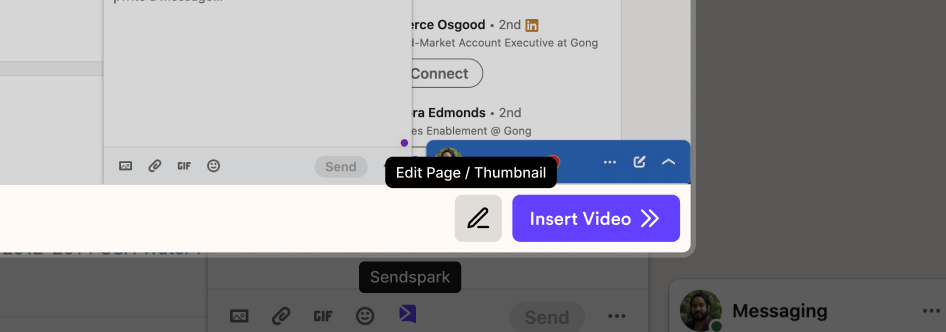
5. Insert Your Video in LinkedIn
Click Insert Video to place your video in your LinkedIn message.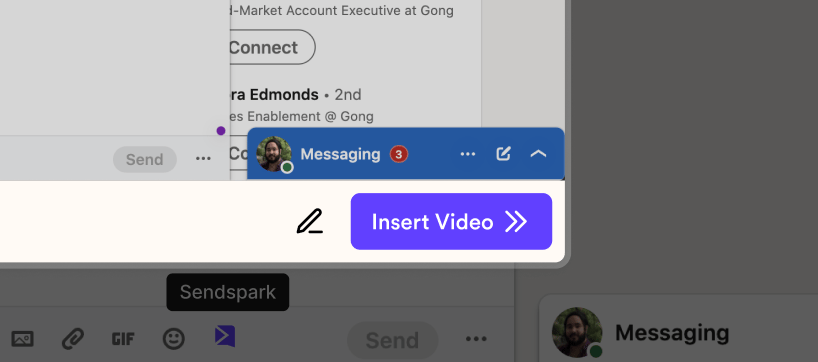
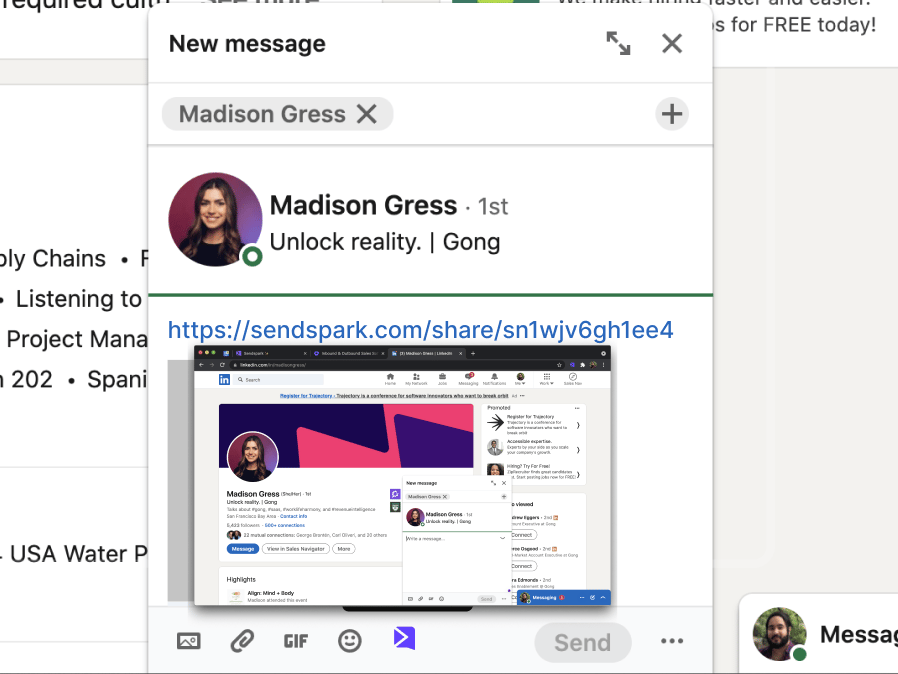
Happy Recording!
That’s it! Shoot us a message if you need help or have any feedback on the integration.Frequently asked questions
What do I need to use the LinkedIn integration?
What do I need to use the LinkedIn integration?
You need the Sendspark Chrome Extension installed and you must be using a Chrome browser. Once it’s installed, the Sendspark icon appears automatically in your LinkedIn compose window.
Where in LinkedIn can I insert videos?
Where in LinkedIn can I insert videos?
You’ll see the Sendspark icon and can insert videos in LinkedIn Direct Messages, InMail, and Sales Navigator.
What happens if I edit the video page before sharing?
What happens if I edit the video page before sharing?
Editing the page opens your video in a new Sendspark window and takes you out of LinkedIn. From there you’ll copy and paste your video into LinkedIn rather than inserting it directly.
Can I do more than record a new video?
Can I do more than record a new video?
Yes. From the Sendspark dropdown you can also request a video, meet live, send a calendar scheduling link, insert your last recording, or open your video library.