

Key takeaways
- Requires the Sendspark Chrome extension and a Chrome browser; then Sendspark appears in the Zendesk compose window automatically.
- Record a new video, add your last recording, send a video request, or pull from your Video Library.
- Edit without leaving Zendesk: trim, add a template (page text, CTA buttons, embedded calendar), or stitch videos together.
- Click Insert Video to drop it into your Zendesk message, then send.
Before you get started:
Please install the Sendspark Chrome Extension to use the Zendesk integration. As long as you have the Chrome Extension installed, you’ll automatically be able to access Sendspark from Zendesk. Install the Sendspark Chrome ExtensionHow to Send Videos in Zendesk
1. Click the Sendspark Icon in Zendesk
Create a new conversationor open anexisting conversation in Zendesk. You’ll see the Sendspark logo appear in the compose window next to the native Zendesk options.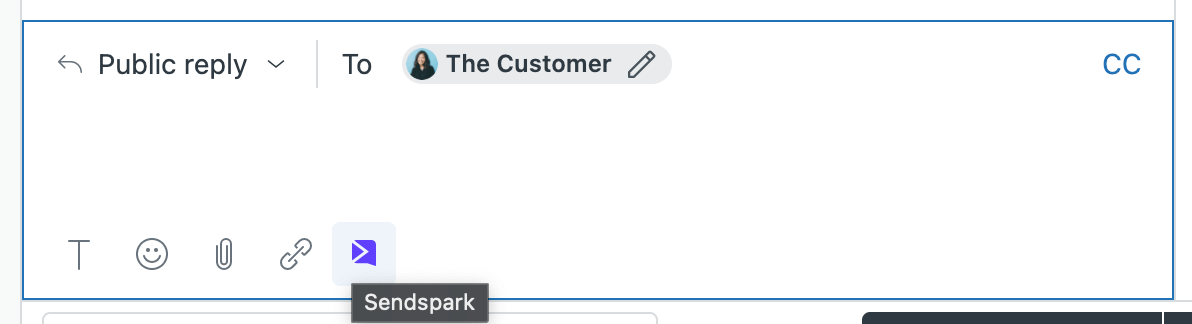
2. Record a New Video
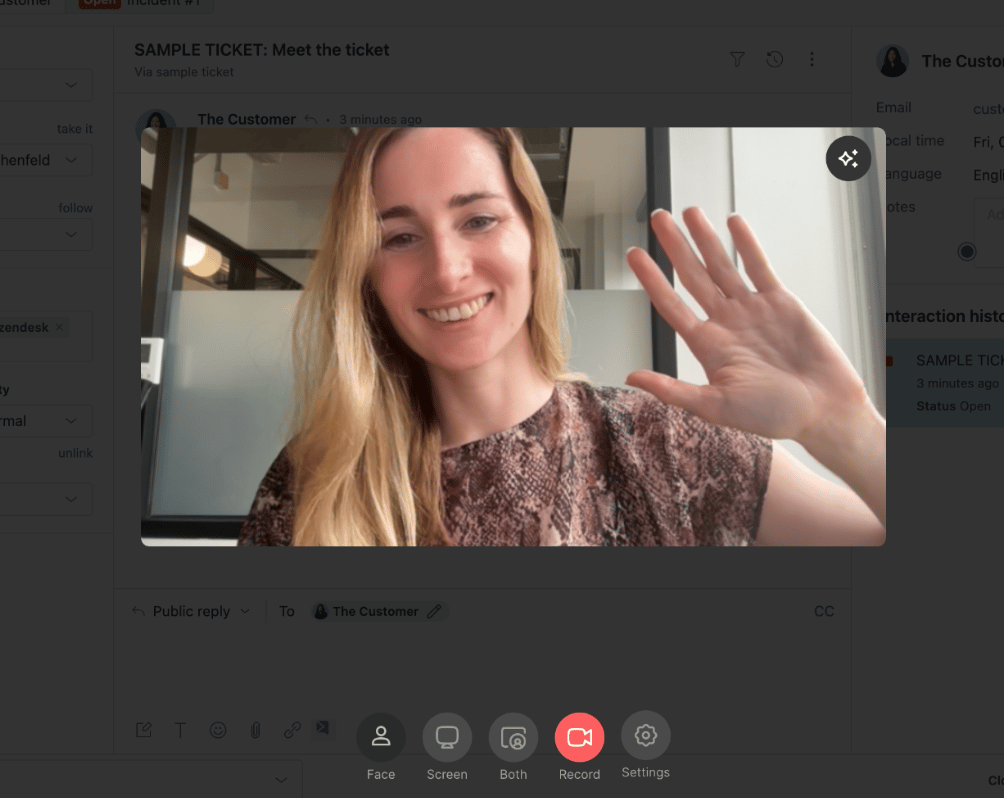
Click Record New Video.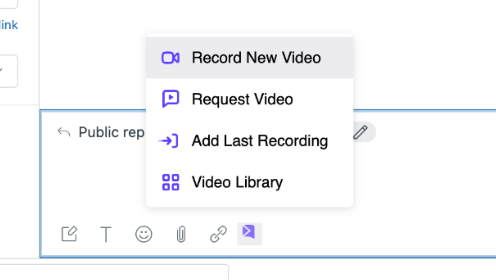
- Request Video — inserts a video request link to easily get a video recording or testimonial from your customer
- Add Last Recording — inserts the last Sendspark video you recorded
- Video Library — opens your Sendspark dashboard to find or manage existing videos
3. Preview Video
After you record your video, you’ll be able to preview and edit the video before sending it to your customer.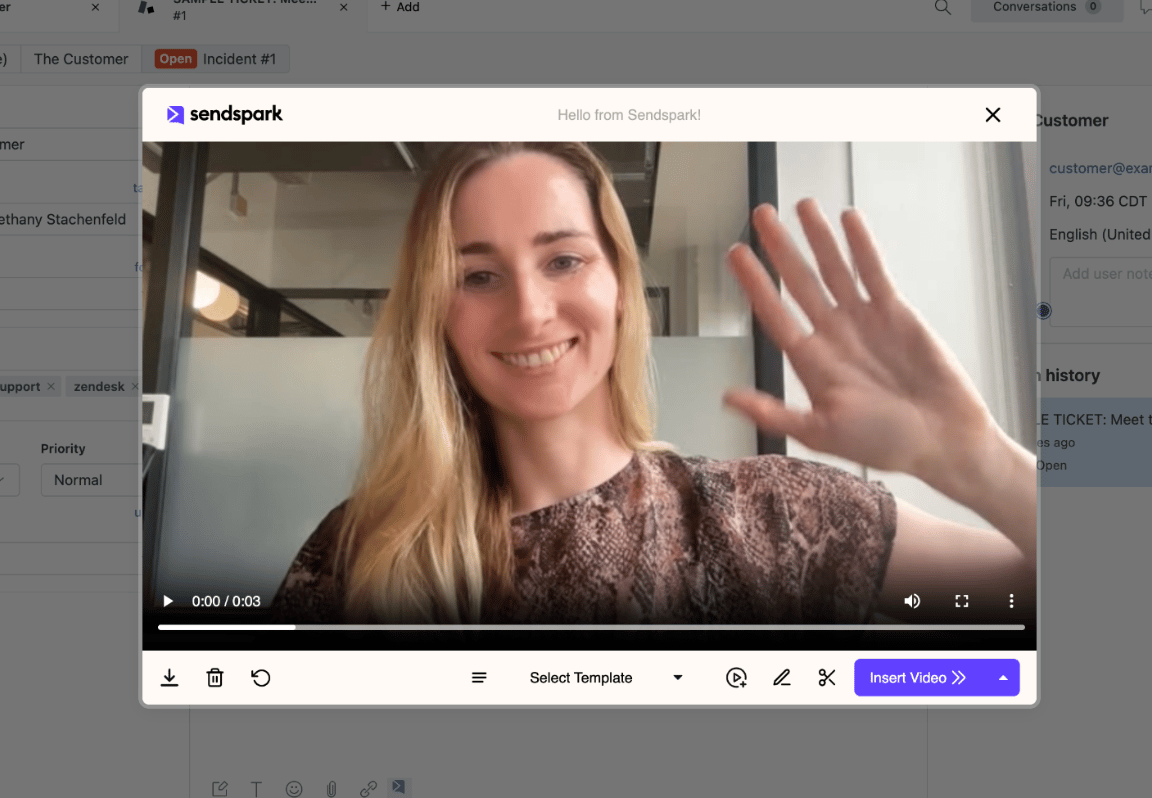
4. Edit Video
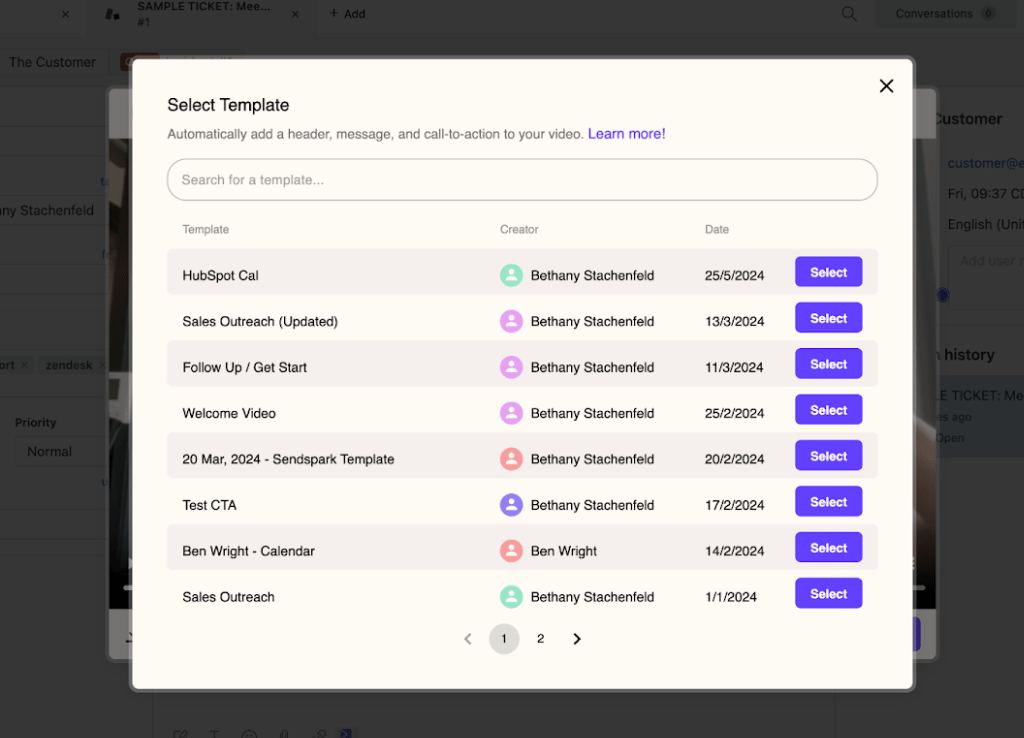
You can trim your video, add a template, or combine it with another video, all without leaving Zendesk.- Click on “Select Template” to add page text, call-to-action buttons, and an embedded calendar to videos in one click. You can edit templates in the Templates tab in Sendspark.
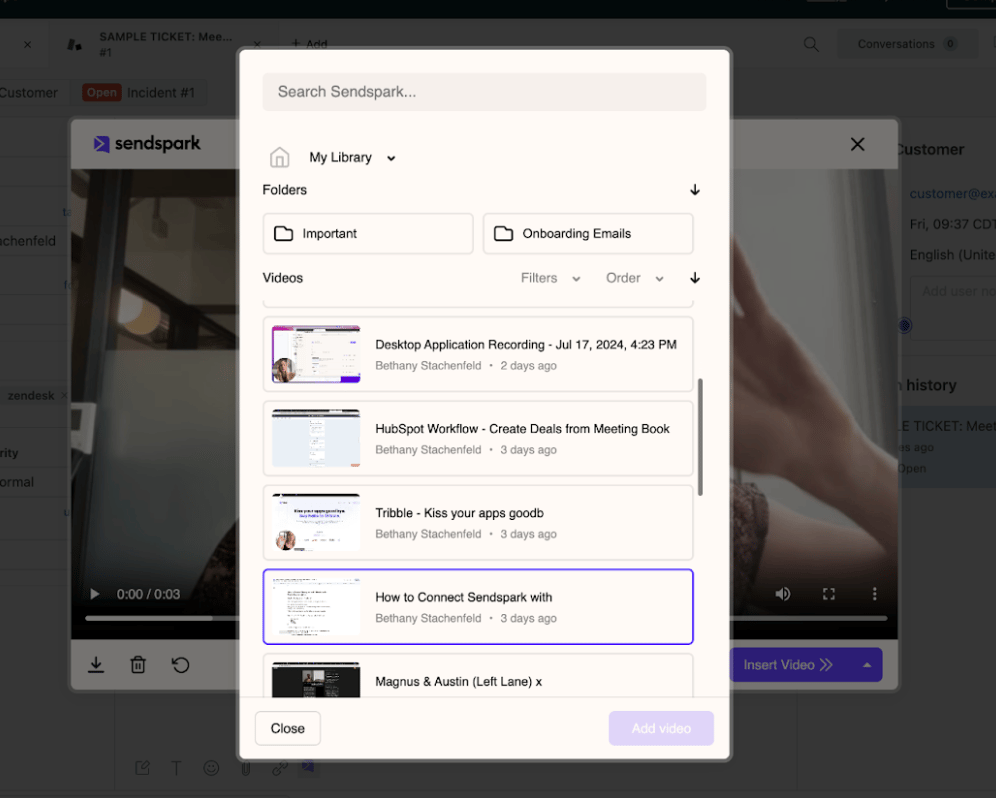
- Click the**“video +“**button to stitch another video to your recorded video. This is helpful when you want to share a personalized note along with a pre-recorded demo video.
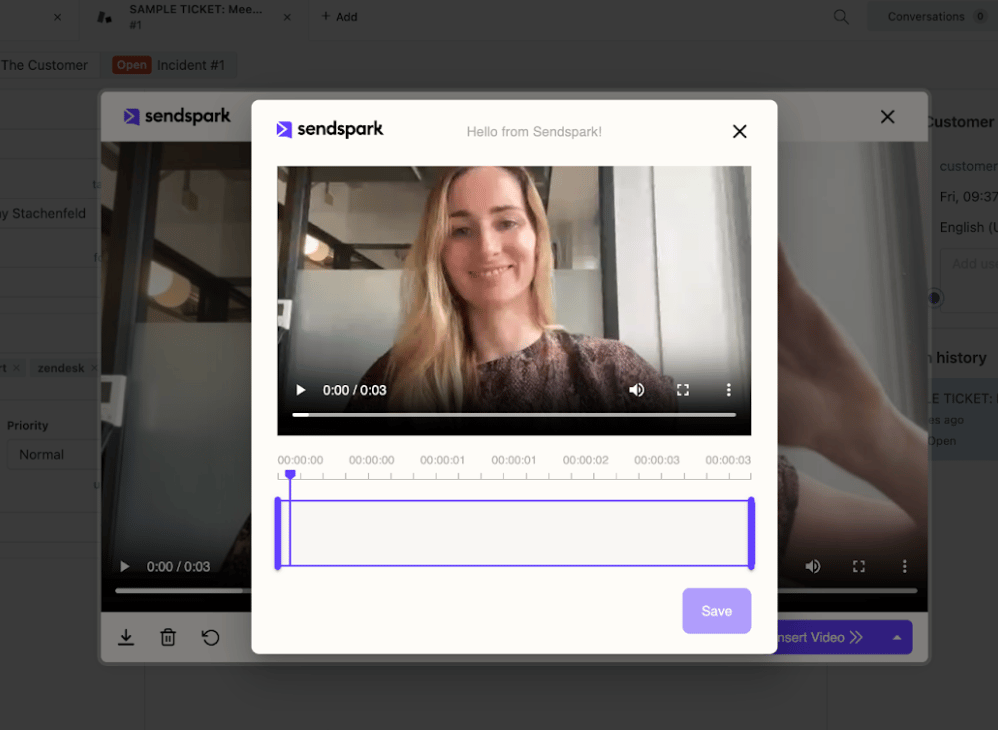
- Click the “scissors” button to trim your video before sending it off
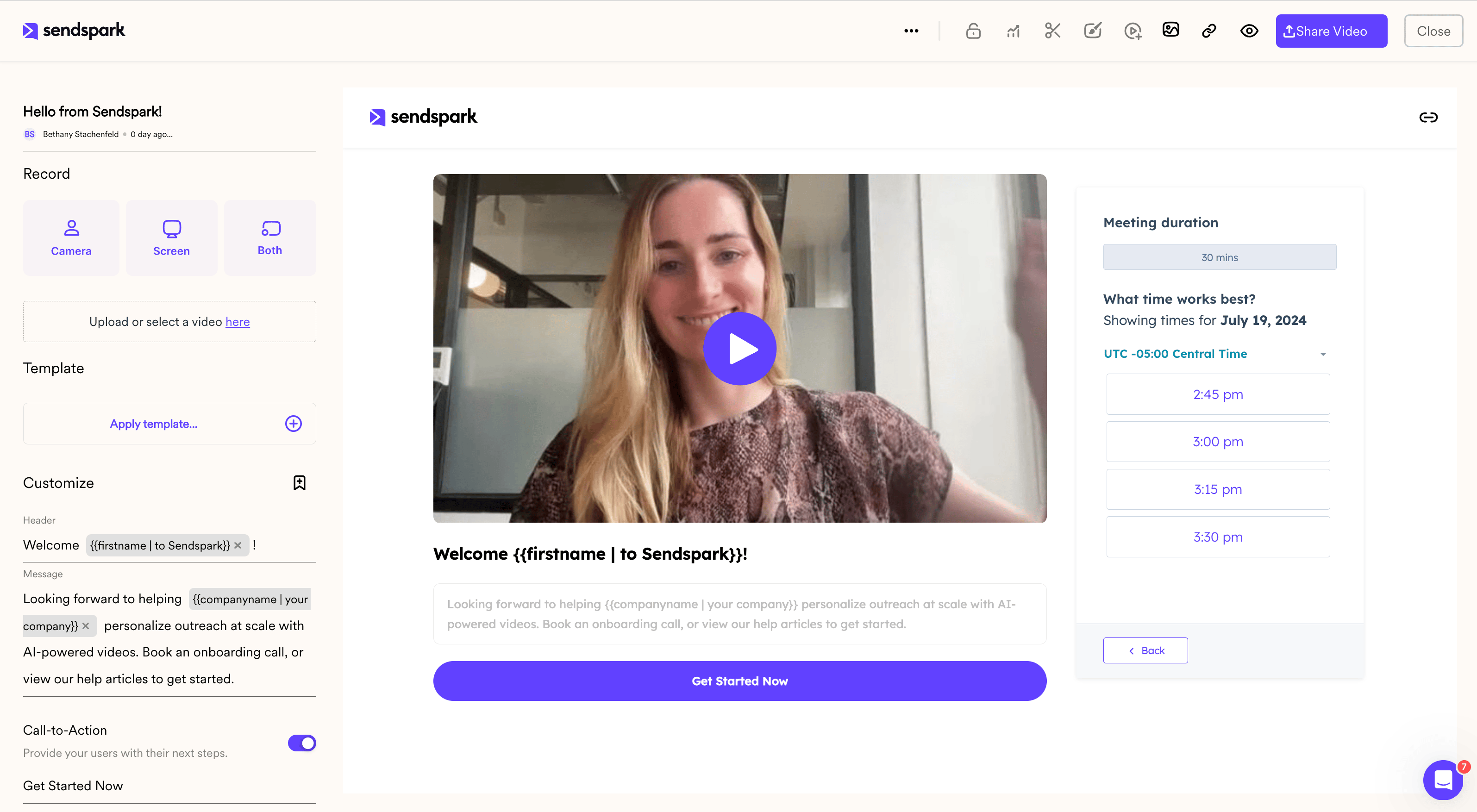
- And click the**“pencil”** icon to open this video in a new tab inside of Sendspark for more customization.
5. Insert into Message
When you’re ready to send, click Insert Video to insert it into your Zendesk message
6. Send
That’s it! You’re all set to send your video to your customer.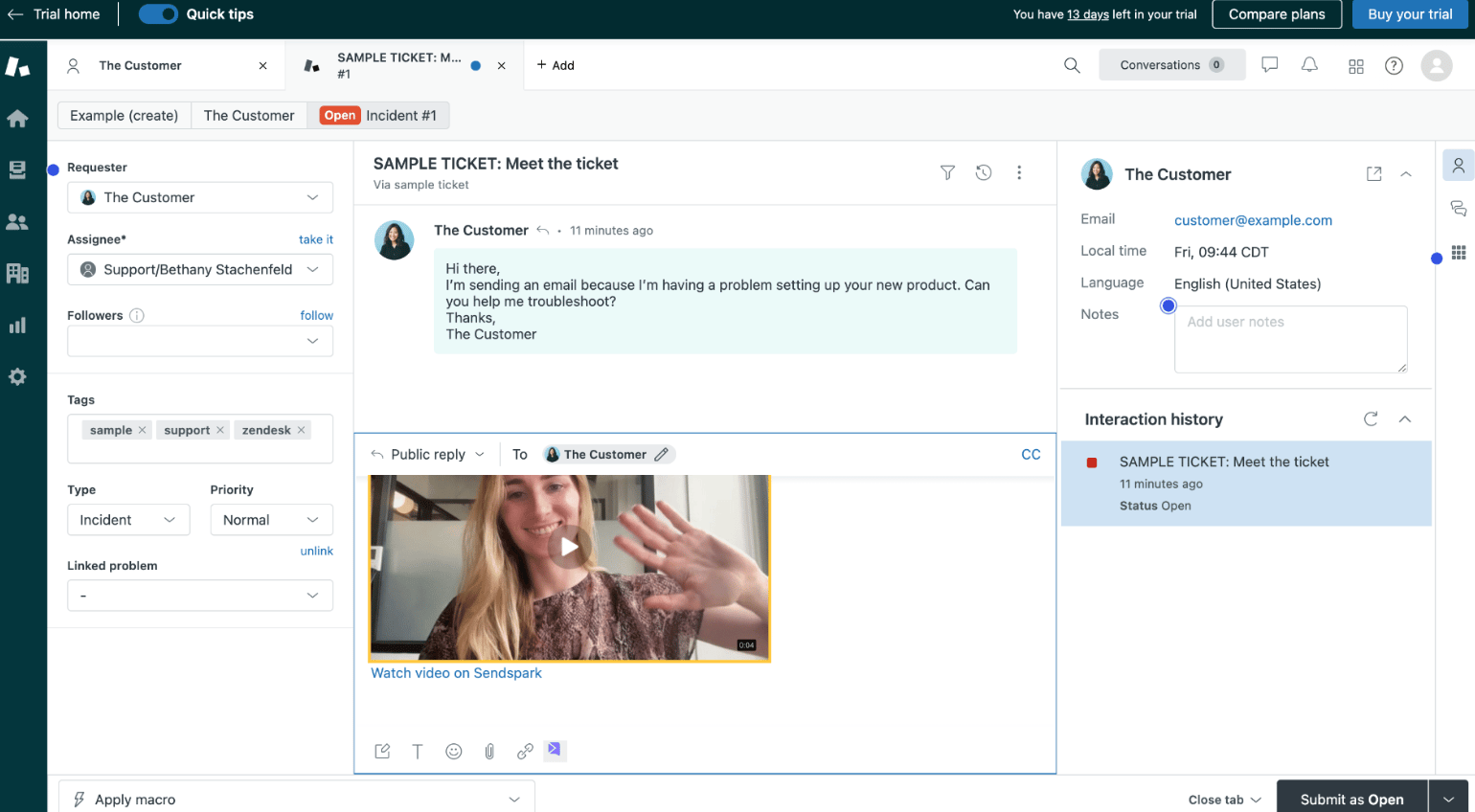
Happy Recording!
Let us know if you have any questions, we’re happy to help!Frequently asked questions
What do I need to use Sendspark inside Zendesk?
What do I need to use Sendspark inside Zendesk?
You must have the Sendspark Chrome Extension installed and be using a Chrome browser. Once installed, Sendspark is automatically available from Zendesk.
I don't see the Sendspark icon in Zendesk — what's wrong?
I don't see the Sendspark icon in Zendesk — what's wrong?
The Sendspark logo appears in the compose window next to the native Zendesk options only when the Chrome extension is installed and you’re using a Chrome browser. Install the extension and use Chrome to see it.
Can I edit the video before sending it in Zendesk?
Can I edit the video before sending it in Zendesk?
Yes. You can trim your video, add a template (page text, call-to-action buttons, and an embedded calendar), or stitch another video to it — all without leaving Zendesk. You can also open the video in a new Sendspark tab for more customization.
Can I request a video from a customer instead of recording one?
Can I request a video from a customer instead of recording one?
Yes. Choose Request Video to insert a video request link, which makes it easy to collect a recording or testimonial from your customer.