

Key takeaways
- The integration works through the Sendspark Chrome Extension in a Chrome browser — without it, the Sendspark icon won’t appear in Close.
- From the compose window you can Record New Video, Add Last Recording, or open your Video Library.
- Preview your recording and delete or re-record as many times as you like before inserting.
- Shortcuts in the preview modal — Select Template, Add Video, Trim, and Edit page/thumbnail — let you personalize the video without starting over.
Before you get started:
Please install the Sendspark Chrome Extension to use the Close integration. As long as you have the Chrome Extension installed, you’ll automatically be able to access Sendspark from Close CRM. Install the Sendspark Chrome ExtensionHow to Send Videos in Close CRM
Watch the video, or follow the steps below!1. Click the Sendspark Icon in Close CRM
Create a new conversationor open anexisting conversation in Close. You’ll see the Sendspark logo appear in the compose window next to the native Close options.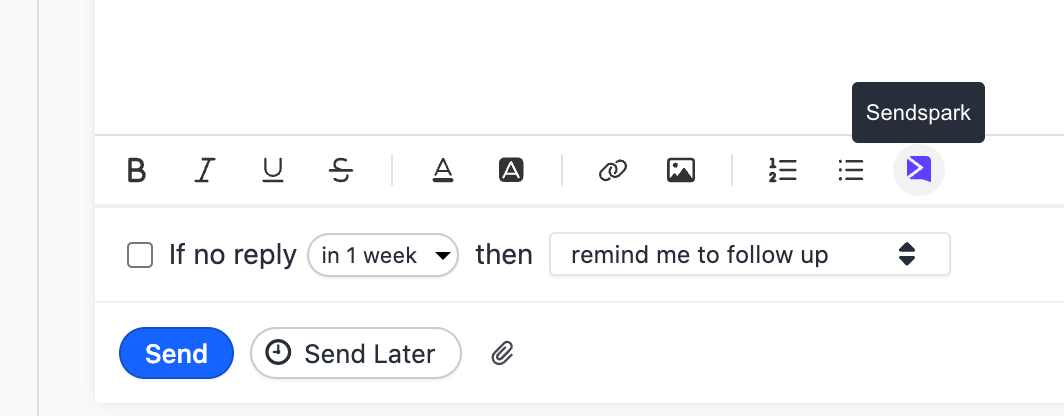
2. Record a New Video
Click Record New Video. This will launch the Sendspark Chrome Extension, so you can record a video of yourself or your screen.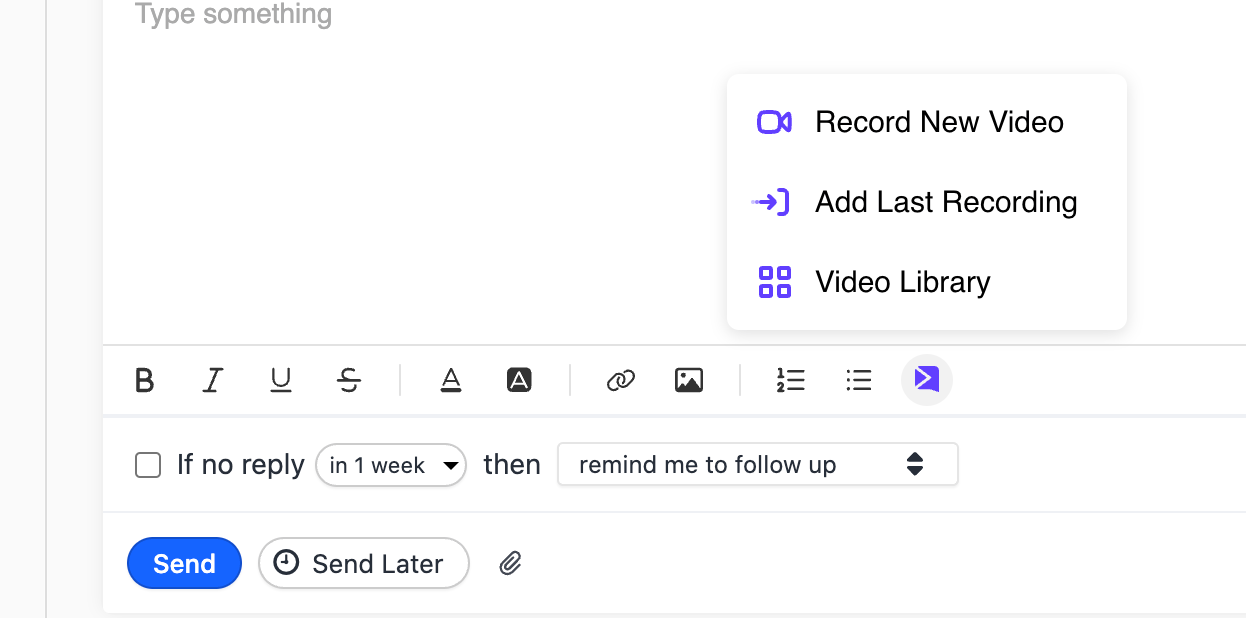
- Add Last Recording — inserts the last Sendspark video you recorded
- Video Library — opens your Sendspark dashboard to find or manage existing videos
3. Preview Your Video
After you’ve recorded your video, you’ll be able to preview it on your screen right above Close. Feel free to delete or re-record as many times as you’d like until you get it right… but also remember it will never be perfect!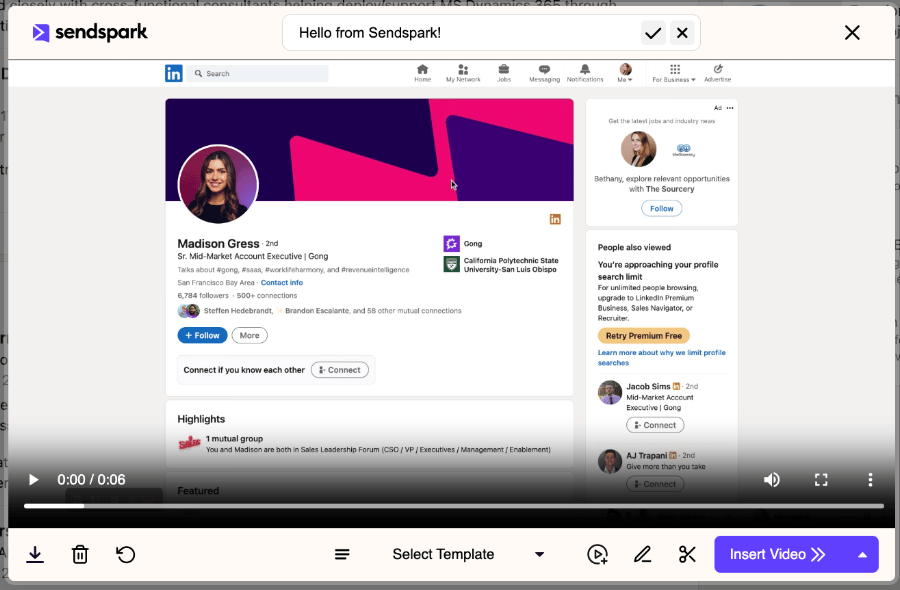
4. Use Shortcuts
Sendspark provides shortcuts to improve your process and save you time! Feel free to use any of these from the Chrome Extension Preview Modal:- Select Template— lets you use saved templates to add text & a call-to-action to your video, without typing
- Add Video — lets you add a second video as a combined video, so instead of recording the entire video for every person you’re reaching out to, you can just record a custom intro
- Trim — lets you trim your video
- Edit page/thumbnail— takes you to another page to add more customization to your video landing page and thumbnail
5. Insert Video into Close Email
Once you’re happy with your video, click Insert Video » and it will be added to your Close email. Feel free to resize the video thumbnail and edit the email text until it looks right to you!Happy Recording!
Let us know if you have any questions, we’re happy to help!Frequently asked questions
Do I need the Chrome Extension to use the Close integration?
Do I need the Chrome Extension to use the Close integration?
Yes. You must have the Sendspark Chrome Extension installed and be using a Chrome browser to see the Sendspark icon in the Close compose window. As long as the extension is installed, you’ll automatically be able to access Sendspark from Close CRM.
Can I add a video without recording a new one each time?
Can I add a video without recording a new one each time?
Yes. Besides Record New Video, the extension popup lets you Add Last Recording (inserts the last Sendspark video you recorded) or open your Video Library to find or manage existing videos.
Can I edit or re-record the video before sending?
Can I edit or re-record the video before sending?
Yes. After recording, you can preview the video right above Close and delete or re-record as many times as you like. From the preview modal you can also Select a Template, Add a second video, Trim the video, or Edit the page and thumbnail.
How does the video appear in the Close email?
How does the video appear in the Close email?
Once you click Insert Video », the video is added to your Close email as a thumbnail. You can resize the thumbnail and edit the surrounding email text until it looks right.