

Key takeaways
- Videos can be trimmed from your library edit page or immediately after recording through the Chrome extension.
- In the edit page, click the scissors icon in the top toolbar to open the Trim modal, then drag the purple bars to trim the start or end.
- All Sendspark editing is non-destructive, so an “Undo Trim” button restores your original video if you cut too much.
- Trimming currently requires the Sendspark Chrome Extension.
How to trim videos
Videos can be trimmed from your library by accessing the edit page or right after you record them through the Chrome extension.If the video has already been recorded and it’s already in your library, you simply need to click on it to gain access to its edit page:
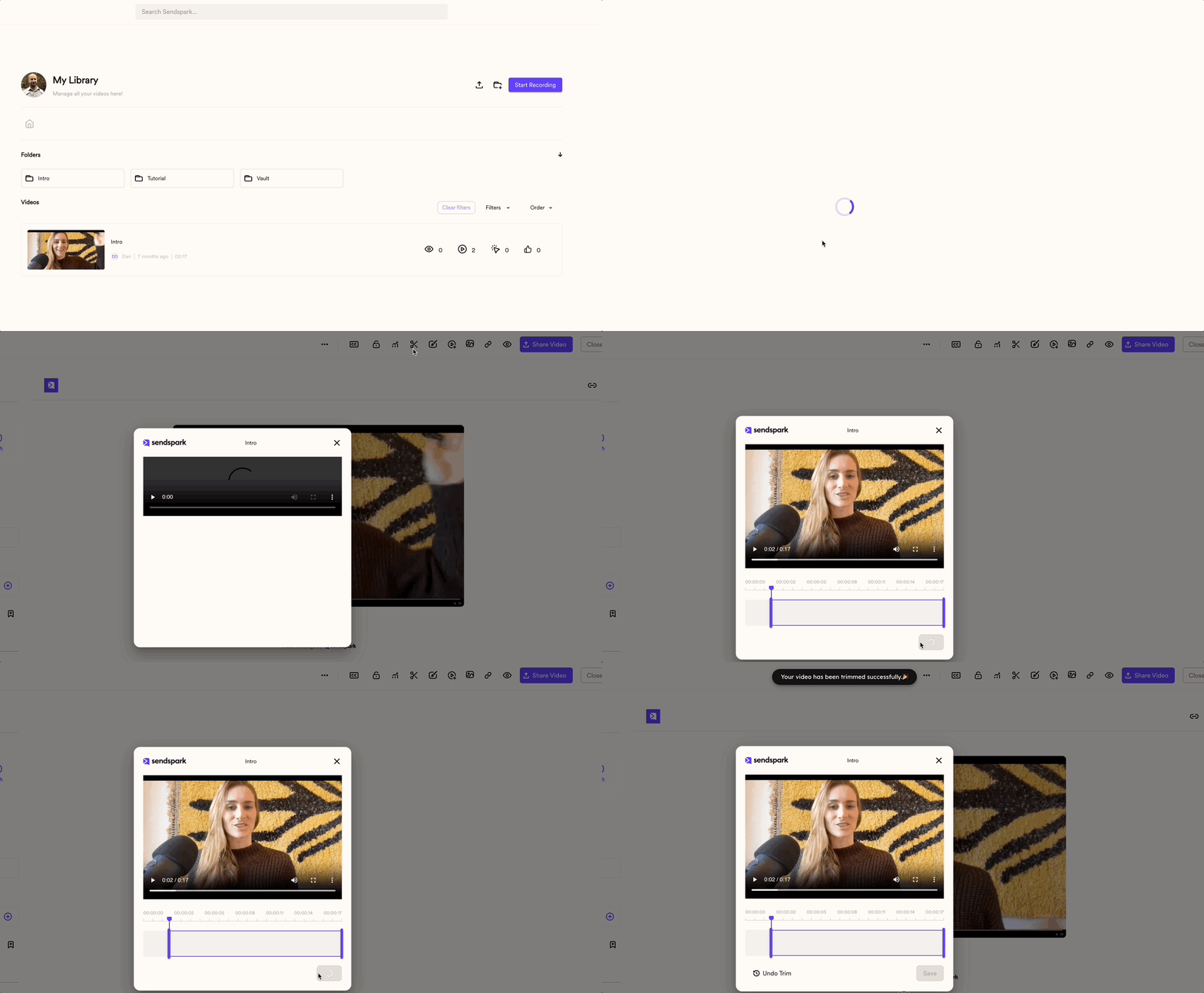
- Put your mouse over anywhere on the video, and while highlighted, click on it
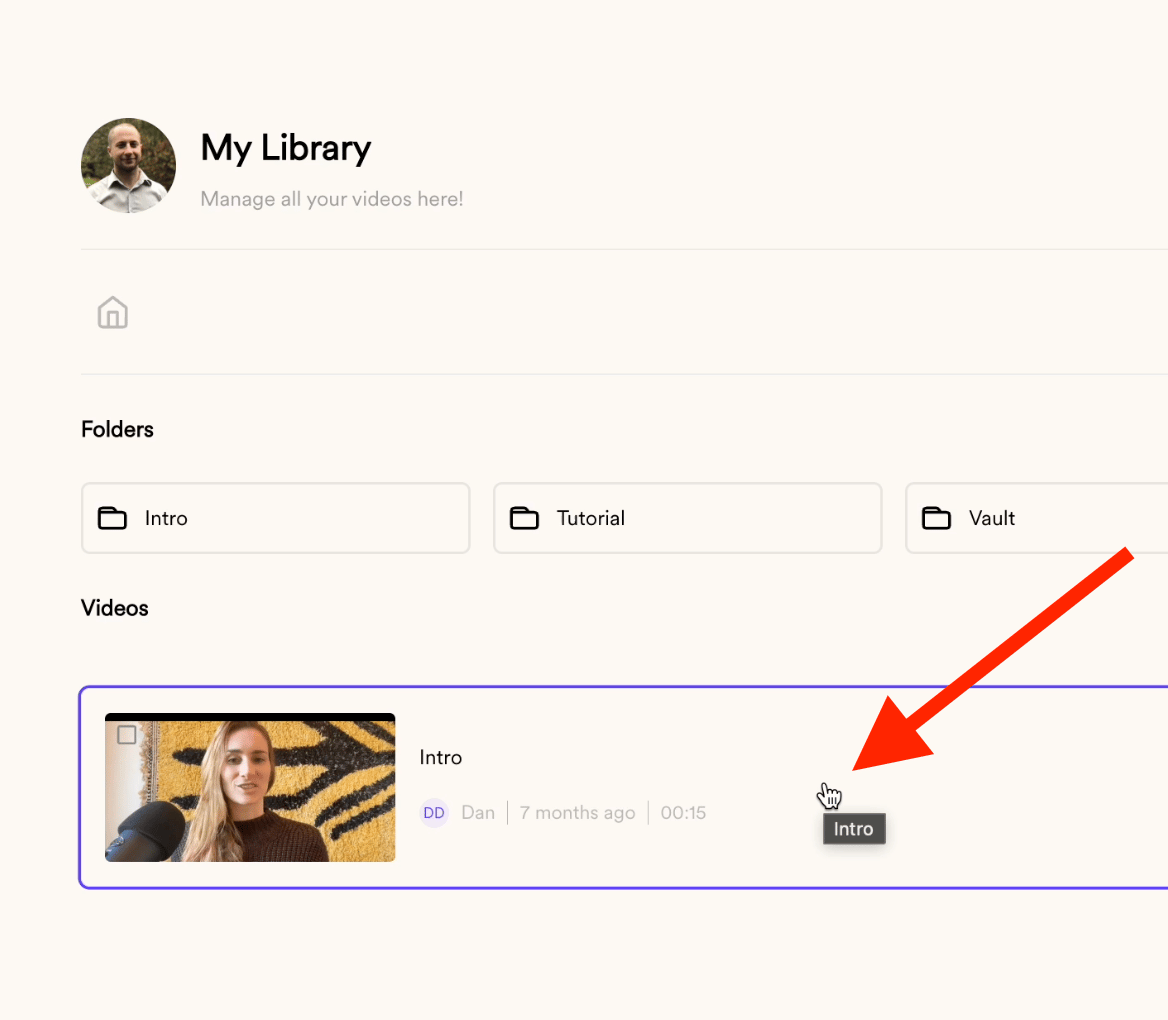
- Once in the Edit Page, you’ll notice a toolbar at the top area where you can find the scissors icon to trim the video:
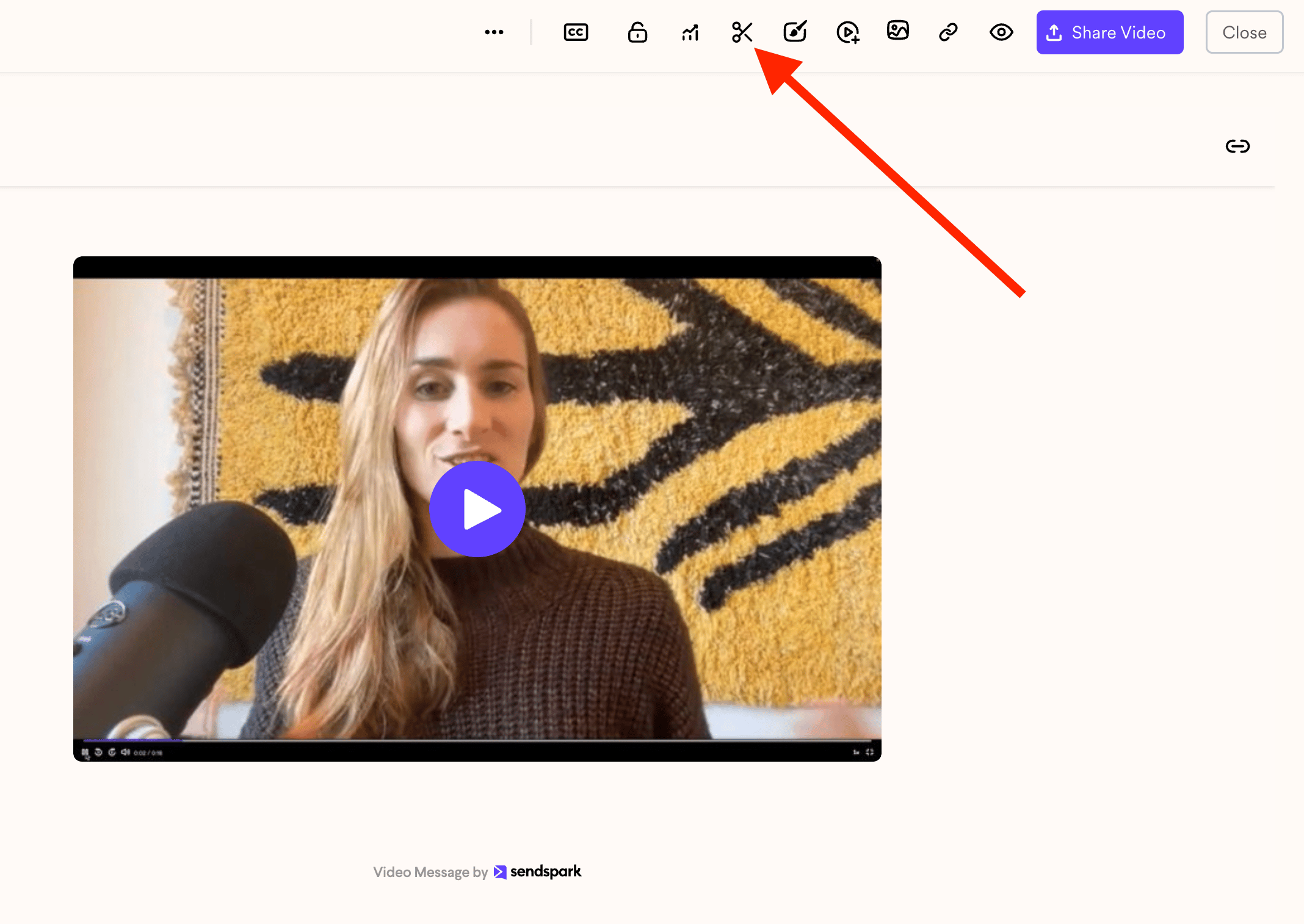
- That will open the Trim modal, where you can move the purple bars to trim the beginning or the end of the video. Once done, simply click save, wait for the confirmation, and close the window:
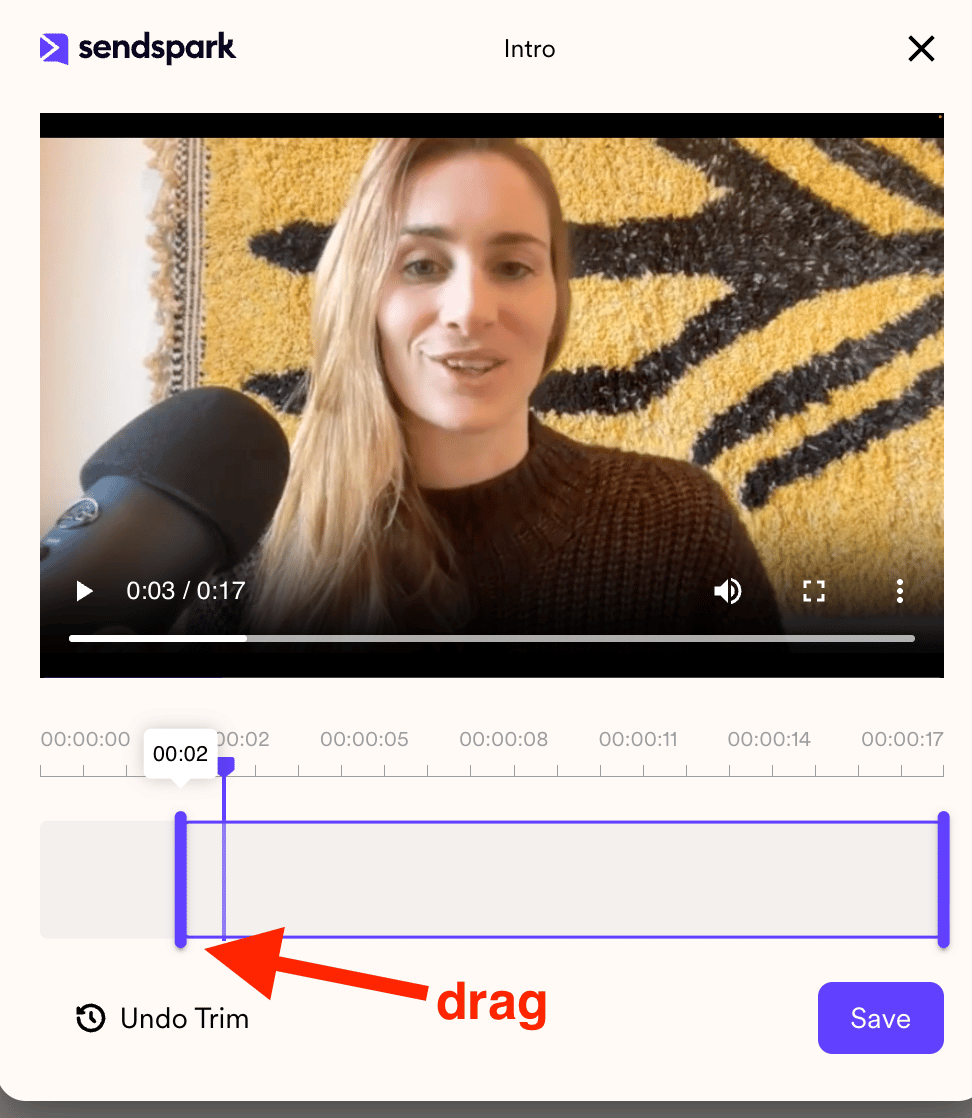
If you just recorded the video with the Chrome extension, you have a quick shortcut:
- After recording your video with the Chrome extension, you can click thetrim icon to trim your video.

- From the trim modal, you can move the left and right bars to create the new clip you want to use
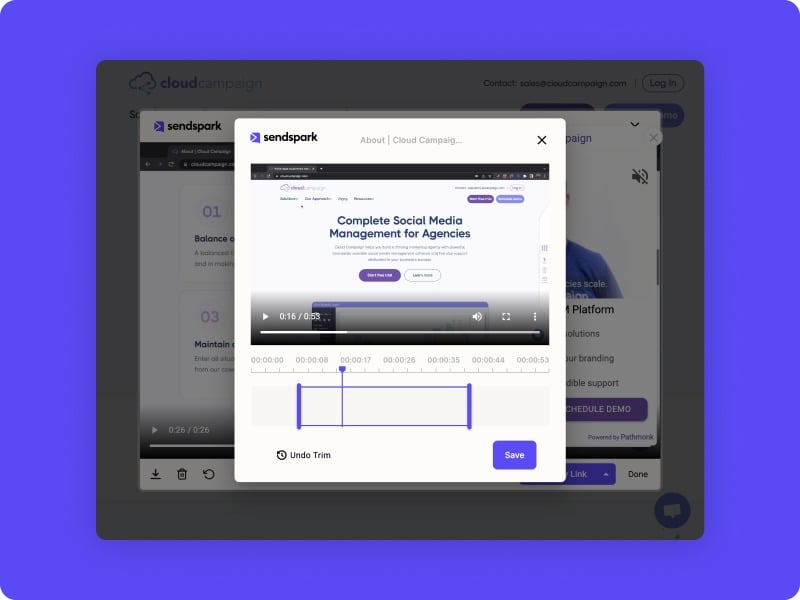
- Drag the playhead to anywhere in your clip to watch a preview.
- Click the play button on the video player or the space button on your keyboard to preview the clip.
- Click “save,” and you’ll be all set with your new clip.
- Accidentally cut too much out? No worries! All Sendspark editing is non-destructive, so just click the “Undo Trim” button and you’ll get your original video back.
Trim FAQ
1. Can I trim videos without the Chrome Extension?
Not at this time. Please install the Sendspark Chrome Extension here to access the trim feature.2. Can I trim previously recorded videos?
Not yet, but we plan to have this functionality soon for you!Frequently asked questions
Where can I trim a video in Sendspark?
Where can I trim a video in Sendspark?
From your library by opening the video’s edit page, or right after you record it through the Chrome extension using the quick trim shortcut.
How do I trim a video from the edit page?
How do I trim a video from the edit page?
Open the video to reach the Edit Page, click the scissors icon in the top toolbar to open the Trim modal, drag the purple bars to trim the beginning or end, then click save and wait for the confirmation.
What if I accidentally trim too much?
What if I accidentally trim too much?
No worries. All Sendspark editing is non-destructive, so just click the “Undo Trim” button and you’ll get your original video back.
Can I trim videos without the Chrome Extension?
Can I trim videos without the Chrome Extension?
Not at this time. You’ll need to install the Sendspark Chrome Extension to access the trim feature.