

Key takeaways
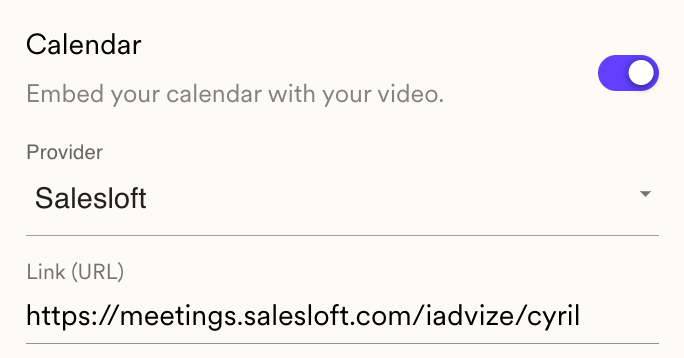
- Turn the Calendar toggle On under your Sendspark video, choose Salesloft as the provider, and paste your Salesloft calendar link.
- Paste the calendar link, not an embed code. Sendspark builds the embed for you.
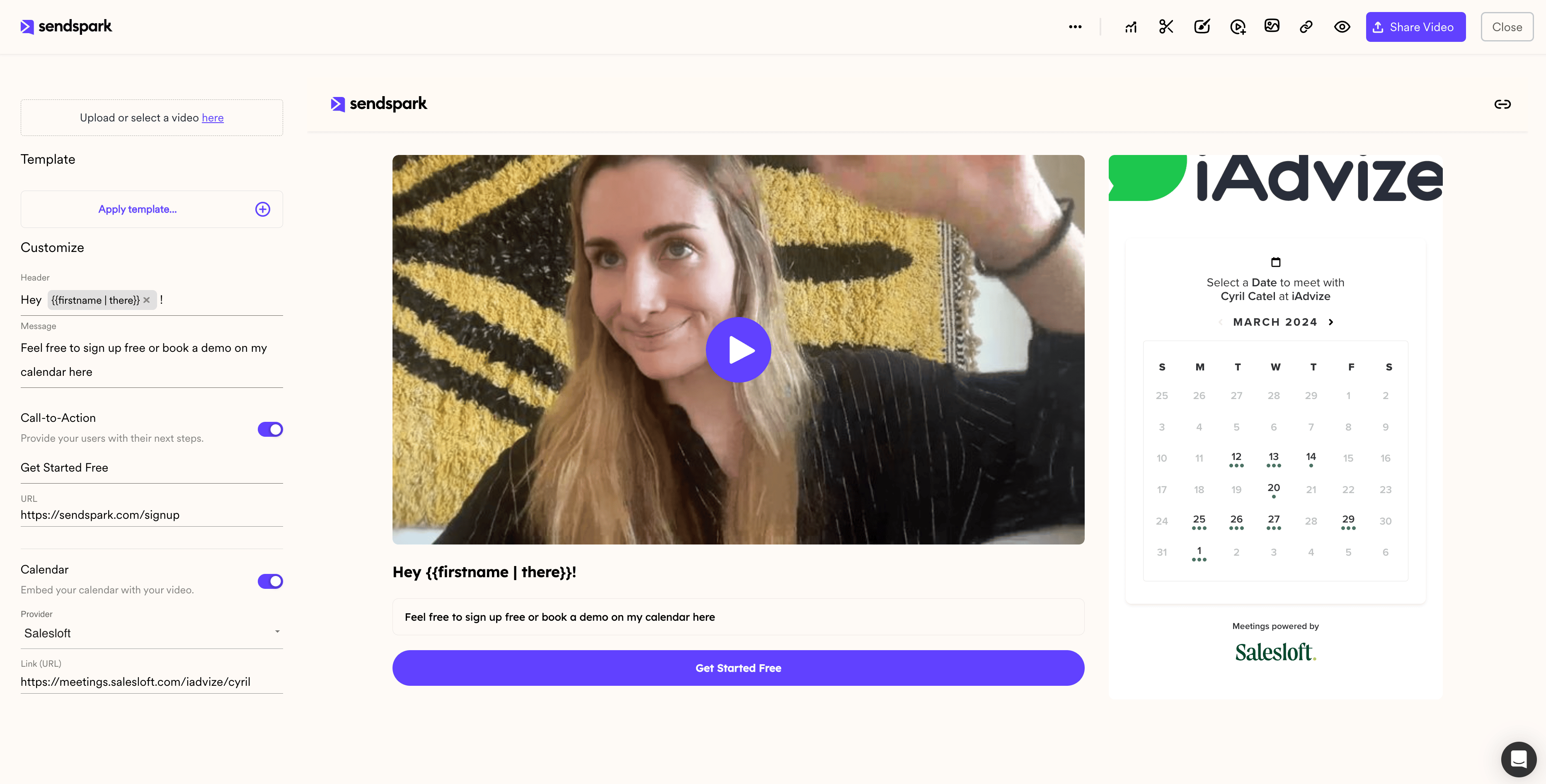
- The embedded calendar appears next to your video in the preview area, so viewers can book without leaving the page.
- Save your calendar in a Template to add it to future videos automatically instead of pasting the link each time.
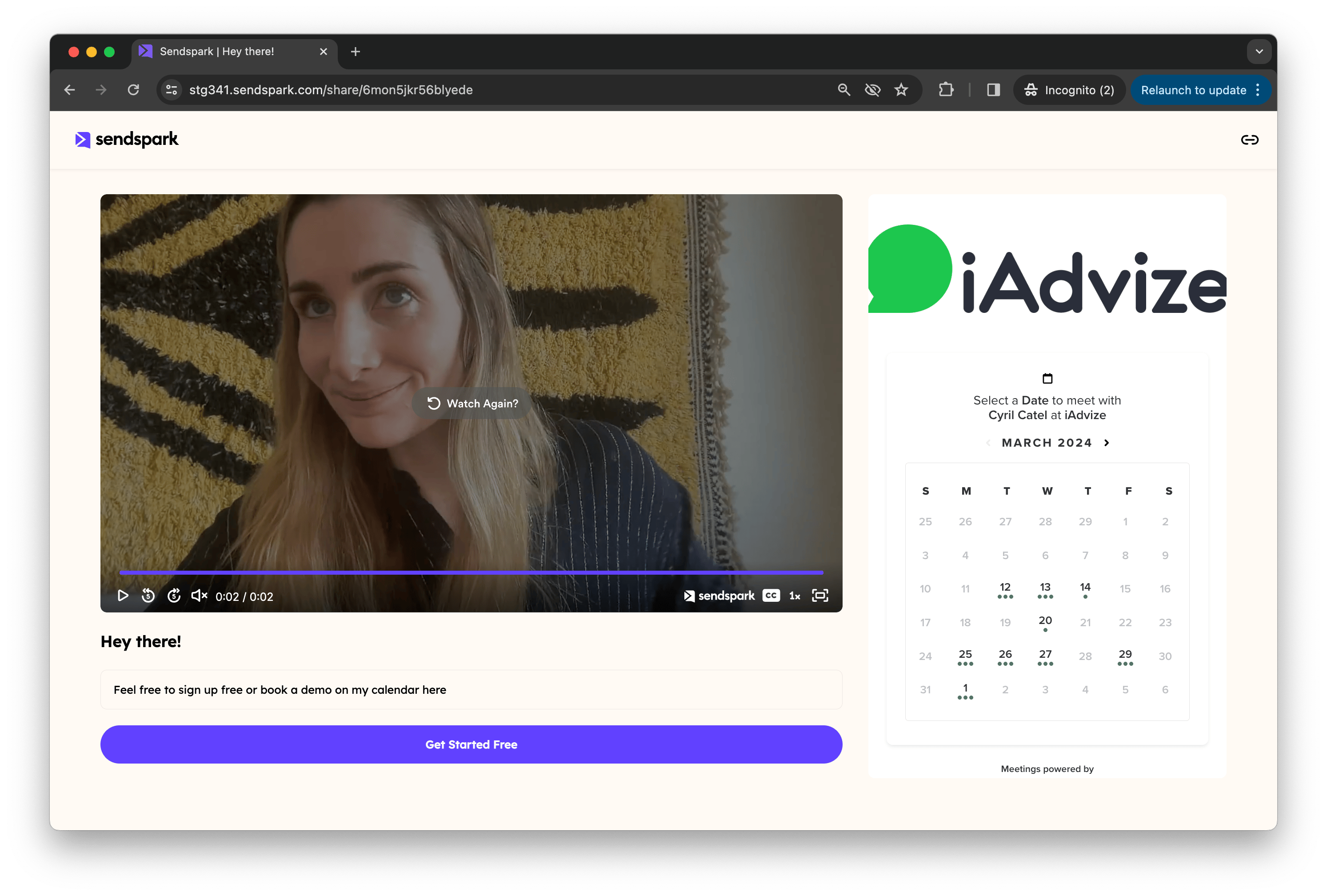
How to Embed Salesloft Calendar Link Next To Videos
- In the Customize panel beside your Sendspark video, toggle “Calendar” to “On”
- Select “Salesloft” from the Provider Dropdown List
- Add the linkto the Salesloft calendar you want to use
Frequently asked questions
Do I paste the Salesloft calendar link or an embed code?
Do I paste the Salesloft calendar link or an embed code?
Use the link to your Salesloft calendar, not an embed code. Sendspark automatically builds the embed using the information from the link.
Where does the embedded calendar appear for viewers?
Where does the embedded calendar appear for viewers?
Next to your video on the Sendspark video page. Viewers can book a meeting immediately after watching, without leaving the page. You’ll see it in the preview area as soon as you add the link.
Can I add the calendar to every video without redoing the setup?
Can I add the calendar to every video without redoing the setup?
Yes. Save your calendar in a Template, then select that template after recording. This avoids copying your calendar link every time you create a video.
What if I use a scheduling tool other than Salesloft?
What if I use a scheduling tool other than Salesloft?
Sendspark also supports Calendly, Chili Piper, HubSpot, HighLevel, Mixmax, Motion, Outreach, Tidycal, and Youcanbookme. See How to Embed Calendars with Videos. If your platform isn’t listed, you can request a direct integration or add your booking link to a call-to-action button in the meantime.