

Key takeaways
- Change your camera or mic to record from any external device.
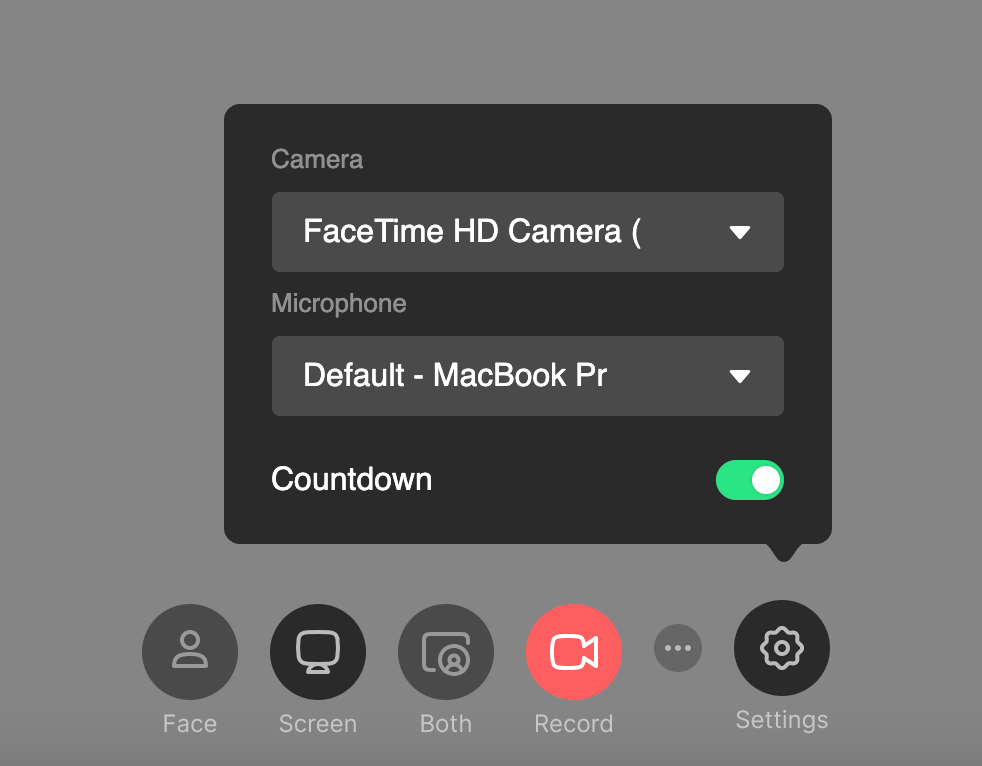
- In the Chrome Extension: open Settings, then choose your camera or microphone from the selector.
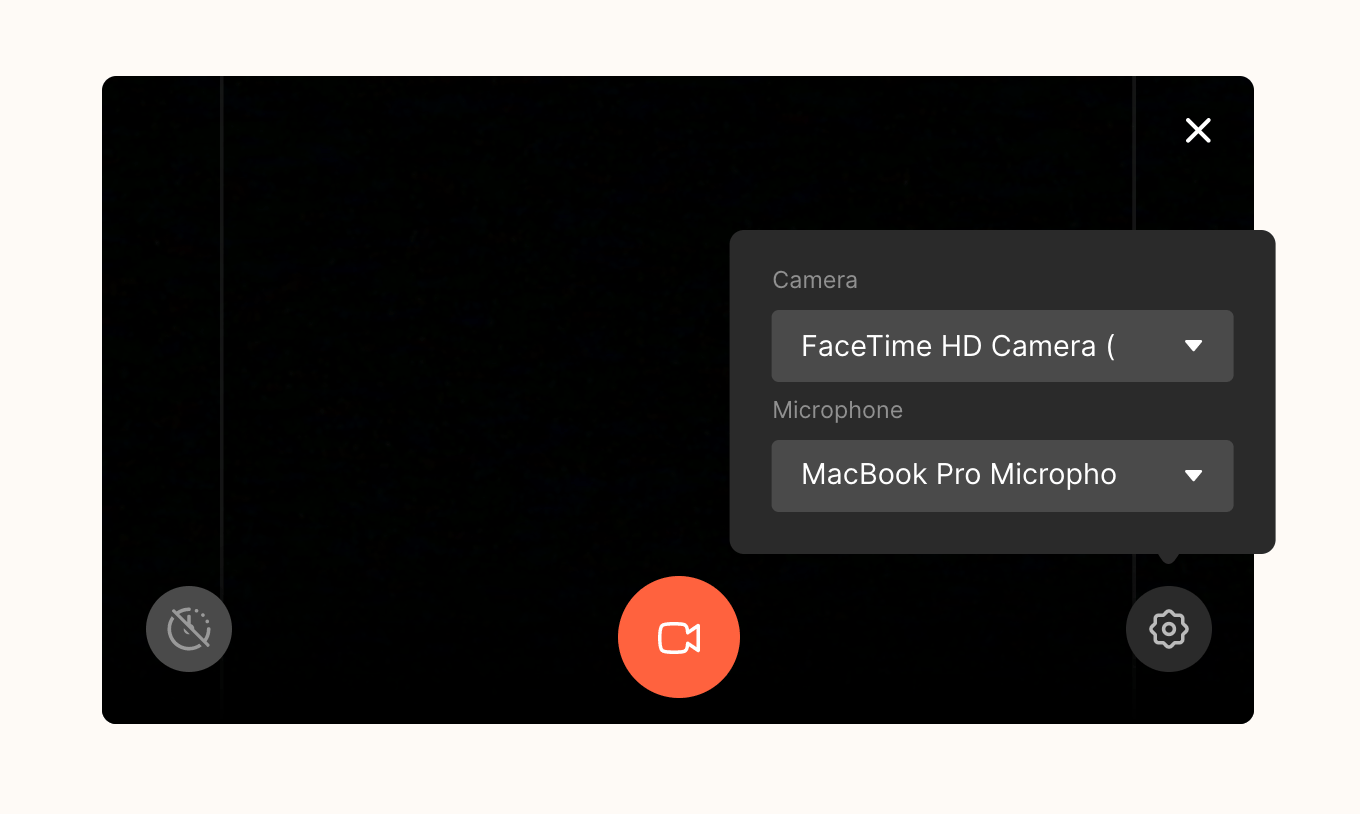
- In the web app: launch the recorder, click the Settings gear, then choose your input.
- Scroll the selector to see and select all available sources.
Change Camera / Mic from the Chrome Extension
- After launching the Chrome Extension, click into Settings
- Click into the Camera or Microphone selector
- Scroll, and select the camera or microphone source you would like to use!
Change Camera / Mic from the Web Application
- After launching the recorder, click the Settings gear
- Click into the Camera or Microphone selector
- Scroll, and select the camera or microphone source you would like to use!
Frequently asked questions
How do I change my camera or mic in the Chrome Extension?
How do I change my camera or mic in the Chrome Extension?
After launching the Chrome Extension, click into Settings, click the Camera or Microphone selector, then scroll and select the source you’d like to use.
How do I change it in the web app?
How do I change it in the web app?
After launching the recorder, click the Settings gear, click the Camera or Microphone selector, then scroll and select your source.
My camera or microphone isn't showing up — what should I do?
My camera or microphone isn't showing up — what should I do?
Another app (such as OBS or Zoom) may be controlling the device, or the wrong input may be selected. Close those apps, connect the device directly to your computer, and select the correct input. See Camera or Microphone not detected / No Inputs for full troubleshooting.