

Key takeaways
- Record with either the Sendspark web app or the Chrome extension; the extension is recommended for maximum speed.
- Install the Sendspark Chrome extension and pin it, then launch it from the Sendspark icon in your browser.
- Select Face to record only your webcam.
- Click the red Record button to start and the red Stop button to end the recording.
Record your Screen with the Sendspark Chrome Extension:
1. Install the Chrome Extension
First, install the Sendspark Chrome Extension.2. Launch the Chrome Extension
You can launch the Chrome Extension by clicking on the Sendspark icon in your Chrome browser at any time. (Make sure you have Sendspark pinned).
3. Select Camera Only
At the bottom of your screen, select Face to record only your webcam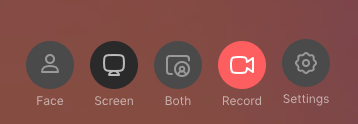
4. Start Recording
Click the red Record button to start recording.5. Stop Recording
Click the red Stop button to end the recording.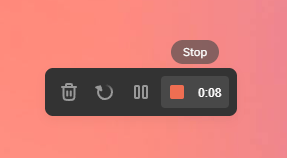
Frequently asked questions
Do I need the Chrome extension to record myself?
Do I need the Chrome extension to record myself?
No. You can record with either the Sendspark web app or the Chrome extension. Both work well, but we recommend the Chrome extension for maximum speed.
How do I record only my webcam?
How do I record only my webcam?
At the bottom of your screen, select Face to record only your webcam.
How do I launch the Chrome extension?
How do I launch the Chrome extension?
Click the Sendspark icon in your Chrome browser at any time. Make sure you have the extension pinned so the icon is visible.