

Key takeaways
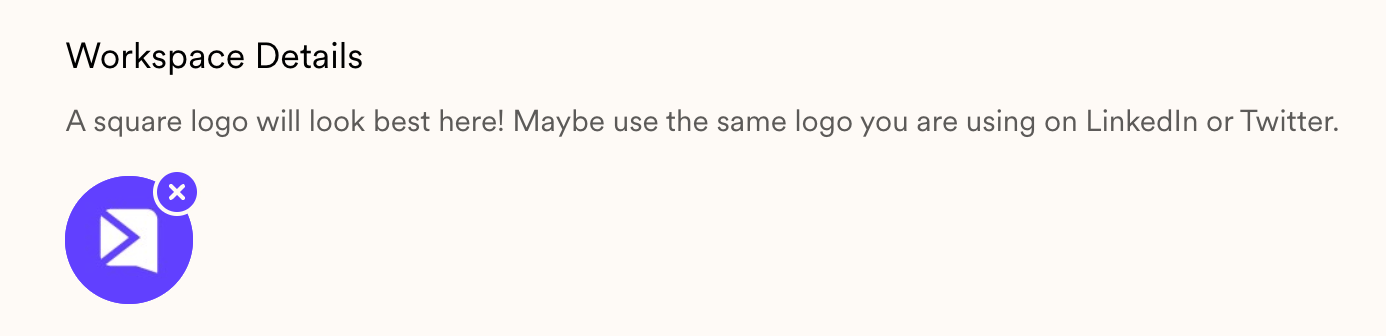
- The toolbar logo comes from your workspace avatar — set it in workspace settings. Use a square icon, since it is cropped into a circle.
- The toolbar’s primary color comes from your button color in global styles.
- Turn it on by toggling “Branded Recording Controls” in the Sendspark desktop app.
- The branded toolbar is currently available only in the desktop application — Chrome Extension support is planned.
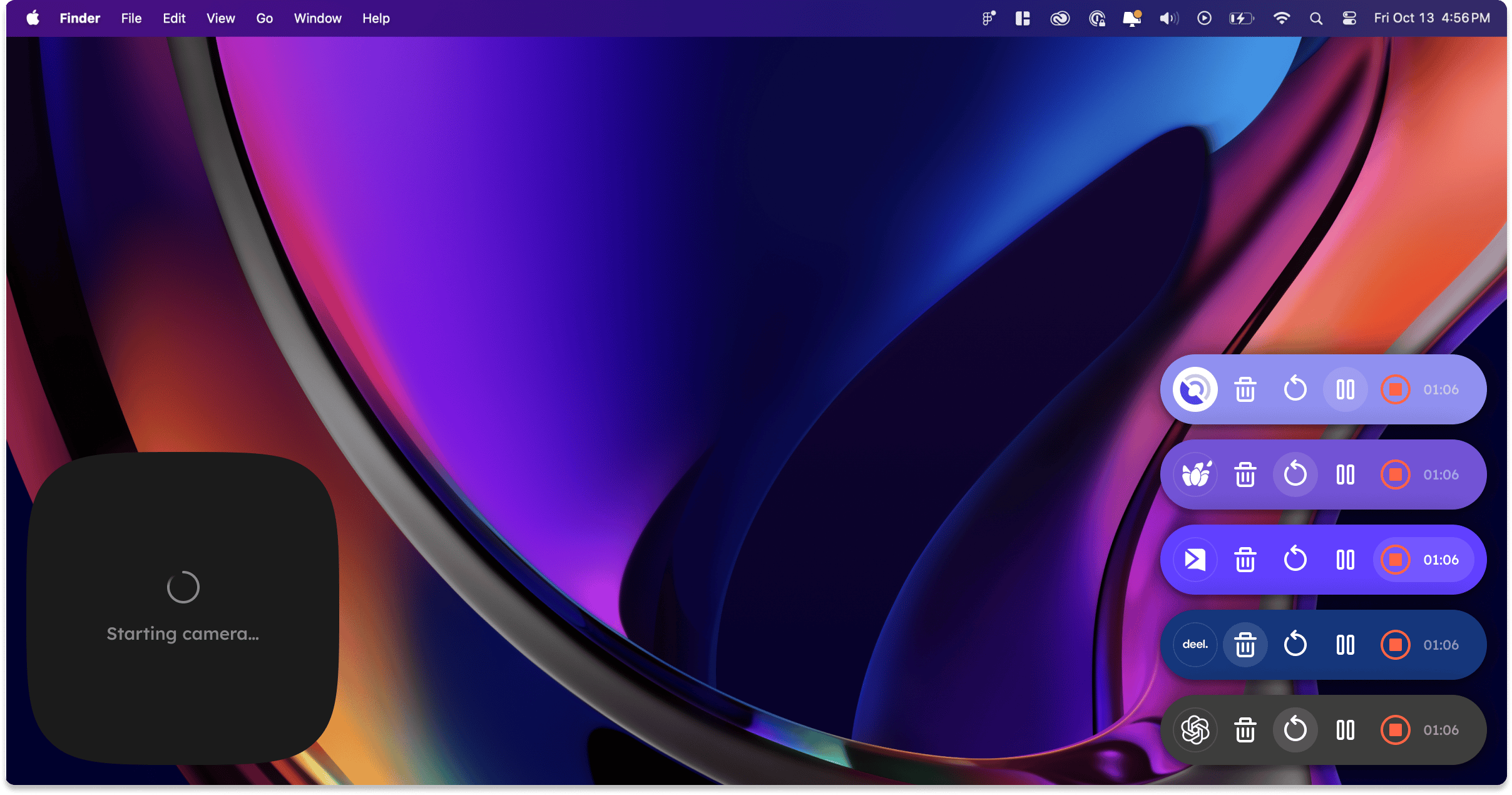
How to Set Your Logo and Color on Recording Toolbar
1. Upload Your Logo to Sendspark
The logo comes from your workspace avatar. You can set this in your workspace settings here.
2. Set Your Brand Color
The primary color comes from your button color in your global styles.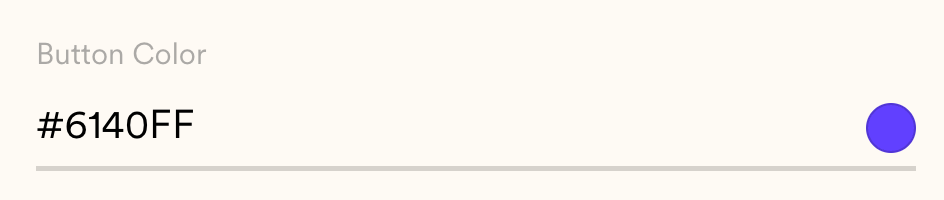
3. Turn on Branded Toolbar
Toggle on “Branded Recording Controls” in your Sendspark desktop app
Frequently asked questions
Where does the toolbar logo come from?
Where does the toolbar logo come from?
From your workspace avatar, which you set in your workspace settings. We recommend a square icon version of your logo, since it will be cropped into a circle.
How do I change the toolbar color?
How do I change the toolbar color?
The primary color comes from your button color in your global styles. Update it there and the recording toolbar picks it up.
How do I turn the branded toolbar on?
How do I turn the branded toolbar on?
Toggle on “Branded Recording Controls” in the Sendspark desktop app.
Is the branded toolbar available in the Chrome extension?
Is the branded toolbar available in the Chrome extension?
Not yet. The branded toolbar is only available in the Sendspark desktop application right now, with Chrome Extension support planned.