

Key takeaways
- There are four ways to rename a video: the three-dot menu on hover, clicking the name in the edit section, at the end of a Chrome Extension recording, or at the end of a Desktop App recording.
- Hovering a thumbnail and clicking the three dots reveals a Rename option that opens editing mode.
- Clicking a video opens its edit section, where clicking the name enables inline editing.
- You can name a recording the moment you finish it in both the Chrome Extension and the Desktop App.
There are 4 different ways and/ or locations where a video can be renamed:
1) Hover your video and head to the 3 dots to the right: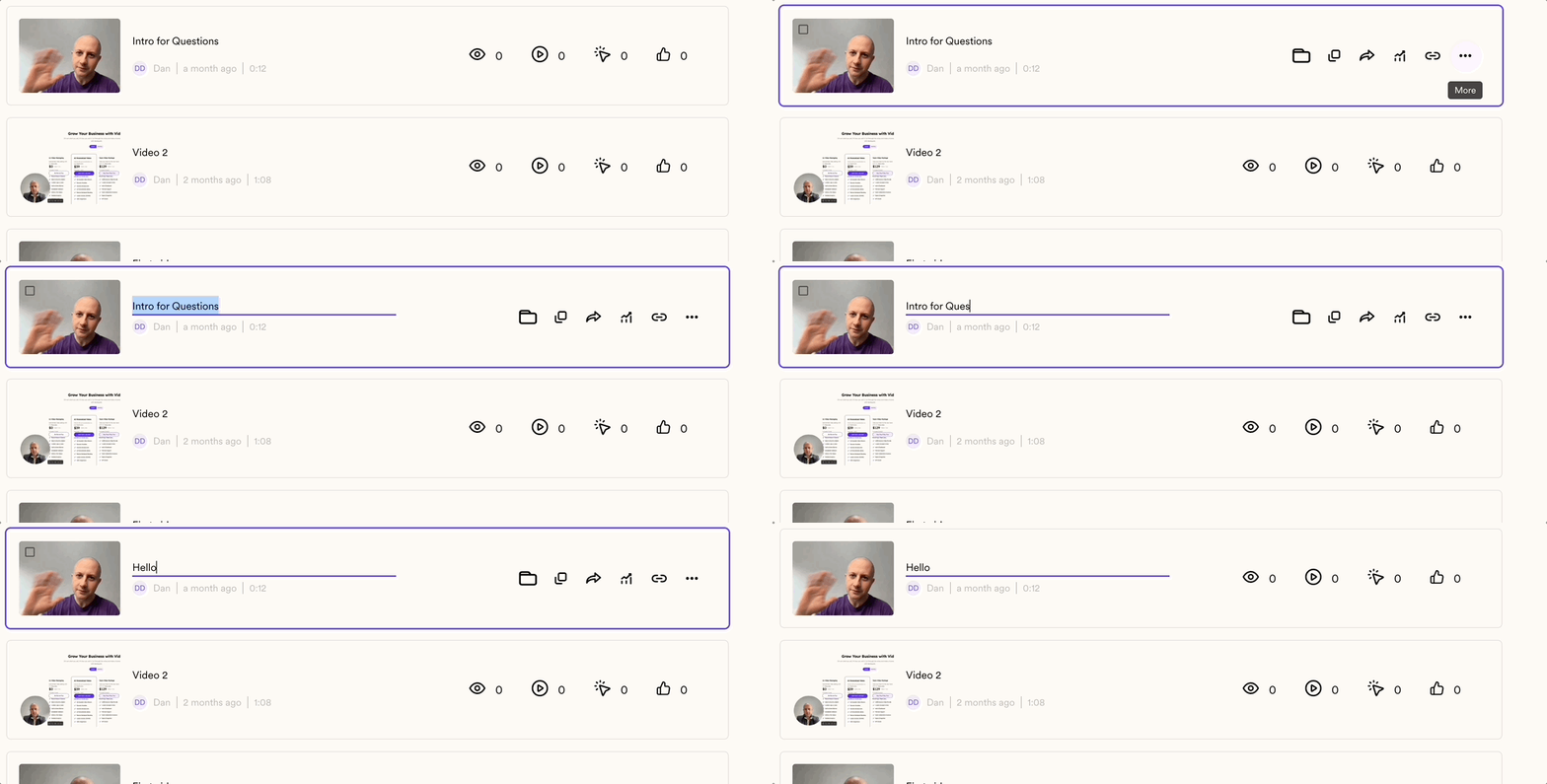
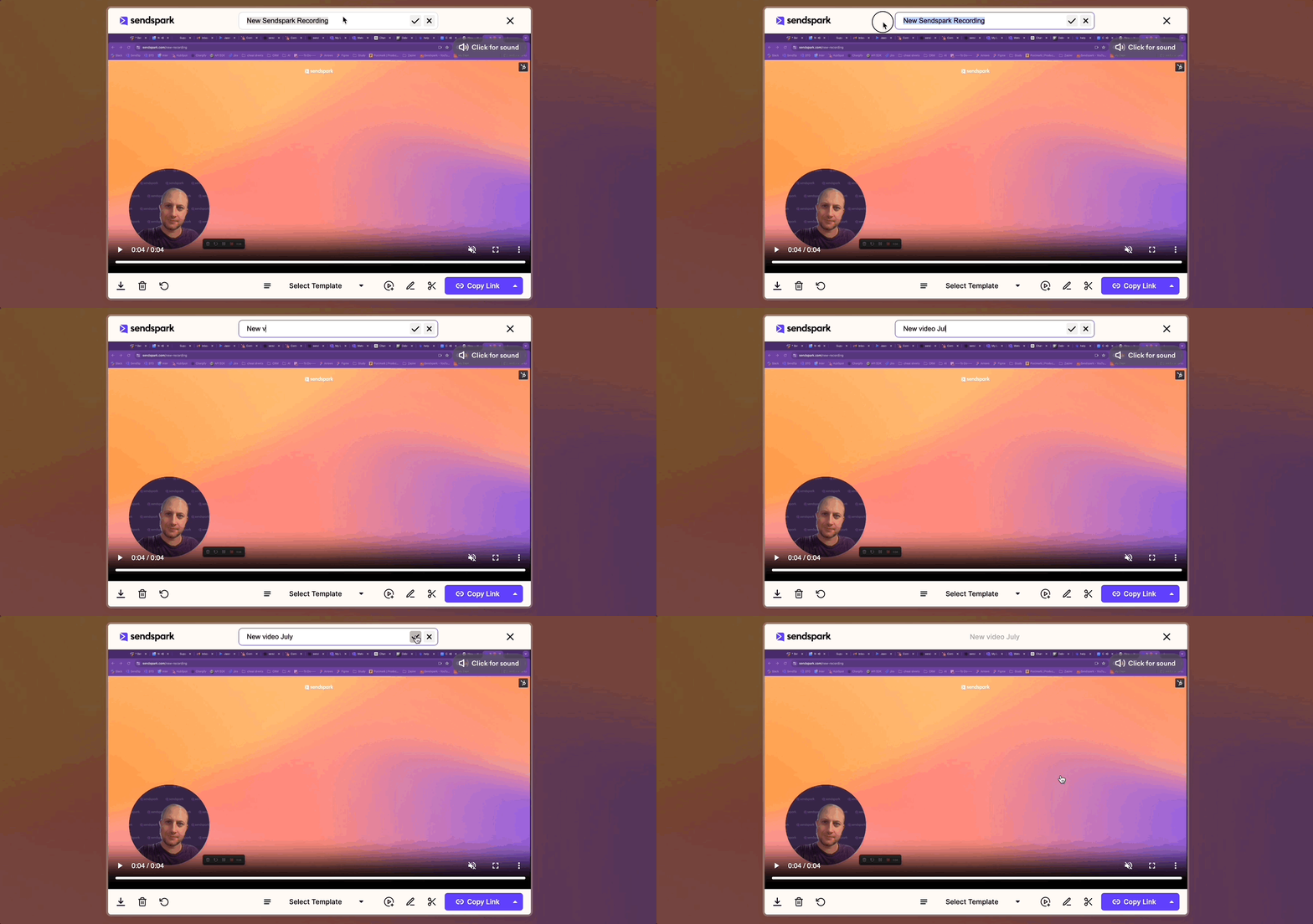
2) If you are in the Edit Section of the video (by clicking on the video), you can simply hit the Name to enable the Edit mode:

3) When finishing a recording with the Chrome Extension, you can also set the name for the video:
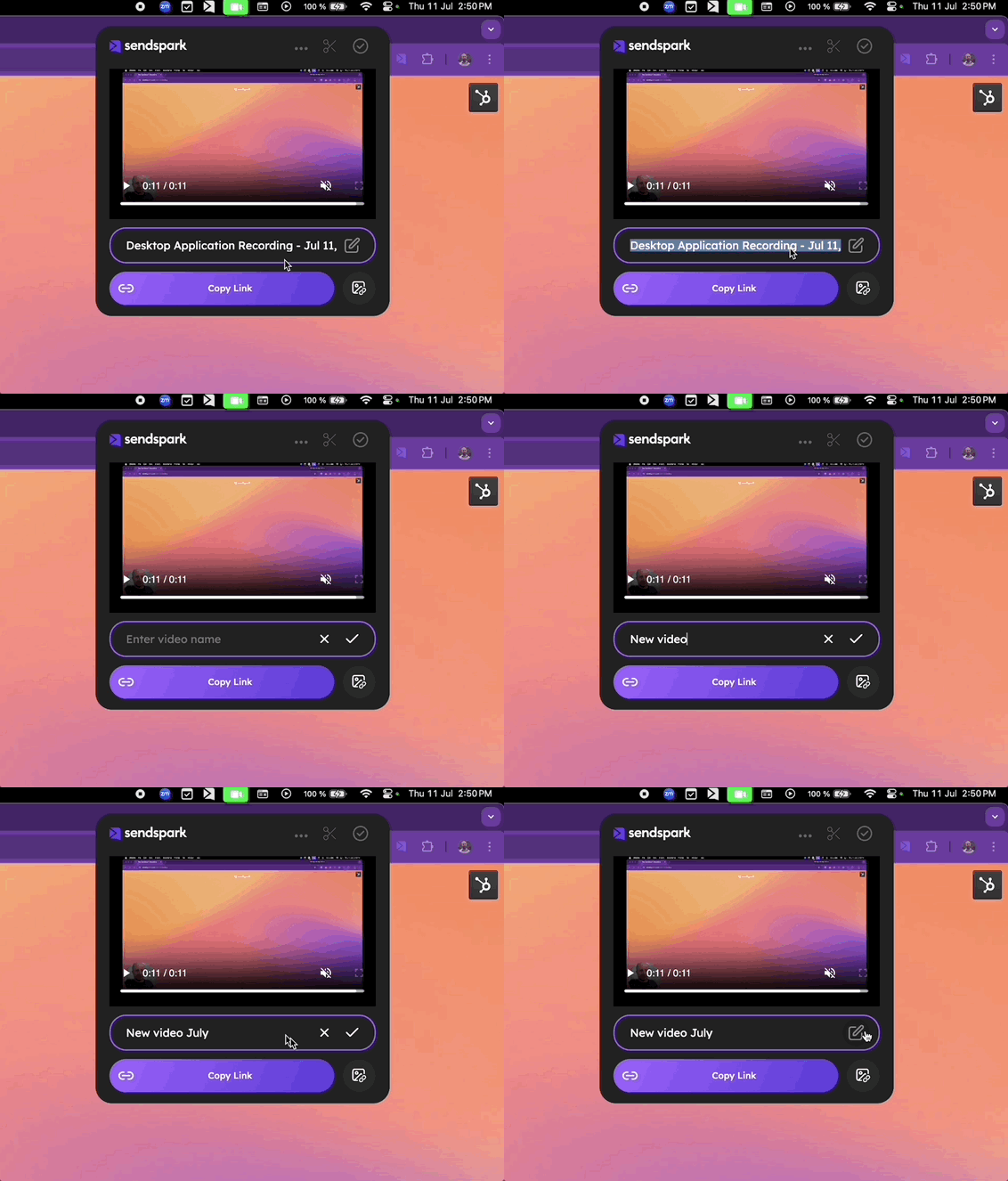
4) Finally, the same procedure applies to a recording made through the Desktop App
Frequently asked questions
Where can I rename a Sendspark video?
Where can I rename a Sendspark video?
In four places: the three-dot menu when hovering a video, the name field in the video’s edit section, the finish screen of a Chrome Extension recording, and the finish screen of a Desktop App recording.
How do I rename a video from the dashboard?
How do I rename a video from the dashboard?
Hover over the video, click the three dots to the right, and choose Rename to enable editing mode.
Can I name a video right after recording it?
Can I name a video right after recording it?
Yes. When you finish a recording with either the Chrome Extension or the Desktop App, you can set the video’s name on the finish screen.
How do I rename a video while editing it?
How do I rename a video while editing it?
Open the video to enter its edit section, then click the name to enable edit mode and type a new one.