- It avoids revealing unnecessary personal information
- It abstains from diverting the attention away from the real focus of the video
- It keeps a clean and organized look on your screen
How To Hide ‘Bookmarks’ on the Chrome Bar
On both Mac OS and Windows OS you make use of the nearly same shortcut function to hide bookmarks:- Hide ‘Bookmarks’ on Mac: “Cmd + Shift + B”
- Hide ‘Bookmarks’ on Windows: “Ctrl + Shift + B”
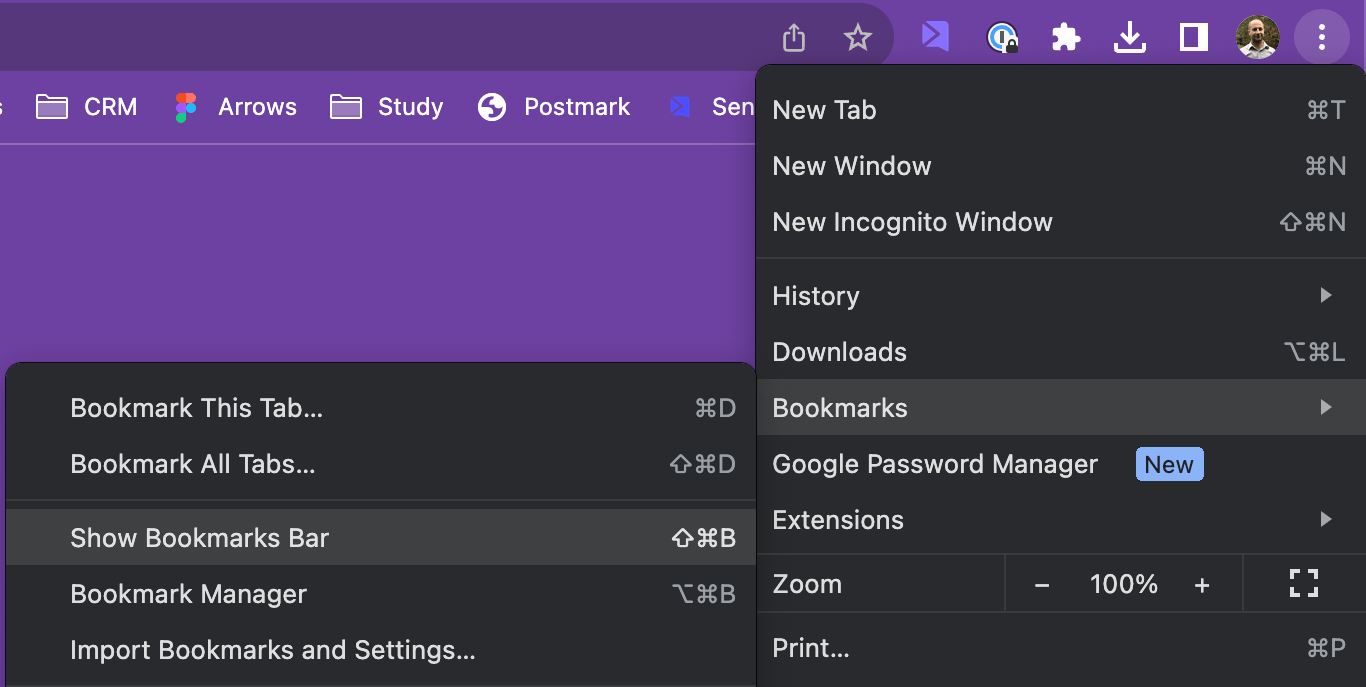
How To Show ‘Bookmarks’ in the Chrome Bar
If you want to bring back the Chrome bar, you can use the same shortcuts you used to hide them:- Show ‘Bookmarks’ on Mac: “Cmd + Shift + B”
- Show ‘Bookmarks’ on Windows: “Ctrl + Shift + B”
How To Record Videos Without the Chrome Bar At All
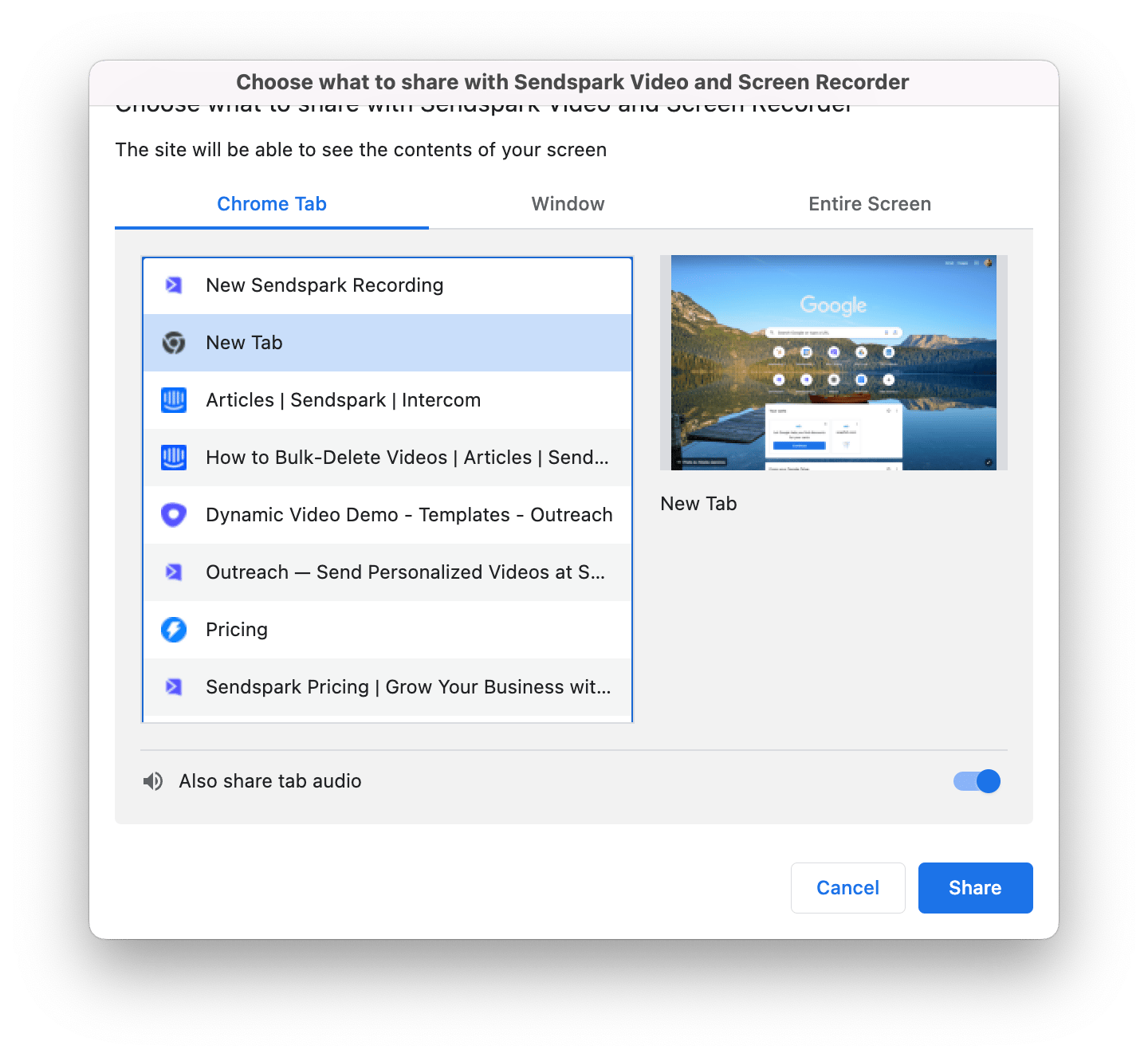
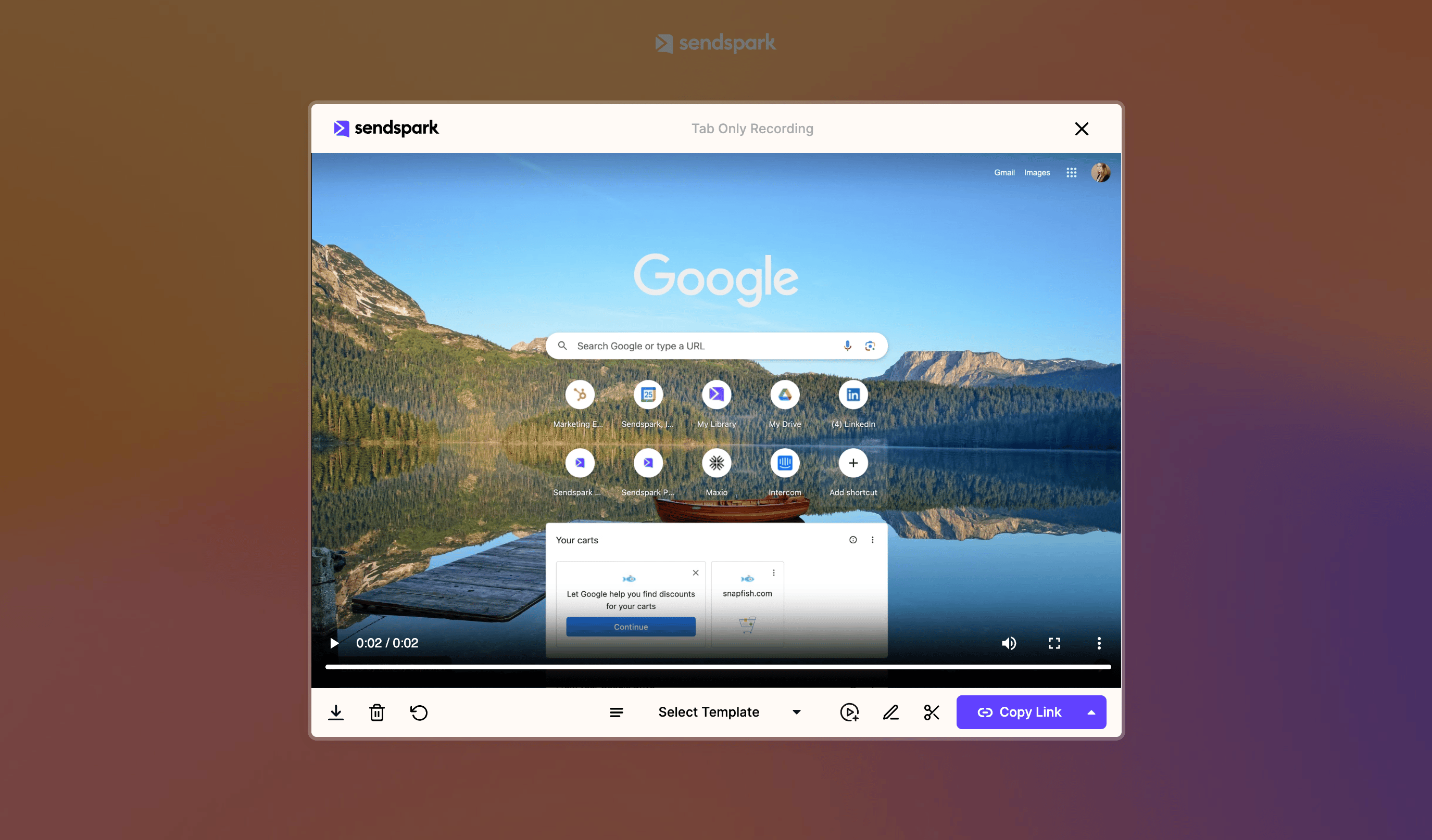
You can also go the extra mile and record videos without showing the Chrome Bar at all. Using “Chrome Tab” recording, you only capture the content underneath the Chrome Bar. How to record videos without the Chrome Bar:- Launch the Sendspark Chrome Extension
- Hit “Record”
- In the “Choose What to Share…” modal that pops up, select a page under “Chrome Tab”