

Key takeaways
- Turn on the Calendar toggle on your video page, pick your platform, and paste your calendar link — not the embed code. Sendspark embeds it automatically.
- Supported platforms include Calendly, Chili Piper, HubSpot, HighLevel, Mixmax, Motion, Outreach, Salesloft, Tidycal, and Youcanbookme.
- Calendars can be embedded anywhere you customize video pages: video messages, dynamic video campaigns, and templates.
- Save your calendar in a Template to add it to new videos automatically instead of pasting the link each time.
- You can also save default meeting links in your account settings, then insert them in one click from Intercom, HubSpot, and LinkedIn.
How to Embed Calendars on Sendspark Video Pages
To embed a calendar on a Sendspark page follow these steps:- Go to your video page
- Switch the Calendar toggle “on”

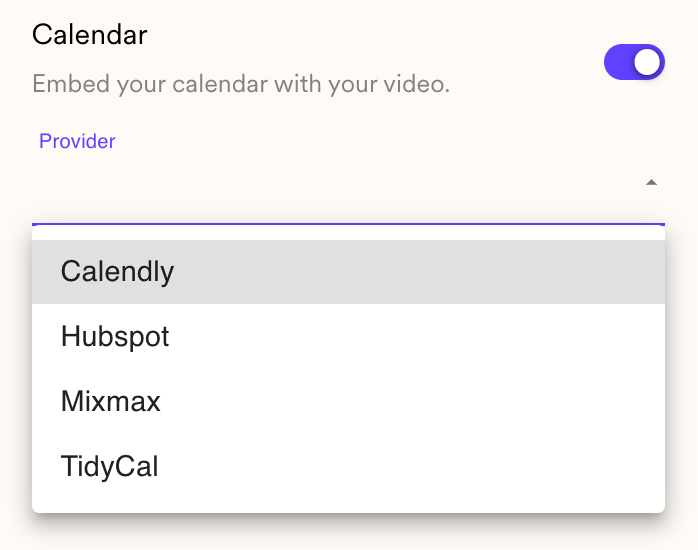
- Select your calendar platform from the dropdown
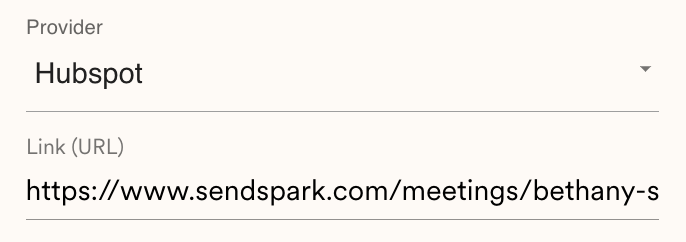
- Add the link to your calendar
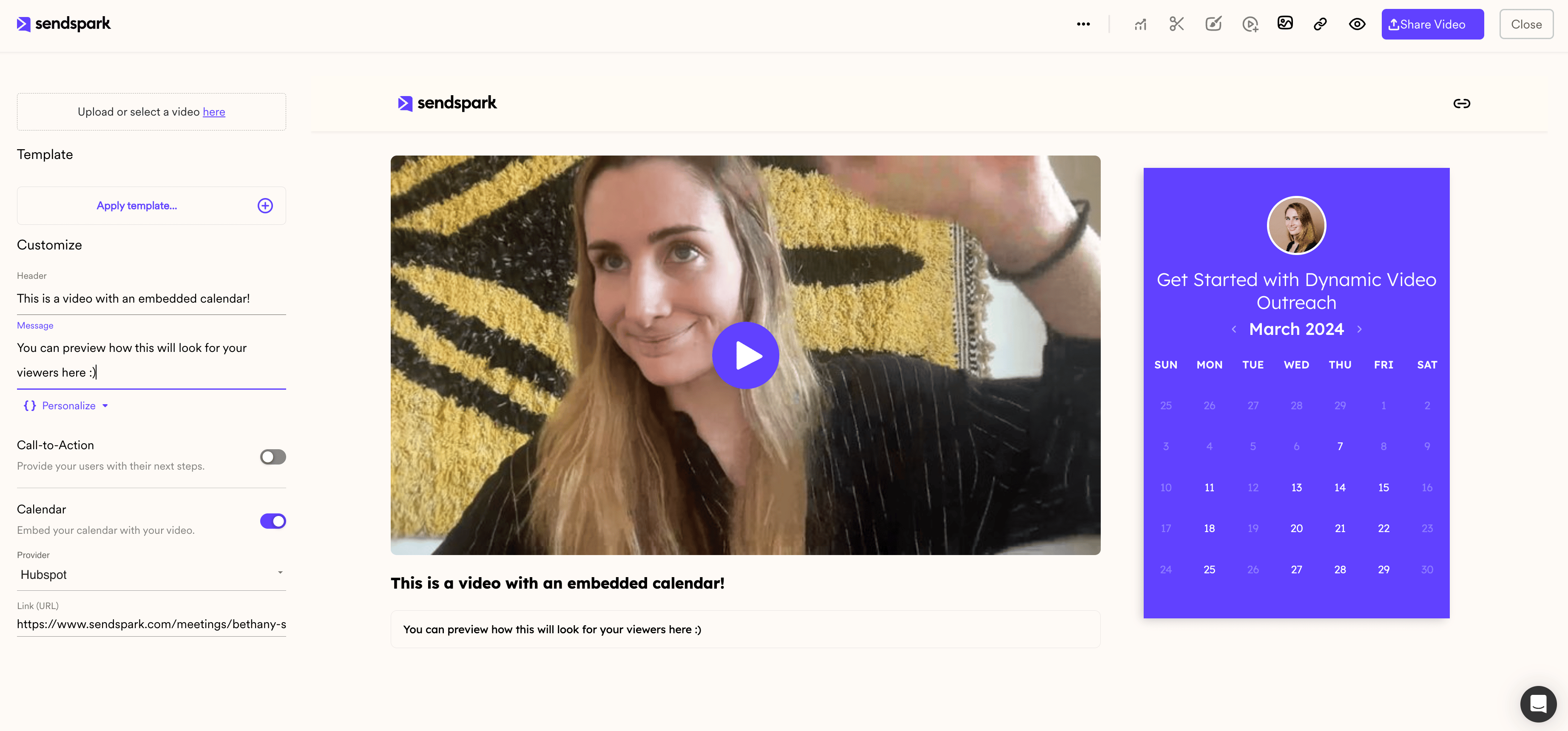
- That’s it! You should see your embedded calendar in the preview area
Which Calendars Can Be Embedded On Sendspark Pages?
Right now, we support integrations with these calendar platforms:- Calendly
- Chili Piper
- Google Calendar
- HighLevel
- HubSpot
- LemCal
- Mixmax
- Motion
- Outreach
- Salesloft
- Tidycal
- Youcanbookme
Where Can You Embed Calendars?
Embedded calendars are supported everywhere you can customize video pages in Sendspark. The process for adding an embedded calendar is the same everywhere.1. Video messages
You can embed calendars under any video message in Sendspark.2. Dynamic video campaigns
You can embed calendars under dynamic videos, to send personalized videos out at scale.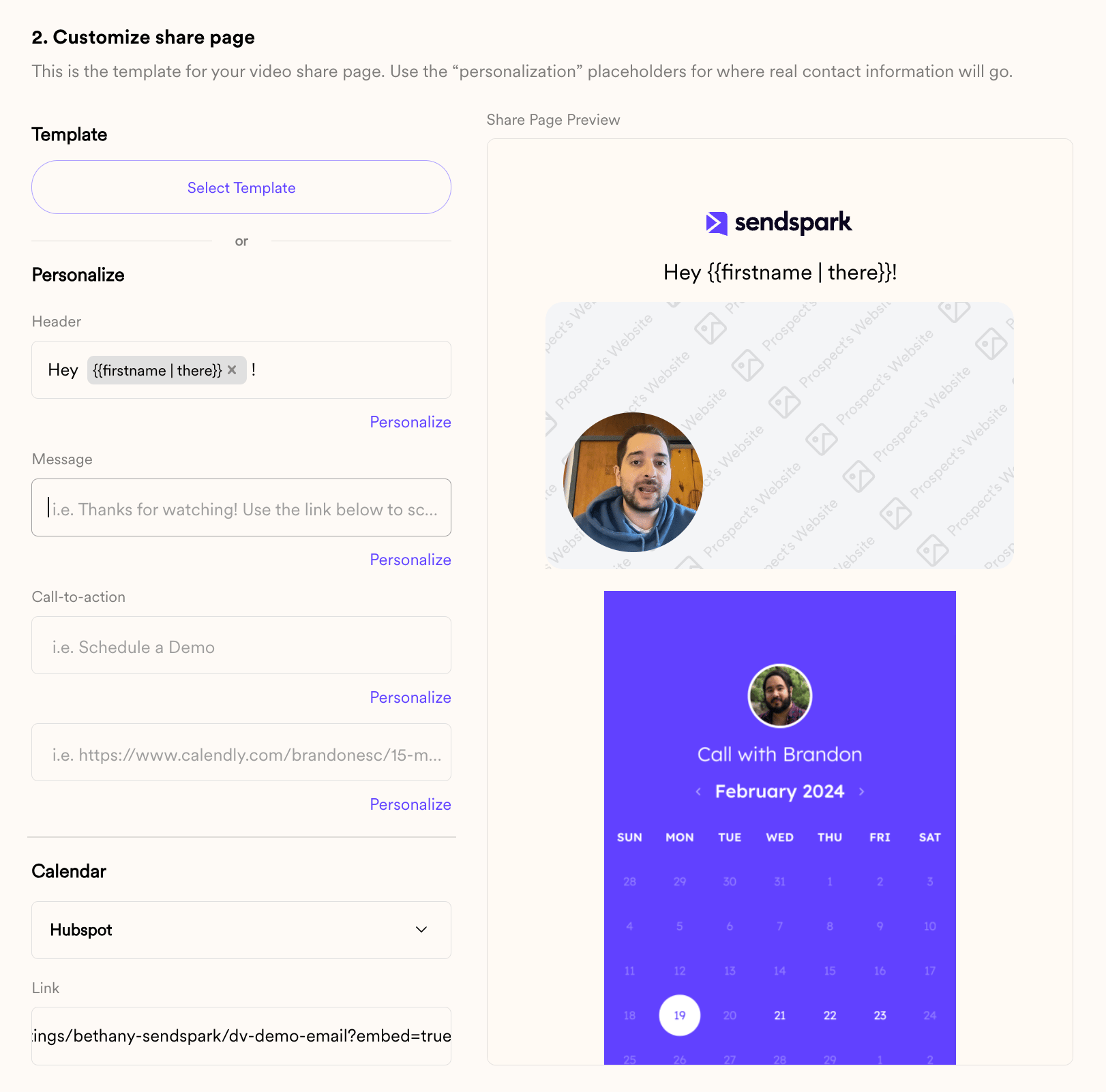
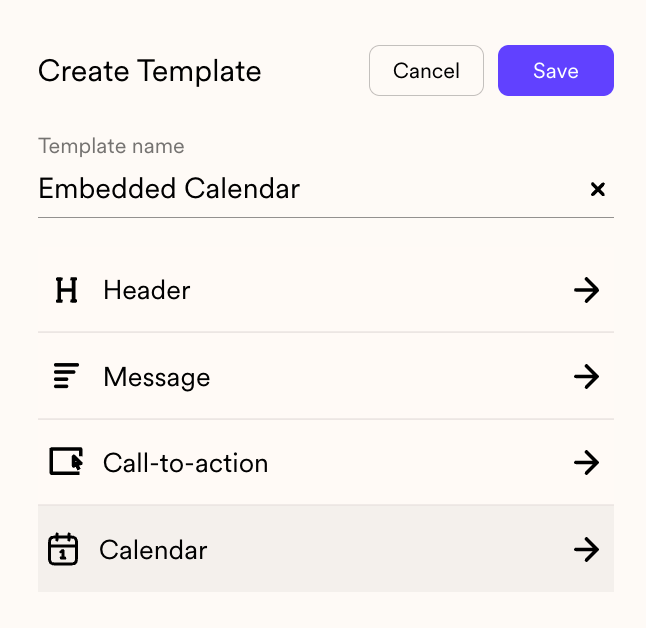
3. Templates
You can add embedded calendars to templates to easily add an embedded calendar to any video that you create.
Pro Tips for Embedding Calendars
Create a “Sendspark” Calendar for Tracking
If you want to track all of the meetings you are booking from Sendspark videos, you can create on calendar to specifically use with Sendspark videos. If you use this video for all of your Sendspark videos, you will be able to track how many meetings you are booking with video outreach.Save Time with Templates
It can be time consuming to add an embedded calendar for every video you record individually. To save time, we recommend using Templates! You can save your calendar in a Template, and then select that template after recording videos from the Chrome Extension.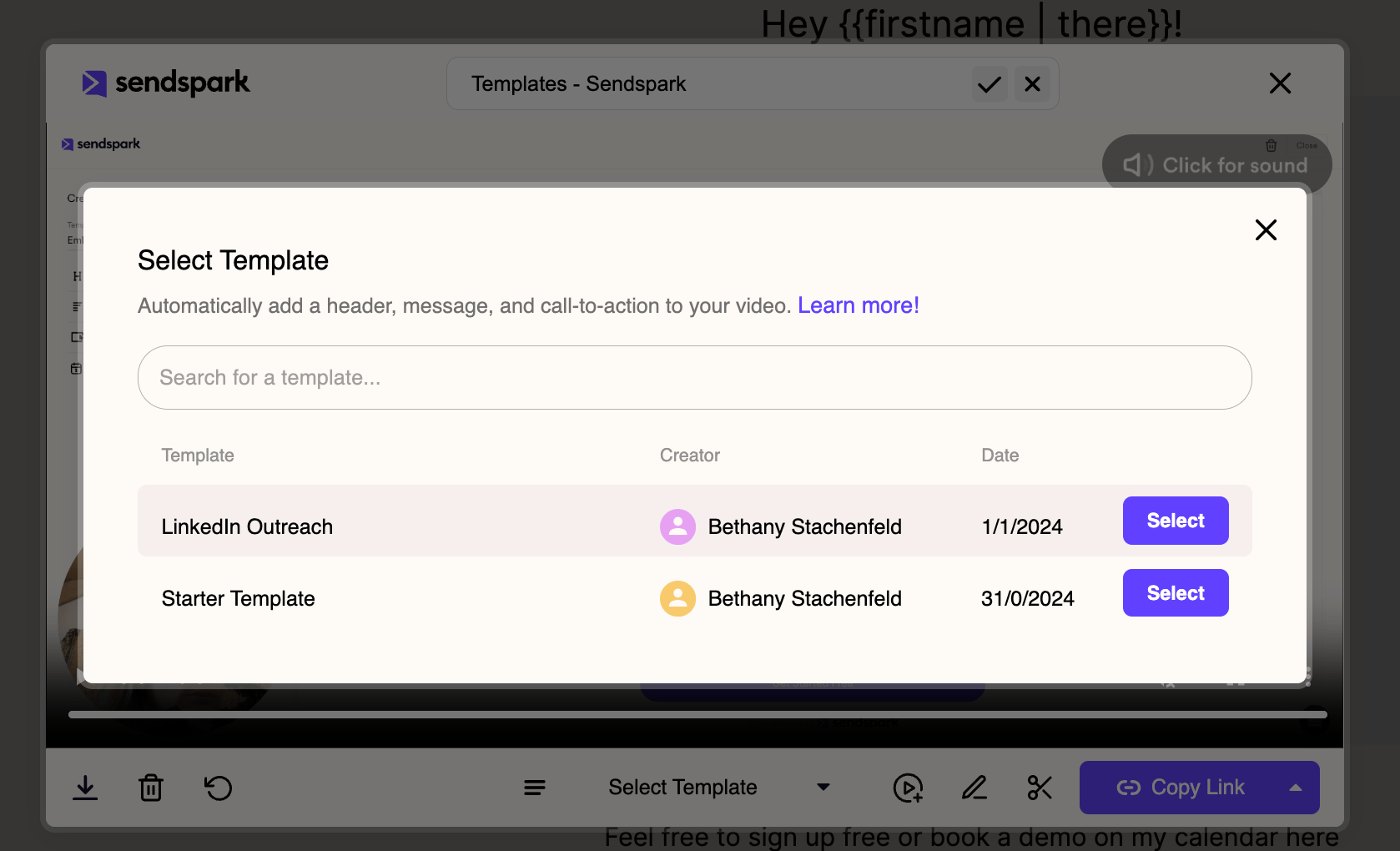
Frequently asked questions
Do I use the calendar embed code or the link?
Do I use the calendar embed code or the link?
Use the link to your calendar, not the embed code. Sendspark automatically builds the embed using the information from the link.
Which calendar platforms can I embed?
Which calendar platforms can I embed?
Sendspark supports Calendly, Chili Piper, HubSpot, HighLevel, Mixmax, Motion, Outreach, Salesloft, Tidycal, and Youcanbookme. If you use another scheduling platform, you can request a direct integration or add your booking link to a call-to-action button in the meantime.
Where can I add an embedded calendar?
Where can I add an embedded calendar?
Everywhere you can customize video pages: individual video messages, dynamic video campaigns, and templates. The process for adding the calendar is the same in each place.
How can I add a calendar to every video without redoing the setup?
How can I add a calendar to every video without redoing the setup?
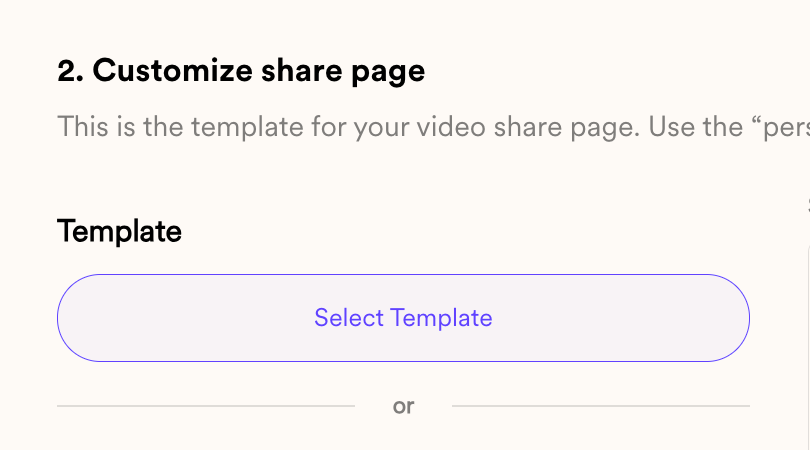
Save your calendar in a Template, then select that template after recording from the Chrome Extension or from the Dynamic Campaign builder. This avoids copying your calendar link every time.
Can I reuse the same meeting link outside my video pages?
Can I reuse the same meeting link outside my video pages?
Yes. Save default meeting links in your account settings and Sendspark keeps two of them, a Video Meeting Link and a Calendar Link, ready to insert in one click. They’re available from Intercom, HubSpot, and LinkedIn, so you aren’t pasting the same URL by hand each time.
Can I track meetings booked from my videos?
Can I track meetings booked from my videos?
Yes. Create one calendar dedicated to Sendspark videos and use it across all of them. That way you can track how many meetings you’re booking from video outreach.