

Key takeaways
- Camera Effects are supported in the Sendspark Chrome extension only — install the extension if you don’t have it yet.
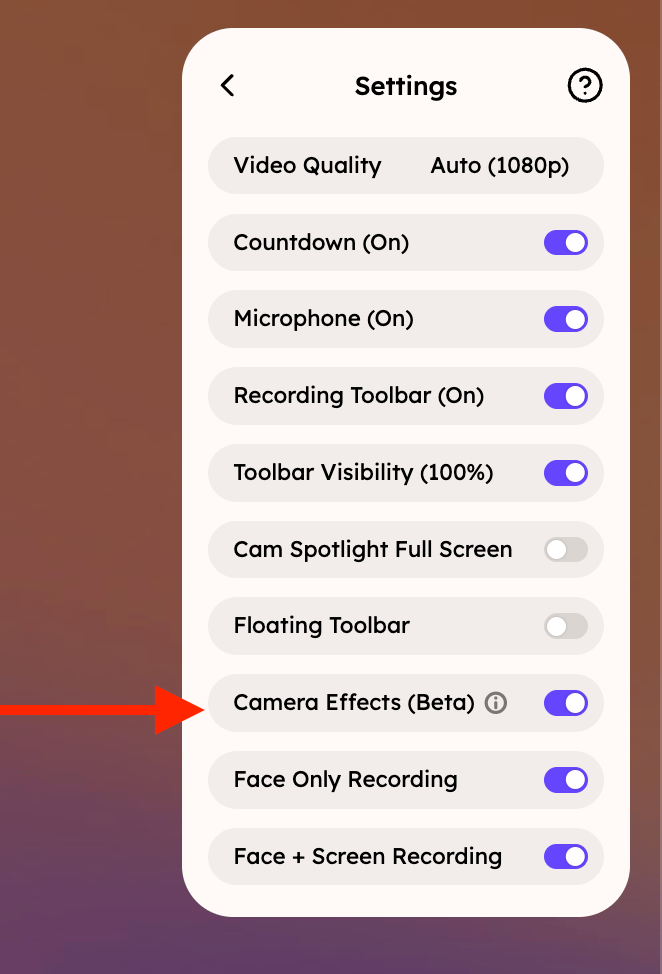
- First, enable Camera Effects in the extension Settings, choosing whether they apply to “both” (camera + screen) or “camera only.”
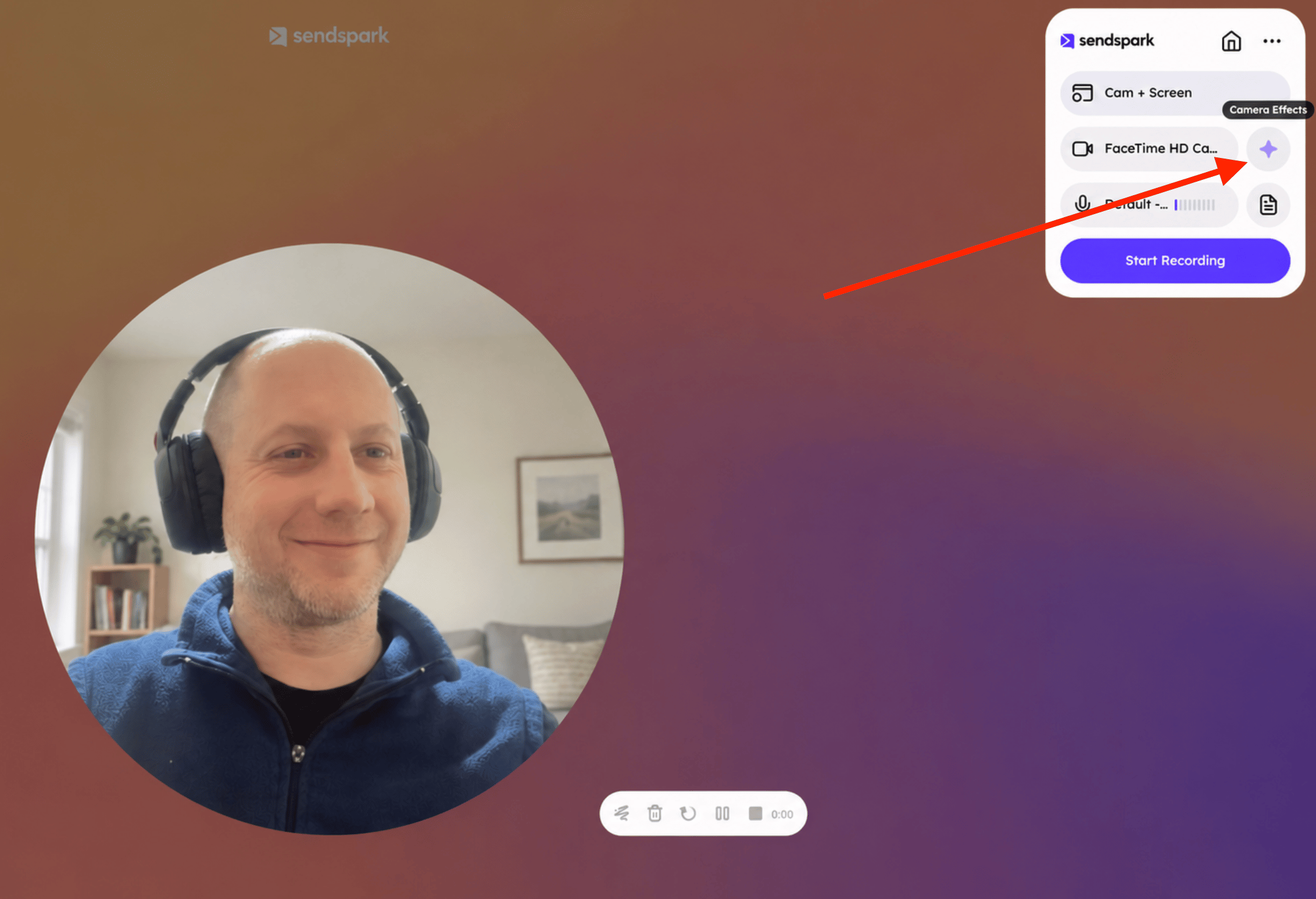
- Open effects during recording via the sparkle icon on the top right of your camera bubble.
- Available effects include background blur, virtual backgrounds, Touch-up appearance, and mirror camera.
- Using Camera Effects can make your camera bubble load slower depending on your computer’s processing power, so it isn’t always ideal when recording across multiple tabs.
Supported Camera Effects in Sendspark
Sendspark supports the following video effects:- Virtual backgrounds
- Blur background
- Touch-up appearance
- Mirror camera
How to Use Virtual Backgrounds
To use Camera Effects, first, launch the Sendspark Chrome extension. If you do not have the Chrome extension yet, please install it here. Then, make sure Camera Effects is enabled on your account. To enable Camera Effects, please…- Launch the Sendspark Chrome Extension
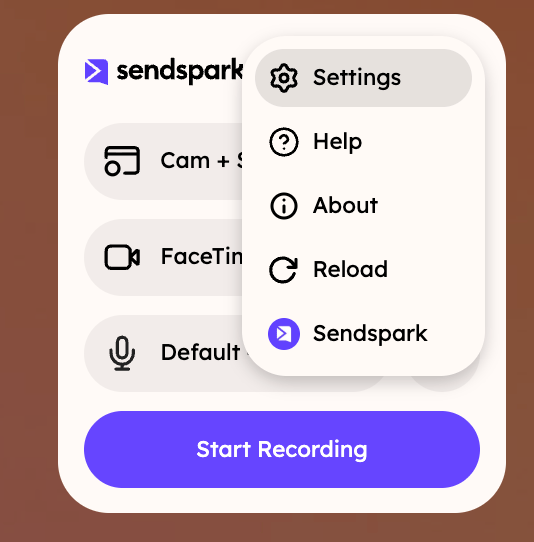
- Click on the “Settings” icon
- Toggle “Camera Effects” to “on.” Here, you can decide if you would like to use Camera Effects when recording with “both” your camera and screen, or just your “camera only.”
I. Blur Background & Virtual Background
Select the first option to blur your background. You will see a faint purple outline around the selected camera effect, and you can preview how this will look in the camera bubble in the middle of the screen. Simply close the Cam Effects modal to see your new effect while recording. -We also provide several virtual backgrounds for you to choose from. Do you want an office background, clean space, or bright color? Take your pick!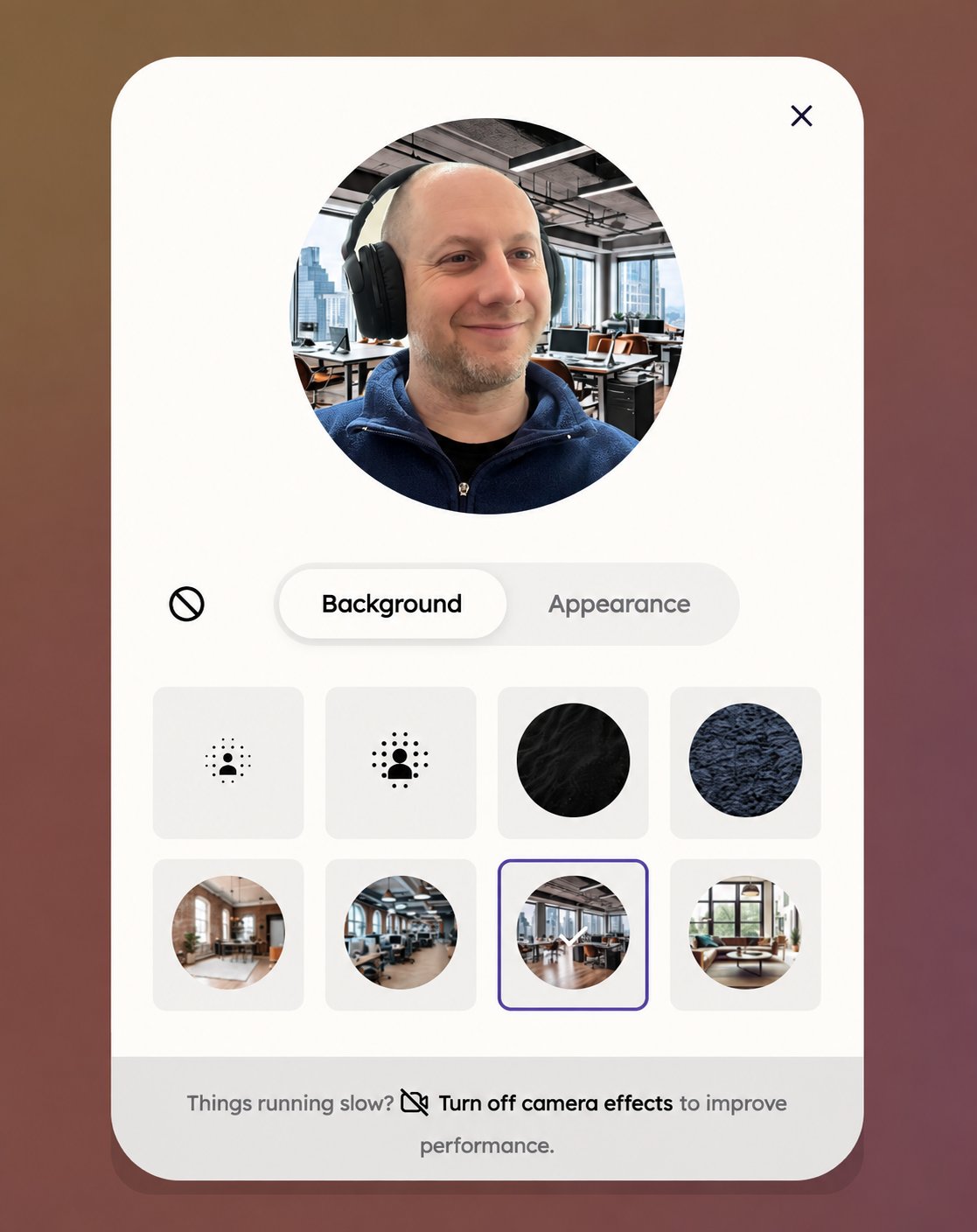
How to Enhance Your Appearance
Click into the**“Appearance”** tab on your Cam Effects modal to see other available camera effects.Touch Up Appearance & Mirror Camera
Please note we have a separate article for this feature. Click touch up your appearance settings to access it. You can subtly enhance your appearance with the Touch-up appearance slider. It runs from 0 for no enhancement up to 100 for the maximum. To flip your camera, simply click on the “mirror my camera” toggle. This will let you see the reverse of yourself (which most people prefer to look at for themselves).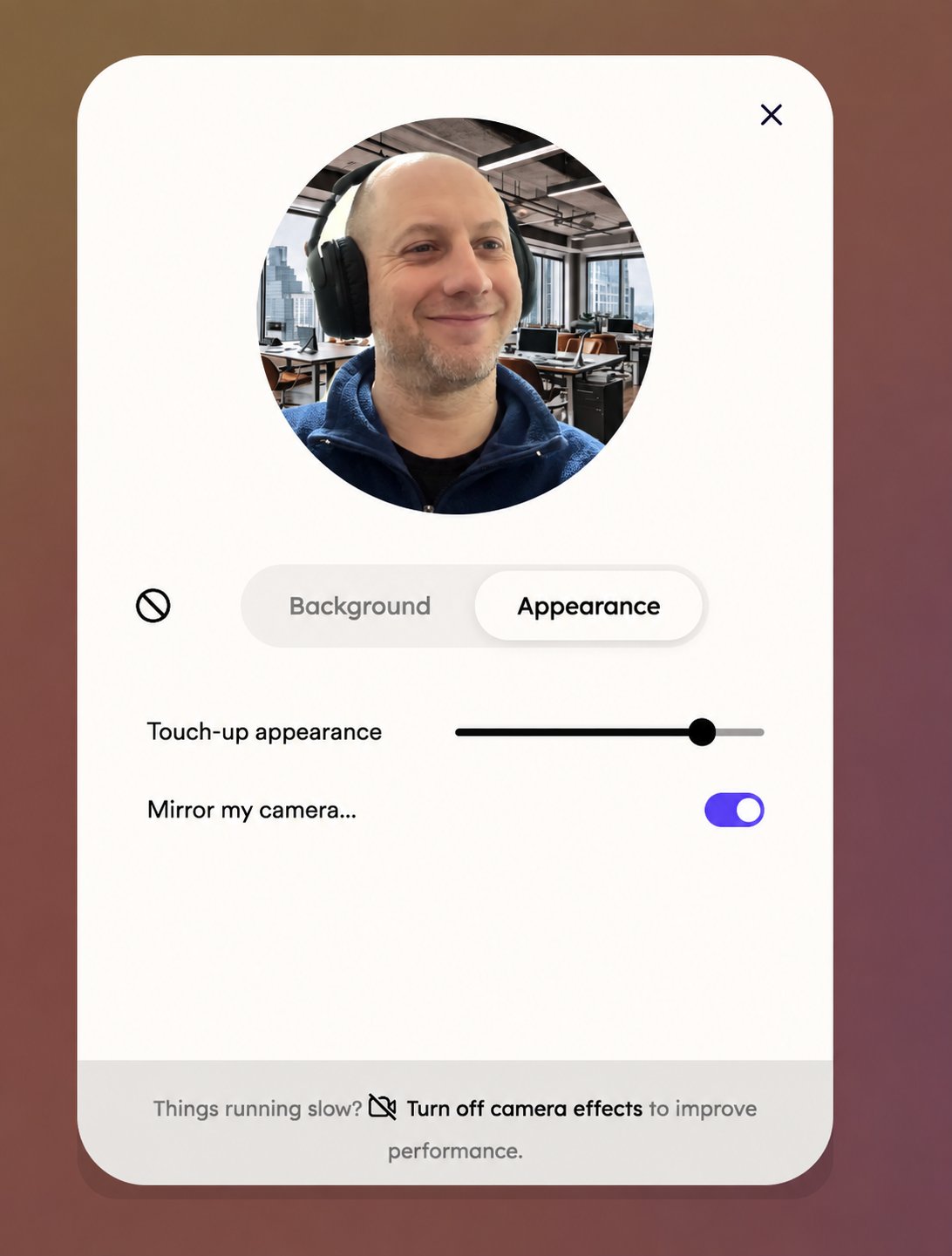
How to Remove Blur or Backgrounds
If you no longer wish to use your camera effect, you can simply click on the “Remove Background” icon in the top left of the Cam Effects modal. This will remove the virtual background from your camera view. Simply close the modal to save your changes.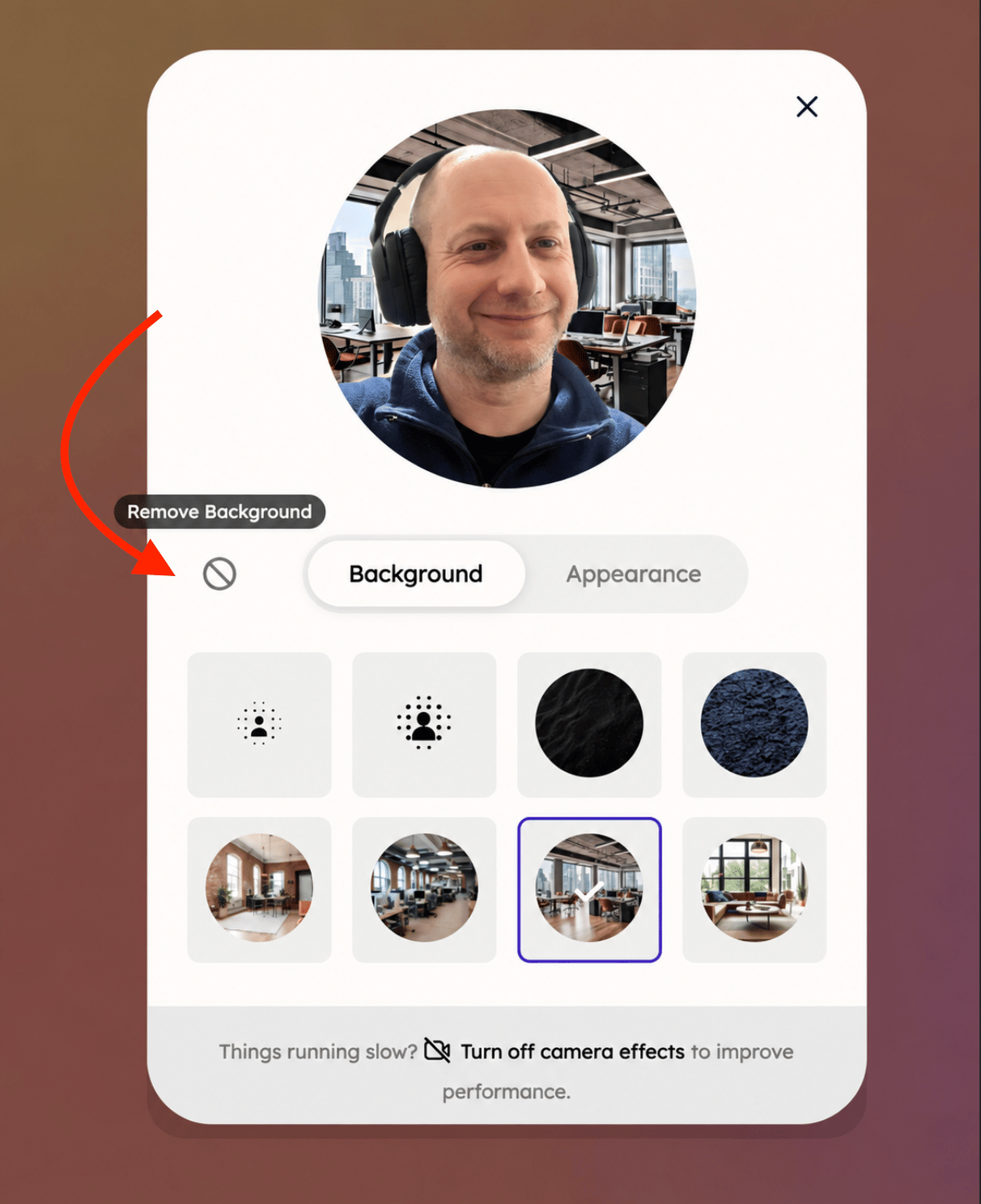
How to Turn Camera Effects Off
Click on the three dots and head to settings: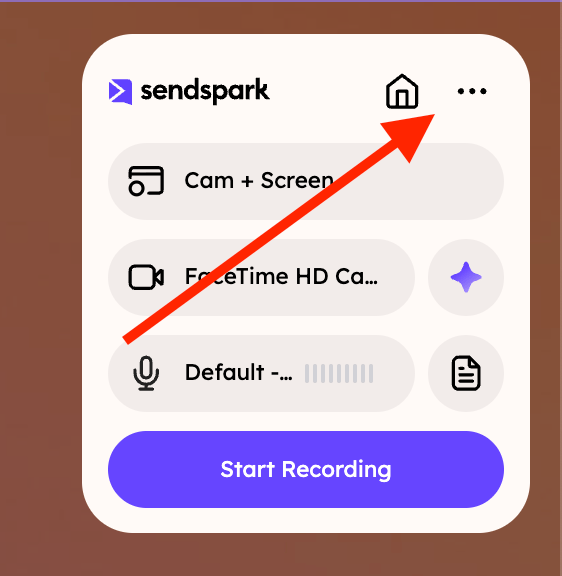
Frequently asked questions
Where do camera effects work in Sendspark?
Where do camera effects work in Sendspark?
Camera Effects are currently supported in the Sendspark Chrome extension only. If you don’t have it yet, install the Chrome extension first.
How do I turn on Camera Effects?
How do I turn on Camera Effects?
Launch the Sendspark Chrome extension, click the Settings icon, and toggle Camera Effects to “on.” You can choose to use them when recording with “both” your camera and screen, or “camera only.”
How do I apply an effect while recording?
How do I apply an effect while recording?
Click the sparkle icon on the top right of your camera bubble to open the Cam Effects modal, then pick blur, a virtual background, or an appearance option. Close the modal to see the effect while recording.
What camera effects are available?
What camera effects are available?
You can blur your background, choose from several virtual backgrounds, touch up your appearance with a 0–100 slider, and mirror your camera to flip your appearance.
How do I remove a camera effect?
How do I remove a camera effect?
Click the “Remove Background” icon in the top left of the Cam Effects modal to remove the virtual background from your camera view, then close the modal to save your changes.
Why does my camera bubble load slower with effects on?
Why does my camera bubble load slower with effects on?
Camera Effects use extra processing power, so the camera bubble can load more slowly when recording your face over your screen. It’s not always advised when recording across multiple tabs — try it and decide what works for your setup.