

Key takeaways
- Another application (such as OBS or Zoom) controlling your camera or microphone can stop Sendspark from detecting it — close those apps first.
- Connect the microphone directly to your PC or Mac rather than through a USB hub or external monitor.
- In the Chrome Extension Settings, select the correct microphone and make sure it isn’t toggled off or set to a different device from a previous session.
- For a permanent fix, set your default microphone in Chrome at
chrome://settings/content/microphone, and check that the site has no restrictions applied.
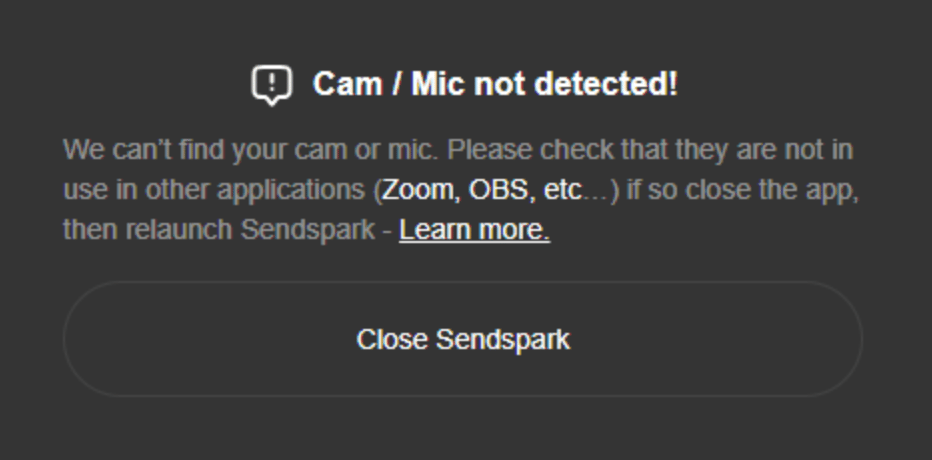
- Ensure that no other application is controlling your peripherals, as this can prevent Sendspark from detecting them. Some recording apps like OBS or even Zoom can take control of it as suggested here:
- Check if your microphone is connected directly to your PC or through an external device like a USB hub or an external monitor. If it’s through an external device, try connecting it directly to the PC or Mac.
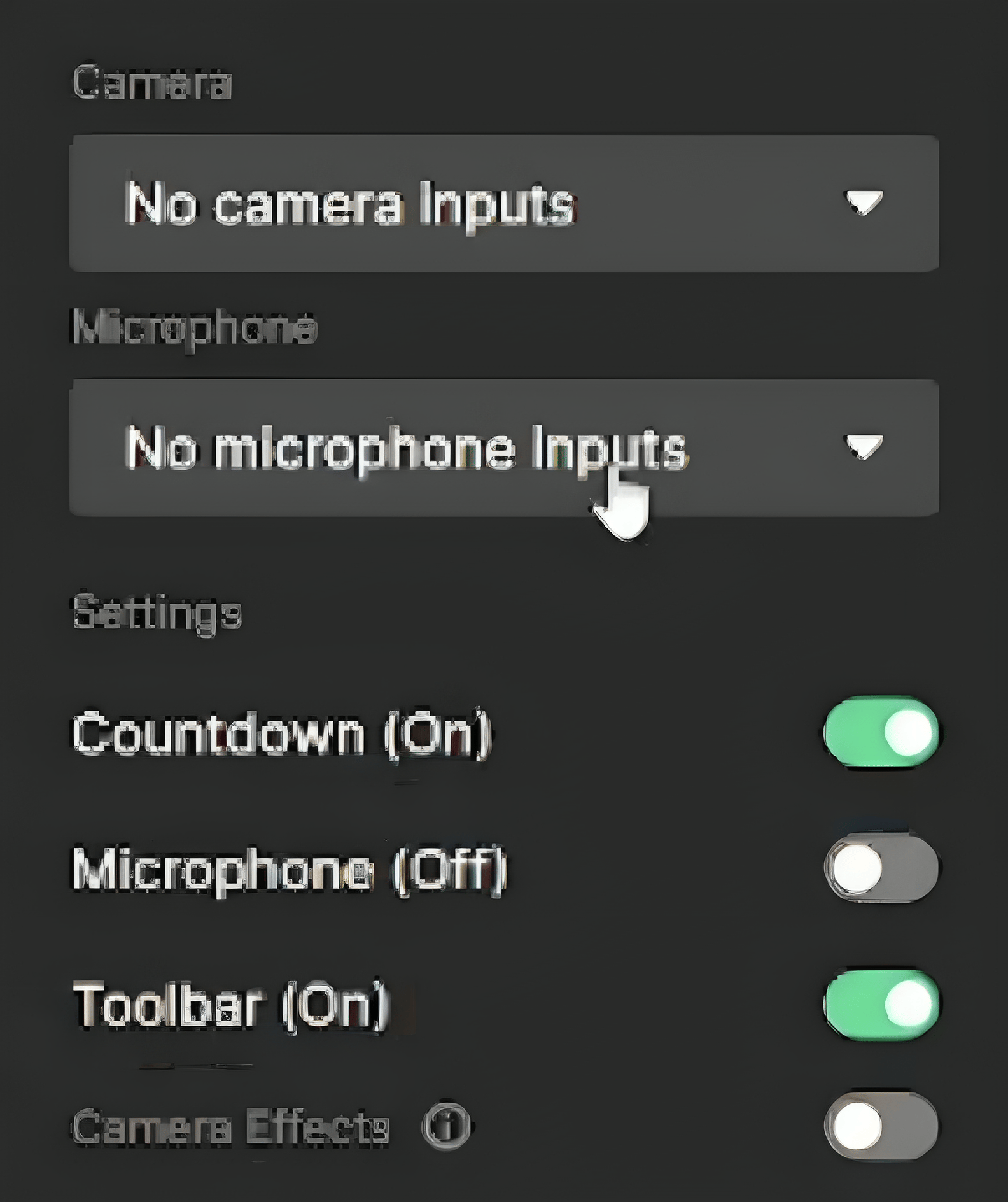
- If you’re using the Chrome Extension, go to Settings and select the correct microphone from the dropdown menu. Make sure the microphone is not toggled to “off” from a previous session, or even toggled to a different Microphone
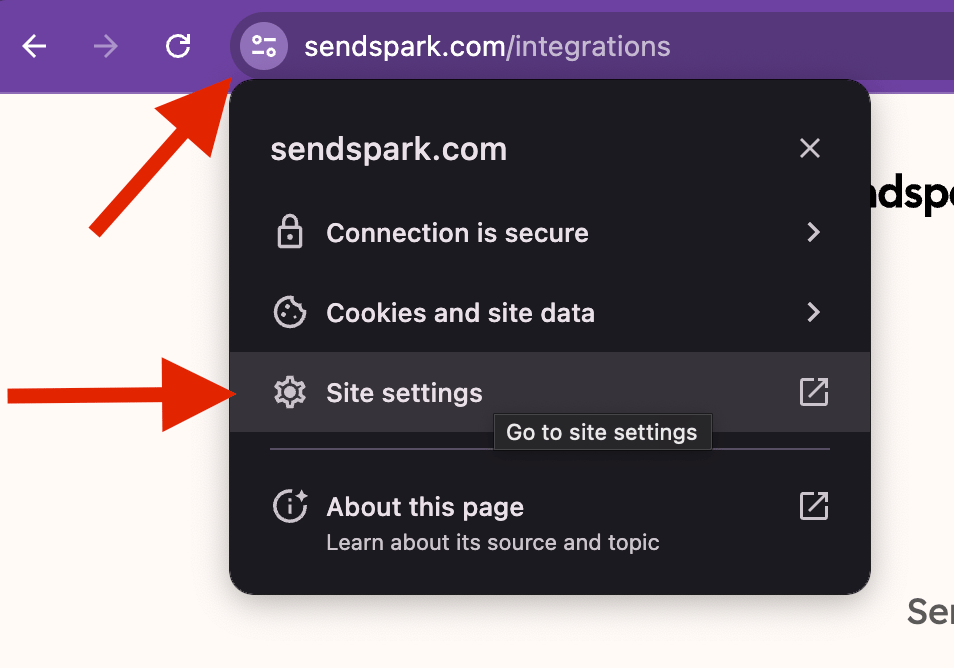
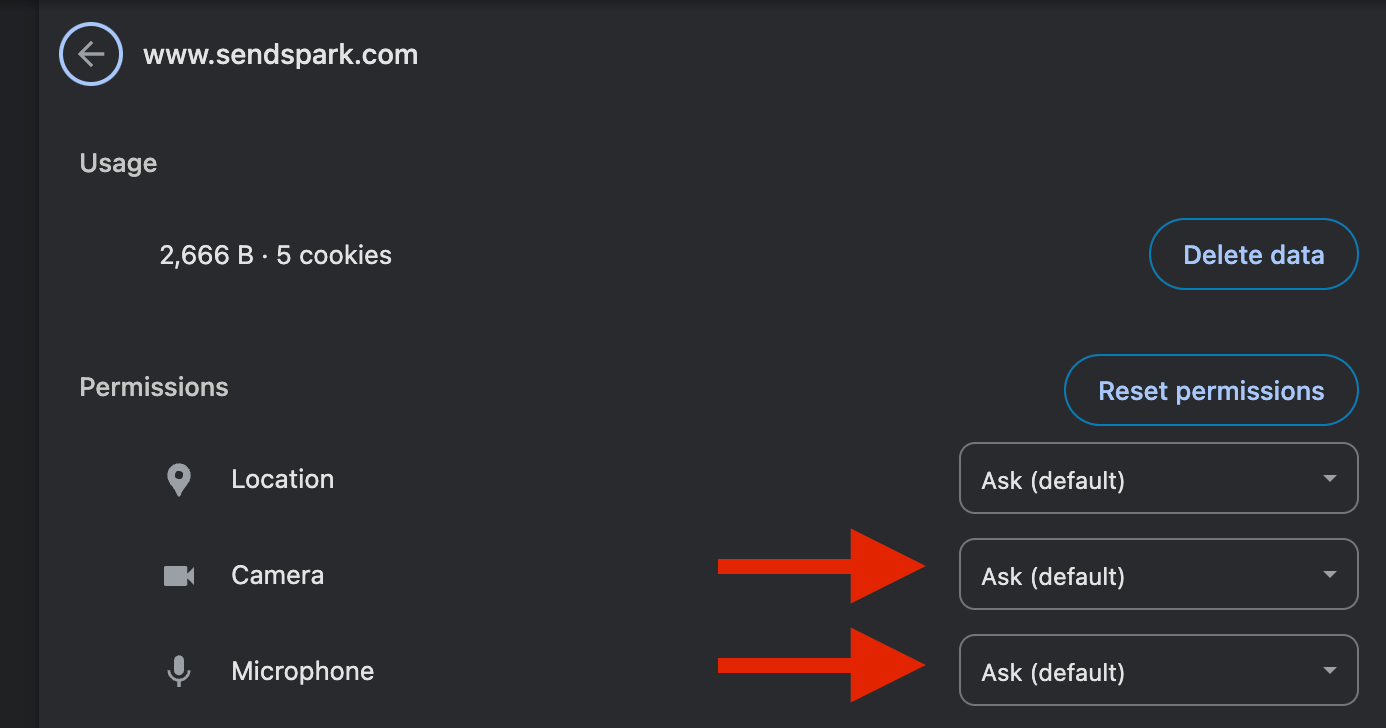
- For a more permanent fix, change your default microphone settings in your Chrome Preferences. You can access this by typing “chrome://settings/content/microphone” into your Chrome address bar and hitting Enter.
Frequently asked questions
Why does Sendspark say there are no camera or microphone inputs?
Why does Sendspark say there are no camera or microphone inputs?
Most often another application is controlling your peripherals. Recording apps like OBS or even Zoom can take control of the camera or microphone and prevent Sendspark from detecting them. Close those apps and try again.
My microphone is connected but still isn't detected — what should I check?
My microphone is connected but still isn't detected — what should I check?
Check whether the microphone is connected directly to your computer or through an external device like a USB hub or external monitor. If it’s going through an external device, try connecting it directly to the PC or Mac.
How do I select the right microphone in the Chrome Extension?
How do I select the right microphone in the Chrome Extension?
Go to the Chrome Extension Settings and choose the correct microphone from the dropdown. Make sure it isn’t toggled to “off” from a previous session, and isn’t set to a different microphone than the one you want to use.
How do I fix this permanently?
How do I fix this permanently?
Change your default microphone in Chrome by entering
chrome://settings/content/microphone in your address bar and pressing Enter. You should also open Site Settings to confirm the site doesn’t have restrictions previously applied to the camera or microphone.What if my video records but has no audio?
What if my video records but has no audio?
That’s a separate issue — see Why is there no audio on my video? for steps to troubleshoot missing audio.