

Key takeaways
- The audio toggle is named after the pane you choose, not your operating system. Chrome Tab gives you “Also share tab audio”; Entire Screen gives you “Also share system audio”.
- Both panes capture computer audio on Mac and Windows.
- Choose Entire Screen if the recording needs to follow you between tabs and applications. A Chrome Tab recording stays on the single tab you picked.
- The Desktop App captures system audio without a per-recording toggle. On Mac, grant it screen recording permission first.
Chrome Extension and web app
If you don’t have the extension yet, install the Chrome Extension here.- Click the Sendspark icon to start the app.
- Select Screen Only or Cam + Screen, then hit RECORD.
- In Chrome’s share window, pick a pane and turn its audio toggle on.
Chrome Tab
Pick a tab from the list, then turn Also share tab audio on. This captures the audio playing in that one tab.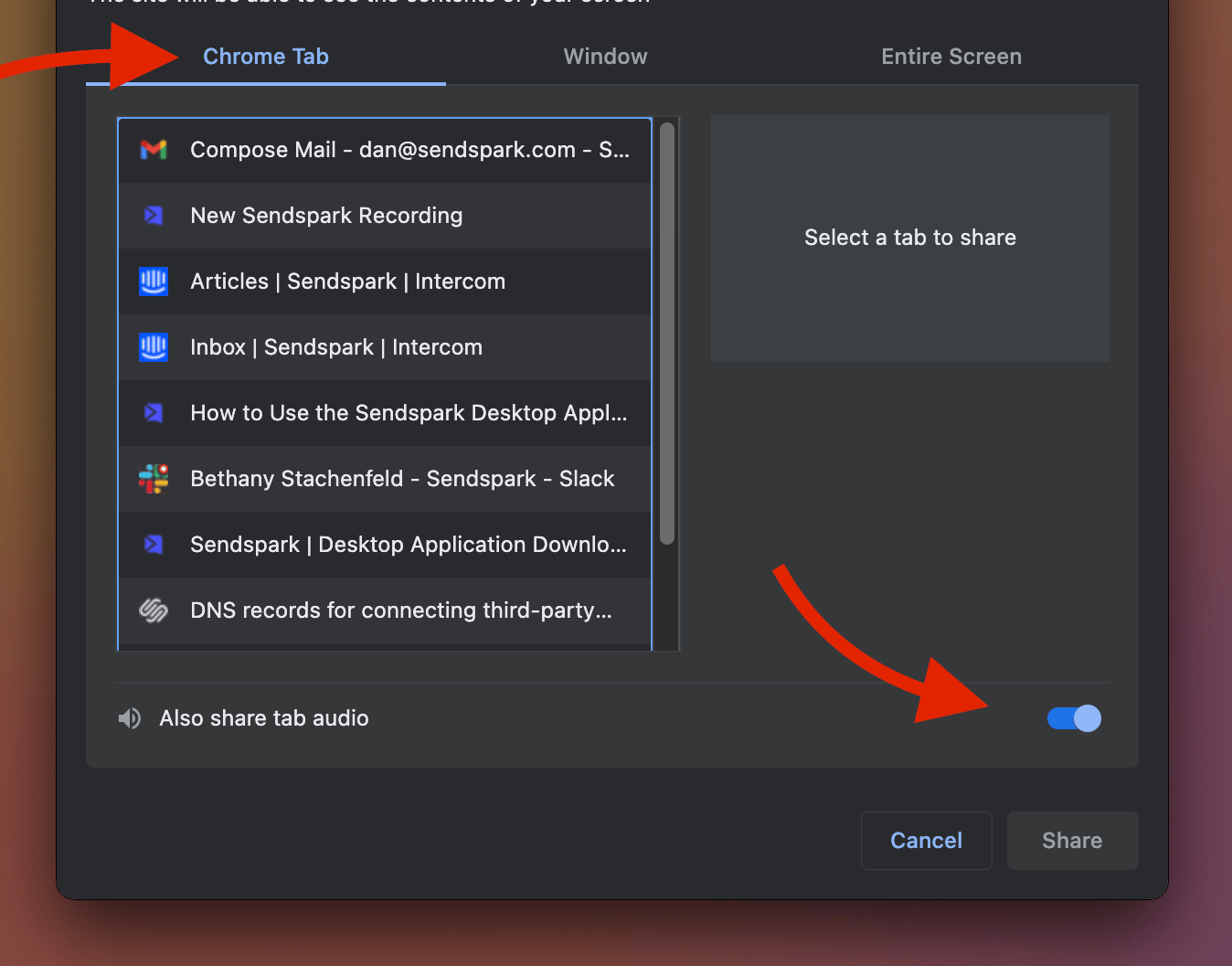
Entire Screen
Pick a screen, then turn Also share system audio on. This captures everything your computer plays, not just one tab.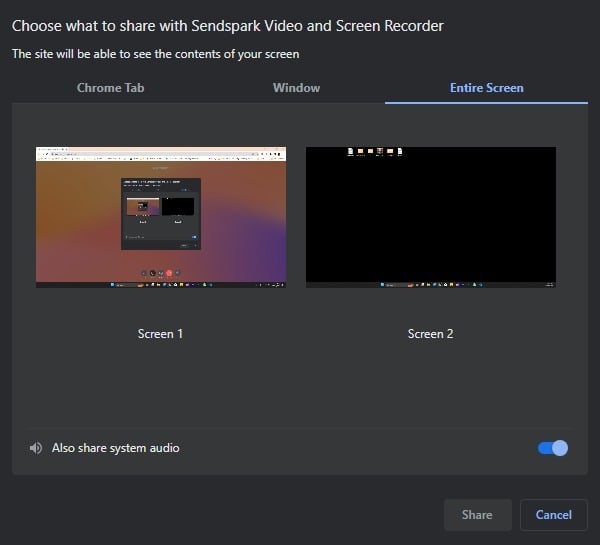
The Window pane has no audio toggle. If you need computer audio, record a Chrome Tab or your Entire Screen.
Desktop App
The Desktop App captures system audio on its own, so there’s no toggle to remember before each recording. Download it for Mac or Windows. On Mac, grant the app screen recording permission before your first recording. If macOS blocks the app from opening at all, that’s a separate setting: see Mac app blocked by Apple security check.Frequently asked questions
How do I record system audio on Mac?
How do I record system audio on Mac?
Start the app, select Screen Only or Cam + Screen and hit RECORD, then in Chrome’s share window pick either pane and turn its audio toggle on. Chrome Tab shows “Also share tab audio” and Entire Screen shows “Also share system audio”. Both work on Mac.
Is recording system audio different on Windows?
Is recording system audio different on Windows?
No. The panes and toggles are the same on Windows as on Mac. Chrome Tab shows “Also share tab audio” and Entire Screen shows “Also share system audio”.
Can I record system audio with the Entire Screen option?
Can I record system audio with the Entire Screen option?
Yes, on both Mac and Windows. Select the Entire Screen pane and turn “Also share system audio” on. Entire Screen is also the option to use when the recording needs to follow you across tabs and applications.
Why is there no audio toggle on the Window pane?
Why is there no audio toggle on the Window pane?
Chrome only offers an audio toggle on the Chrome Tab and Entire Screen panes. To capture computer audio, pick one of those two, or use the Desktop App.
Is there an easier way that doesn't need a toggle?
Is there an easier way that doesn't need a toggle?
Yes. The Desktop App captures system audio without a per-recording toggle. On Mac, grant it screen recording permission first.
Related articles
- How to record system audio in Sendspark
- How to record a video without sound
- Chrome Extension: Recording Options & Types
- How to use the Sendspark desktop application