

Key takeaways
- Embedding a Calendly calendar lets your viewers schedule a meeting with you without ever leaving your video page.
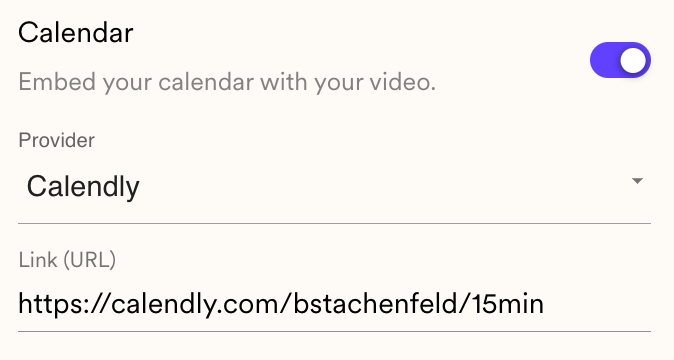
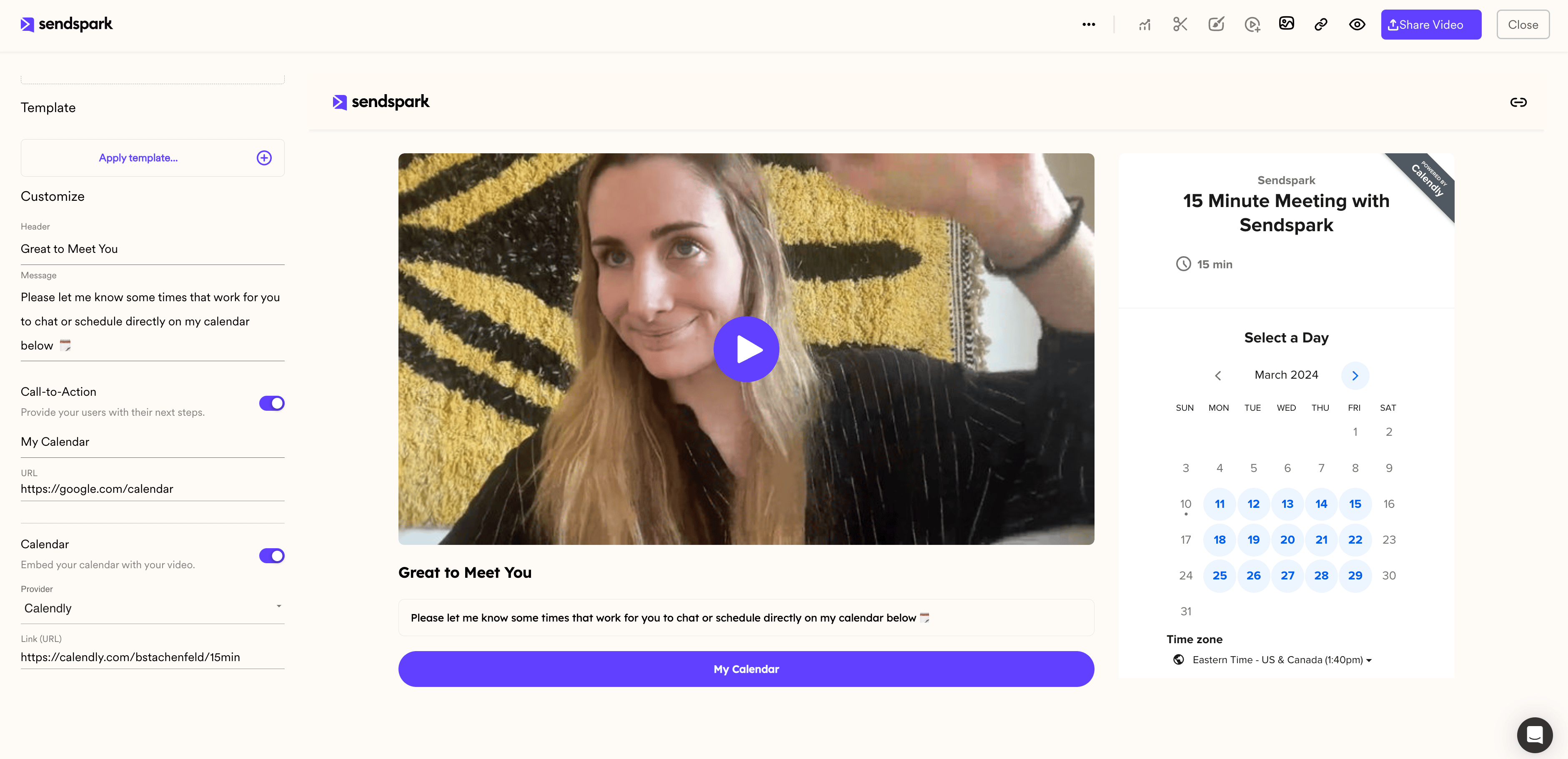
- Turn the “Calendar” toggle to “On,” choose “Calendly” from the Provider dropdown, and add the link to the Calendly calendar you want to use.
- Add the calendar link only, not the embed code; Sendspark automatically embeds the calendar from the link.
- You’ll know it’s working when the Calendly preview appears to the right of your video.
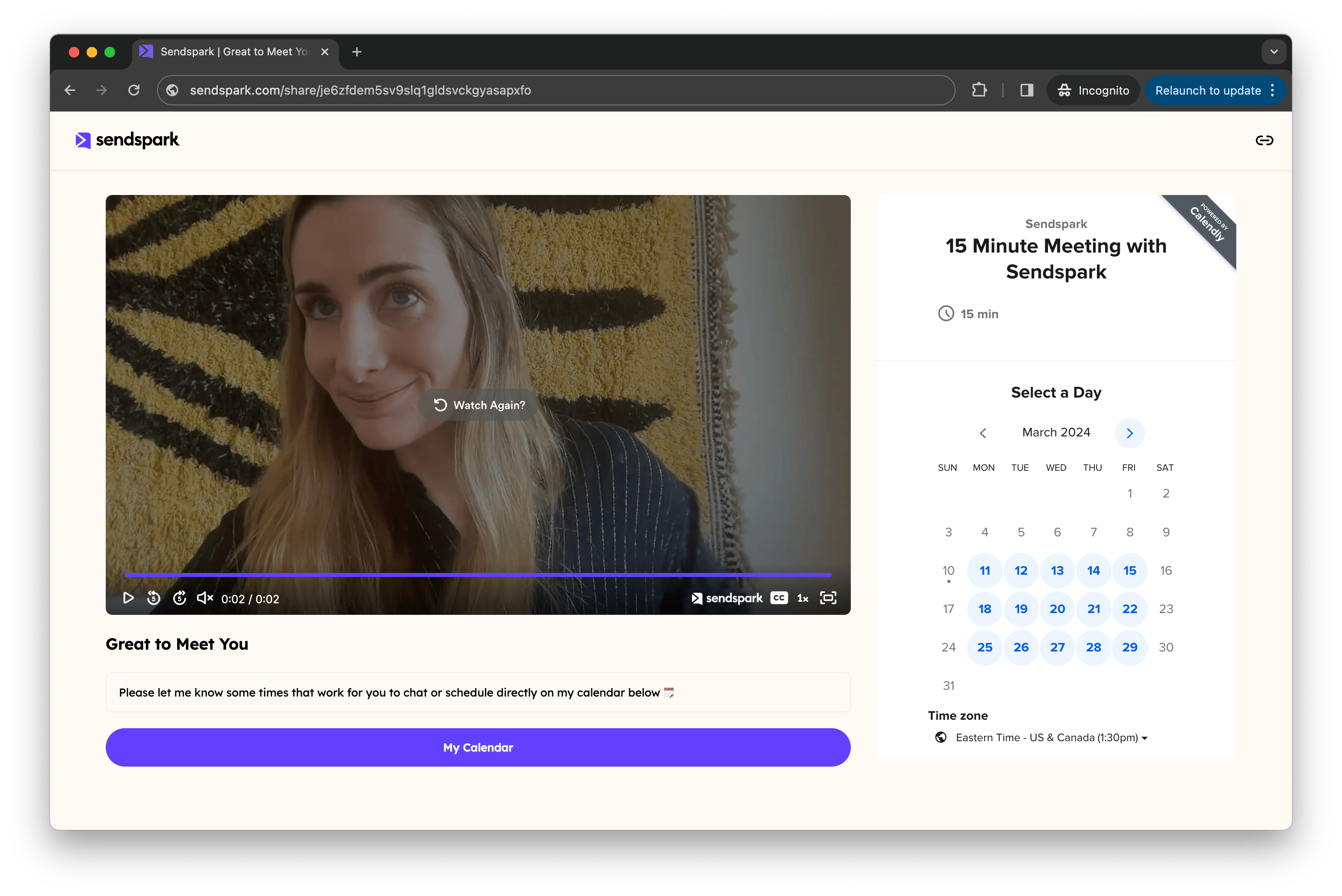
How to Embed a Calendly Next to Your Video
- In Sendspark, toggle “Calendar” to “On”
- Select “Calendly” from the Provider Dropdown List
- Add the linkto the Calendly calendar you want to use
Frequently asked questions
How do I add a Calendly calendar to my video page?
How do I add a Calendly calendar to my video page?
In Sendspark, toggle “Calendar” to “On,” select “Calendly” from the Provider dropdown list, and add the link to the Calendly calendar you want to use.
Do I use the Calendly embed code or just the link?
Do I use the Calendly embed code or just the link?
Just the link. You’re only adding the link to your Calendly, not the embed code. Sendspark will automatically embed your calendar from the link.
How do I know the Calendly embed is working?
How do I know the Calendly embed is working?
You’ll know everything is working when you see the Calendly preview appear to the right of your video.