

Key takeaways
- Requesting a testimonial takes one link: open the Video Requests folder and click Copy Request Link to share with customers.
- Recipients do not need a Sendspark account. They can record through any of three options and review and approve the video before submitting.
- Submitted videos upload automatically to your Video Requests folder, where you can view, download, or share them.
- To make customers more comfortable, record yourself asking for the testimonial and add your request link as a call-to-action below your video.
How to Request a Testimonial with Sendspark
- Navigate to the Sendspark Video Requests folder
- Click Copy Request Link

- Now, simply share the link with your customers. Here are some common ways to get video testimonials.
- Once your recipients open the link, this is what they’ll see:
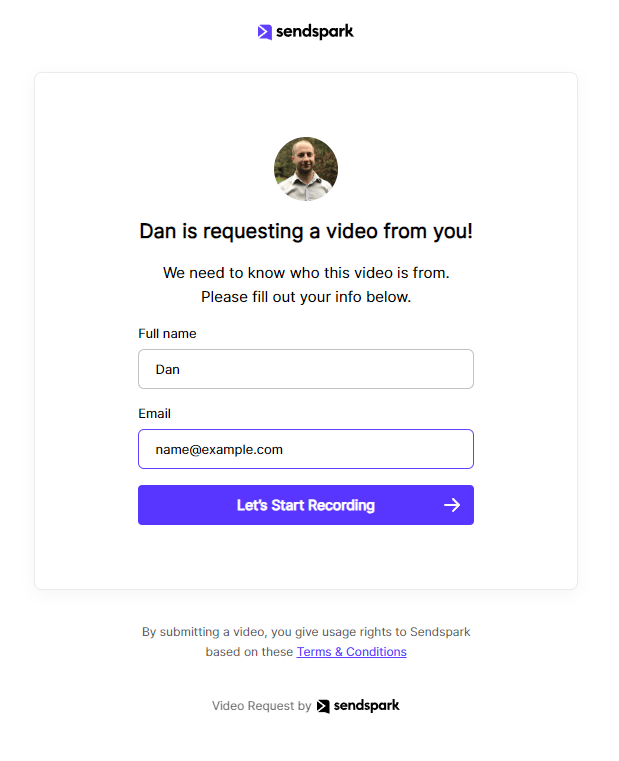
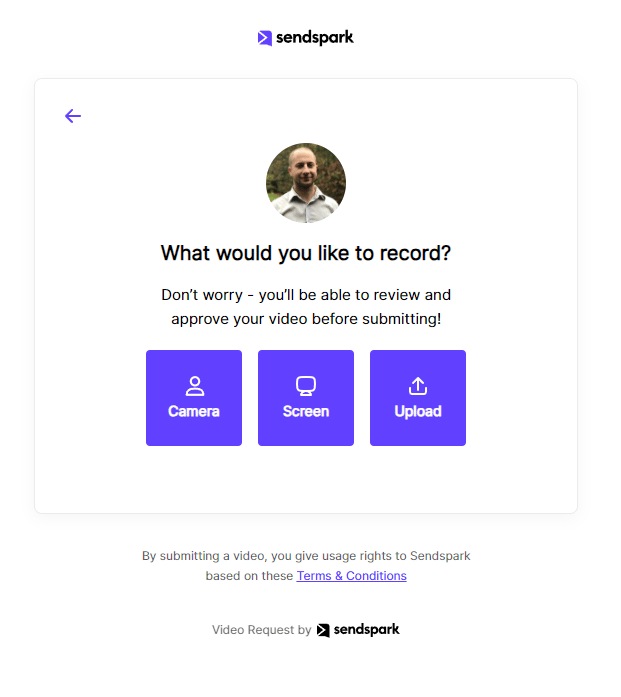
- Regardless of whether they have a Sendspark account or not, they will be able to share a recording through any of these three options:
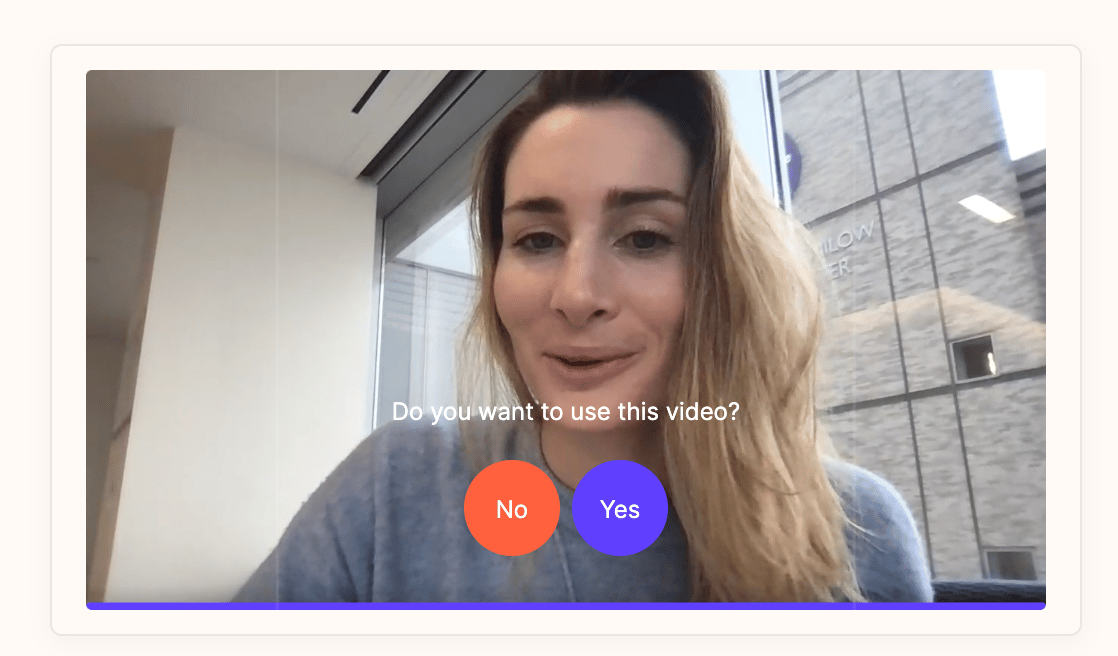
- Recipients see the video played back with a Yes / No choice before it is submitted. (Try it out by recording a video for us here!)
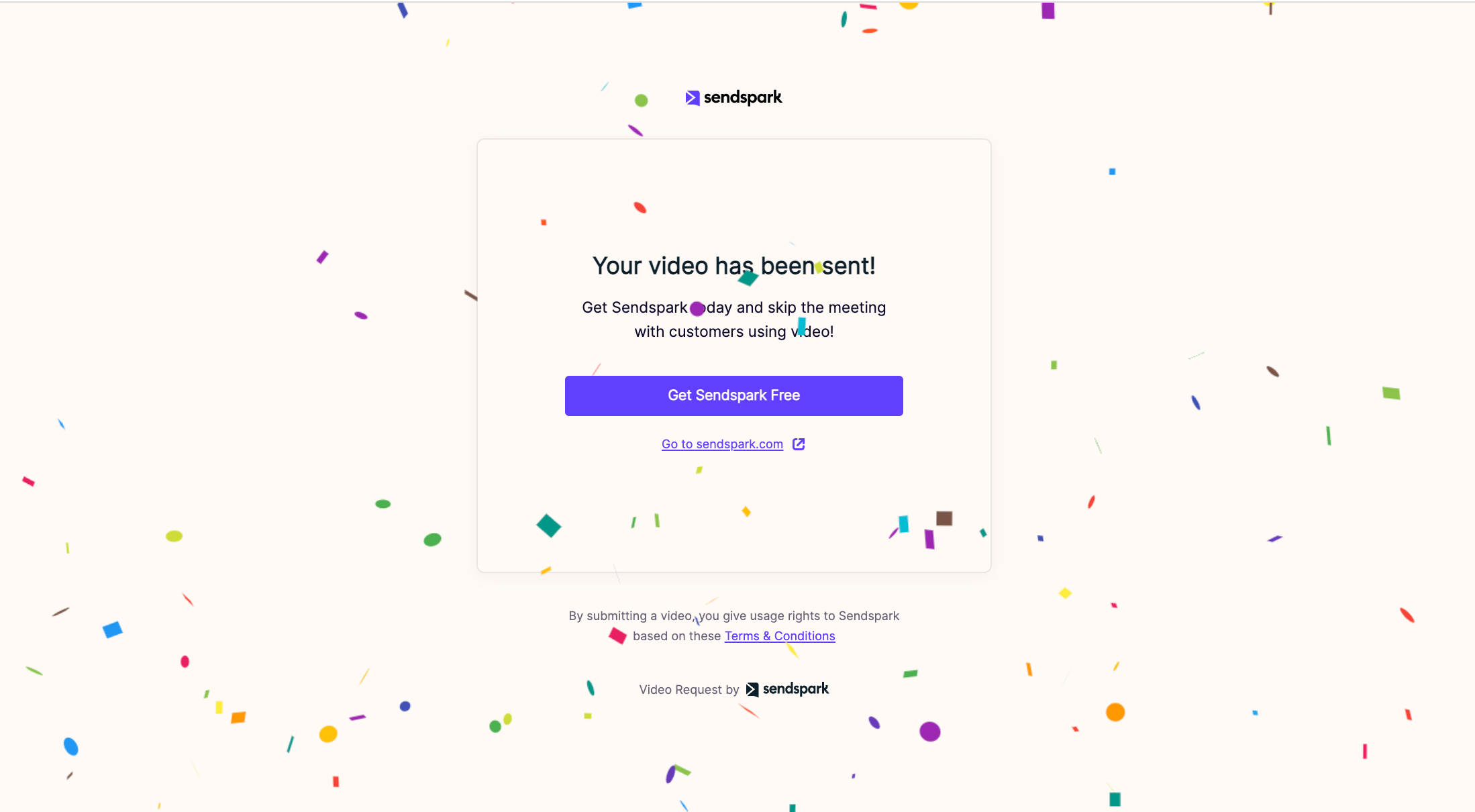
- When viewers submit the video, it will automatically upload to your Video Requests folder for you to view, download, or share.
💡 Bonus tip: Help your customers feel more comfortable recording videos
Use Sendspark to record yourself asking customers to make you a testimonial to help them feel more comfortable (and prompt them with customer testimonial questions). If you’d like to do this, just add your video request link to the call-to-action below your video.
Frequently asked questions
Do my customers need a Sendspark account to record a testimonial?
Do my customers need a Sendspark account to record a testimonial?
No. Whether or not they have a Sendspark account, recipients can record and share a video through any of three options once they open your request link.
How do I send a testimonial request?
How do I send a testimonial request?
Navigate to the Video Requests folder, click Copy Request Link, and share that link with your customers.
Can recipients review their video before submitting?
Can recipients review their video before submitting?
Yes. Recipients get a chance to review and approve the video before submitting it.
Where do submitted testimonials go?
Where do submitted testimonials go?
When viewers submit a video, it automatically uploads to your Video Requests folder, where you can view, download, or share it.
How can I make customers more comfortable recording?
How can I make customers more comfortable recording?
Use Sendspark to record yourself asking for the testimonial, and add your request link as a call-to-action below your video. Prompting them with clear questions helps too.