

Key takeaways
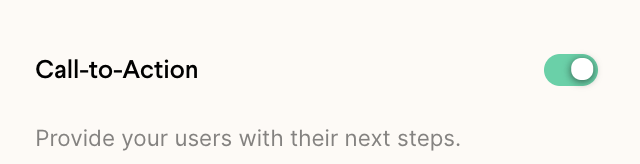
- Toggle on the Call-to-Action field to add a button below your video.
- Enter your button text and the destination URL you want viewers sent to.
- Check that everything looks right in the live preview area on the right of the page.
- Video CTAs require at least the Solo plan.
Follow these steps to add a button to your video:
- Toggle on the Call-to-Action field
- Write your desired button text(ex: Get Started Free)
- Add the URL you want to send viewers to (ex: https://sendspark.com)

Frequently asked questions
What plan do I need to use a URL call-to-action?
What plan do I need to use a URL call-to-action?
You must be on the Solo plan or a higher plan to use video CTAs.
What other types of call-to-action can I use?
What other types of call-to-action can I use?
Besides a URL, you can set the button to a calendar link, a phone number, or a text message.