

Key takeaways
- There are three recording options: Camera Only, Screen Only, and Cam + Screen (camera over screen).
- With Screen Only or Cam + Screen selected, you also choose what to share: Chrome Tab, Window, or Entire Screen.
- Camera Only has nothing to share, because only your camera is captured.
- The face camera works seamlessly on Chrome, but some apps in full-screen mode can override Sendspark’s bubble recording.
Recording options
Recording types
Using our Chrome Extension is a great way to record videos anywhere, anytime!
Recording Options
There are three options to record with the Chrome Extension.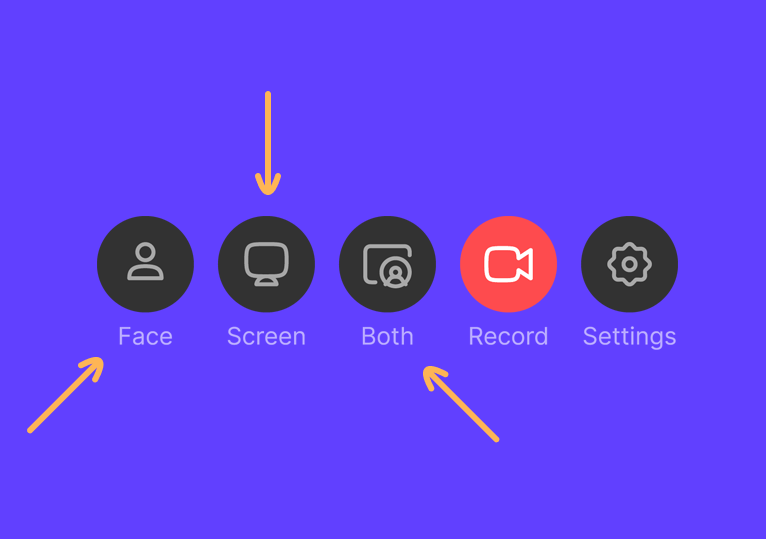
Recording Types
Once you’ve clicked Camera Only, Screen Only, or Cam + Screen you are almost ready to start. Click Record and a new modal will pop up: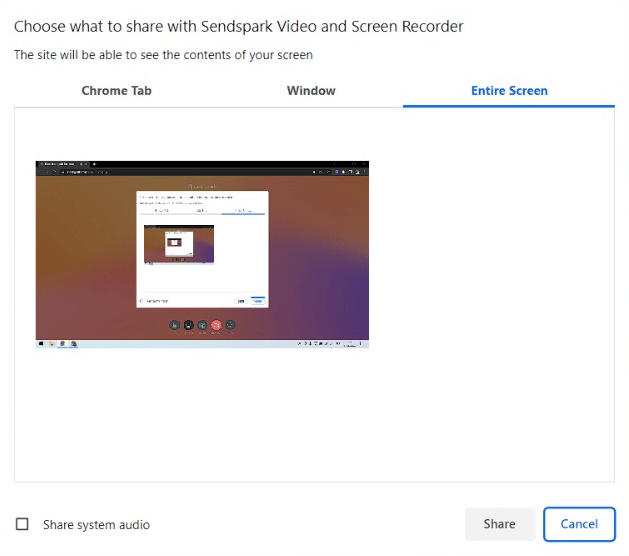

Frequently asked questions
What are the Chrome Extension recording options?
What are the Chrome Extension recording options?
There are three: Camera Only, Screen Only, and Cam + Screen (your camera recorded over your screen). Choose the one that fits the video you want to make.
What's the difference between Chrome Tab, Window, and Entire Screen?
What's the difference between Chrome Tab, Window, and Entire Screen?
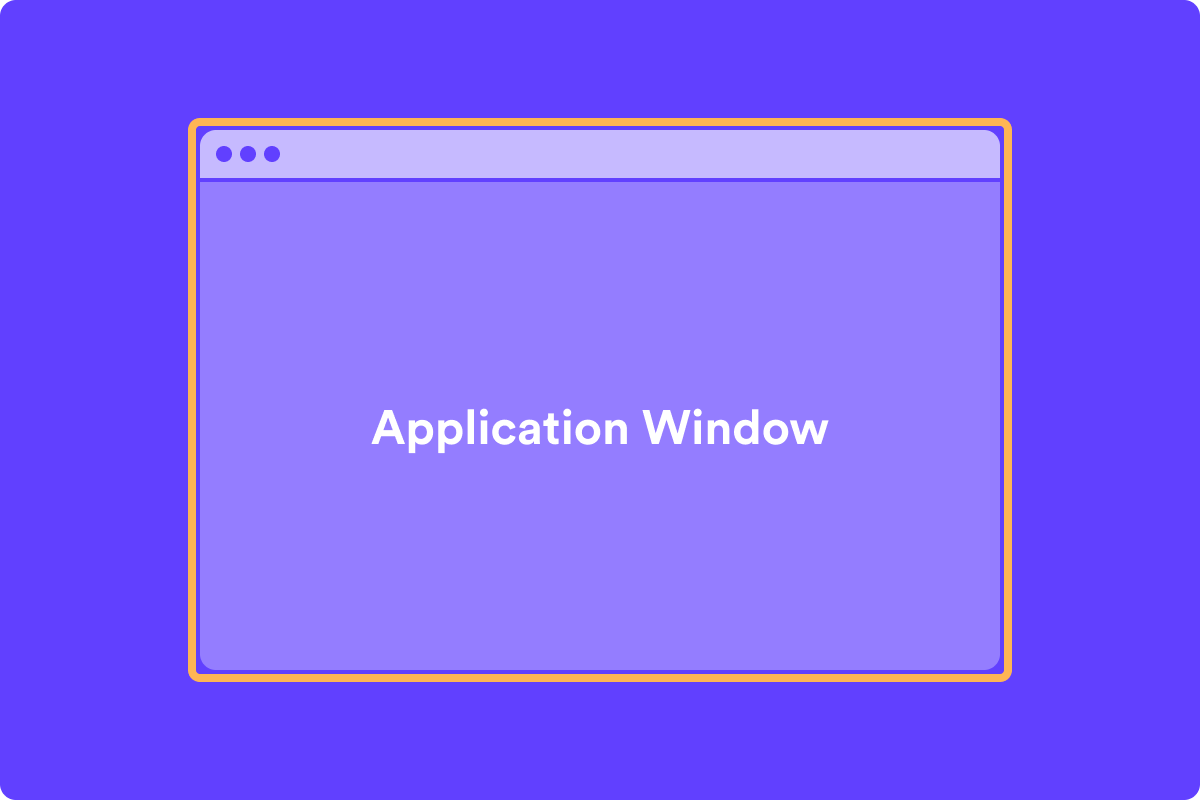
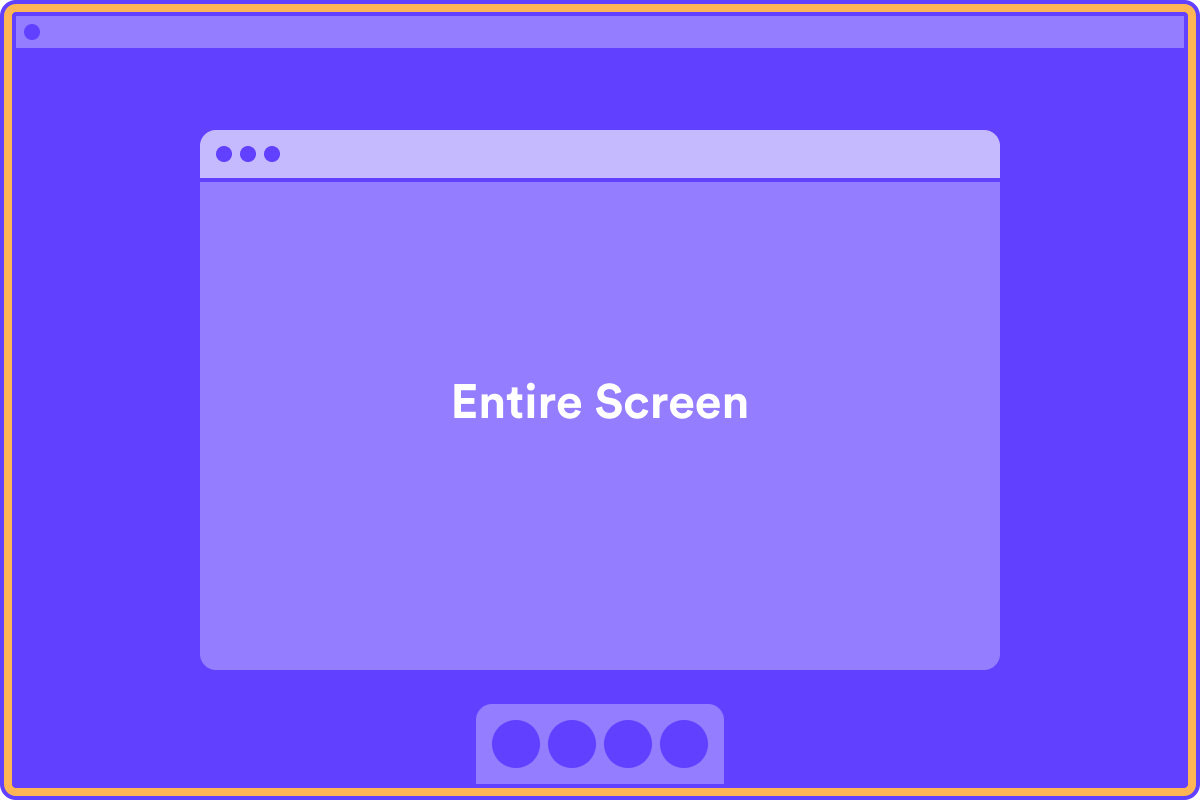
Chrome Tab records only what’s below the address bar. Window records the whole window of the app you selected. Entire Screen records your entire screen or desktop, including folders and anything else on screen.
Does the face camera bubble always work?
Does the face camera bubble always work?
The face camera is designed to work seamlessly on Chrome. In some cases, certain apps running in full-screen mode can override Sendspark’s bubble recording functionality.