

Key takeaways
- You must have the Sendspark Chrome extension installed and be using Chrome to see the Sendspark icon in Outreach.
- Record straight from the Sendspark icon in your Outreach email toolbar by clicking Record New Video.
- Click Copy Linked GIF, then paste the animated preview into your Outreach email.
- Pasting as formatted or unformatted text both work; recipients see the GIF and click to watch the full video in their browser.
Before you get started:
Please install the Sendspark Chrome Extension to use the Outreach integration. As long as you have the Chrome Extension installed, you’ll automatically be able to access Sendspark from Outreach. Install the Sendspark Chrome ExtensionHow To Share Videos in Outreach
1. Open an Email or Template in Outreach
Log in to Outreach, and open the email template you want to add a video to. You’ll start seeing a Sendspark icon in your email toolbar.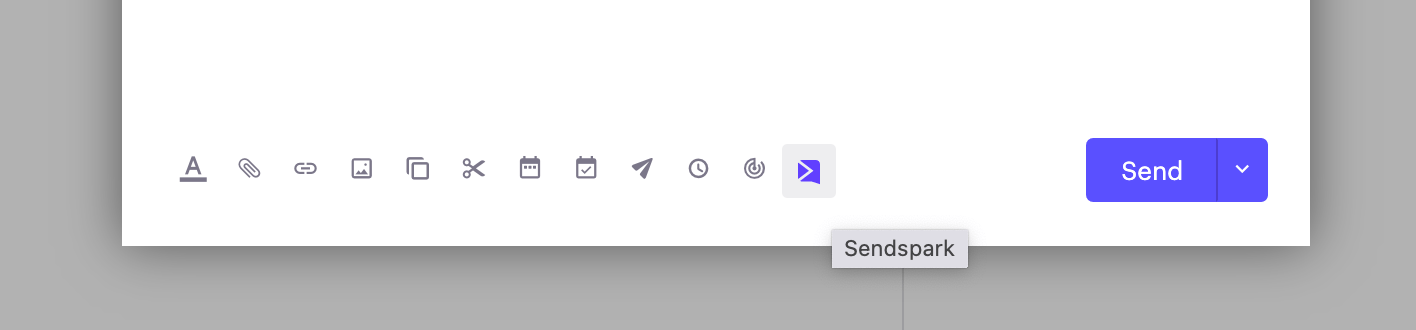
3. Click on the Sendspark icon
Click on the icon to launch the Sendspark menu. You’ll want to click Record New Videoto record a video.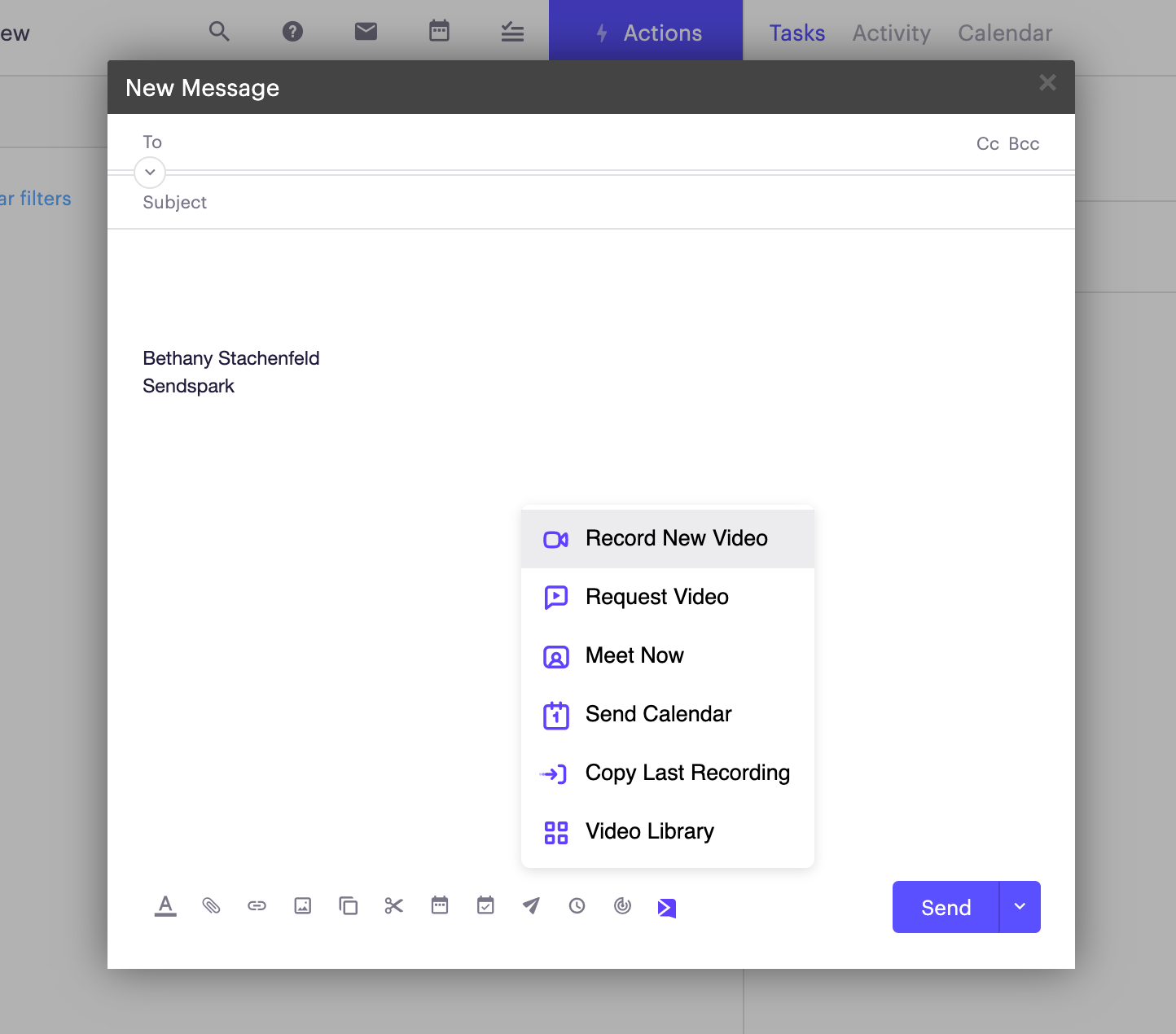
4. Record your video
Use the Sendspark extension to record yourself or your screen (or both together). After recording, you’ll be able to preview your video in a modal over Outreach.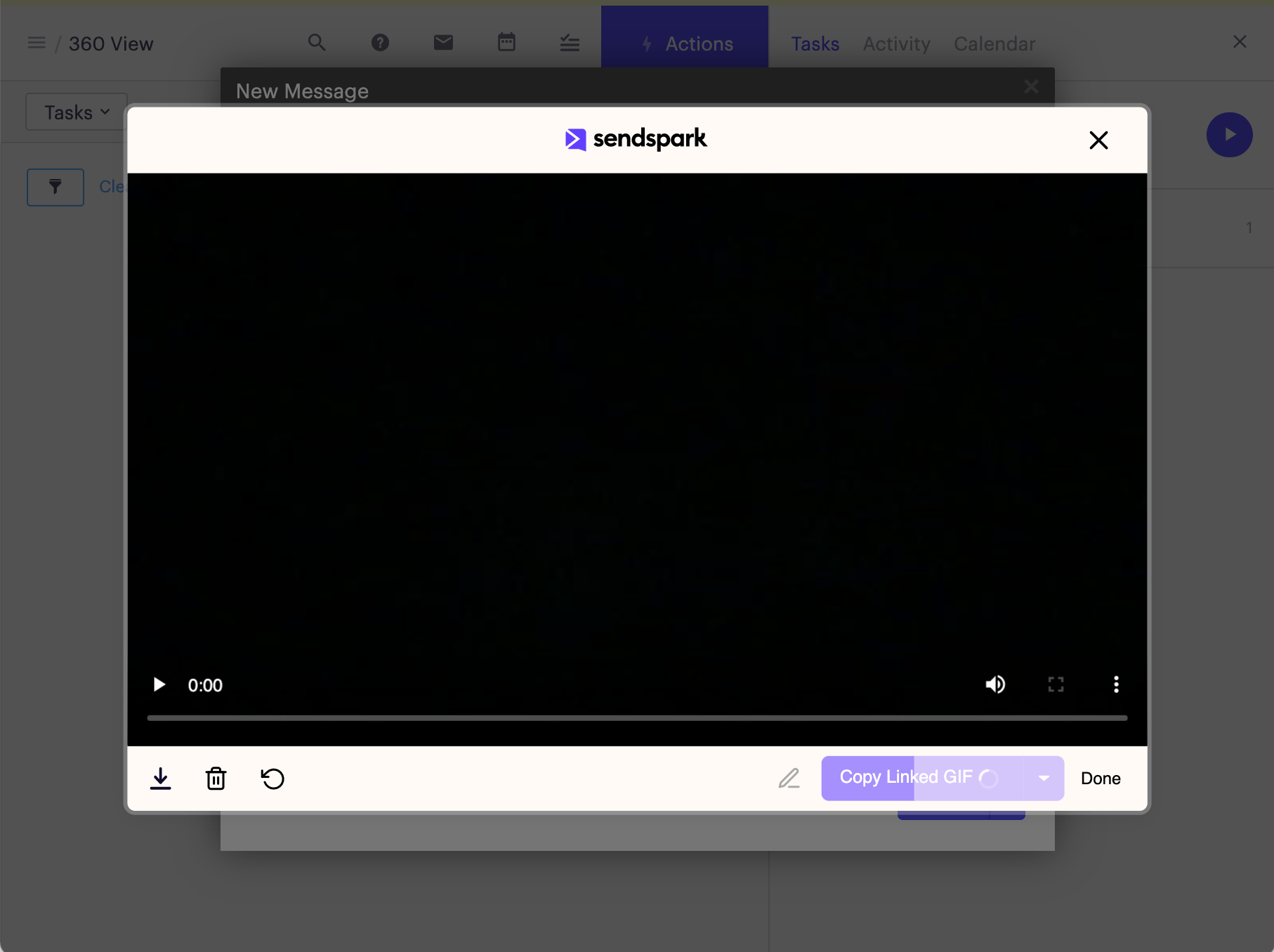
5. Copy Linked GIF
Click the Copy Linked GIF button to copy the video information to your clipboard.6. Paste into your Outreach email
Now, you can just paste your video preview into Outreach. You’ll see an animated GIF preview of your video appear in your email, all ready to send!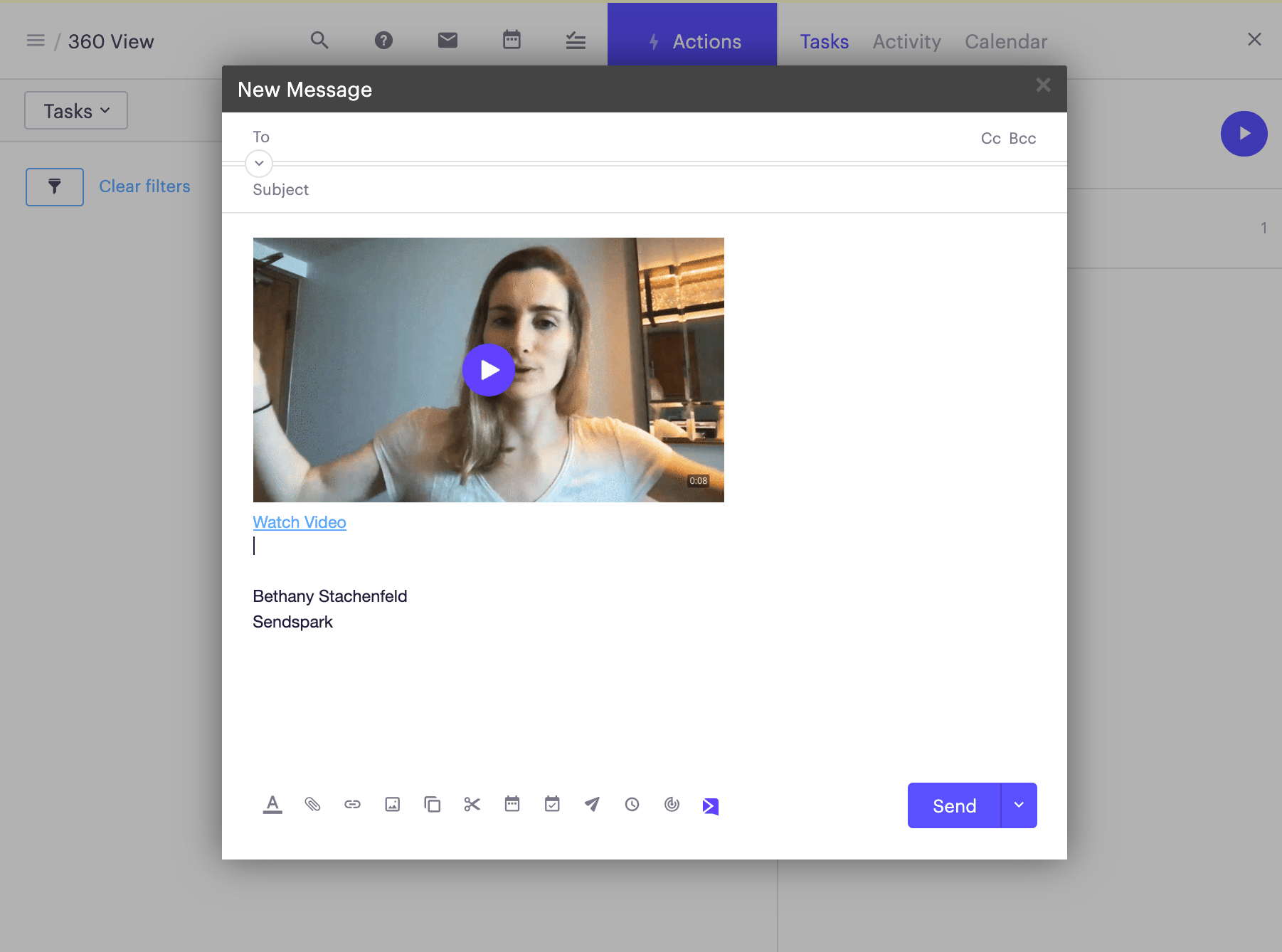
Frequently asked questions
Why don't I see the Sendspark icon in Outreach?
Why don't I see the Sendspark icon in Outreach?
You must have the Sendspark Chrome extension installed and be using a Chrome browser. Once the extension is installed, the Sendspark icon appears automatically in your Outreach email toolbar.
Should I paste as formatted or unformatted text?
Should I paste as formatted or unformatted text?
It doesn’t matter. When Outreach asks whether to paste with formatted or unformatted text, either option works and your GIF preview will appear correctly.
What do my prospects see when they receive the email?
What do my prospects see when they receive the email?
They see a captivating animated GIF preview of your video. When they click it, they can watch the full video in their browser.
How do I record a video from Outreach?
How do I record a video from Outreach?
Open an email or template, click the Sendspark icon in the toolbar, and choose Record New Video. You can record yourself, your screen, or both, then preview the video before pasting it in.