

Key takeaways
- The Sendspark + Platformly integration uses merge tags to automatically swap in the right first name, company name, or job title for each recipient.
- You share the video by clicking Share Video, selecting Platformly, and copying the snippet, then pasting it into Platformly’s HTML email builder.
- If you don’t see Platformly on the share modal, you can modify your shortcuts.
- Whether the video plays in-line depends on the recipient’s email client; clients that don’t support video (like Gmail or Outlook) show a clickable fallback image instead.
Why Send Bulk Personalized Videos in Platformly?
By using the Sendspark + Platformly integration, you can embed videos in Platformly using merge tags. These merge tags let you automatically change content for each of your recipients — so you can personalize videos with the right first name, company name, or job title for each person.How to Send Personalized Videos at Scale in Platformly
Watch the video or follow the steps below:1. Create your video in Sendspark
You can record, upload, or request a video.2. Use merge tags in the video page or thumbnail text
These merge tags will automatically update for each recipient. If the recipient’s information is unknown, they will see a fallback.3. Click “Share Video”

4. From the Sendspark share modal, click “Platformly”
By clicking “Platformly,” you will copy your video share snippet to your clipboard. Note, if you don’t see Platformly on the share modal, you can modify your shortcuts.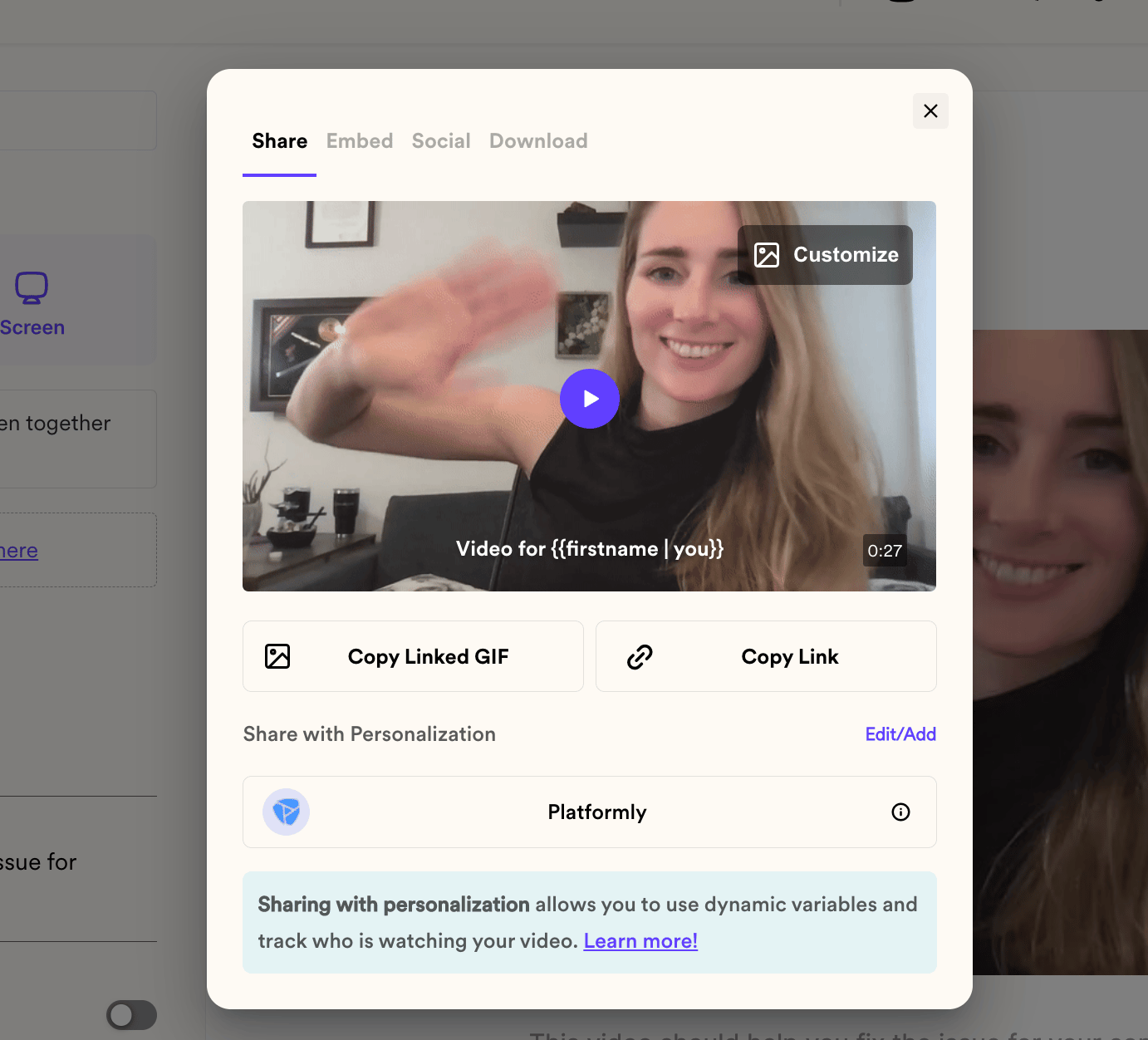
5. Paste in an HTML snippet in Platformly
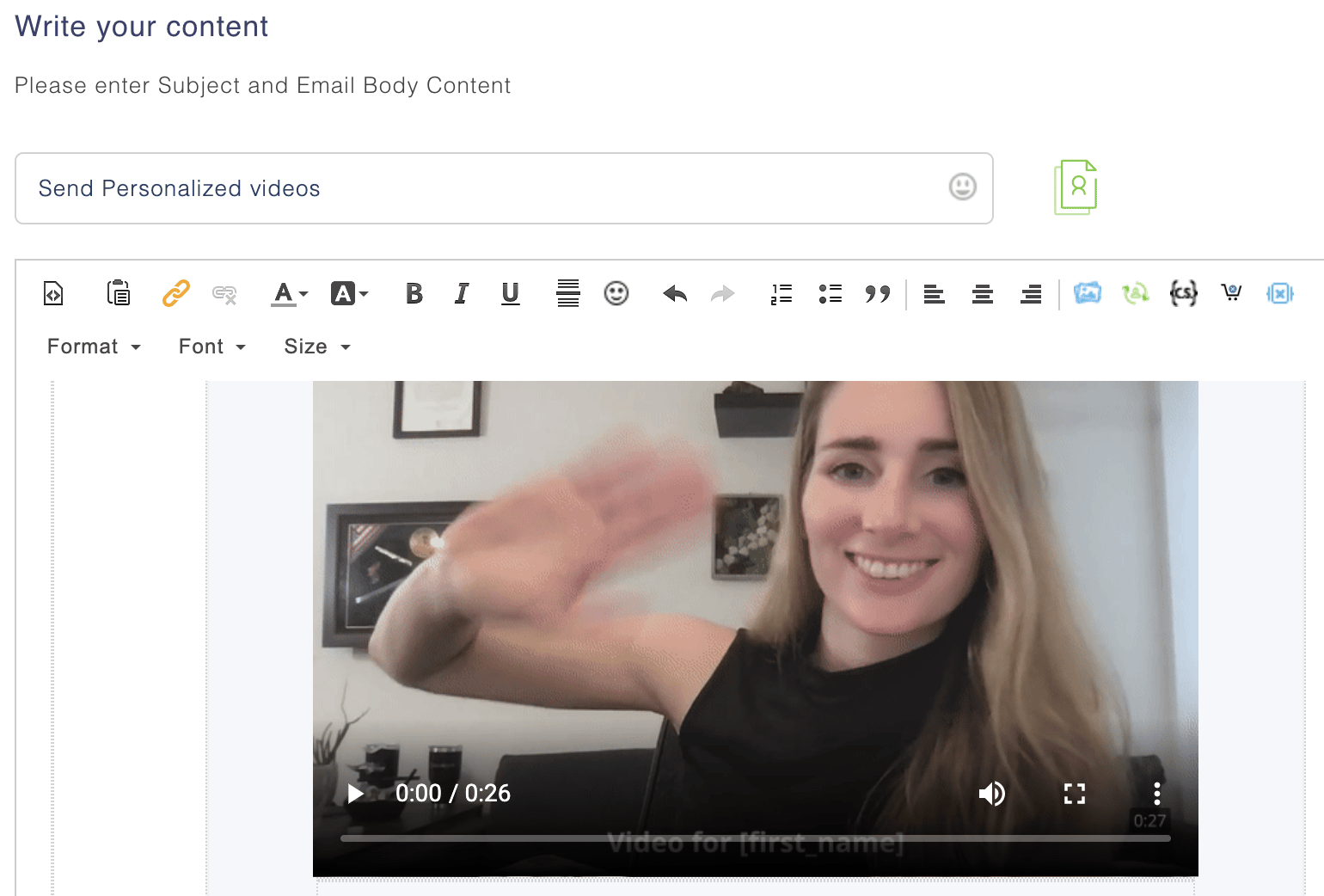
From any email in Platformly, switch to an HTML email builder.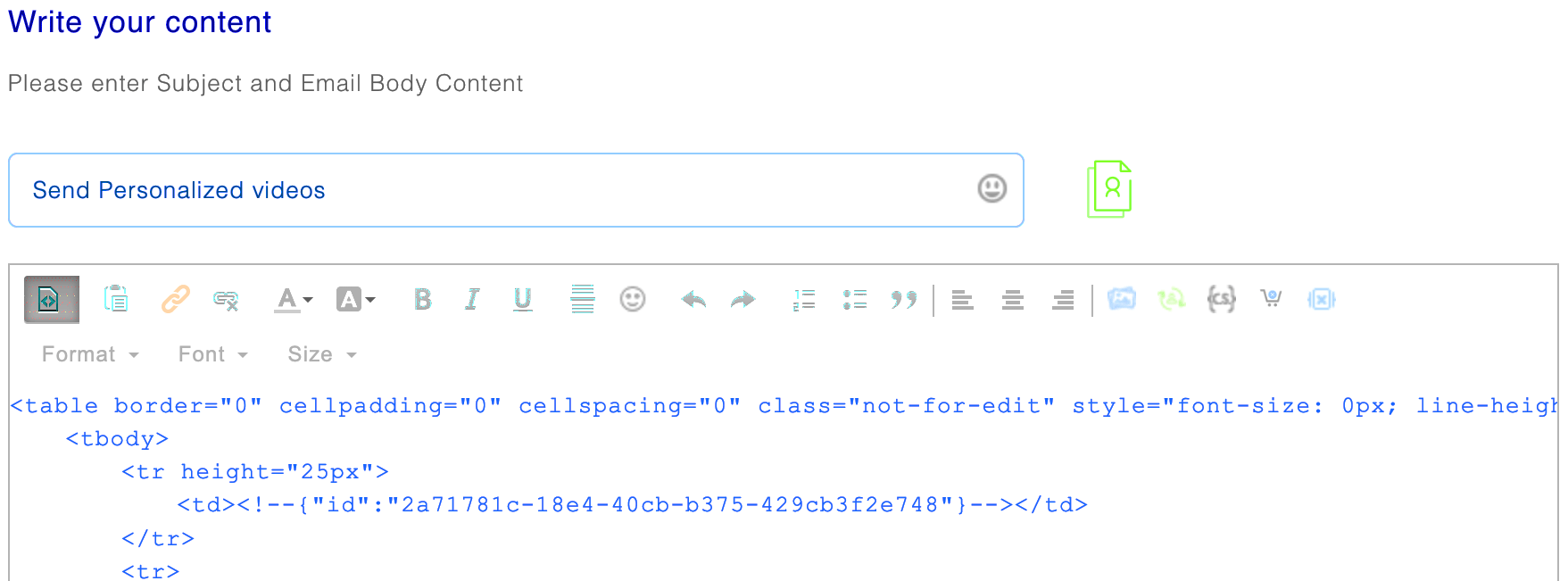
Frequently asked questions
How do I personalize the video for each recipient?
How do I personalize the video for each recipient?
Add merge tags to the video page or thumbnail text. They automatically update for each recipient with details like first name, company name, or job title. If a recipient’s information is unknown, they’ll see a fallback.
Where do I paste the Sendspark snippet in Platformly?
Where do I paste the Sendspark snippet in Platformly?
From any email in Platformly, switch to the HTML email builder and paste your video snippet where you want the video to appear. click the source-code icon again to preview the video email. It helps to leave yourself a note like “video goes here” so the spot is easy to find in the code.
Will the video play inside the email?
Will the video play inside the email?
It might, depending on the recipient’s email client. Clients that support video (like Apple Mail, Superhuman, or Samsung) play it in-line; clients that don’t (like Gmail or Outlook) show a fallback image the recipient clicks to watch in their browser. See which email clients support video.
Can I embed a combined video this way?
Can I embed a combined video this way?
No. Combined videos cannot be embedded in email through the snippet. Instead, send the video as an image plus a link.