

Key takeaways
- Merge tags let you personalize videos at scale; recipients whose information is unknown see a fallback instead.
- Sharing to VBOUT uses two buttons from the Sendspark share modal: VBOUT (Image URL) for the thumbnail and VBOUT (Video URL) for the landing page.
- Paste the Image URL into an image block’s “Image Path” and the Video URL into that image’s Enter URL field, then click Apply Changes, so clicks open the video landing page.
- If VBOUT isn’t on the share modal, you can modify the shortcuts you see; engagement is tracked in your Sendspark video analytics.
Why Send Dynamic Videos in VBOUT?
Sending dynamic videos lets you personalize videos at scale. You can embed videos in VBOUT marketing emails using merge tags. These merge tags let you automatically change content for each of your recipients — so you can personalize videos with the right first name, company name, or job title for each person.How to Send Personalized Videos at Scale in VBOUT
Follow the steps below:1. Create your video in Sendspark
You can record, upload, or request a video.2. Use merge tags in the video page or thumbnail text
These merge tags will automatically update for each recipient. If the recipient’s information is unknown, they will see a fallback.3. Click “Share Video”

4. Share in VBOUT
To share the video in VBOUT, you’ll need to use 2 buttons from the Sendspark share modal.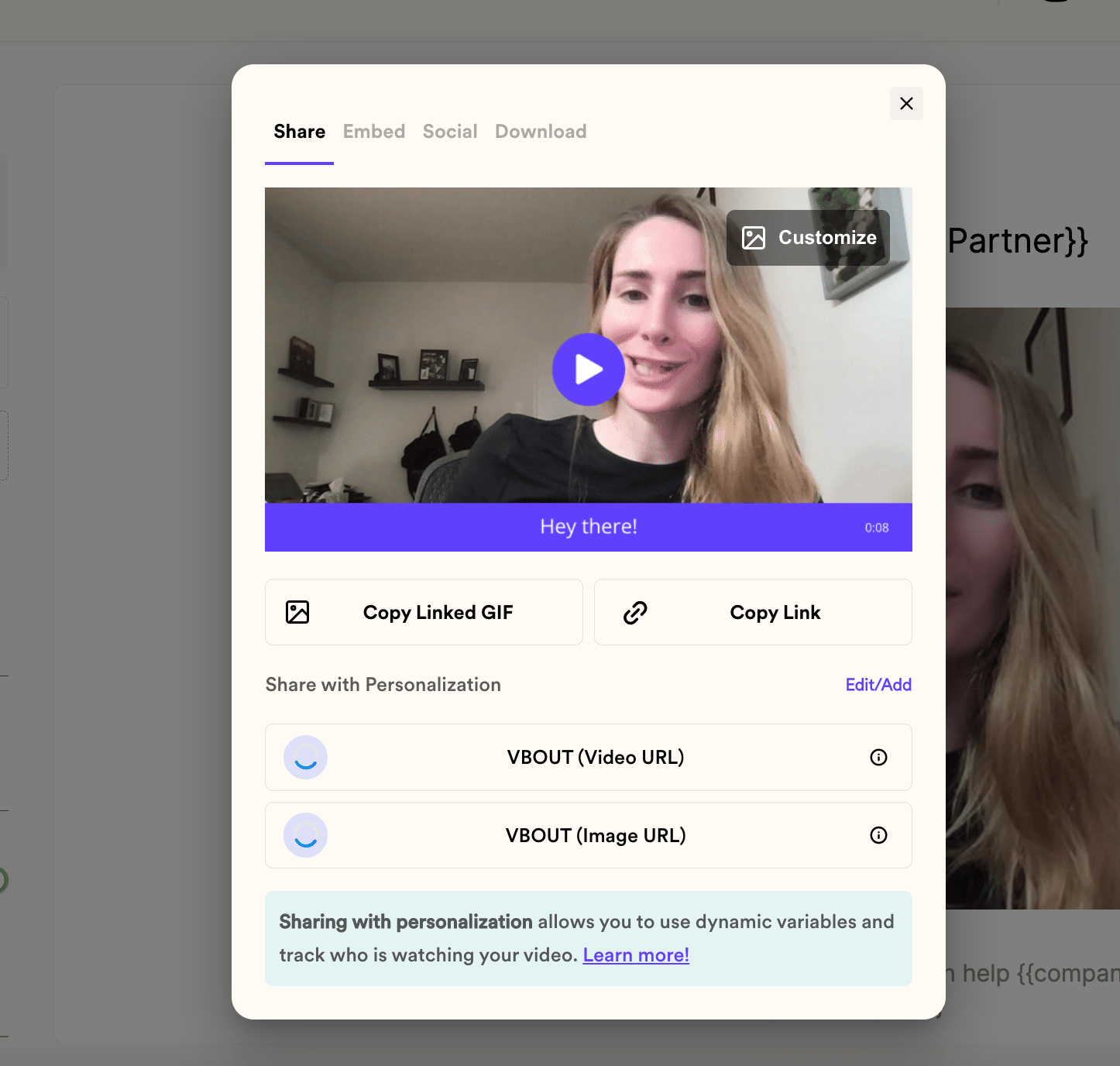
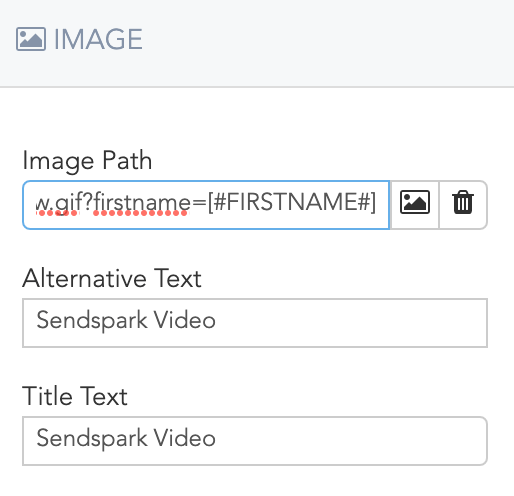
- VBOUT (Image URL): This is the image URL for your video thumbnail. You can click VBOUT (Image URL) in Sendspark to copy this to your clipboard, and then paste it in an image block under “Image Path” in your VBOUT editor.
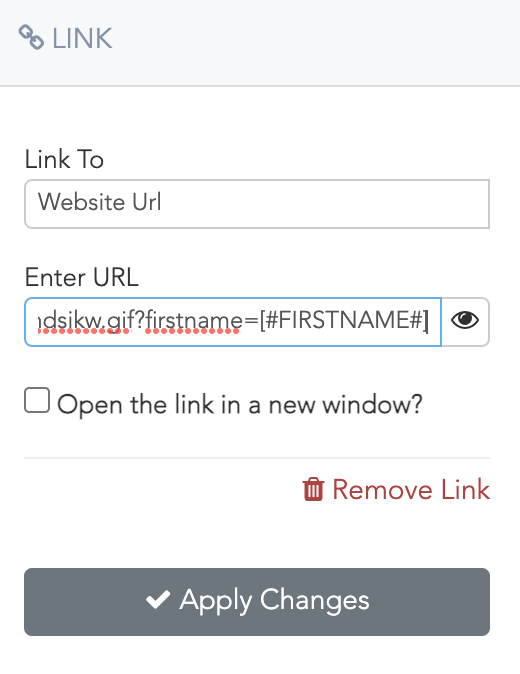
- VBOUT (Video URL): This is the URL for your video landing page. Click this button in Sendspark to copy it to your clipboard. Now, paste it into the Enter URL field of your image’s link panel in VBOUT and click Apply Changes. This will ensure that when recipients click on the video preview in their email, they are taken to the video landing page to watch the video on the web.
5. Preview and Send!
That’s it! When you share Sendspark videos in VBOUT this way, your videos should automatically personalize for your recipients. You’ll be able to track which of your VBOUT contacts are engaging with your videos in your Sendspark video analytics. Let us know if you run into issues or have questions!Frequently asked questions
Where do I paste each URL in VBOUT?
Where do I paste each URL in VBOUT?
Paste the VBOUT Image URL into an image block under “Image Path” in your VBOUT editor. Paste the VBOUT Video URL into the Enter URL field of that image’s link panel and click Apply Changes, so recipients who click the preview are taken to the video landing page to watch it.
What happens if a recipient's information is unknown?
What happens if a recipient's information is unknown?
Merge tags update automatically for each recipient, and if a recipient’s information is unknown they’ll see a fallback instead.
Can I track engagement with videos sent through VBOUT?
Can I track engagement with videos sent through VBOUT?
Yes. You can track which of your VBOUT contacts are engaging with your videos in your Sendspark video analytics.