

Key takeaways
- Sendspark embeds videos into your existing MailerLite emails using an Copy Code that you paste into a MailerLite text block’s HTML editor.
- Video emails have been shown to drive 2-3x higher click-through rates than emails without video.
- Whether the video plays inside the email depends on the recipient’s email client. Clients that support video play it in-email; the rest show an animated GIF preview that links to the full video.
- The embed takes five clicks in Sendspark and MailerLite combined: Share Video → Embed → copy code → paste into the HTML block → Save.
What recipients see
Why Send Videos in MailerLite?
Video emails cut through the clutter to engage your audience. A/B have shown that videos with emails drive 2-3x higher click-through-rates. Whether you’re sending sales outreach, marketing newsletters, or product updates, you’re likely to see much higher much engagement and conversions with video emails. Sendspark makes it easy to create videos and embed them in your existing MailerLite emails — just follow the steps below!Will Videos in MailerLite Play In-Email?
The short answer is sometimes! Videos will play in email if your recipient’s email client supports video. Not all email clients support video though. You can see and up-to-date list of email clients that support video here. If your recipient’s email client does not support video, no worries! They will see an animated GIF preview of your video, and be able to watch the full video in their browser. Still an awesome user experience!How to Send Videos in MailerLite
Watch the video, or follow the steps below!- Record your video in Sendspark
- Click Share Video

- Click the Embed video tab, then Copy Code under Email Platforms to your clipboard
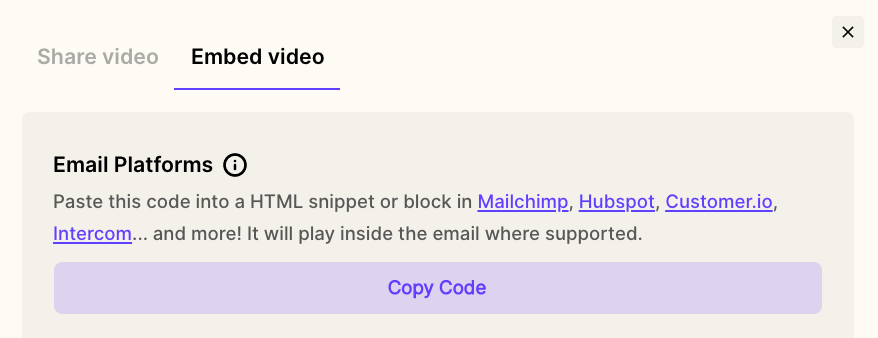
- Go to your email draft in MailerLite
- From a text box, click on the HTML icon
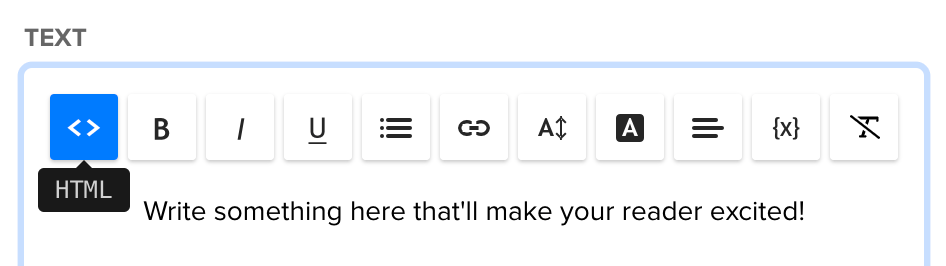
- Paste your video
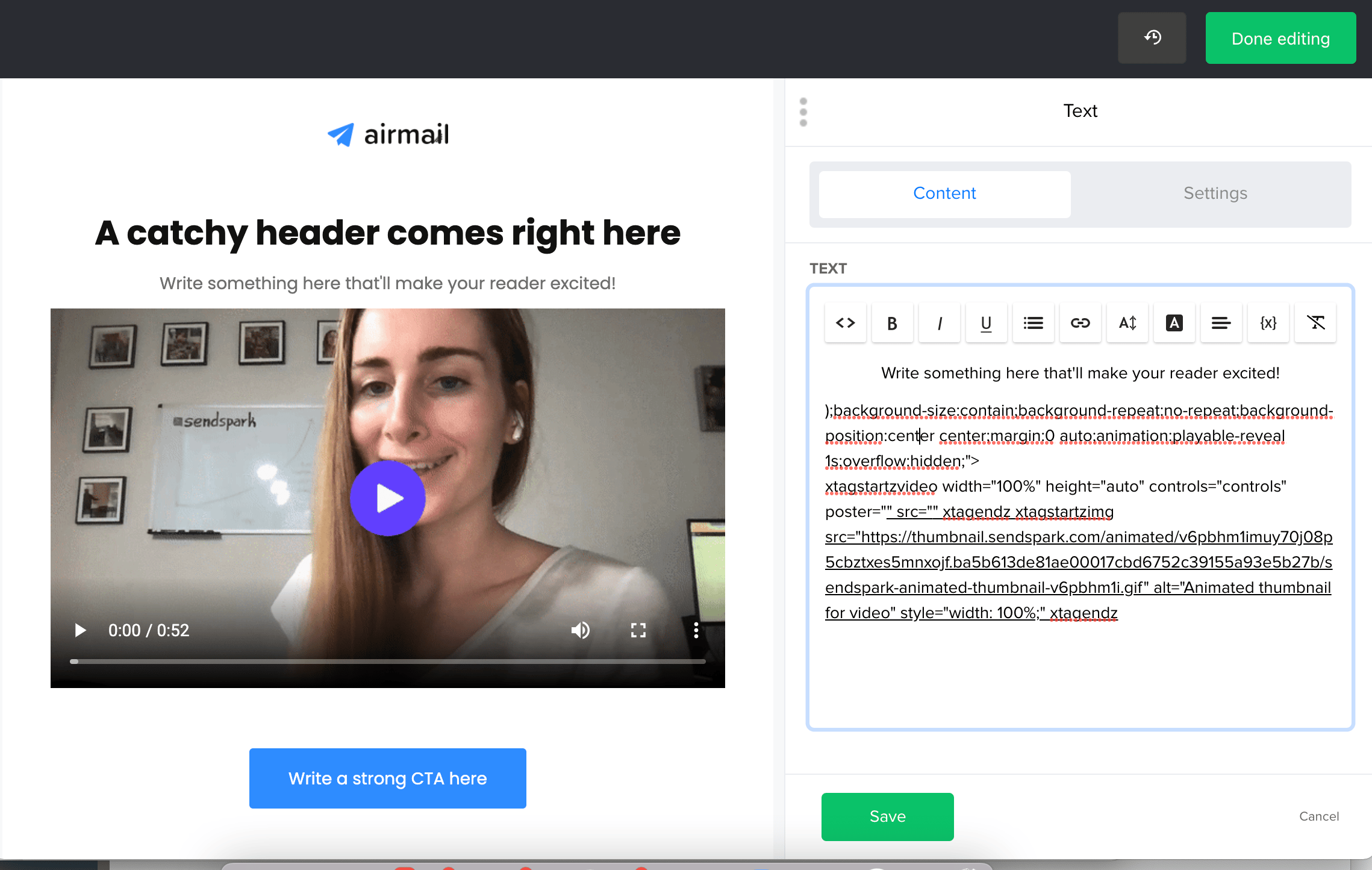
- Click Save
Questions about sending videos in MailerLite?
Let us know if you have questions about sending videos in MailerLite emails and we’re happy to answer them!Frequently asked questions
How do I embed a video in a MailerLite email?
How do I embed a video in a MailerLite email?
Record your video in Sendspark and click Share Video, then click Embed and copy the Copy Code. In MailerLite, open a text block in your email draft, click the HTML icon, paste the code, and click Save.
Do videos play inside a MailerLite email?
Do videos play inside a MailerLite email?
Sometimes. A video plays in-email if the recipient’s email client supports embedded video. If it does not, the recipient sees an animated GIF preview of your video and can click it to watch the full video in their browser.
Why do some recipients see a GIF instead of the video?
Why do some recipients see a GIF instead of the video?
Not all email clients support embedded video. When a client can’t play video in-email, Sendspark automatically falls back to an animated GIF preview that links to the full video, so every recipient still gets a great experience.
Where do I paste the Sendspark embed code in MailerLite?
Where do I paste the Sendspark embed code in MailerLite?
Inside a MailerLite text block, click the HTML icon to open the HTML editor, paste the Copy Code there, and click Save. The code needs to go into the HTML editor, not directly onto the visual canvas.